

Introduction:
To implement unique security for specific items within a SharePoint list, use a Power Automate flow that first employs the "Stop sharing an item or a file" action to break permission inheritance, and then uses the "Grant access to an item or a file" action to assign new permissions to specific SharePoint groups.
Break & Set Permissions Using Power Automate (Recommended for automation)
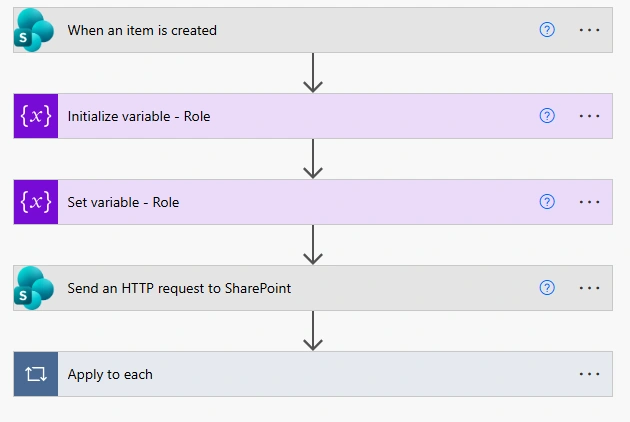
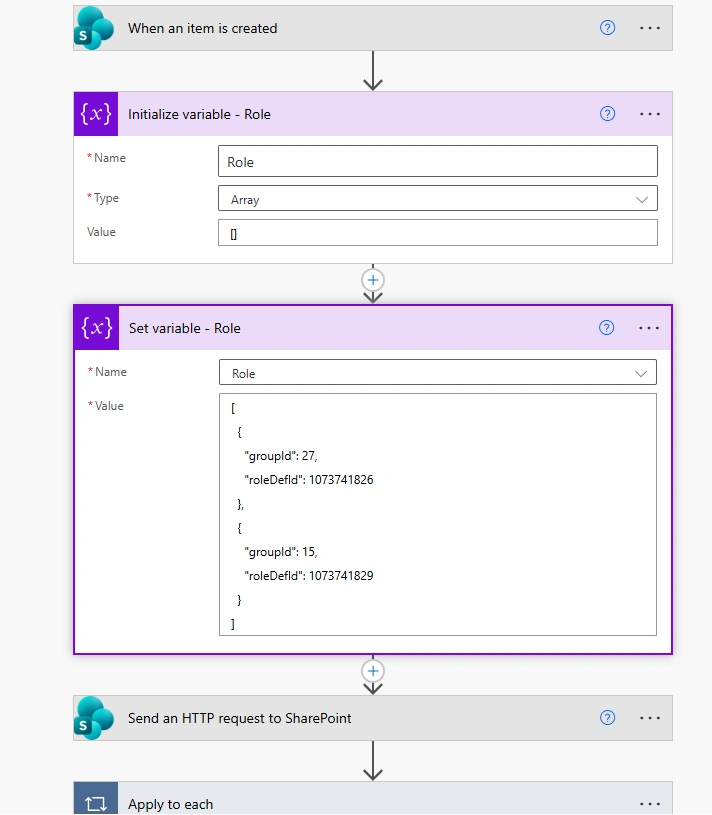
Common Role Definition IDs
| Permission | RoleDefId |
|---|---|
| Read | 1073741826 |
| Contribute | 1073741827 |
| Edit | 1073741828 |
| Full Control | 1073741829 |
(Optional) Grant Multiple Groups Different Permissions
Example:
Owners → Full Control
Members → Contribute
Visitors → Read
What you can and cannot do (important first)
❌ Power Automate limitations (out of the box)
Power Automate cannot directly:
Break permission inheritance on a list item
Grant SharePoint group permissions on an item
✅ What is possible
You can do this using one of these supported approaches:
Send an HTTP request to SharePoint (most common)
Azure Automation / Azure Function (overkill for most cases)
👉 Below is the recommended and widely used HTTP approach.
Required Actions
Send an HTTP request to SharePoint
Use REST API calls
1) Break Permission Inheritance
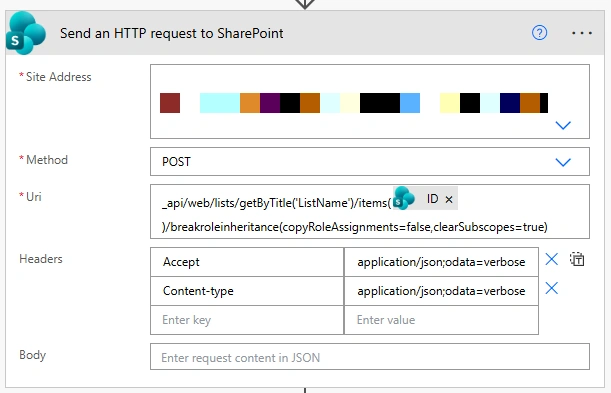
POST
_api/web/lists/getbytitle('ListName')/items(ID)/breakroleinheritance(copyRoleAssignments=false, clearSubscopes=true)
2) Grant Permission to a SharePoint Group
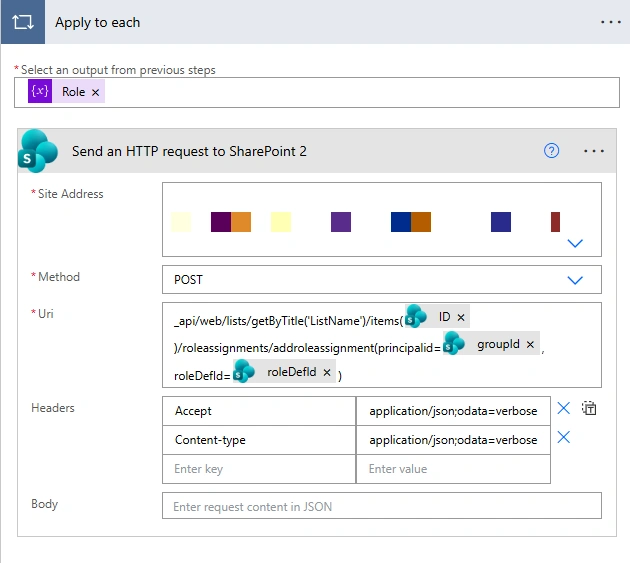
POST
_api/web/lists/getbytitle('ListName')/items(ID)/roleassignments/addroleassignment(
principalid=groupId,
roledefid=roleDefID)
Conclusion:
Breaking and setting SharePoint group permissions on list items using Power Automate helps streamline access management while ensuring security. By automating this process, you can:
Break permission inheritance on specific list items to create unique access controls.
Assign SharePoint groups with the appropriate permission levels (Read, Contribute, Full Control).
Automate permission changes using Power Automate flows triggered by item creation or modification.
Reduce manual errors and save time in managing item-level permissions.
Maintain granular control over who can view or edit each item, improving compliance and security.
Implementing this approach ensures efficient, accurate, and scalable permission management across your SharePoint lists.
Join the conversation! Your thoughts help the community grow.