

Introduction
Many business applications need to work even when users don't have an internet connection. Field engineers, sales representatives, warehouse staff, and inspection teams often work in locations where network connectivity is unreliable or unavailable.
Power Apps provides offline capabilities that allow users to continue working without an internet connection. Data can be stored locally on the device and synchronized with the data source once the connection is restored.
In this article, you'll learn how to build offline-enabled Power Apps, save data locally, detect connectivity changes, and synchronize data when users are back online.
Why Build Offline Apps?
Offline apps improve productivity by allowing users to continue working anywhere.
Common use cases include:
Field service inspections
Inventory management
Site audits
Sales visits
Healthcare data collection
Construction checklists
Warehouse operations
Benefits of Offline Apps
Continue working without internet
Faster performance using local data
Prevent data loss during connectivity issues
Better user experience
Automatic synchronization when online
Reduced dependency on network availability
How Offline Apps Work
The typical offline workflow is:
Download data while online.
Save data locally on the device.
Detect when the internet connection is lost.
Allow users to create or edit records offline.
Store changes locally.
Synchronize changes when the internet connection returns.
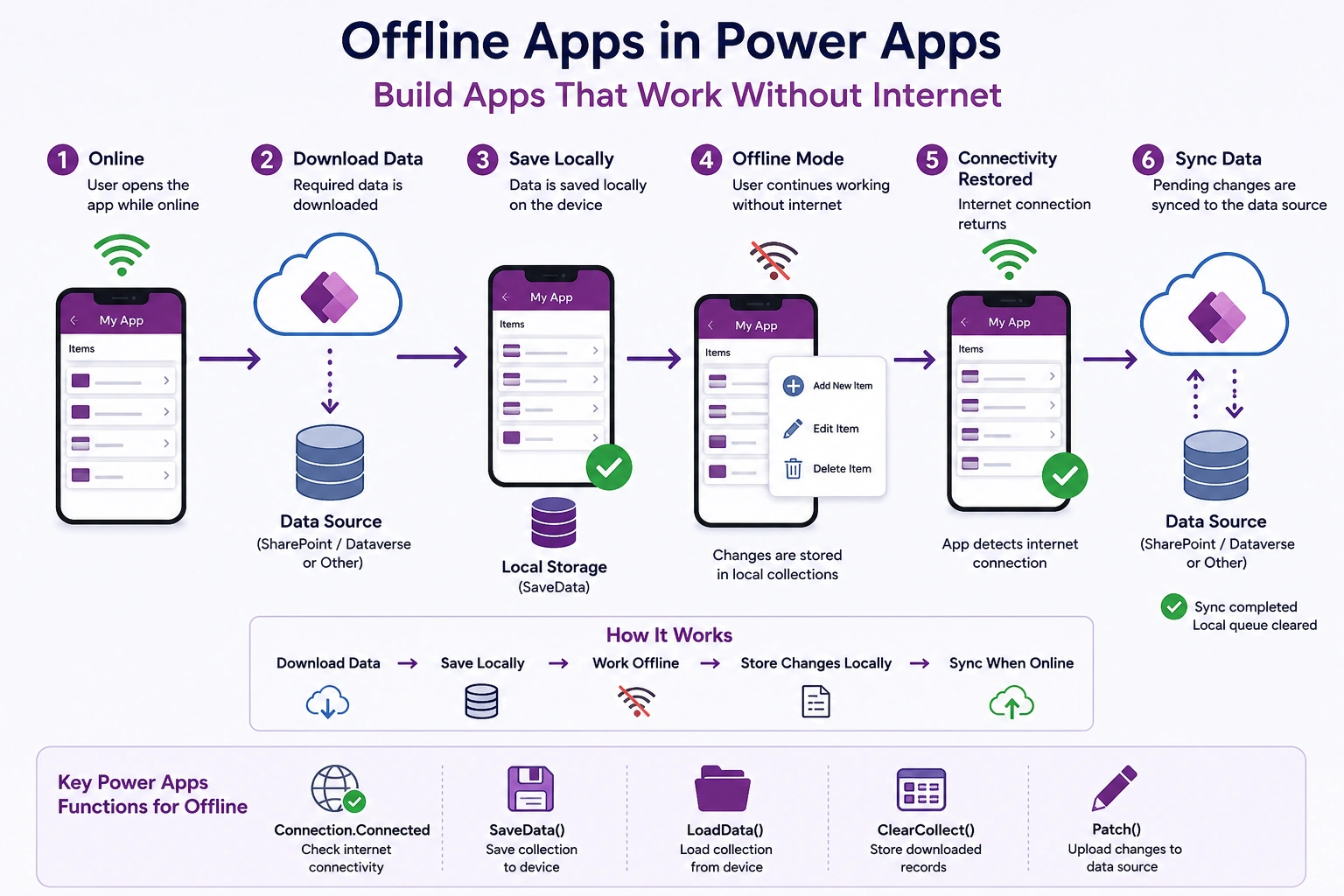
Power Apps Functions Used for Offline Apps
| Function | Purpose |
|---|---|
SaveData() | Saves a collection locally on the device |
LoadData() | Loads saved data from device storage |
Connection.Connected | Detects internet availability |
Collect() | Stores offline changes |
Patch() | Syncs local data to the data source |
ClearCollect() | Refreshes local collections |
Step 1: Load Data When Online
When the app starts, check for internet connectivity.
If(
    Connection.Connected,
    ClearCollect(
        colEmployees,
        Employees
    );
    SaveData(colEmployees,"EmployeeCache")
)
This downloads the latest records and stores them locally.
Step 2: Load Cached Data Offline
If the internet isn't available:
If(
    !Connection.Connected,
    LoadData(colEmployees,"EmployeeCache",true)
)
Users can continue working with the locally stored data.
Step 3: Display Offline Data
Set the gallery Items property:
colEmployeesThe gallery works whether the data comes from SharePoint or local storage.
Step 4: Save New Records Offline
Instead of writing directly to SharePoint:
Collect(
    colOfflineRecords,
    {
        Title: txtTitle.Text,
        Status: "Pending"
    }
);

SaveData(colOfflineRecords,"PendingRecords")
The records are stored locally until synchronization.
Step 5: Sync Data When Internet Returns
When connectivity is restored:
If(
    Connection.Connected,
    ForAll(
        colOfflineRecords,
        Patch(
            Employees,
            Defaults(Employees),
            {
                Title: Title,
                Status: Status
            }
        )
    );
    Clear(colOfflineRecords);
    SaveData(colOfflineRecords,"PendingRecords")
)
All pending records are uploaded automatically.
Detect Internet Connection
Use:
Connection.ConnectedExample:
If(
    Connection.Connected,
    "Online",
    "Offline"
)
You can display this in a label or icon to inform users about the current connection status.
Best Practices
Cache only the data users need.
Save offline changes frequently.
Display an online/offline status indicator.
Handle synchronization errors gracefully.
Resolve duplicate or conflicting updates.
Test the app with Airplane Mode enabled.
Refresh local data after successful synchronization.
Secure sensitive offline data where appropriate.
Limitations
SaveData()andLoadData()work only in mobile players and Windows apps (not in web browsers).Device storage is limited.
Large datasets may affect performance.
Synchronization conflicts require additional logic.
Offline capabilities depend on the device platform.
Real-World Example
A field technician visits customer sites where internet access is unavailable.
While Online:
Download assigned work orders.
Save them locally using
SaveData().
While Offline:
View work orders.
Capture notes.
Take photos.
Update job status.
Save changes locally.
When Back Online:
Upload completed work orders.
Synchronize new records.
Refresh local data.
Clear successfully synced offline records.
This approach allows technicians to work uninterrupted regardless of network availability.
Conclusion
Offline support makes Power Apps more reliable for mobile and field-based scenarios. By combining SaveData(), LoadData(), Connection.Connected, and synchronization logic with Patch(), you can build applications that continue functioning without internet access while ensuring data is synchronized once connectivity is restored. These capabilities improve user productivity, reduce downtime, and provide a seamless experience in environments with unreliable network coverage.
Join the conversation! Your thoughts help the community grow.