

In this article, we will see how to bulk update secondary Admin for My Sites or OneDrive for Business (ODFB) using PowerShell.
In some situations, you might need to add secondary site admin to gain access to a "OneDrive for Business" environment of a user as part of the governance. By default, each user is added as primary & secondary site collection administrators to their personal site or ODFB site collection.
Follow the below steps to see site collections administrators for a MySite.
SP Admin Center - User Profiles - Manage User Profile - Search for a user.
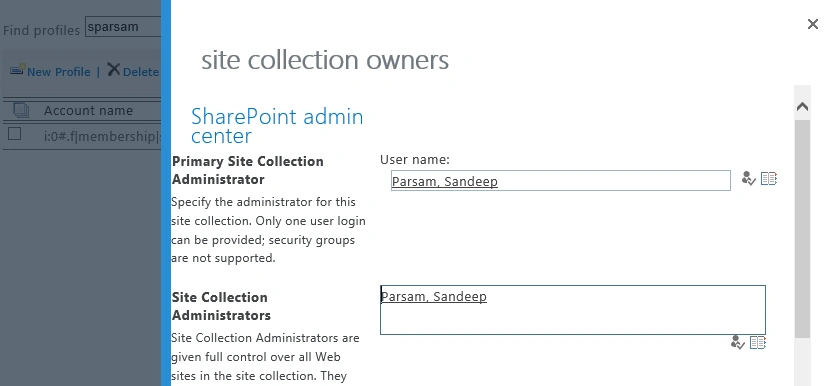
When a user is marked for deletion and if Access delegation is enabled in My Site settings of the SP Admin Center, the default action is to transfer the ownership to the Manager or Secondary Owner (in the absence of the Manager) to take control of the files in the absence of the user.
In some cases, no manager is assigned as well as no Secondary Admin. In such case, thesesites or ODFB will become orphans and get deleted after 30 days (default retention period).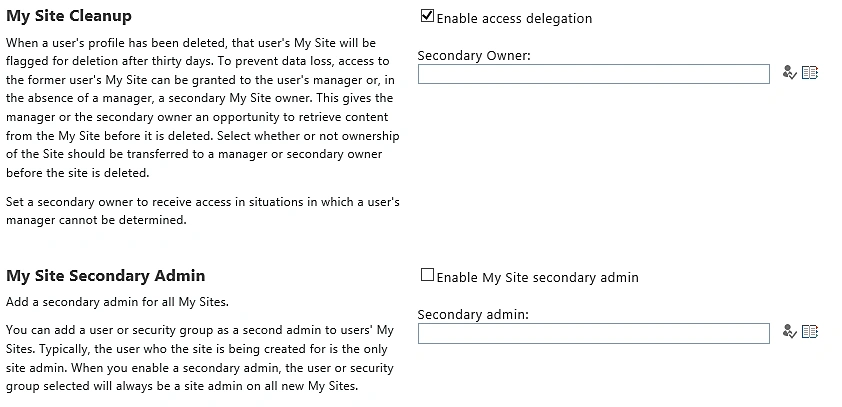
However, as shown in the above screen, there is an option to enable My Site Secondary Admin but this only works for the new My Sites. For previously created My sites, it should be added individually which is fine for one or a few but hectic to add for all.
Use the below script to bulk update the secondary admin for all My Sites.
At a high level, below are the steps performed in the script.
- Declare variable (configure variable according to your tenant)
- Connect to SharePoint Online & Context
- Create People Manager object to retrieve profile data
- Connect to Azure Active Directory
- Get User profiles. In the code I have provided two commands -- one to retrieve all licensed users and other to fetch a single user. You should comment the code based on your need.
- Load user profile using profile manager and retrieve PersonalSpace URL (My site URL)
- Set secondary admin
- Export to CSV file.
- #Pre-Requisites, Install below modules
- #Sharepoint online Management Shell : https://www.microsoft.com/en-us/download/details.aspx?id=35588
- #Azure Active Directory http://connect.microsoft.com/site1164/Downloads/DownloadDetails.aspx?DownloadID=59185
- #SharePoint Online Client Components SDK https://www.microsoft.com/en-us/download/details.aspx?id=42038
- Clear-Host
- #Specify tenant admin and URL
- $AdminAccount = '[email protected]'
- $TenantURL = 'https://company-admin.sharepoint.com'
- #Specify the secondary admin account and the url for the onedrive site
- $Secondaryadmin = '[email protected]'
- $MySiteURL = 'https://company-my.sharepoint.com'
- #Use this varable to apply seconday site collection for a specific user
- $User = '[email protected]'
- #Location to save the report
- $UserProfileOutPut = 'D:\MyWokingFolder\Report\AllProfiles.csv'
- #Attention: sometimes folder path may be 15 or 16. Browse the folder and verify the availability of the dlls
- #Add references to SharePoint online client component assemblies
- Add-Type -Path 'C:\Program Files\Common Files\Microsoft Shared\Web Server Extensions\16\ISAPI\Microsoft.SharePoint.Client.dll'
- Add-Type -Path 'C:\Program Files\Common Files\Microsoft Shared\Web Server Extensions\16\ISAPI\Microsoft.SharePoint.Client.Runtime.dll'
- Add-Type -Path 'C:\Program Files\Common Files\Microsoft Shared\Web Server Extensions\16\ISAPI\Microsoft.SharePoint.Client.UserProfiles.dll'
- Write-Host "Loading SharePoint Assemblies..." -ForegroundColor Yellow
- Write-Host "Connecting to SharePoint Online Service and Context..." -ForegroundColor Yellow
- $Password = Read-Host -Prompt 'Please enter your password' -AsSecureString
- $Credentials = New-Object System.Management.Automation.PSCredential -ArgumentList $AdminAccount, $Password
- $Creds = New-Object Microsoft.SharePoint.Client.SharePointOnlineCredentials($AdminAccount,$Password)
- #Bind to Site Collection
- $Context = New-Object Microsoft.SharePoint.Client.ClientContext($TenantURL)
- $Context.Credentials = $Creds
- Write-Host "Connected to SharePoint Online Context..." -ForegroundColor Yellow
- #Create People Manager object to retrieve profile data
- $PeopleManager = New-Object Microsoft.SharePoint.Client.UserProfiles.PeopleManager($Context) -ErrorAction Inquire
- Write-Host "Loading People Manager..." -ForegroundColor Yellow
- #Connect to Office 365 tenant
- try
- {
- Connect-MsolService -Credential $Credentials -ErrorAction Inquire
- Write-Host "Connected to SharePoint Online Service..." -ForegroundColor Yellow
- }
- catch
- {
- Write-Host "Unable to Connect to SharePoint Online...Existing the Script."
- return
- }
- #Use below code to apply seconday site collection for all licensed users
- $Users = Get-MsolUser -All | where {$_.isLicensed -eq $true}
- #Use below code to apply seconday site collection for a specific user
- #$Users = Get-MsolUser -All | where {$_.UserPrincipalName -eq $User}
- Write-Host "Collecting Users Information from SharePoint Online..." -ForegroundColor Yellow
- $Headings = ""
- $boolCreateHeadings = $true
- Connect-SPOService -Url $TenantURL -Credential $Credentials
- Foreach ($User in $Users)
- {
- $ClaimsUserFormat = 'i:0#.f|membership|'+ $User.UserPrincipalName
- $UserProfile = $PeopleManager.GetPropertiesFor($ClaimsUserFormat)
- $Context.Load($UserProfile)
- $Context.ExecuteQuery()
- #Allow profiles only with PersonalSpace URL
- If ($UserProfile.UserProfileProperties['PersonalSpace'] -ne $null)
- {
- $PersonalSpace = $UserProfile.UserProfileProperties['PersonalSpace'];
- $PersonalSpace = $MySiteURL + $PersonalSpace
- $temp = Set-SPOUser -Site $PersonalSpace -LoginName $secondaryadmin -IsSiteCollectionAdmin $true
- Write-Host "Added secondary admin to the site ($PersonalSpace)"
- if($boolCreateHeadings)
- {
- Write-Host "Loading CSV Headings..." -ForegroundColor Green
- $Headings = '" FirstName "," LastName "," UserName "," PersonalSpace "'
- $Headings -join "," | Out-File -Encoding default -FilePath $UserProfileOutPut
- $boolCreateHeadings = $false
- }
- $Properties = '"' + $UserProfile.UserProfileProperties["FirstName"] + '",' + '"' + $UserProfile.UserProfileProperties["LastName"] + '",' + '"' + $UserProfile.UserProfileProperties["UserName"] + '",' + '"' + $UserProfile.UserProfileProperties["FirstName"] + '",' + '"' + $UserProfile.UserProfileProperties["PersonalSpace"] + '"';
- #Export to CSV.
- $Properties -join "," | Out-File -Encoding default -Append -FilePath $UserProfileOutPut
- Write-Host "User Profile Written to CSV $UserProfileOutPut" -ForegroundColor Yellow
- }
- }
- Write-Host "Successfully assigned seconday site collection admin.All profiles have been Written to $UserProfileOutPut" -ForegroundColor Green
To run the script without errors, the below prerequisites must be met.
- Ensure Windows PowerShell 3.0 or higher version is installed.
- SharePoint Online Management Shell must be installed
- Install modules for Azure Active Directory & SharePoint Online Client Components SDK.
- Run the script as local admin on the computer
Output Screen when it is run to update secondary admin for a specific user -
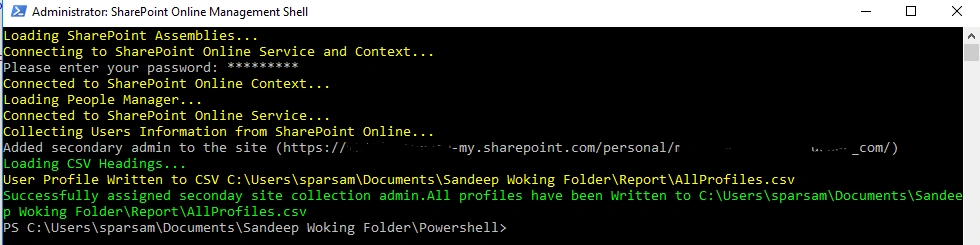
References to some issues.
- Execution of scripts is disabled on this system
- Set the execution policy to remote signed using below command
Set-ExecutionPolicy RemoteSigned
- New-Object: Cannot find an overload for "PeopleManager" and the argument count: "1".
- Ensure SharePoint Online Client components SDK are loaded, refer this.
I hope you find this informative.
Join the conversation! Your thoughts help the community grow.