

Introduction
In SharePoint 2013 Online, Microsoft has changed the look and navigation for SharePoint lists and Libraries. As a list or library owner, you can switch the user experience for a list or library.
In this article, you will learn, how to change the list or library experience in SharePoint 2013 Online.
Change the List Experience
- Navigate to SharePoint online site.
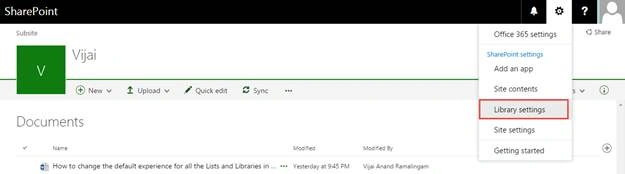
- Navigate to a list or library for which you want to change the experience. Navigate to Library Settings.
New Experience
Classic Experience

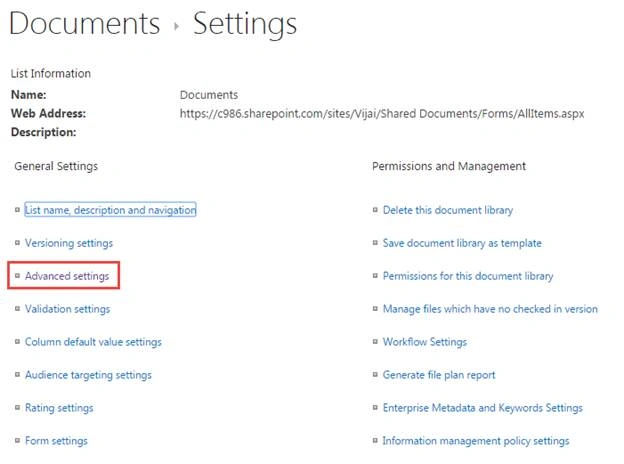
- In the General Settings section, click Advanced Settings.
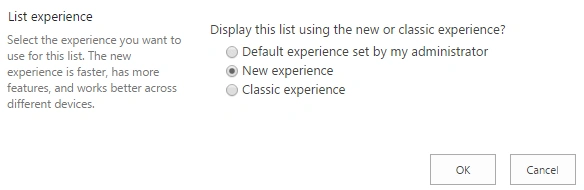
- In the List Experience section, you can select the experience, which you need and click OK button.
Summary: Thus, in this article, you have seen how to change the list or library experience in SharePoint 2013 Online.
Piyush AgarwalPosted Feb 28, 2018, 12:44 AM
Thanks for sharing this article.
Tarun DPosted Aug 18, 2016, 2:19 AM
Nice one. Thanks for sharing
Vignesh ManiPosted Aug 17, 2016, 8:05 AM
Good one