

Today, I am going to write about how to change list and document library Web URL in SharePoint . This is an important task, which admins used to do.
Description
We have a requirement to change list or Doc library Web URL. If we will try to change from the user interface, it won’t allow us to do the same. We can change list or library name, which means that we can rename the list or library name but it won’t affect the Web URL of the same List.
We can change the list or library Web URL, using SharePoint Designer and PowerShell. If we don’t have SPD installed in our local system, in that case, we can use PowerShell, which will be available, by default.
We are going to show how to change the URL of a SharePoint list or library, using PowerShell.
Description
We have a requirement to change list or Doc library Web URL. If we will try to change from the user interface, it won’t allow us to do the same. We can change list or library name, which means that we can rename the list or library name but it won’t affect the Web URL of the same List.
We can change the list or library Web URL, using SharePoint Designer and PowerShell. If we don’t have SPD installed in our local system, in that case, we can use PowerShell, which will be available, by default.
We are going to show how to change the URL of a SharePoint list or library, using PowerShell.
-
By default, if we will open any list or library; it will be appended with list or library name and ends with .aspx, which is the extension.
-
We are creating new list and will perform PowerShell script to change the Web URL through easy steps.
-
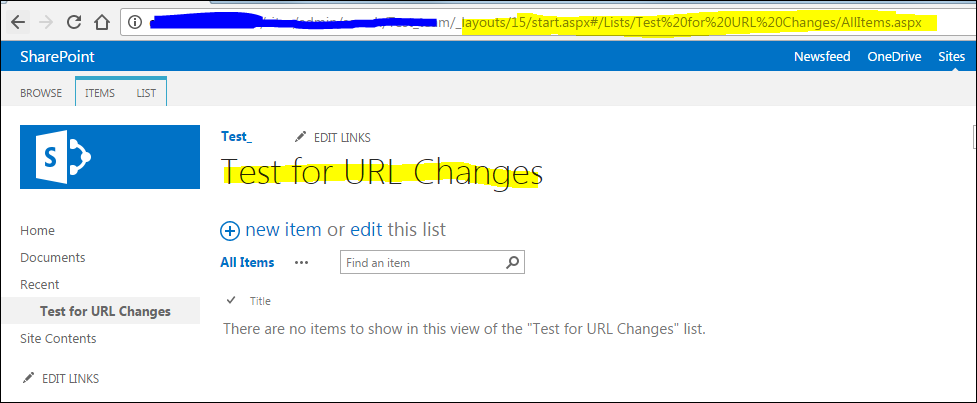
Create New List and you can see the list. The URL will be the list name, by default. Refer to the screenshot given below.
-
If we will try to change the same list URL, using user interface, we can not find any option to do the same.
-
Now, open SharePoint Management Shell with admin rights and update the script given below, as mentioned.
-
If you are not using PowerShell Management Shell, then use the first line of code about Add-PSSnapin.
-
In the very first line of the script, our variable will store the Site or Subsite URL. If you are using Site Collection, use Get-SPSite instead of Get-SpWeb.
-
Now, comes the list name of which you want to change the URL. Once everything is done, move to the next line of the code and enter the URL name, which you prefer to change.
- Add-PSSnapin Microsoft.SharePOint.Powershell
- $Web = Get-Spweb http://PSP:90/sites/psp/search/Test_team
- $List = $List = $Web.Lists["Test for URL Changes"]
- $List.RootFolder.MoveTo("/sites/ admin/search/Test_team/Lists/test")
Note
Make sure that there is no white space.
Make sure that there is no white space.
-
Now, we are ready with the script. We will execute the same code to PowerShell and check the list URL.
-
After executing this script, we can see the result. List Web URL will change, page view will not change only List Web, but URL will also change. Refer to the screenShot given below.

If you are doing this activity on demo List, where the data is not available, it will change the List or Library Name, as given in the Web URL.
If you wish, you can revert to the list name, which is similar to the old list name. We can rename the list name, using Web UI or Power Shell script as well. The steps are given below to change list name, using Web U.
If you wish, you can revert to the list name, which is similar to the old list name. We can rename the list name, using Web UI or Power Shell script as well. The steps are given below to change list name, using Web U.
- Open the list and click List tab from the top of the page.
- Once it will drop down, the functions under the List ribbon need to be selected and select List Setting from the same.
- Now, on the List Setting page, select List name, description, and navigation option under the General settings.
- It will prompt us to change the list or library name and the description.
- Assign the name, as per your desire and click Save button.
Hope, it will help.
Join the conversation! Your thoughts help the community grow.