

Microsoft 365 Group is a central place for Microsoft 365, by which we can manage and share the services between the collection of users. The resources, which are associated with Microsoft 365 group are Outlook Calendar, Outlook Conversations, OneNote notebook, SharePoint team site, SharePoint Folders, Planner Plans, Intune device Management. The resources can be shared between internal users and external users.
By default, we can create a group with Private or public visibility settings. But after some time, if we need to change those settings. Microsoft 365 provides an option to change it. The group privacy settings helps to change the visibility option for the group in Microsoft 365.
There are two group visibility options available to update the privacy settings. They are,
- Public - Any user from the Tenant can join the group without permission.
- Private - Group owner permission is required to join the group.
In this post, I would like to show you how to change the privacy visibility settings from Public group to Private.
Admin UI
- Navigate to Microsoft 365 Admin Center
- Expand the Teams & groups menu from the left navigation
- Select Active teams & groups
- Choose or click the group name to open
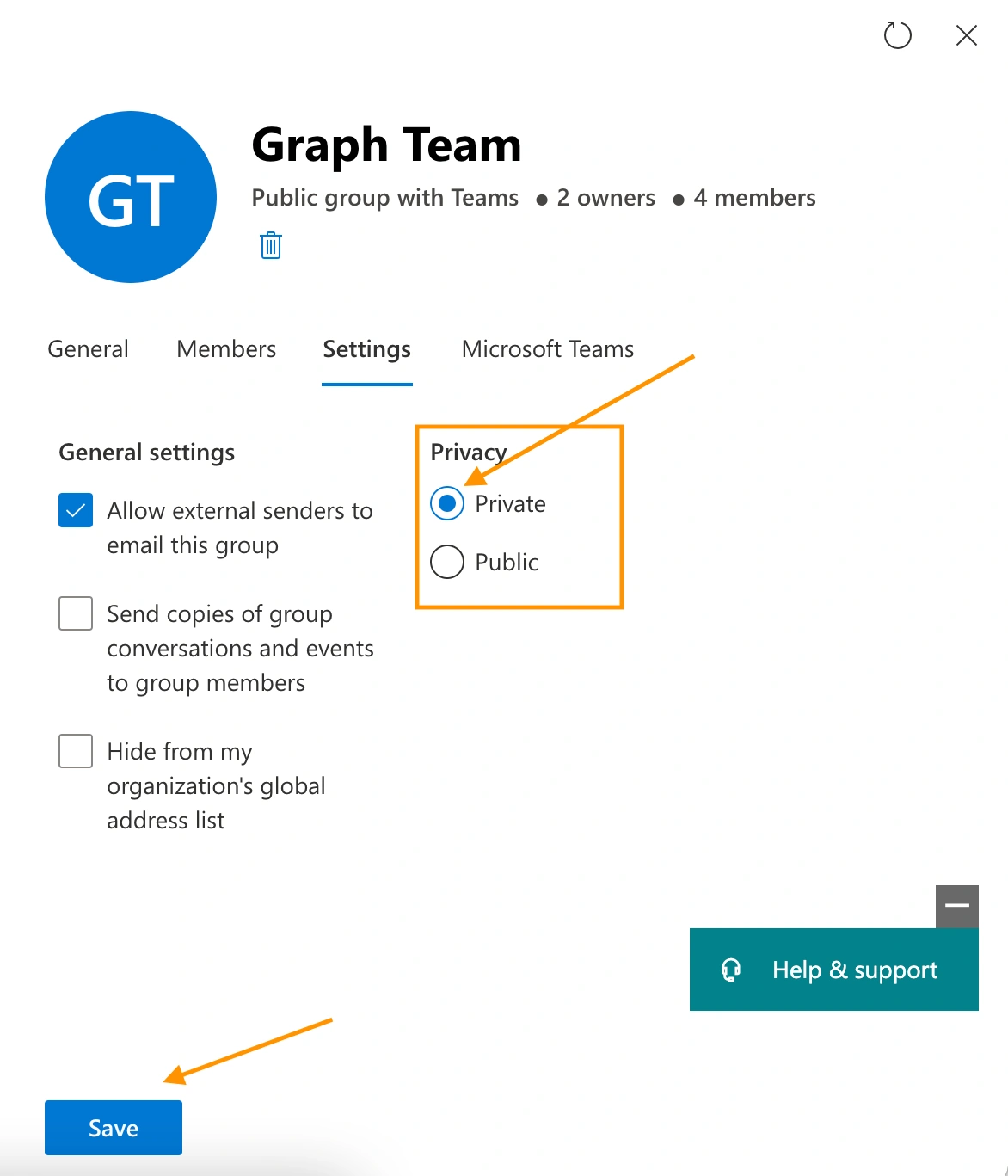
- From the opened right side panel, click the Settings tab
- In the Privacy section, select the radio button Private
- Click Save button
Microsoft Graph API
We can also use the Microsoft Graph API to do the same action. Use the below options in Microsoft Graph Explorer to change the visibility settings.
We must use the "Visibility" property to set the value to change the privacy settings for the group.
Microsoft Graph API EndPoint
PATCH https://graph.microsoft.com/v1.0/groups/<group id>
Consent Permission
Delegated Permission: Group.ReadWrite.All, Directory.ReadWrite.All, Directory.AccessAsUser.All
Application Permission: Group.ReadWrite.All, Directory.ReadWrite.All
The below request headers should be sent along with the request to update the settings,
Request Header
Content-Type: application/json
Request Body
{
    "visibility": "Private"
}
In Microsoft Graph Explorer, click Run Query to send the request and update the settings for the Microsoft 365 Group.
Output
Now the group privacy settings are updated to Private mode. So, the users are required to get permission from the Owner to join the group.
{}
Join the conversation! Your thoughts help the community grow.