

Introduction
Keeping your SharePoint site up-to-date with the latest information and branding is essential for maintaining a professional and cohesive online presence. Whether you need to change the site name, update the description, or add a new logo, SharePoint makes it easy to manage these details through the site settings. In this article, we'll walk you through the steps to update your SharePoint site title, description, and logo.
Features
SharePoint provides a user-friendly interface to update various aspects of your site. The "Title, description, and logo" option under the "Look and Feel" section allows you to.
- Change the site title to reflect new branding or organizational changes.
- Update the site description to provide current information about the site's purpose.
- Add or update the site logo to ensure consistent branding across your SharePoint environment.
Advantages
Updating your SharePoint site details offers several advantages.
- Flexibility: You can update site details at any time, ensuring your site always reflects the latest information.
- Brand Consistency: Adding or updating the site logo helps maintain a consistent brand image across all your SharePoint sites.
- Improved Communication: A clear and accurate site title and description help users understand the site's purpose and content.
Steps to Update your SharePoint Site Title, Description, and Logo

- Login: Start by logging into your SharePoint account with the necessary credentials.
- Open SharePoint Site: Navigate to the SharePoint site you want to update.
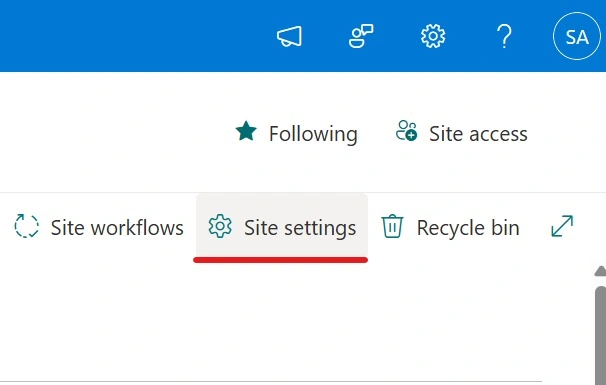
- Open Settings Page: Click on the gear icon (⚙️) in the top right corner of the page and select "Site settings" from the dropdown menu.
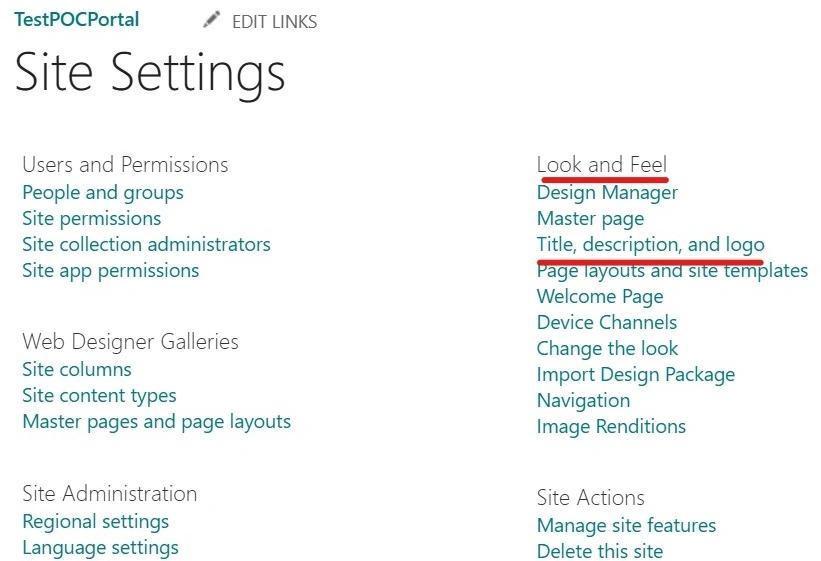
- Look and Feel: Under the "Look and Feel" section, click on the "Title, description, and logo" option.
Update Details

- Site Title and Description: In the "Title" and "Description" fields, enter the new site name and description. This helps users quickly understand the site's purpose and content.
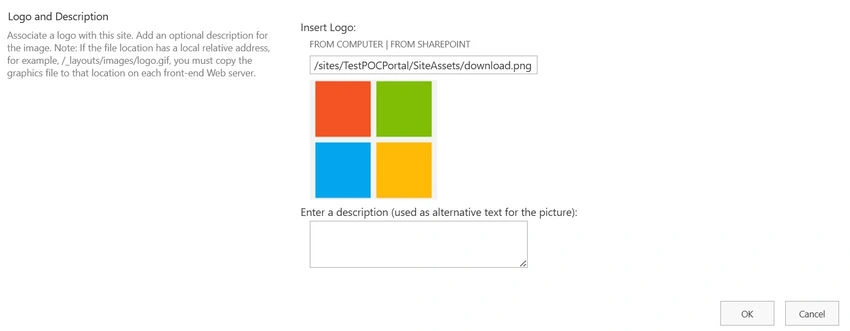
- Add or Change Logo: To add a new logo or change the existing one, click on the "From Computer" or "From SharePoint" options to upload the logo file. Once uploaded, click "OK" to save the changes.

Conclusion
Updating your SharePoint site title, description, and logo is a straightforward process that ensures your site remains current and aligned with your organization's branding. By following the steps outlined above, you can easily manage these details and keep your SharePoint site looking professional and informative.
Feel free to customize this article further to match your style and specific requirements. If you have any other questions or need additional assistance, I'm here to help!
Vinodh NarayananPosted Mar 20, 2025, 6:07 AM
Interesting