

Introduction
In SharePoint 2013 Online, Microsoft has changed the look and navigation for SharePoint Lists and Libraries. As an administrator, you can switch the user experience (Classic/New Experience) for all the list and libraries. In this article, you will learn how to change the default UX for all the lists and libraries.
Change the default Experience
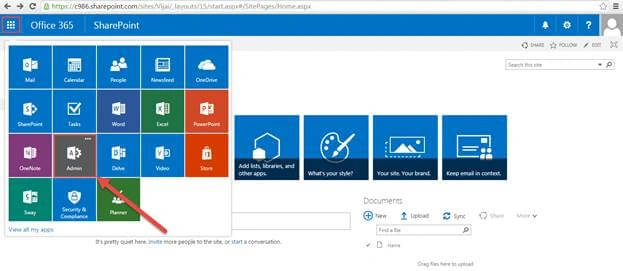
- Navigate to SharePoint Online site.
- Click Admin, as shown below.
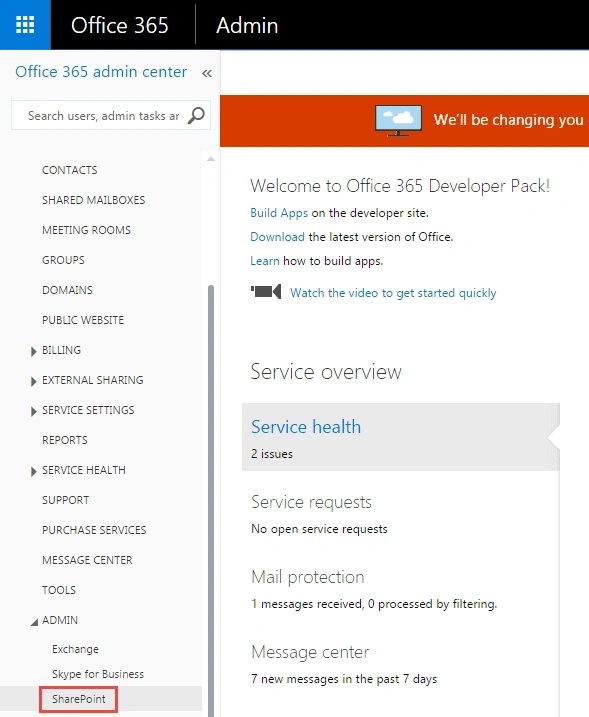
- In the left navigation, expand Admin and click SharePoint.
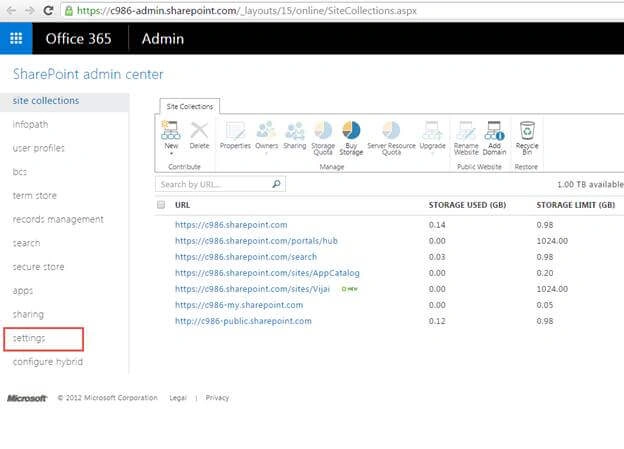
- In the SharePoint Admin Center, click Settings.
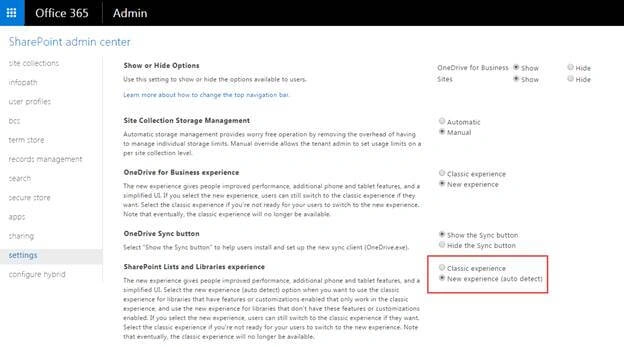
- In the SharePoint Lists and Libraries experience section, select Classic/New experience and click Save.
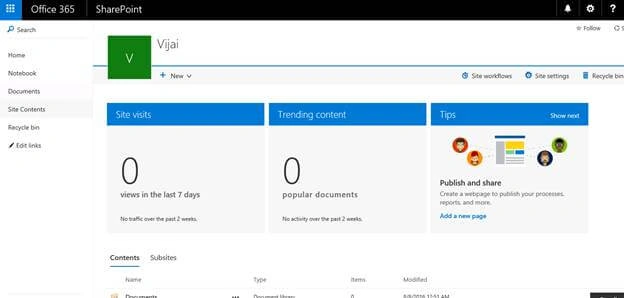
- Navigate to the site. Click on Site Contents and you will be able to see the changes in a few minutes.
Summary: Thus, in this article, you saw how to change the default experience for all the lists and libraries in SharePoint 2013 Online.
Tarun DPosted Aug 18, 2016, 2:26 AM
Nice one..
Prasanna MuraliPosted Aug 12, 2016, 2:51 AM
Nice share