

In this short post, we're going to understand how we can change the font size for the terminal that comes bundled with Visual Studio Code. We'll take a look at both ways we can update the font size, using the Settings screen as well as the settings.json file.
Using Settings Screen
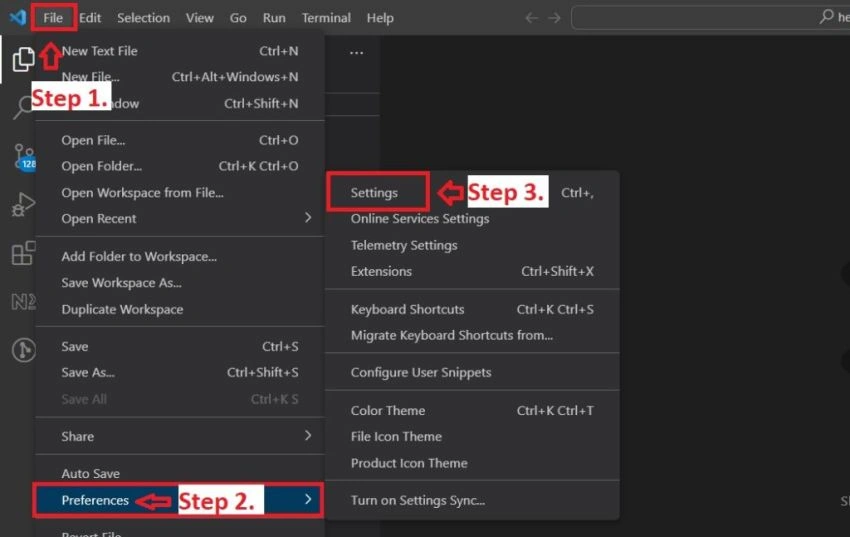
Updating font size using the Settings screen is quite straightforward. All you need to do is follow the steps mentioned below:
- Open the file menu from the top left corner of the screen.
- Move your mouse over the Preferences option.
- And select the Settings option.
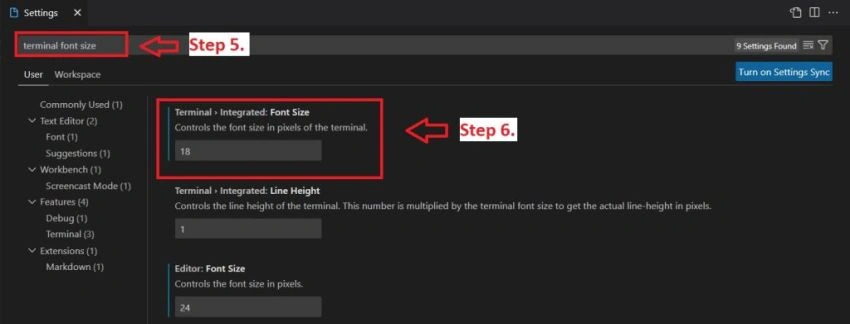
- This will take you to the Settings screen. On this screen, search for terminal font size.
- In the search results look for Terminal > Integrated: Font Size settings and change its value based on your requirements.
And That's it!
Using settings.json file
To update font size by modifying the settings.json file follow the steps mentioned below.
- Open Command Palette by pressing Ctrl + Shift + P (Windows) or Cmd + Shift + P (macOS)
- In the command palette start typing Open User Settings JSON and select the command with the same name.
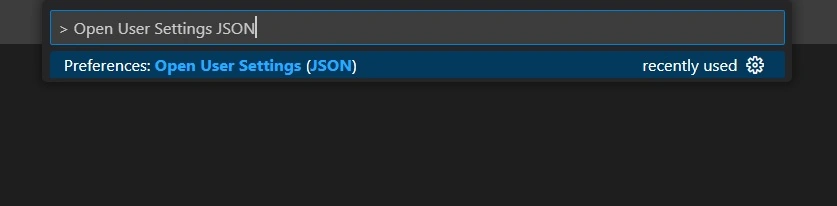
This will open the settings.json file. In this file look for terminal.integrated.fontSize key, if this key doesn't exist in the file, simply add the following line to the file.
"terminal.integrated.fontSize": 18,
This will set the font size for the terminal to 18px. Change this value based on your requirements. If the key already exists, you can update the value of the existing key instead of adding a new one.
That's all for this post. I hope you guys enjoyed this article. In case you've any queries or feedback, feel free to drop a comment.
Join the conversation! Your thoughts help the community grow.