

Introduction
In this article, we will learn about the Change Account Picture in Windows 8.
Use WIN+Q to search for Account Picture. Make sure you have Settings selected in the Search bar.
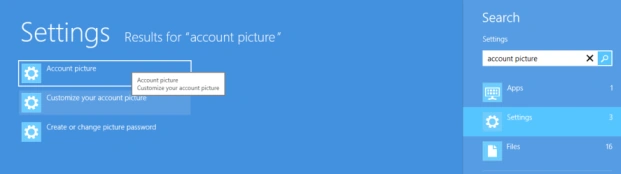
You will see "Account Picture" and "Customize your account picture". Select one of the options.
Then go to your PC settings screen.
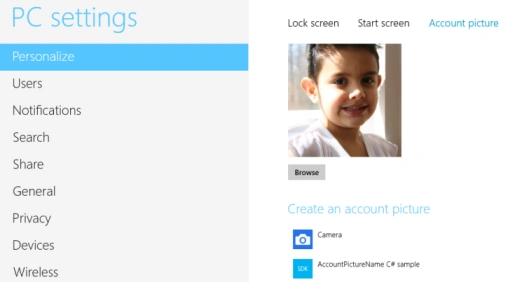
On this screen, you can use the Browse button to browse for a file on your machine. You may also click on Camera to take a picture from your laptop's camera.
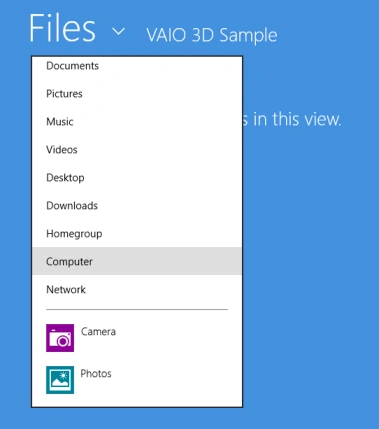
To browse from your machine, click on Files and select the Computer and browse to where your profile photo is.
In code, you can use the User Information class to change the account picture; see-
Summary
In this article, we learned about the Change Account Picture in Windows 8.
Join the conversation! Your thoughts help the community grow.