

Introduction
In this article, I tell you how to see your SQLite database, if you want to see the details. You can see your SQLite database in three ways.
- Using a command prompt in the window.
- Using coding, to see details you can get using code in your project.
- Using SQLite manager.
Here I explain how to use the SQLite manager. To see details of your database you must use the following procedure.
Step 1
First, open any web browser and add to it the SQLite Manager add-on as shown in the following image.
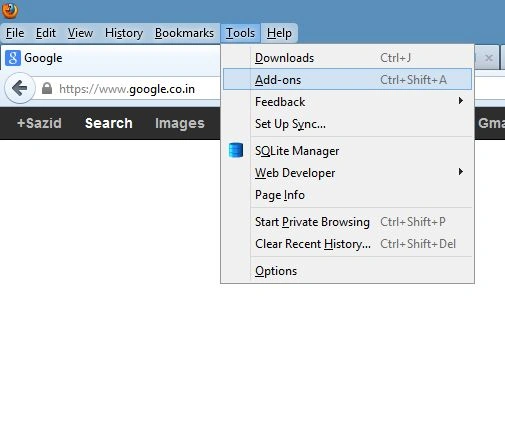
Step 2
Now create a project to save your database using SQLite database as I did in my last article Create Database in Android.
Step 3
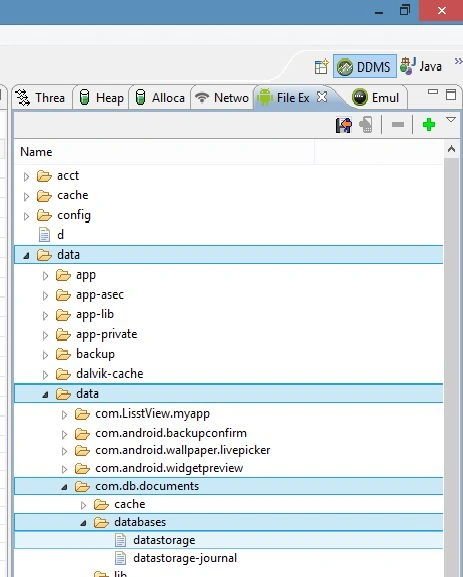
Open DDMS Perspective in your Eclipse editor and go to the File Explorer and select "Data" -> "Data" then enter your project package name ( in my case its "com.db.documents" ) as shown in the following image:
Step 4
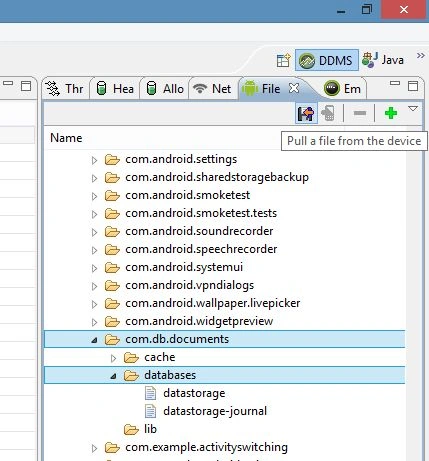
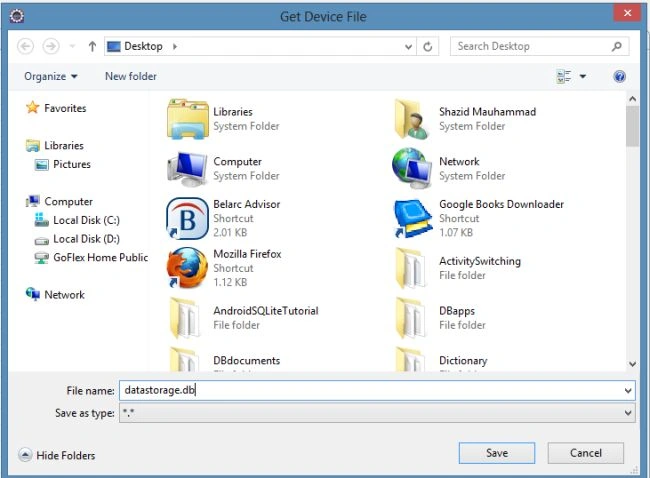
Now pull outside selective database from your device using the pull button and save the database with a ".db" extension as shown in the following image:
Save it as "database.db":
Step 5
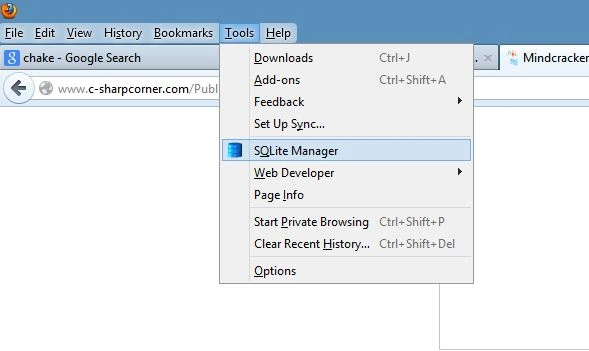
Now open your browser and open SQLite Manager using "Tool" -> "SQLIte Manager" as shown in the following image:
Steps 6
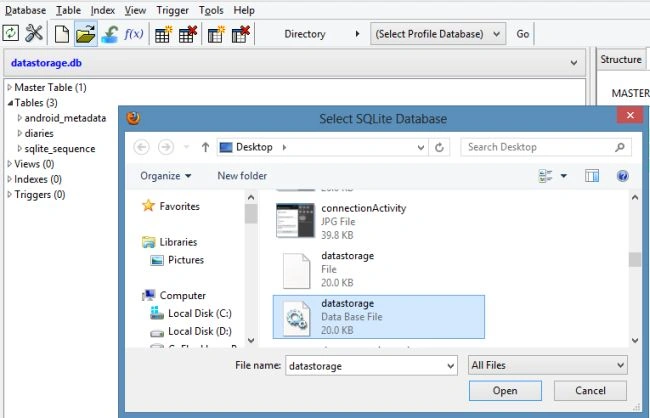
Connect to your database as shown in the following image:
Step 7
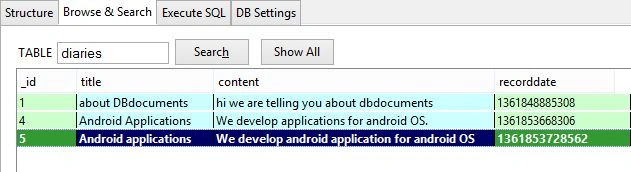
And at last, you will see the new database in your project as shown below:
Amelie MoorePosted Mar 30, 2015, 3:06 AM
Hello Sazid thanks for publishing this article it is really useful for SQLite users, before few days ago I read another article also related to SQLite database browser for Android. If anybody has android SQLite data files, then use Android SQLite DB browser software that is an excellent option to view all SQLite files.This is the link to read article: http://www.androidnewsindia.com/sqlite-viewer-android/