

Introduction
When working with SharePoint lists, the Rich Text (Enhanced Rich Text) column type is commonly used to store formatted content such as HTML, bullets, links, and images.
However, when building flows in Power Automate, many users face an issue:
How do you correctly check if a SharePoint Rich Text column is empty or not?
A normal condition like @empty(triggerBody()?['ColumnName']) often does NOT work, because Rich Text columns store values in HTML format, not plain text.
In this article, I'll walk you through how to correctly check for blank Rich Text columns using Power Automate.
Why Rich Text Columns Behave Differently
A SharePoint Rich Text field stores data as HTML, meaning even if it "looks empty" in the list, the actual stored value might be:
<div></div><p></p>" "(non-breaking spaces)<br>
Therefore, your condition must remove these HTML tags before checking if the value is blank.
Step-by-Step Solution: Check if Rich Text Column Is Blank
Assume your Rich Text column internal name is Notes.
Step 1: Manually Trigger the Flow
As shown in the image, start with:
Trigger:
Manually trigger a flow
(no inputs needed)
Step 2: Get Items from SharePoint
Add a Get items action to retrieve all rows from your list.
Site Address: Your SharePoint site
List Name: Your SharePoint list
Keep the other fields as default to get all records; otherwise, use a Filter Query to retrieve a specific record.
This will fetch all items so we can check each Rich Text field.
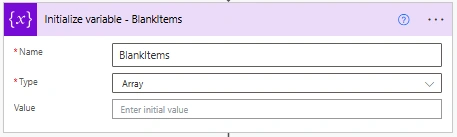
Step 3: Initialize an Array Variable
Add an Initialize variable action.
Name: BlankItems
Type: Array
Value: (keep empty)
This array will store the IDs of all items where the Rich Text column is blank.
Step 4: Apply to Each
Add an Apply to each and select:
outputs('Get_items')?['body/value']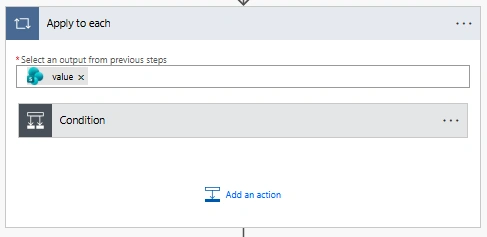
Step 5 : Add Condition inside Apply to Each
Add a Condition to check the Notes is not equal to null.
Condition Expressions (Left Side):
items('Apply_to_each')?['Notes']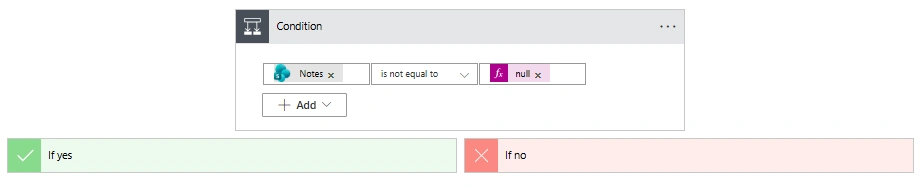
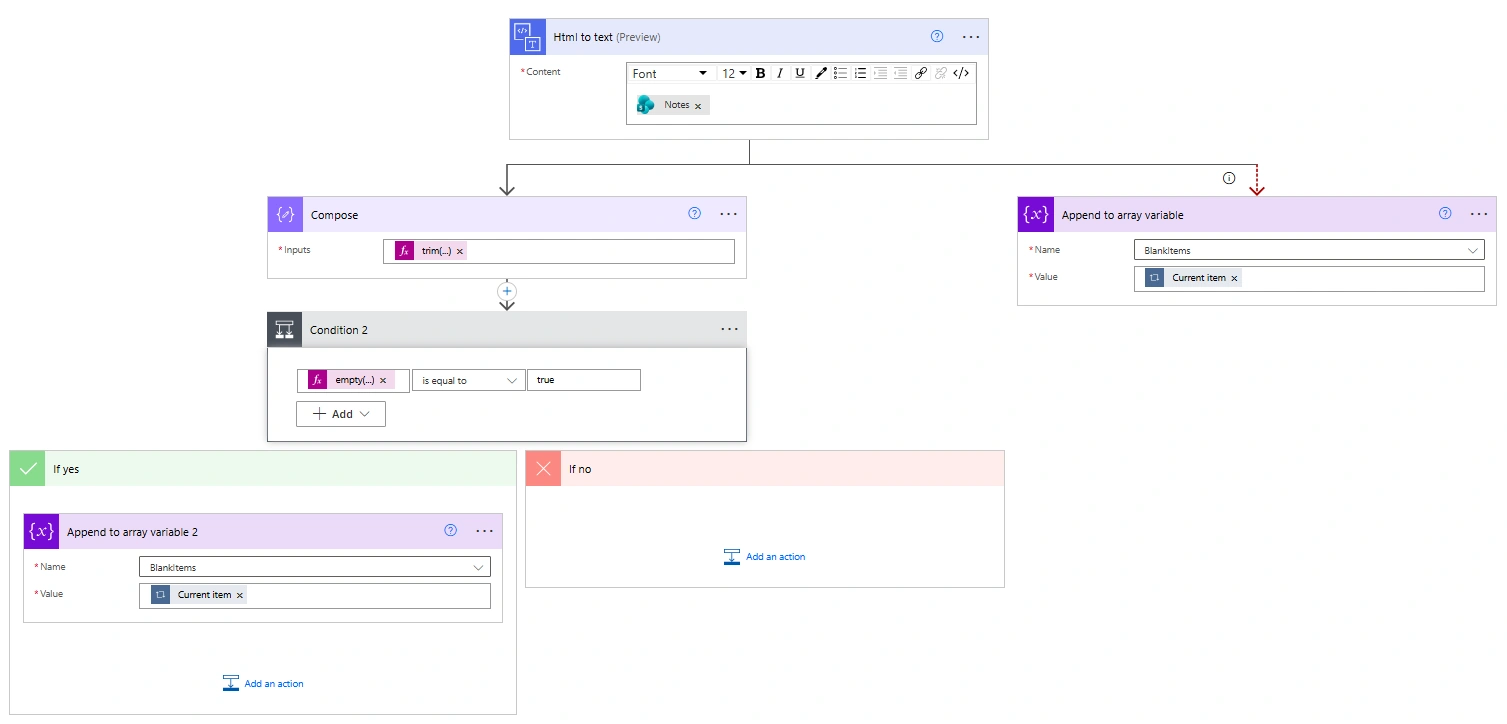
Step 6: YES Branch → Convert HTML to Plain Text
Inside the If Yes branch:
Add: HTML to text
Content: Notes [items('Apply_to_each')?['Notes']]
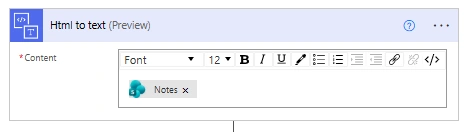
This removes HTML tags like
<div>,<p>,<br>, etc.
Add: Compose to Trim the Converted Text
Input:
trim(if(equals(outputs('Html_to_text')?['body'],null),'',outputs('Html_to_text')?['body']))Add: Condtion
Add a another condition to check that the Compose output is not equal to true.
Condition Expressions (Left Side):
empty(outputs('Compose'))In Yes Branch:
Add Append to array variable
Name: Select BlankItems
Value: Current item [items('Apply_to_each')]
Add: Parallel branch Under HTML to text action
Add Append to array variable
Name: Select BlankItems
Value: Current item [items('Apply_to_each')]
Also, configure this action to run after the HTML to text action fails.
Step 7: No Branch
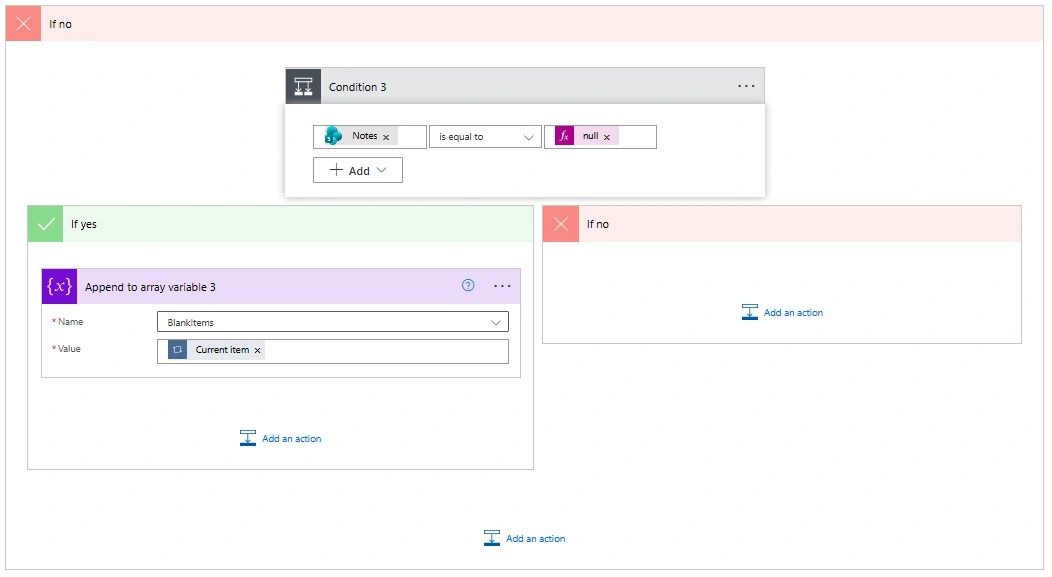
Inside the If No branch:
Add: Condtion
Add a another condition to check that the Notes is equal to null.
Condition Expressions (Left Side):
items('Apply_to_each')?['Notes']]In Yes Branch:
Add Append to array variable
Name: Select BlankItems
Value: Current item [items('Apply_to_each')]
Step 8: Add Compose after Apply to each
Add a Compose action to find the values or the length of the values appended to the BlankItems variable.
Input:
to find all values:
variables('BlankItems')to find length of all values:
length(variables('BlankItems'))Conclusion:
Using this article’s approach, you can reliably check whether a SharePoint Rich Text column is truly empty. By converting HTML to plain text, trimming unwanted content, and handling edge cases, you avoid false results and ensure your Power Automate flows work accurately and consistently.
Join the conversation! Your thoughts help the community grow.