

Introduction
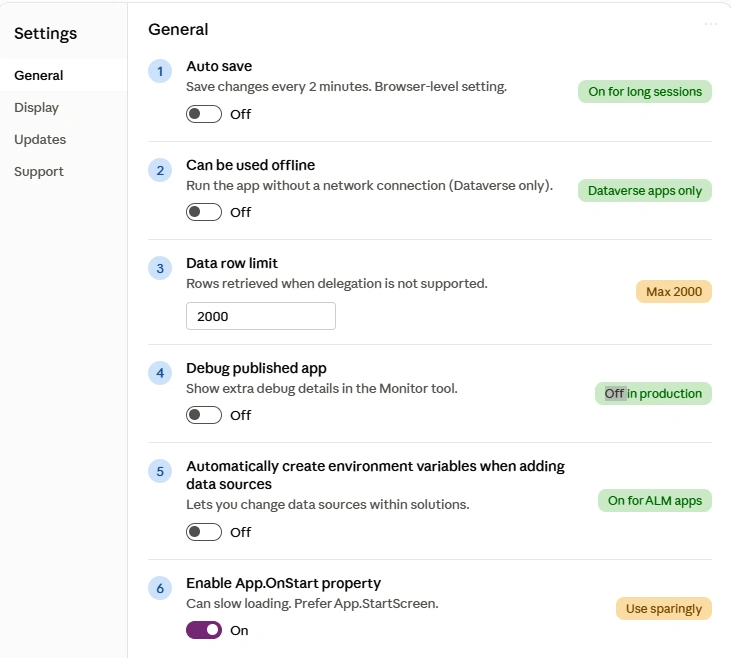
The General tab in the Power Apps Settings pane controls how your app saves, retrieves data, starts up, and moves between environments. This guide explains its six settings, covering what each does, its default, and when to change it, so you can avoid slow apps, missing records, and debug flags left on in production.
The General tab of the Settings pane in Power Apps Studio controls how your app is saved, how it handles data, and how it starts up. This guide covers all six settings, in the order they appear.
Correction: In my previous article I said the environment variable and App.OnStart settings sit under the Updates area. Your screenshots show they are on the General tab, so use this guide as the corrected version.
1. Auto save
What it does: Saves your changes every 2 minutes while you work in Studio.
Default: Off
Key detail: This is a browser-level setting. It applies to you in that browser, not to the app itself or to other makers. Saving is not the same as publishing, so end users won’t see anything until you publish.
When to turn it on:
- You work on large apps and don’t want to lose progress if the browser or connection drops
- You often forget to save manually
Things to consider: Auto save protects your work, but it doesn’t replace version history. Still publish deliberately when a version is ready.
2. Can be used offline
What it does: Lets the app run natively without a network connection. It works with Dataverse only.
Default: Off
When to turn it on:
- Field teams, inspectors, or sales staff who work with poor connectivity
- Apps whose data lives entirely in Dataverse
Things to consider: Offline mode needs extra setup, such as choosing which tables are available offline and how data syncs on reconnect. Leave it off if you use SharePoint, SQL Server, or other connectors.
3. Data row limit
What it does: Sets how many rows Power Apps retrieves from a server-based data source when delegation is not supported for a formula.
Default: 500 (maximum 2000). The screenshots show 2000.
Why it matters: With delegation, the data source does the filtering and sorting. When a formula can’t be delegated, Power Apps downloads only up to this limit and processes that subset locally. If a list has 5,000 records and the limit is 2000, a non-delegable filter sees only 2000 of them, so results can be silently incomplete. A blue delegation warning in the formula bar flags this.
Best practices:
- Prefer delegable functions and operators so the limit doesn’t matter
- Raise the limit only for non-delegable formulas on moderately sized data
- Remember that a higher limit means more data transferred and slower loading
4. Debug published app
What it does: Publishes debug information with the app so expressions and extra details appear in the Monitor tool when you troubleshoot the published version.
Default: Off
How to use it:
- Turn the setting On.
- Save and publish the app. The change only takes effect after publishing.
- Connect the Monitor tool to the published app.
- When finished, turn it Off and publish again.
Join the conversation! Your thoughts help the community grow.