

Windows 10 cache is a storage that increases the efficiency and performance of a Windows machine. A cache is a component used to store temporary data. It allows for a fast response with the help of cache files for specific data. When a user visits an application or website for the first time, information about it will be stored in your system. With its help, the user can access the particular application or website faster next time. When the cache files are created in a huge amount in the system, they are responsible for a slowdown of the system. By deleting all these cache files, the user can get a significant amount of free space and enhance the performance of the operating system.
In this article, we will learn different ways to clearn cache on a Windows 10 machine.
Method 1. Clear Windows 10 Cache Using Disk Cleanup
By using the Disk Cleanup Utility, the user can clear various types of cache files in the system. Follow the below instructions to proceed.
Step 1
From the search bar, search for "Disk Cleanup" and press enter to open it.
Step 2
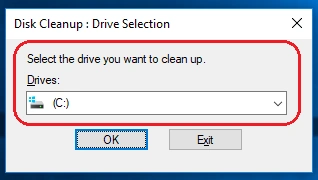
Now, select the drive you want to clean up.
Step 3
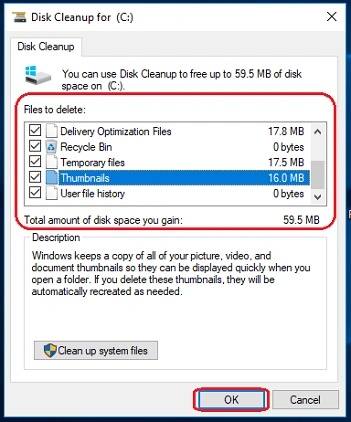
Select the files that you want to delete and click on the "OK" button.
Method 2. Clear Windows Store Cache
This creates temporary files when you are downloading the apps. If there is a problem with the store, clear the store cache. Follow the given below instructions to proceed.
Step 1
From the Start menu, open the Run dialog box or you can press the "Window + R" key to open the RUN window.
Step 2
Type "wsreset.exe" and press the enter key.
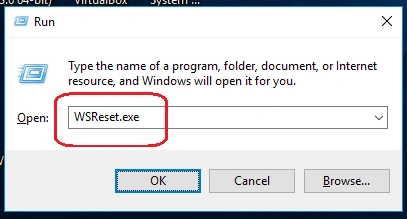
This will clear all the windows store cache and shows the Store after when it will be finished.
Method 3. Deleting the Prefetch Files in Windows 10
As per Wikipedia, "Prefetch Files is a feature of Windows 10 that was introduced in Windows XP. Prefetch is used to speed up the Windows boot process and shorten the amount of time it takes to startup programs. It is a component of the Memory Manager". If your system is infected with viruses or malware and if you want to free up some space in your system then you can delete the prefetch files. But remember, it will slow down your next some boots. Follow the below instructions to proceed.
Step 1
From the Start menu, open the Run dialog box or you can press the "Window + R" key to open the RUN window.
Step 2
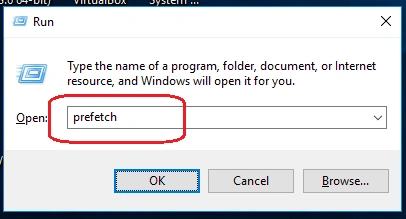
Type "prefetch" and press the enter key.
Step 3
Now, delete all the files by selecting them.
Method 4. Clear DNS Cache in Windows 10
DNS Cache is the temporary storage area maintained by a system that records all your visits to the system and web browser. DNS Cache also stores the IP addresses of every website you visited. Follow the below instructions to proceed.
Step 1
Open Command Prompt.
Step 2
Type the "ipconfig/flushdns" command in command prompt and press enter the enter key.
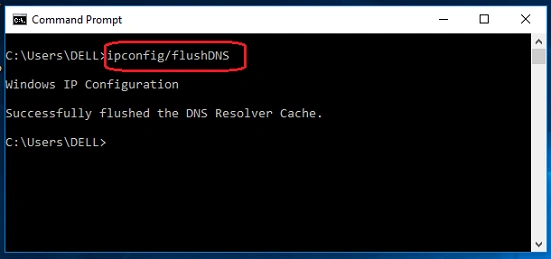
Note:
The user can also check the DNS Cache by typing the following command in Command Prompt (CMD)," ipconfig/displaydns".
Method 5. Clear All Temporary Files in Windows 10
Temporary files are created by the operating system when the user is performing a task. But, when the temporary files are created in a huge amount in the system, they are responsible for a slowdown of the system.
By deleting the temporary files and folders, the user can get a significant amount of free space and enhance the performance of the operating system.
The users can delete the temporary files and folders by using the various in-built tools such as the Disk Management tool and the Disk Cleanup tool. I have described in detail in my previous article on the topic, "How to Delete Temporary Files In Windows 10".
Method 6. Clear Web Browser Cache in Windows 10
Some cached files are being created when the user is surfing the internet. The user can easily clear all these cache files stored in your web browser. Follow the below instructions to proceed.
Step 1
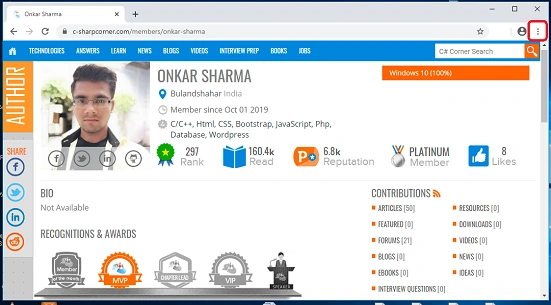
Open the Web Browser that you want (like Microsoft Edge or Google Chrome).
Step 2
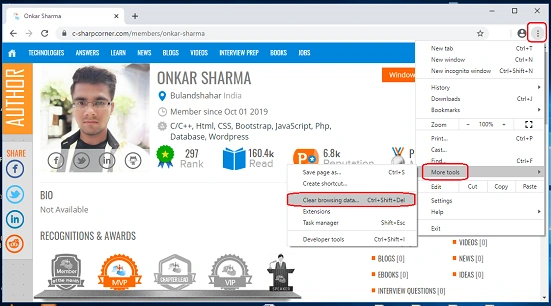
In the top-right corner, click on the "Customize and control Google Chrome" option (indicating by 3-dots) and then select More Tools Clear browsing data. Alternatively, you can press the "Ctrl + Shift + Delete" key to open directly the "Clear browsing data" window.
Step 3
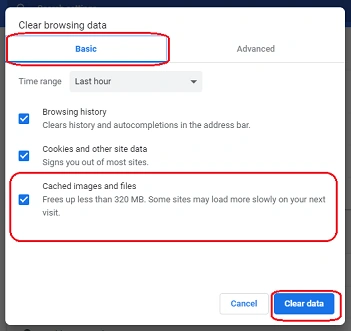
Under the "Basic" tab, first set the time range and then check (select) the "Cached images and files" option. Click on the "Clear" button to proceed.
Conclusion
By following any of the above methods, you can clear all types of caches in Windows 10.
I hope you enjoyed this article. Follow C# Corner to learn more new and amazing things about Windows 10.
Thanks for reading this article!
Dipa MehtaPosted Apr 13, 2020, 11:00 AM
Known topic but interesting article as usual. Keep sharing. :)