

Download and Install
Download Git Bash from the below link based on your operating system and install it on your local system.
https://git-scm.com/downloads
Generating a new SSH key
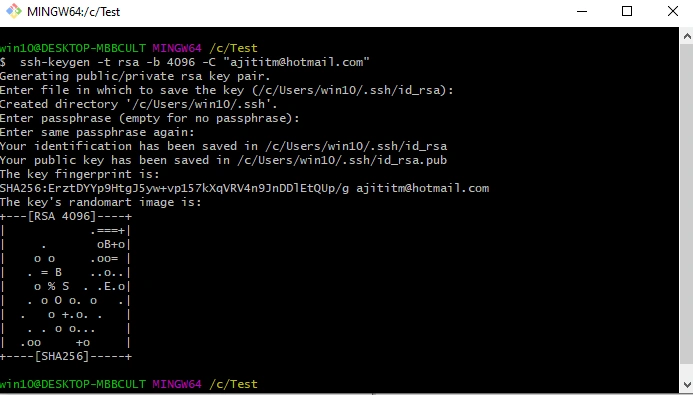
After downloading and installing Git Bash on your local system follow the below steps and snapshot to generate SSH Key.
- Open Git Bash by right clicking on folder or space
- Paste the text below, substituting in your GitHub Enterprise email address
- ssh-keygen -t rsa -b 4096 -C "[email protected]" This creates a new ssh key, using the provided email as a label.
- When you're prompted to "Enter a file in which to save the key," press Enter. This accepts the default file location.
- Enter a file in which to save the key (/c/Users/you/.ssh/id_rsa):[Press enter]
- At the prompt, type a secure passphrase.
- Enter passphrase (empty for no passphrase): [Type a passphrase]
- Enter the same passphrase again: [Type passphrase again]
Adding a new SSH key to your GitHub account
To configure your GitHub account to use your new (or existing) SSH key, you'll also need to add it to your GitHub account.
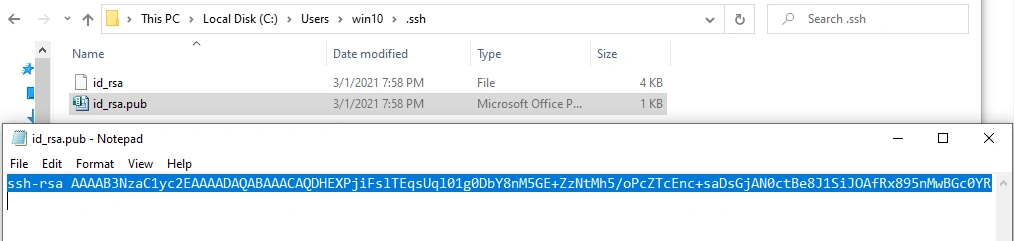
- Copy the SSH key to your clipboard.
If your SSH key file has a different name than the example code, modify the filename to match your current setup. When copying your key, don't add any newlines or whitespace.
clip < ~/.ssh/id_rsa.pub
# Copies the contents of the id_rsa.pub file to your clipboard as per below snapshoot
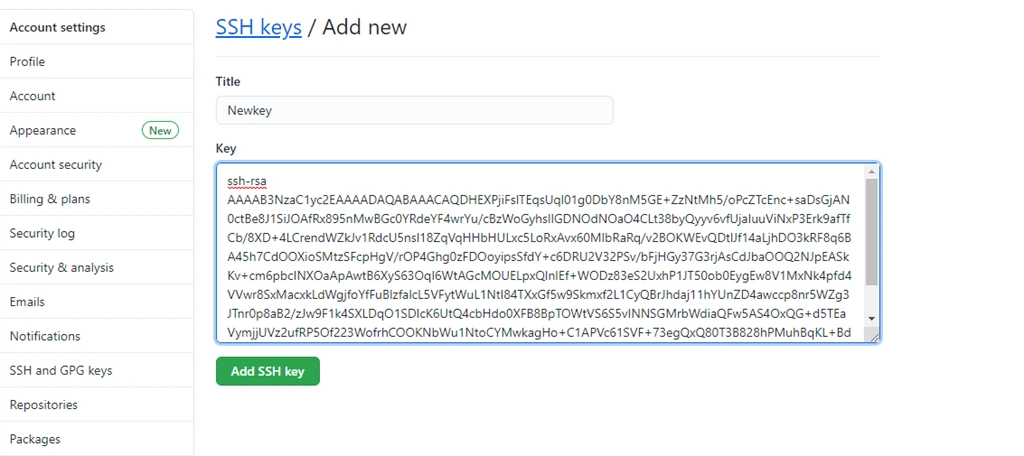
- In the upper-right corner of any page, click your profile photo, then click Settings.
- In the user settings sidebar, click SSH and GPG keys.
- Click New SSH key or Add SSH key.
- In the "Title" field, add a descriptive label for the new key. For example, if you're using a personal Mac, you might call this key "Personal MacBook Air".
- Paste your key into the "Key" field.
- Click Add SSH key.
- If prompted, confirm your GitHub Enterprise password
Testing your SSH Connection
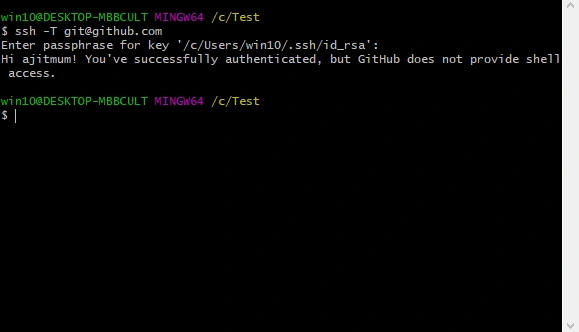
When you test your connection, you'll need to authenticate this action using your password, which is the SSH key passphrase you created earlier.
- Open Git Bash.
- Enter the following
- ssh -T git@hostname
- #Attempts to ssh to GitHub Enterprise
You may see a warning like this,
The authenticity of host 'hostname (IP ADDRESS)' can't be established.
RSA key fingerprint is 16:27:ac:a5:76:28:2d:36:63:1b:56:4d:eb:df:a6:48.
Are you sure you want to continue connecting (yes/no)?
or like this,
The authenticity of host 'hostname (IP ADDRESS)' can't be established.
RSA key fingerprint is SHA256:nThbg6kXUpJWGl7E1IGOCspRomTxdCARLviKw6E5SY8.
Are you sure you want to continue connecting (yes/no)? - Verify that the fingerprint in the message you see matches one of the messages in step 2, then type Yes:
- Hi username! You've successfully authenticated, but GitHub does not provide shell access.
Verify that the resulting message contains your username.
$ ssh -T git@domain or IP
The authenticity of host IP (IP)' can't be established.
Are you sure you want to continue connecting (yes/no/[fingerprint])? Yes
Warning: Permanently added IP (ECDSA) to the list of known hosts.
Hi Ajit-Kumar! You've successfully authenticated, but GitHub does not provide shell access.
Git username settings
Git username is not the same as github username. Git user name is the identity of the user who committed code to github using the command line. Git user can be changed to your username using git config command.
Steps to setting username for every repository on your local computer
- Open Git Bash.
- Set a Git username:
$git config –global user.name “Ajit Kumar" - Confirm that Git username set correctly,
$git config –global user.name > Ajit Kumar
Computer Name MINGW64 ~
$ git config --global user.name "Ajit-Kumar"
Computer Name MINGW64 ~
$ git config --global user.name
Ajit-Kumar
Repository Creation
In order to put project source code on GitHub, you’ll need to create a repository for making it live.
In the upper-right corner of any page, use the drop-down menu, and select New repository.Type a short name for your repository. For example, "hello-world".Optionally, add a description of your repository. For example, "First repository on GitHub."Choose a repository visibility. Select "Initialize this repository" with a README. Click Create repository. After that you will get the below message
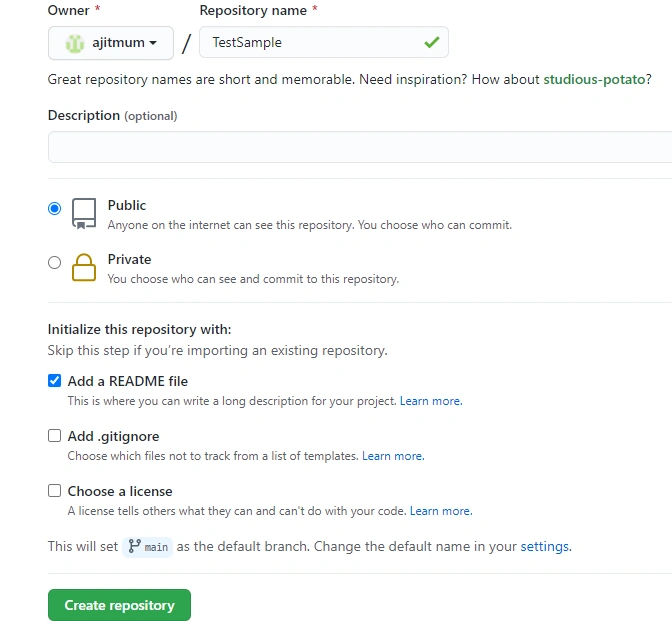
Congratulations! You've successfully created your first repository and initialized it with a README file.
Commit change
A commit is a way to save your completed work files in your project at a particular point in time.
When you created your new repository, you initialized it with a README file. README files are the right place to describe your project in more detail and add some more details about installation and usage of project. The contents of your README file are automatically shown on the front page of your repository.
Start commits a change to the README file.
In your repository's list of files, clickREADME.md.
Above the file's content, click. On the Edit file tab, type some information about yourself. Above the new content, clickPreview changes. Review the changes you made to the file. You'll see the new content in green. At the bottom of the page, type a short, meaningful commit message that describes what change you made to the file. Below the commit message fields, decide whether to add your commit (Current changes) to the current branch or to a new branch. If your current branch is master, you should choose to create a new branch for your commit and then create a pull request. Once you pull switch to new branch and commit the changes and push, the changes will made live. ClickPropose file change.
How to sync your work branch and source code or project
Use the best practice to save your daily work file to git at the end of the day to make it live, safe and secure. To do this, you'll need to use Git on the command line. You can practice setting the upstream repository using the same Ajit/Test-Code repository you just forked.
Step 1 - Set up Git
If you have not set up git, first, you need to set up git with proper authentication to GitHub
Step 2 - Create a local clone of your branch source code or project
Right now, you have a fork of the Test-Code repository, but you don't have the files in that repository on your local computer. So first create a clone of this using the below steps,
- On GitHub, navigate to your fork of the Test-Code repository.
- Under the repository name, click Clone or download.
- To clone the repository using HTTPS, under "Clone with HTTPS", click. To clone the repository using an SSH key, including a certificate issued by your organization's SSH certificate authority, click Use SSH, then click.
Open Git Bash.Type git clone, and then paste the URL you copied earlier. It will look like this, with your GitHub username instead of your-username:$ git clone https://github.com/Username/Test-Code
Press enter key local copy will be created in your local laptop location
$ git clone https://github.com/Username/Test-Code
> remote: Counting objects: 10, done.
> remote: Compressing objects: 100% (8/8), done.
> remove: Total 10 (delta 1), reused 10 (delta 1)
> Unpacking objects: 100% (10/10), done.
Daily Usage Commands
$ git clone git@domain: user-name/Test-Code.git
$ git checkout Development
$ git status
$ git add -A – To add multiple files
$ git commit -m "added files"
$ git push
Join the conversation! Your thoughts help the community grow.