
Open server manager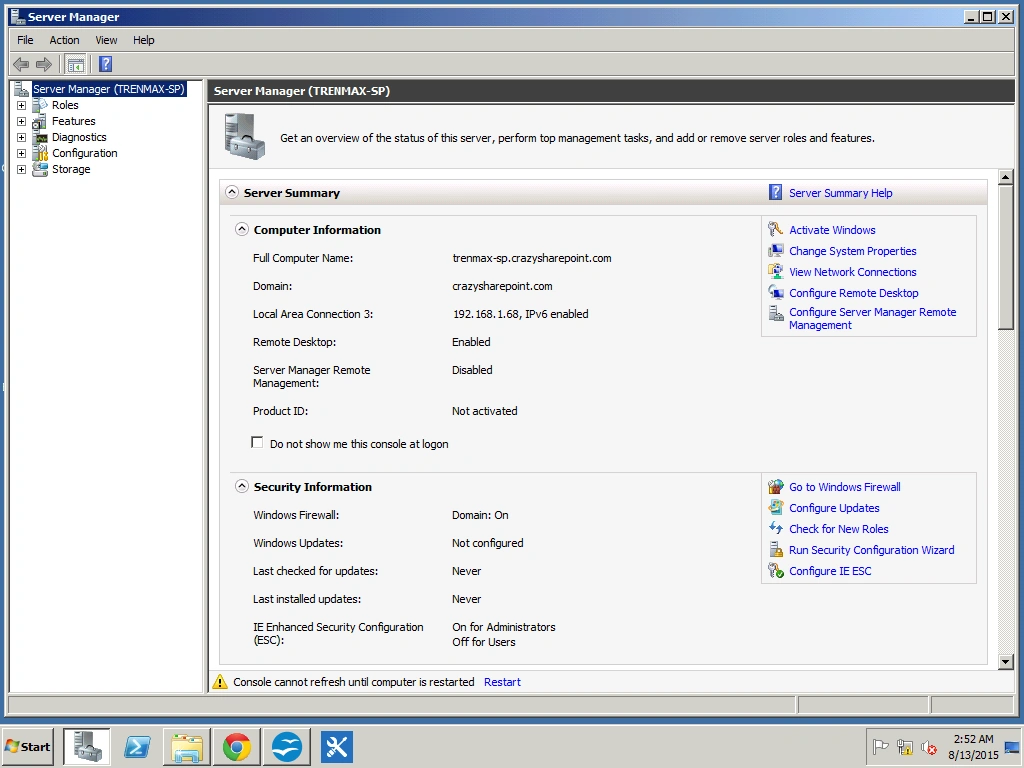
Figure 1: Server Manager
From the Features tab, click Add Features.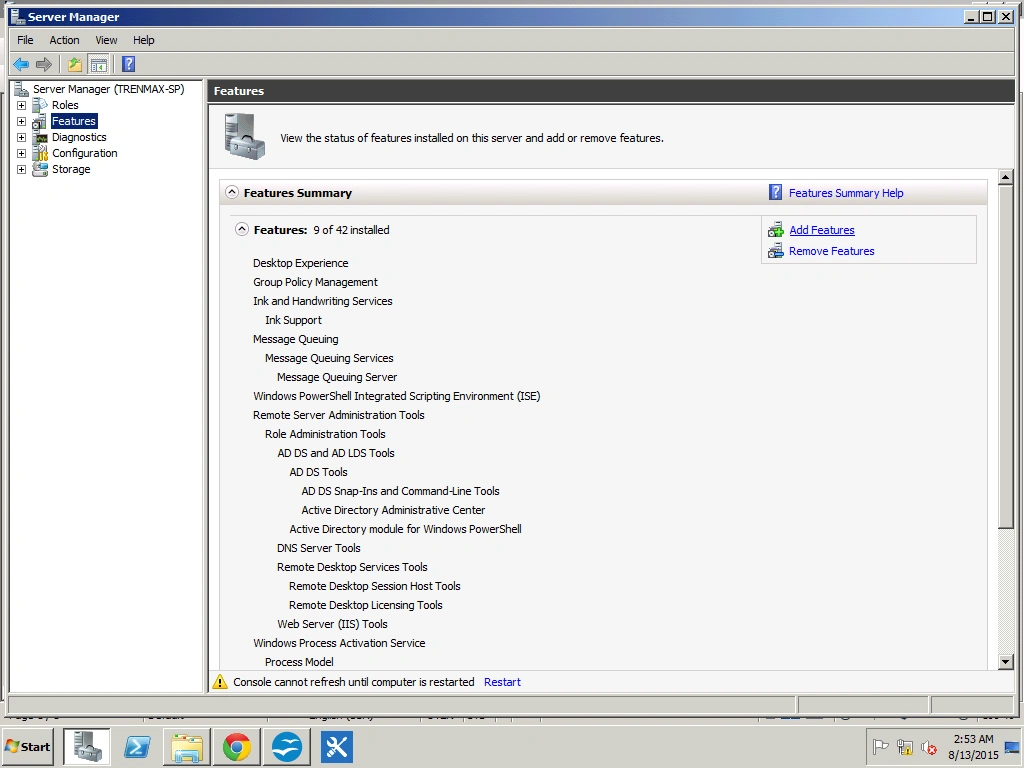
Figure 2: Add Feature
From this list select SMTP Server.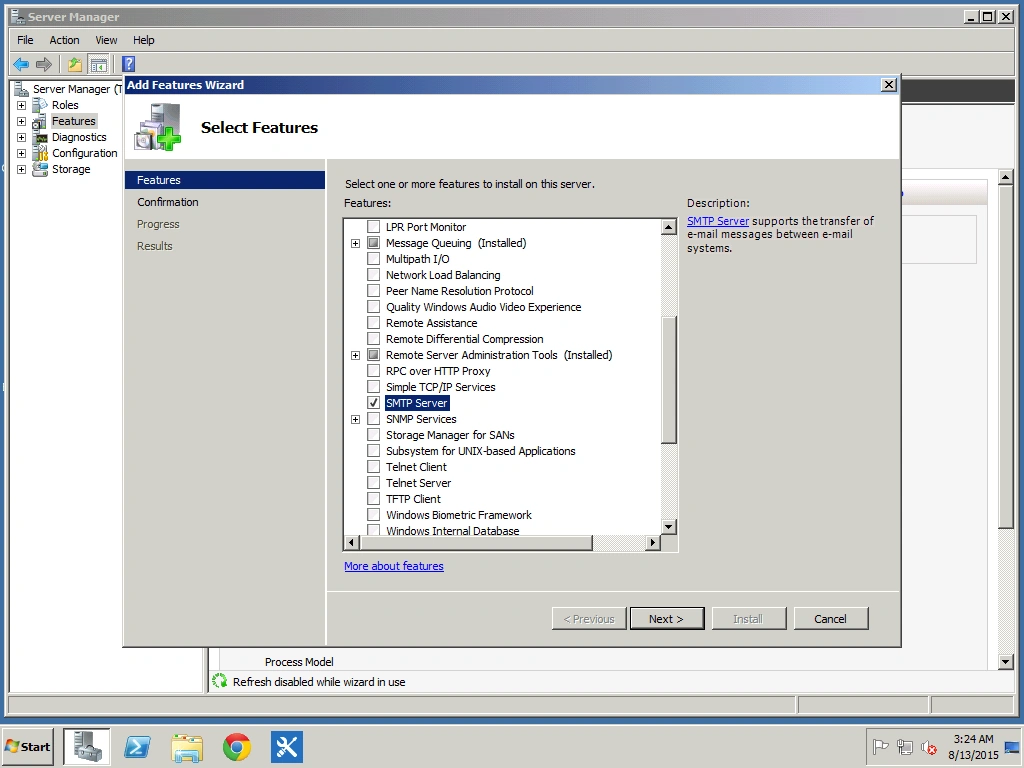
Figure 3: Select SMTP Server
Click Next and then Install to complete.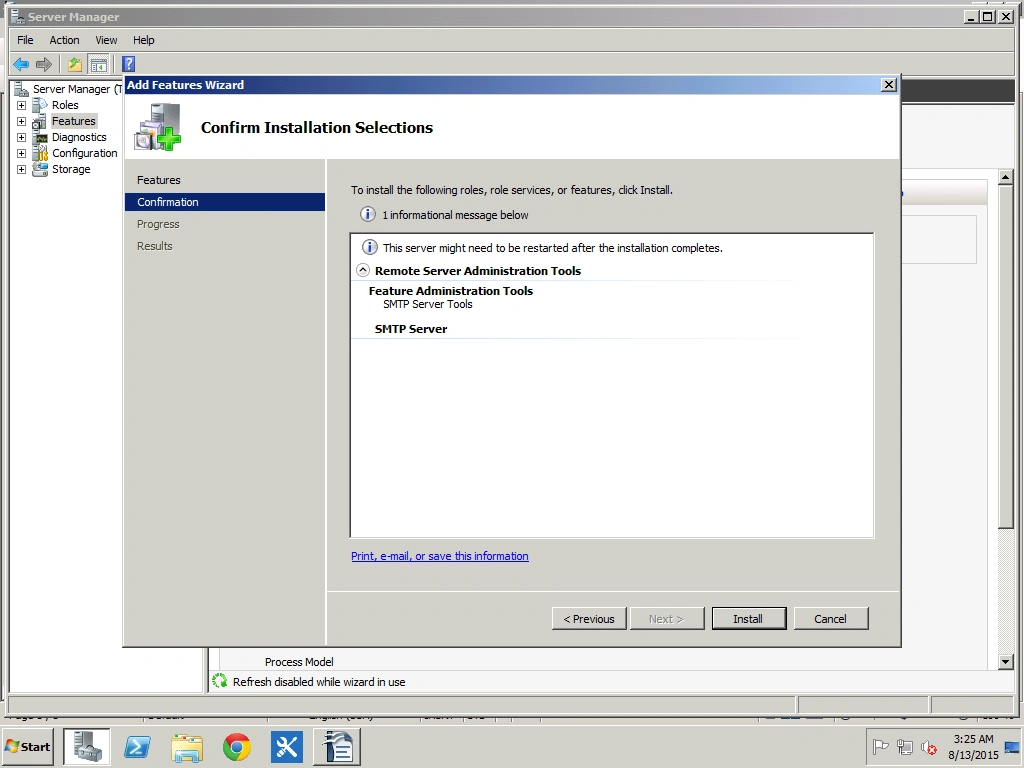
Figure 4: Click Install to Complete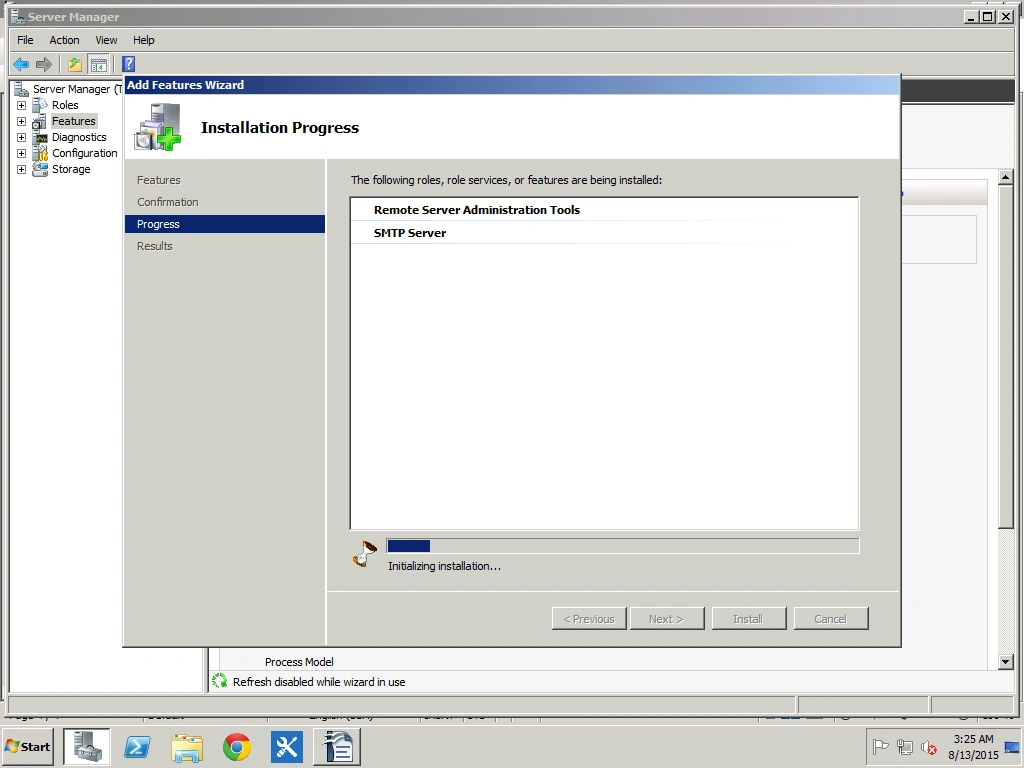
Figure 5: Install Progress
Installation Succeeded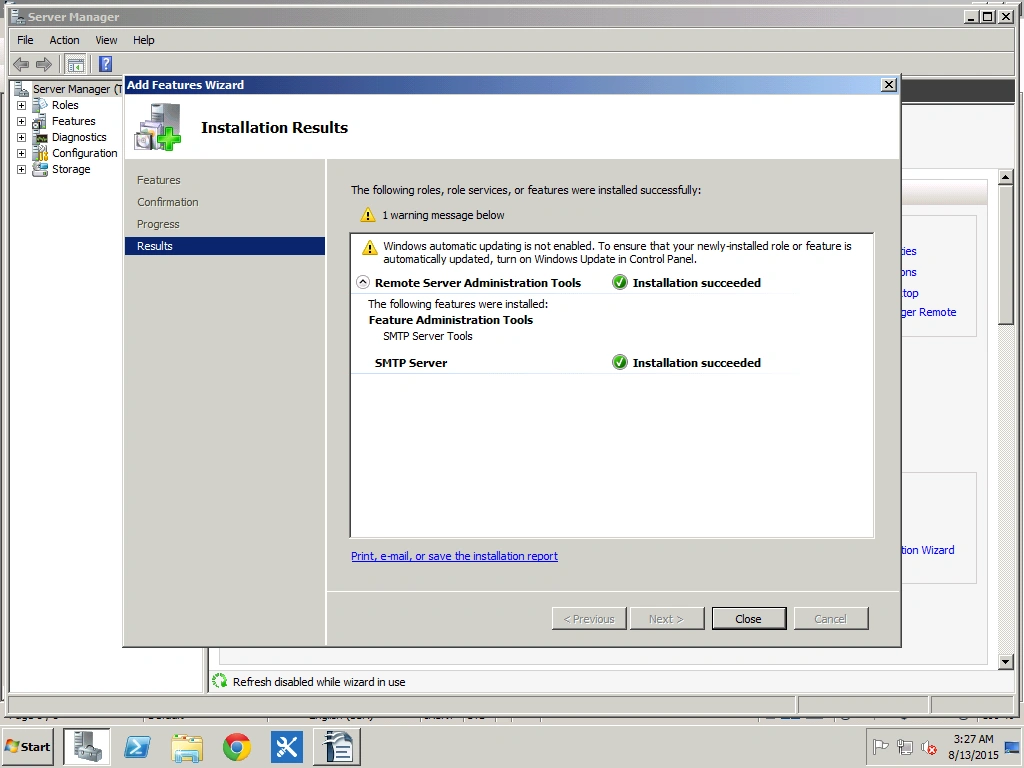
Figure 6:Installation Successfull
Click Close.
Open Windows services
Check that the SMTP service has been started.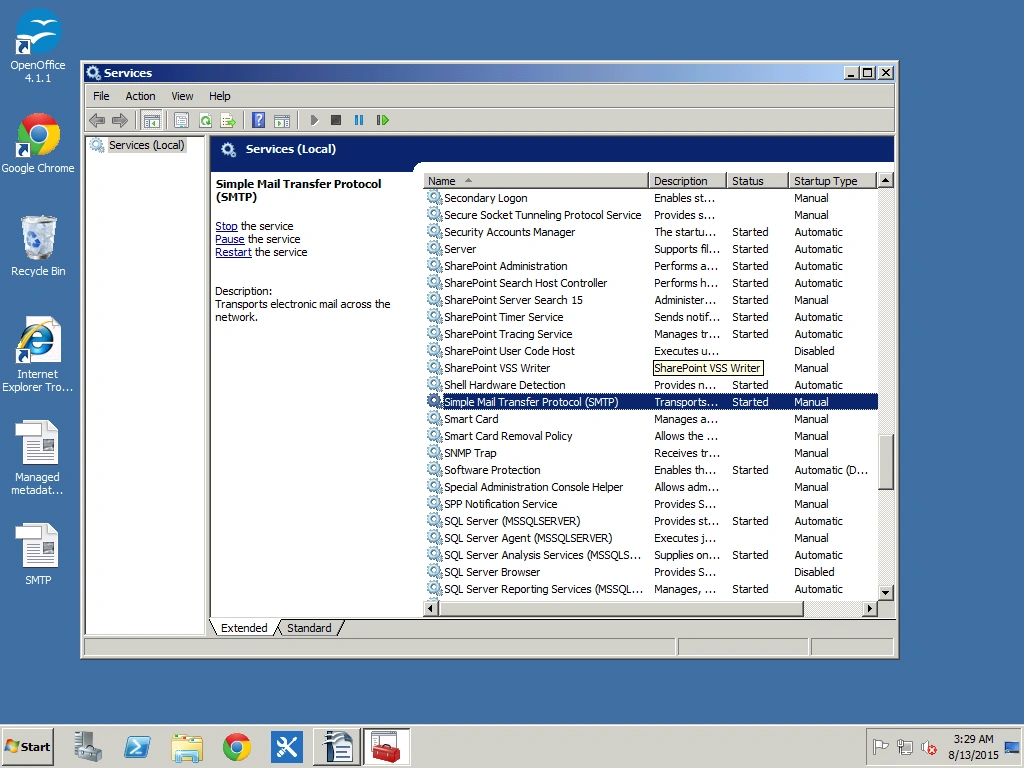
Figure 7: Open Windows services
Now open IIS 6.0 Manager.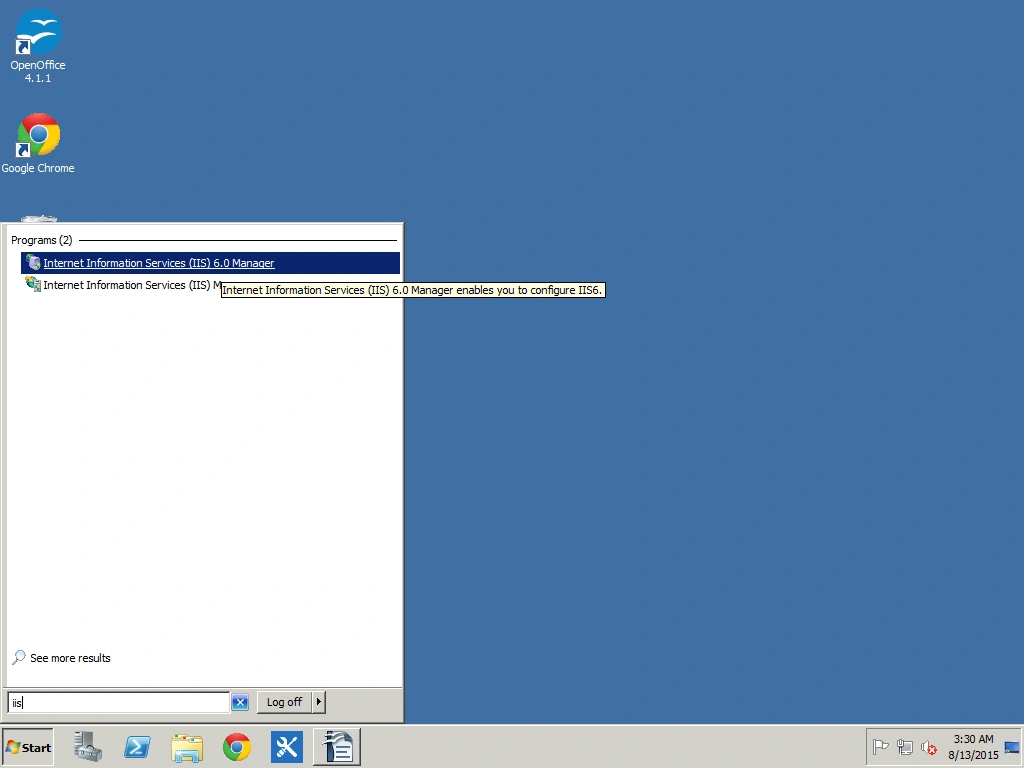
Figure 8: Now open IIS 6.0 Manager
Right-click on the SMTP Server and click Properties.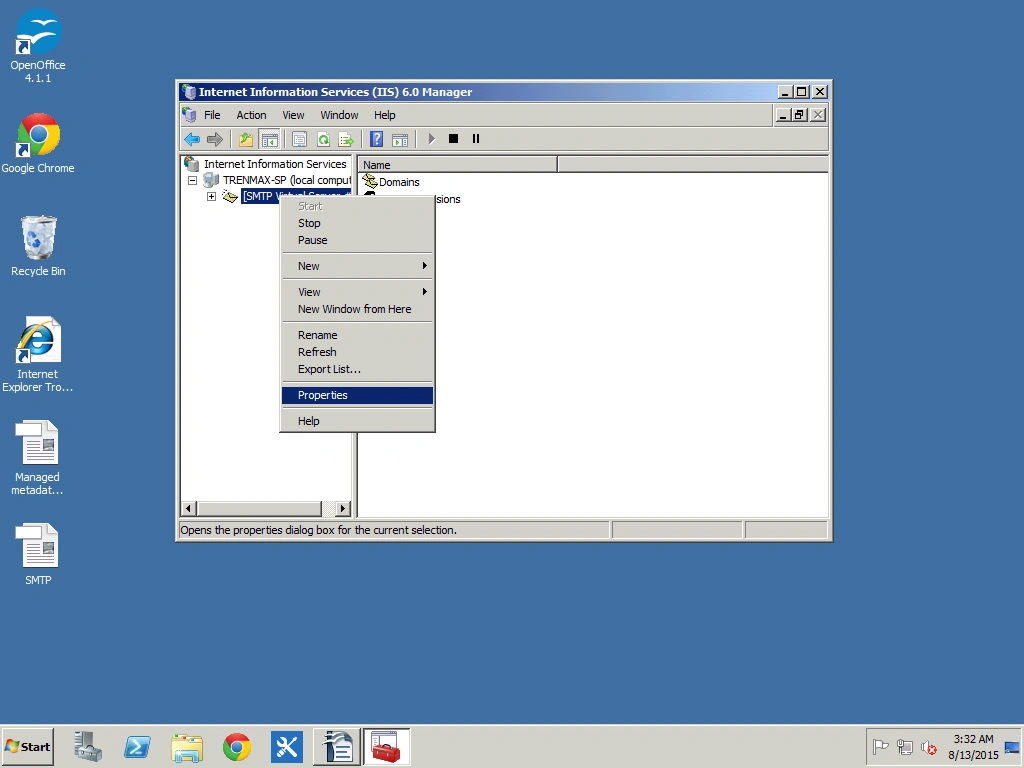
Figure 9: Click Properties
In the General tab under IP address select your local IP address.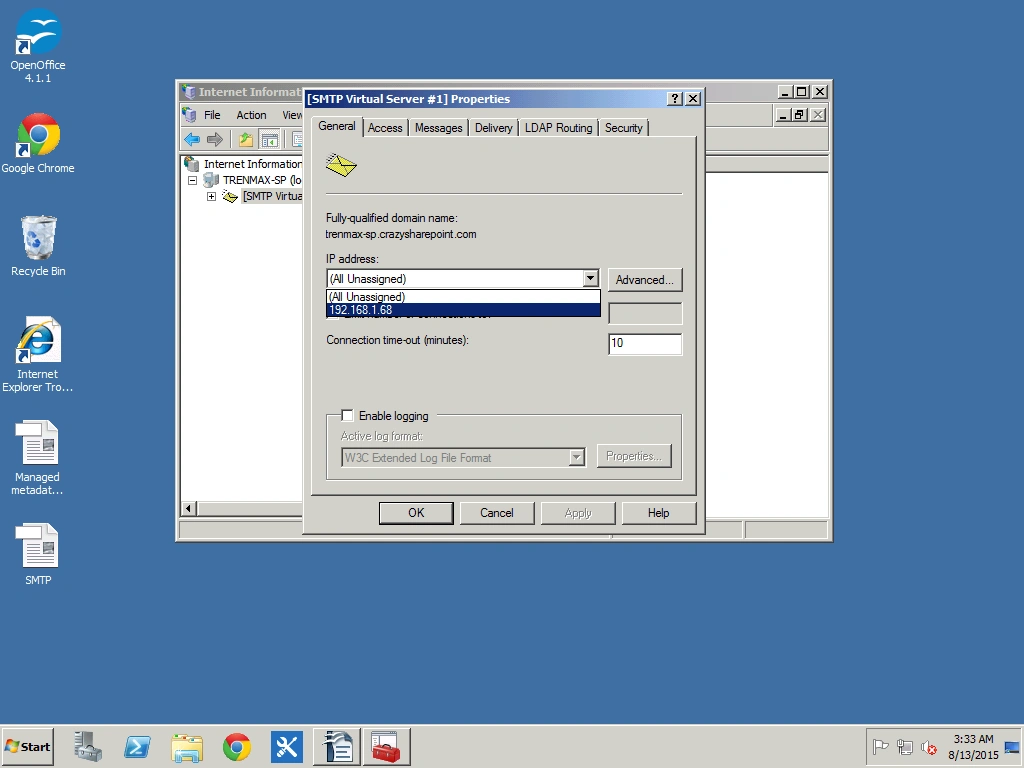
Figure 10: Select your local IPAddress
On the Access tab, go to Connection.
Select All.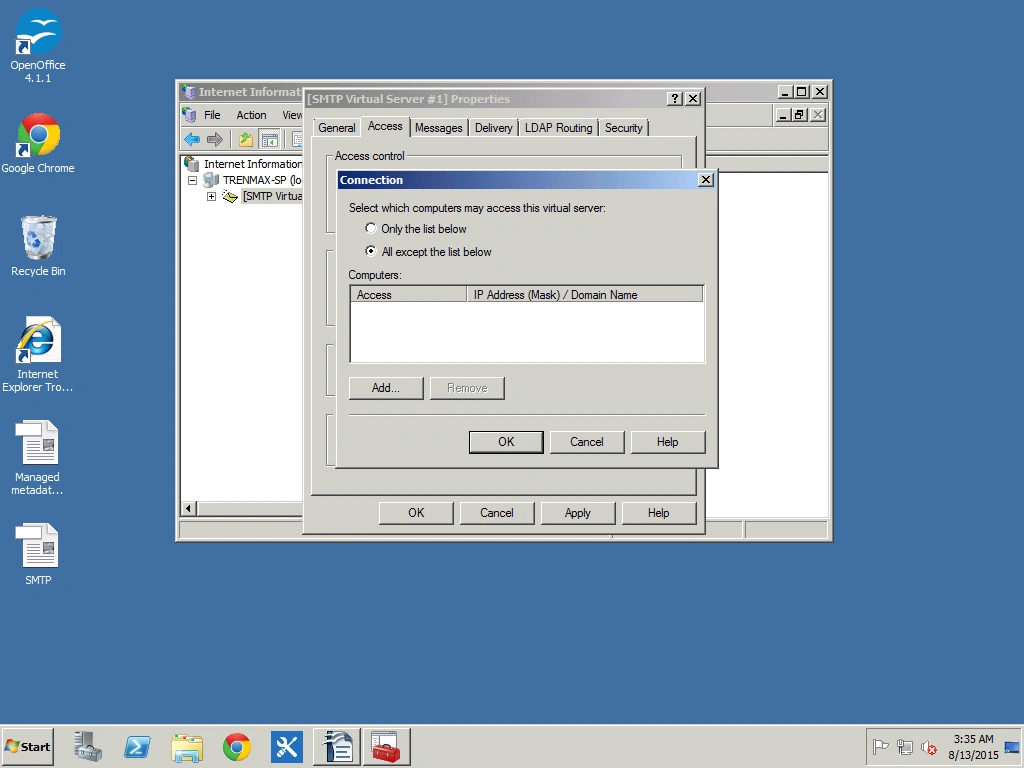
Figure 11: Connection
Do the same for Relay.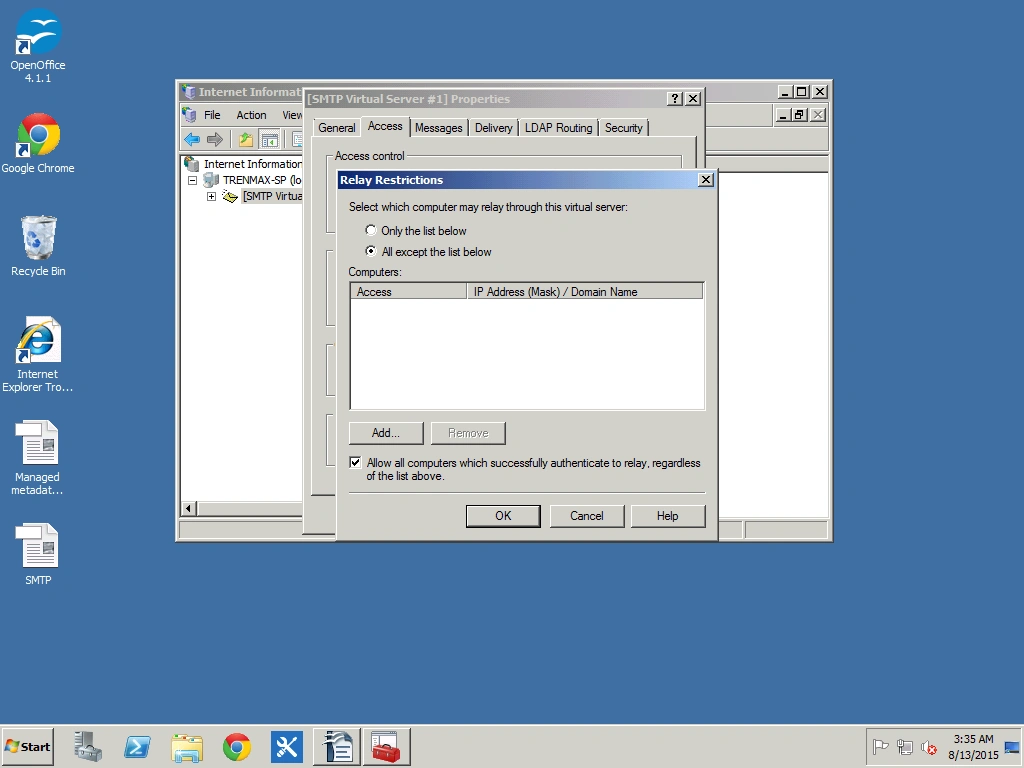
Figure 12: Do the same for Relay
Click the Delivery Tab.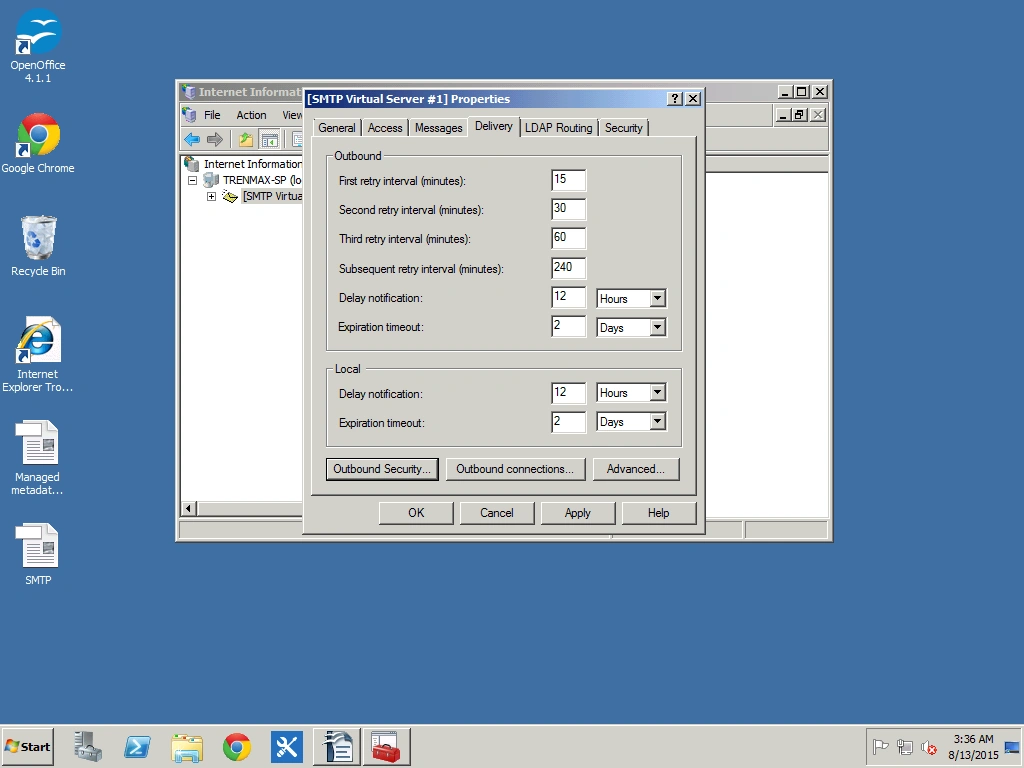
Figure 13: Delivery Tab
Click OutBound Security.
Click Basic Authentication.
Enter your email address and password.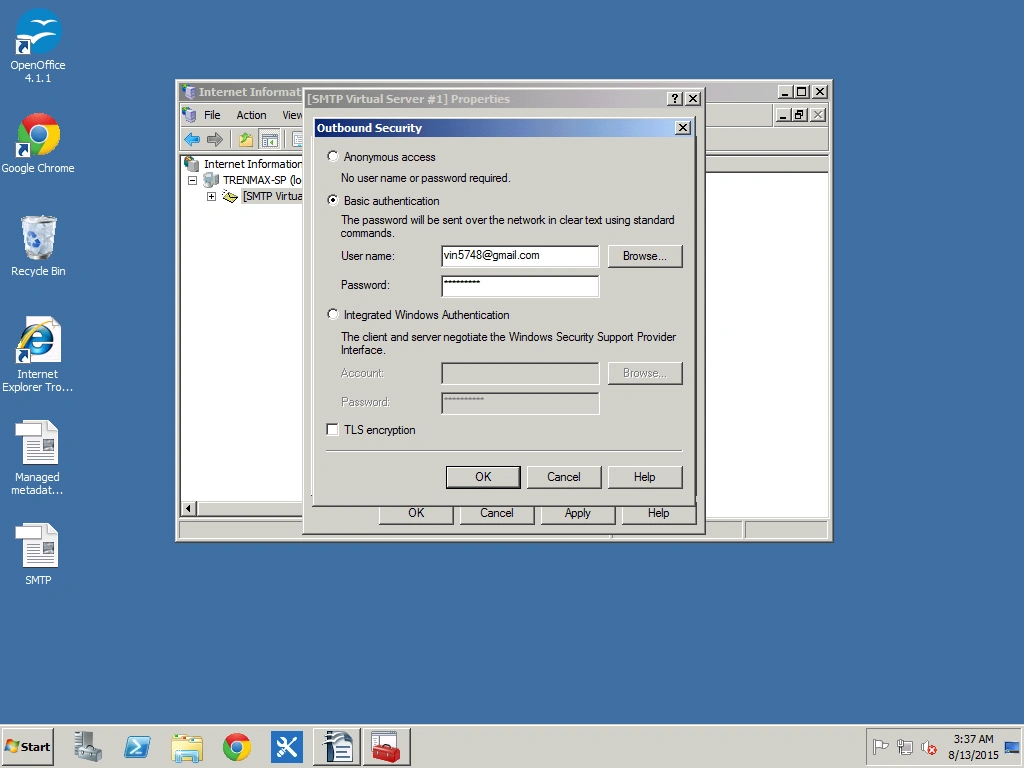
Figure 14: Address and Password
Enable TLS encryption and click OK.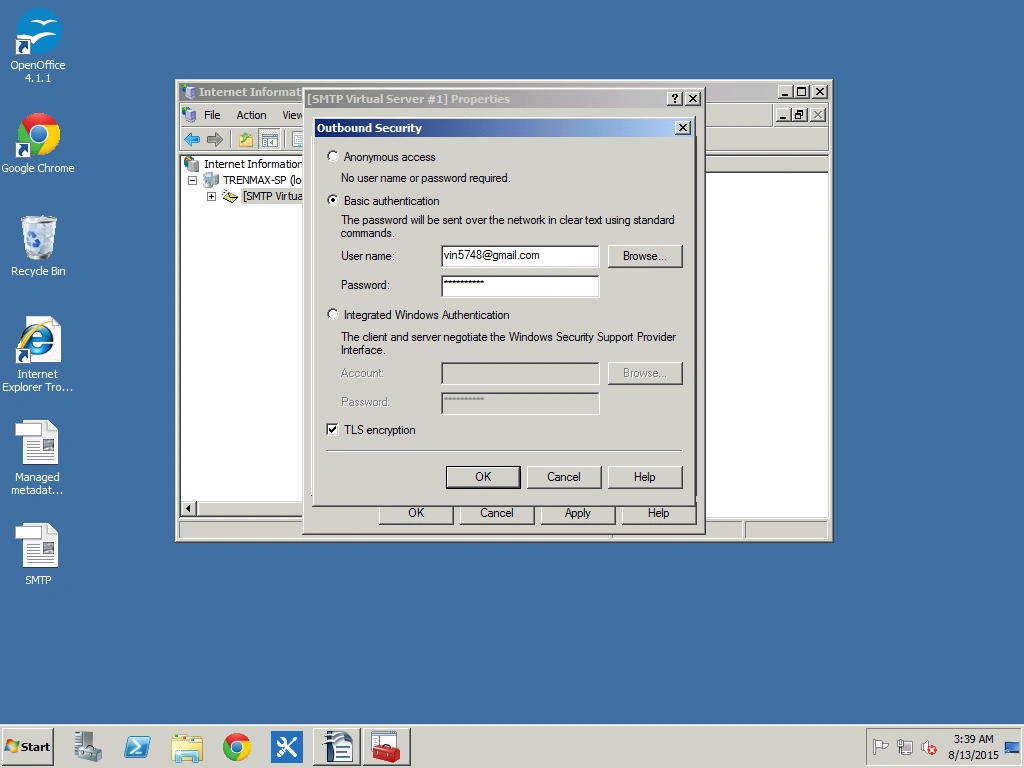
Figure 15: Enable TLS encryption
Open Outbound Security
Change TCP Port from 25 to 587.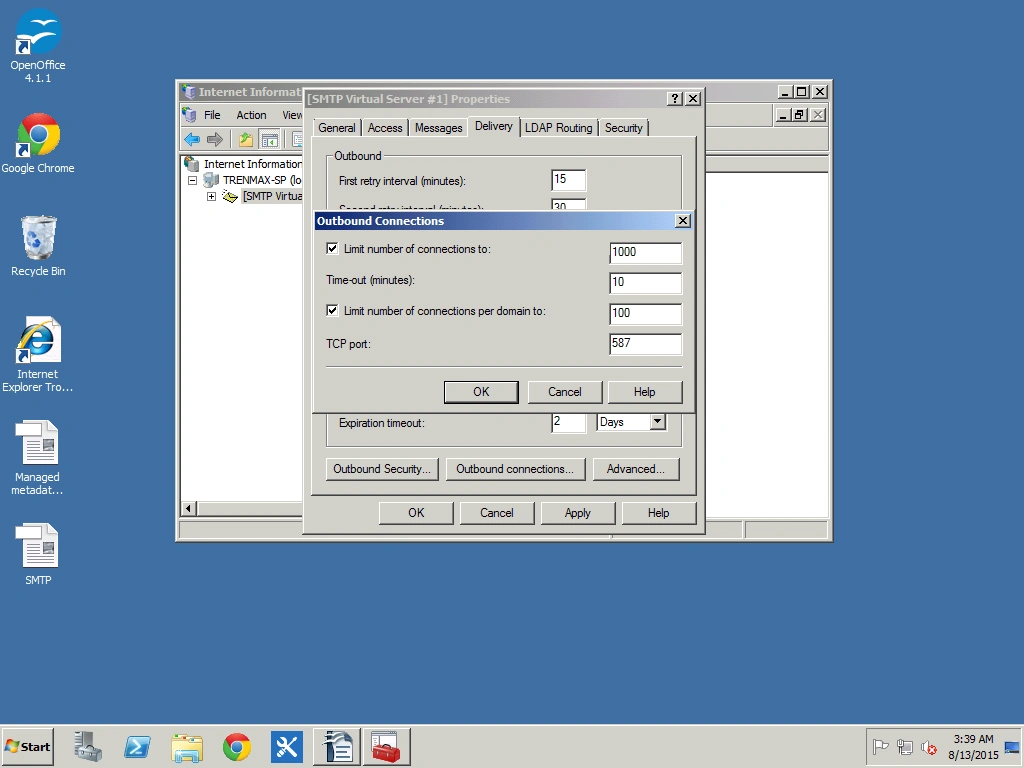
Figure 16: Change TCP Port from
Click the Advanced Tab, go to Smart host and write smtp.gmail.com
Figure 17: smtp.gmail.com
Click Apply and then OK.
Open SharePoint Central Administration.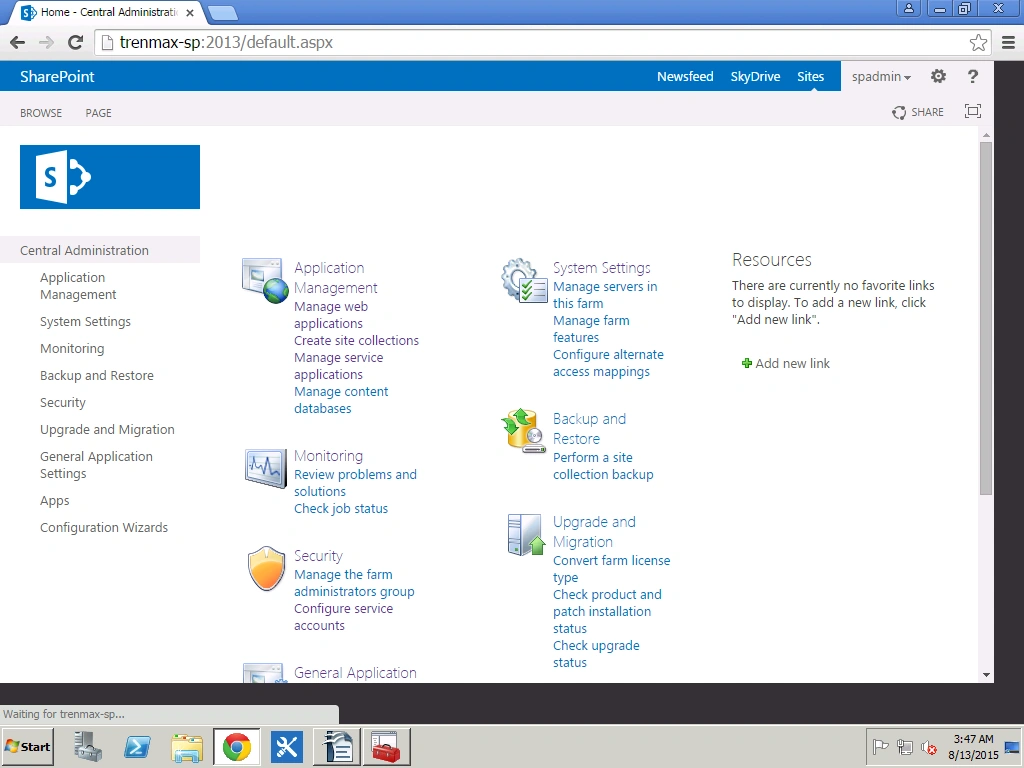
Figure 18: Open SharePoint Central Administration
Click System Settings.
Open Configure outgoing email settings.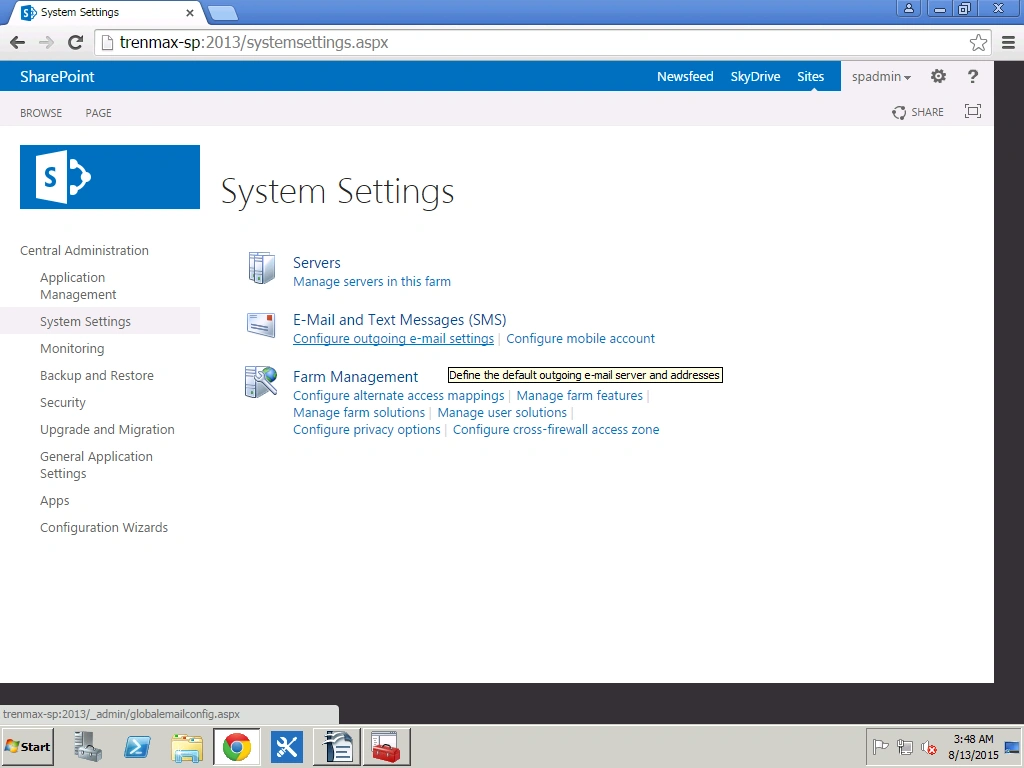
Figure 19: Configure outgoing email settings
Enter Outgoing E-mail Settings and click OK.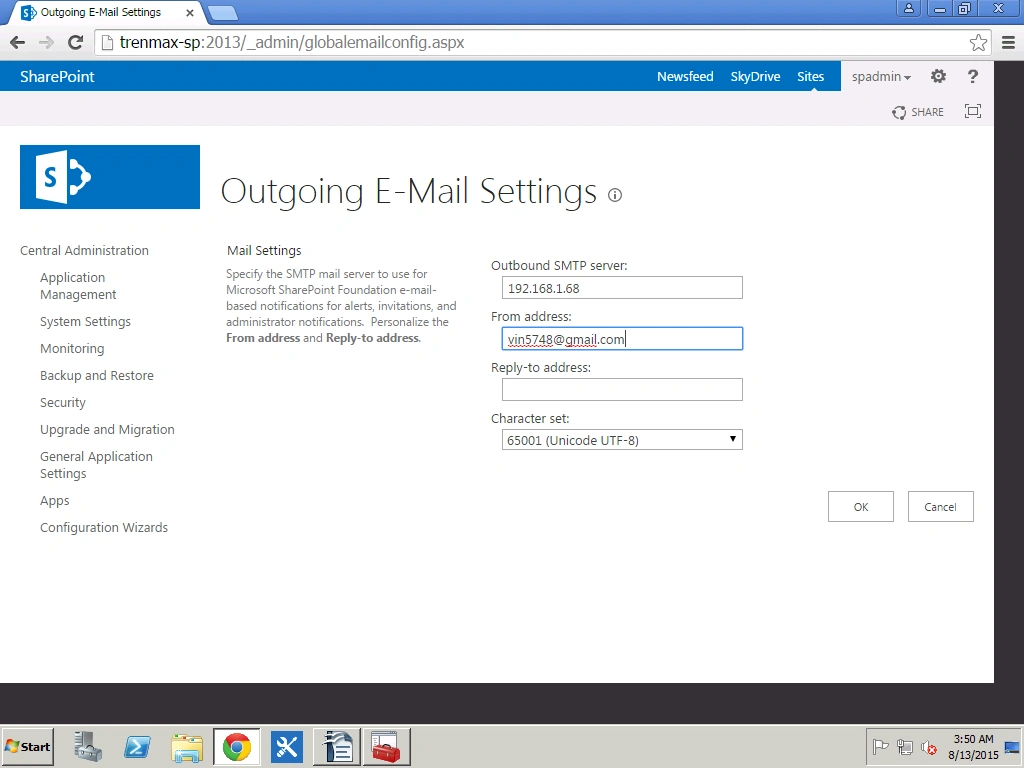
Figure 20: Happy SharePoint

Configure Gmail Settings in SharePoint 2013
Join the conversation! Your thoughts help the community grow.
Sign in to leave a comment
It is the same account you read, post and publish with — and you will come straight back to this page.
Vinodh NarayananPosted Aug 16, 2015, 5:29 AM
Santhakumar Munuswamy thanks sir
Santhakumar MunuswamyPosted Aug 16, 2015, 2:32 AM
Good Article. Thanks for sharing
Vinodh NarayananPosted Aug 15, 2015, 3:06 AM
Thanks
Pankaj Kumar ChoudharyPosted Aug 14, 2015, 9:02 PM
Excellent Explanation ..............
Vinodh NarayananPosted Aug 14, 2015, 2:17 AM
Vaikesh K P Thanks
Vaikesh K PPosted Aug 14, 2015, 1:22 AM
Good One :)
Vinodh NarayananPosted Aug 13, 2015, 2:38 PM
Thank you
Abhay ShankerPosted Aug 13, 2015, 1:15 PM
nice one...
Vinodh NarayananPosted Aug 13, 2015, 12:12 PM
Thank u guys
RakeshPosted Aug 13, 2015, 10:08 AM
Good work
Vinodh NarayananPosted Aug 13, 2015, 9:51 AM
Thank u guys
Nilesh JadavPosted Aug 13, 2015, 9:43 AM
Nice article sir
Rajeesh MenothPosted Aug 13, 2015, 9:11 AM
Nice share
Karthikeyan KPosted Aug 13, 2015, 8:43 AM
Good one...Thanks for sharing