In one of my client environments, I implemented password reset functionality in Microsoft Power Pages using the built-in password reset process and Power Automate for email delivery.
The configuration worked successfully, allowing users to request a password reset and receive an email containing the generated password reset URL.
Let's walk through the implementation.
Step 1: Configure the Power Pages site settings
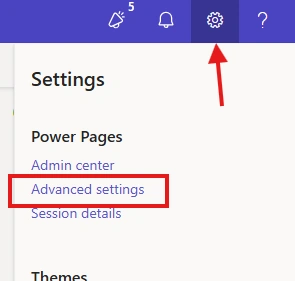
Open the Power Pages Management app and navigate to Website → Site Settings.
Configure the following settings:
Authentication/Registration/ResetPasswordEnabled: true
Authentication/Registration/ResetPasswordRequiresConfirmedEmail: false
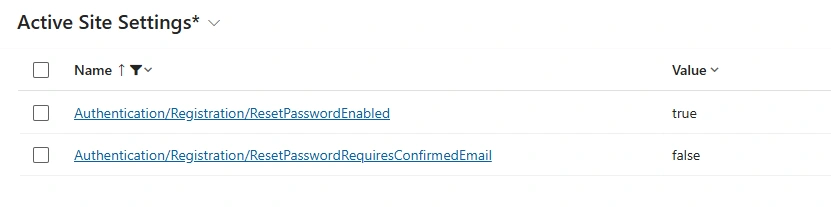
The first setting enables password reset functionality. The second allows password reset requests without requiring the email-confirmation condition controlled by this setting.
Save the changes and ensure they apply to the correct website.
Step 2: Modify the built-in password reset process
Power Pages uses a built-in Dataverse process named Send Password Reset To Contact.
To configure custom email delivery:
- Open the relevant Power Pages environment.
- Navigate to Settings → Advanced Settings -> Process Center.
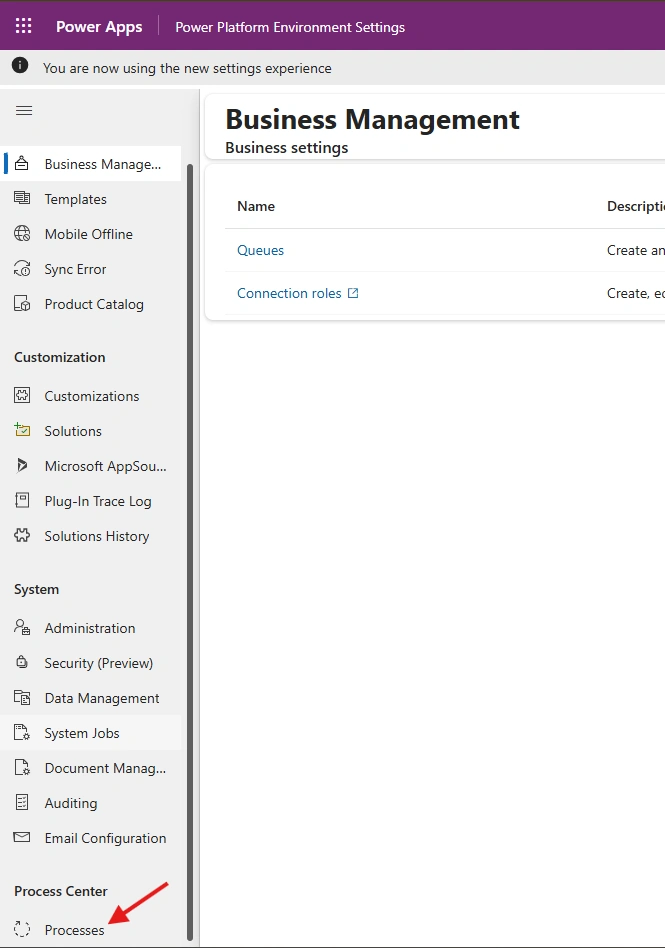
- Change the view to All Processes.
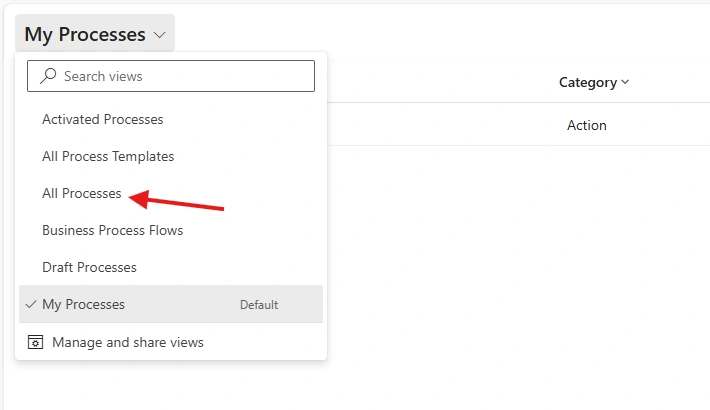
- Search for Send Password Reset To Contact.
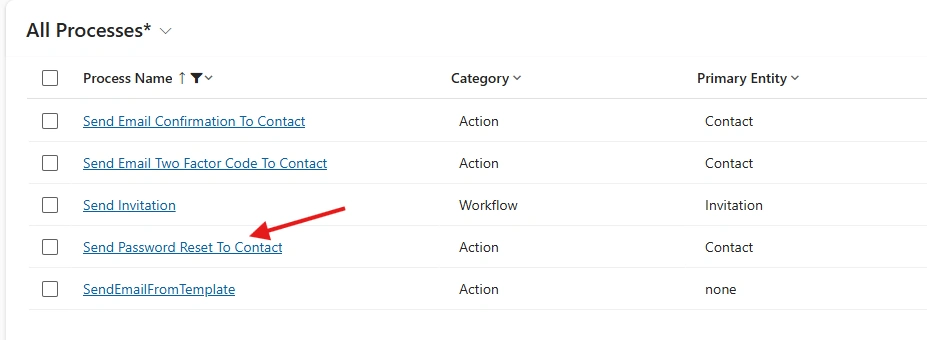
- Open the process using its blue link.
- Deactivate the process before modifying it.
- Locate the default email-sending step.
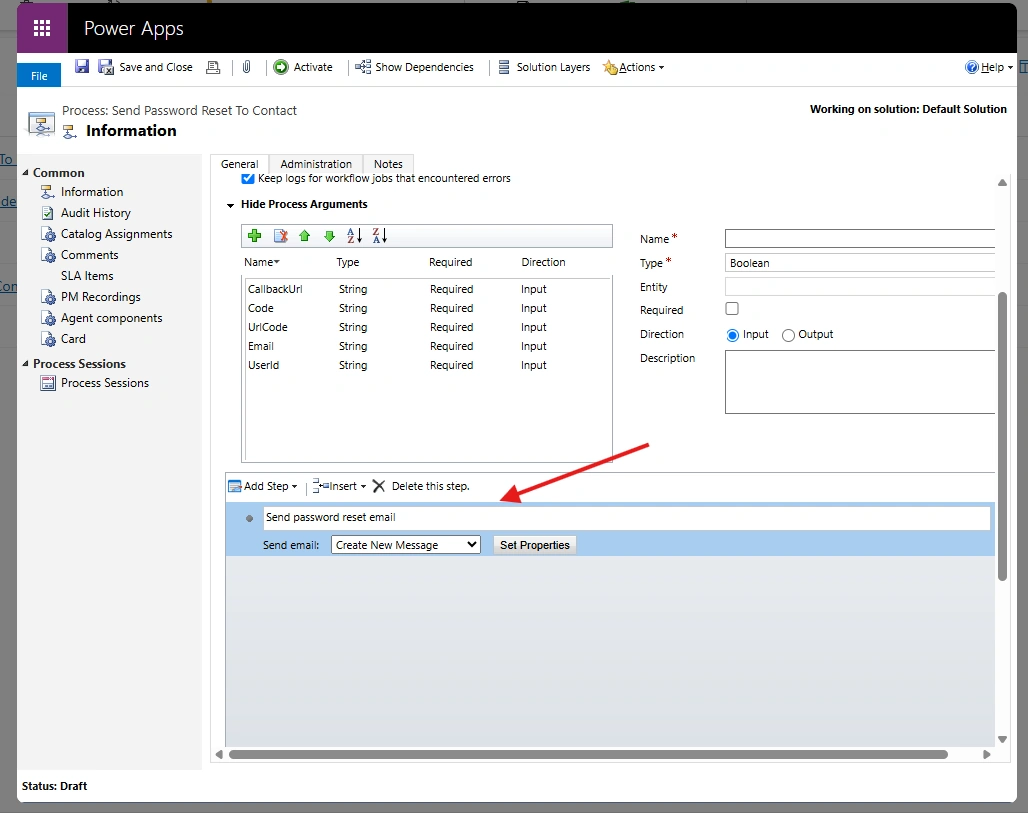
- Remove the email-sending step while preserving the remaining password reset workflow.
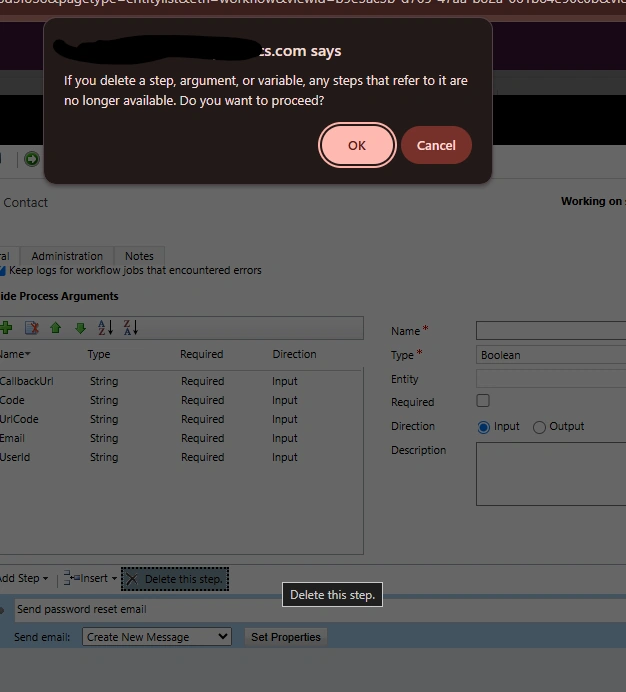
- Activate the process again.
- Save and close the process.
The objective is to retain the built-in password reset processing while moving the email-delivery responsibility to Power Automate.
Important: Before removing any step, confirm that it is the email-sending step and not a step responsible for generating or preparing the password reset callback URL. Test this customization in a development environment before applying it to production.
Step 3: Create a Power Automate flow
Open Power Automate and create an automated cloud flow.
Select the Microsoft Dataverse trigger:
When an action is performed
Configure the trigger to run for the relevant password reset action in your environment.
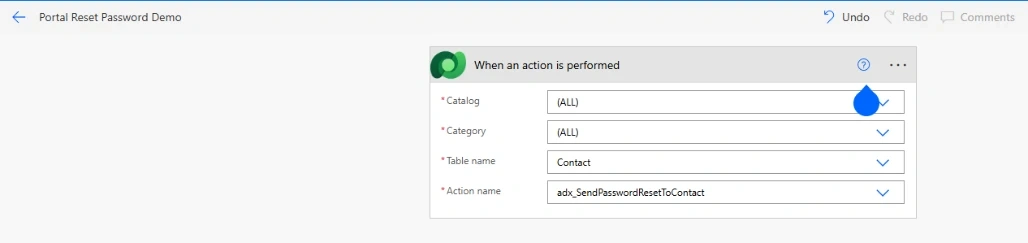
The action is commonly identified as:
adx_SendPasswordResetToContact
Verify the exact action name and available trigger outputs in your environment.
Step 4: Retrieve the user's Contact details
When the password reset request is submitted, the flow receives information associated with the request.
Use the trigger outputs to identify the relevant Contact record and retrieve its details from the Dataverse Contact table.
Add the Get a row by ID action and configure it to retrieve the Contact record using the Contact ID from the trigger, where available.
This allows the flow to access details such as the user's name and email address.
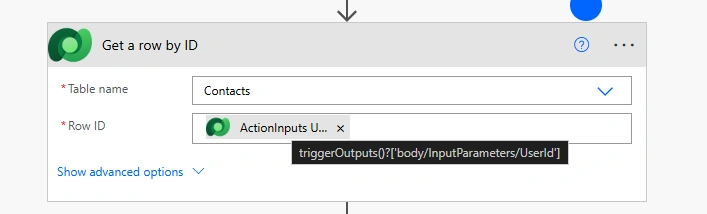
Using the relevant Contact record helps ensure that the email is sent to the intended account.
Step 6: Send the password reset email
Add the Office 365 Outlook Send an email (V2) action.
Configure the email using the Contact details and callback URL obtained in the previous steps.
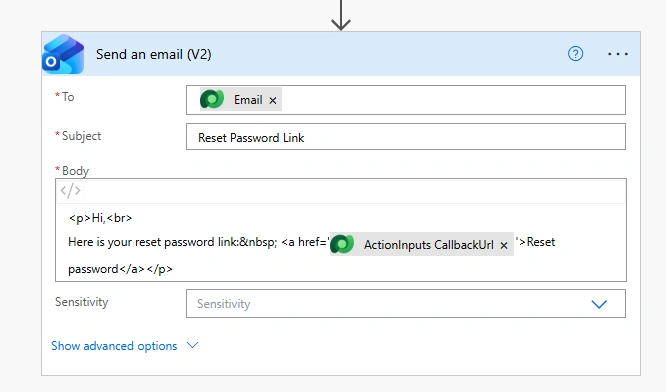
To: The user's email address from the Contact record.
Subject: Password Reset Request.
Body: Include a brief explanation and the generated callback URL as a clickable link.
Replace the placeholders with the appropriate dynamic content from your flow.
Treat the callback URL as a sensitive credential. Avoid exposing it in unnecessary logs or sending it to an unintended recipient.
Step 7: Test the implementation
After configuring the flow, test the complete password reset process:
- Open the Power Pages website.
- Navigate to the sign-in page.
- Click Forgot your password?
- Enter the email address of a test user.
- Submit the request.
- Verify that the Power Automate flow runs successfully.
- Confirm that the user receives the email. please junk email folder if not arrived in Inbox
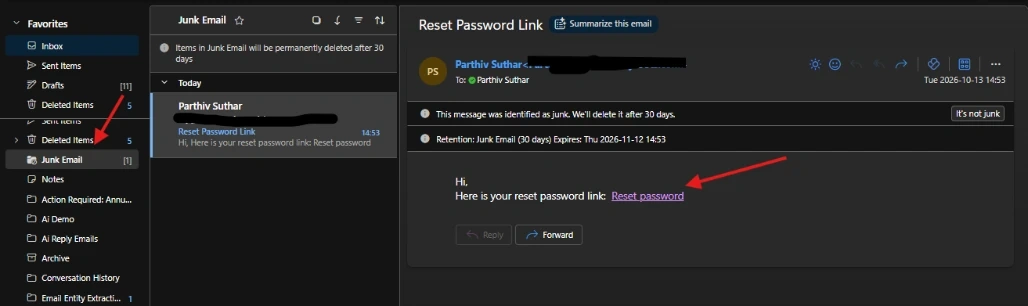
- Open the callback URL.
- Set a new password.
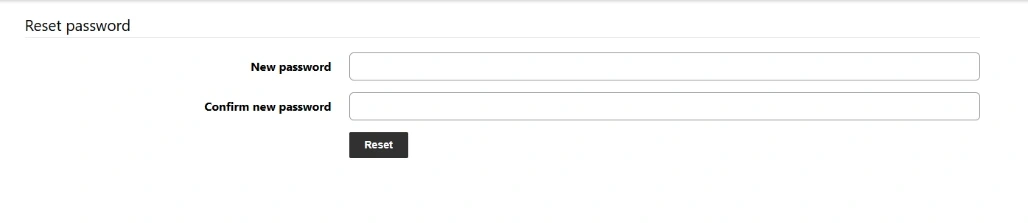
- Sign in using the updated credentials.
Verify both the email delivery and the actual password change. A successful flow run alone does not confirm that the complete password reset process works correctly.
Result
With this configuration, Power Pages continues to handle the password reset workflow, while Power Automate sends the email containing the generated callback URL.
This approach provides greater control over email delivery and customization while retaining the platform's password reset mechanism.


Join the conversation! Your thoughts help the community grow.