

In this article you will see how to configure a PowerPoint Automation Service Application in SharePoint 2013.
Introduction
PowerPoint Automation Service is a new service application introduced in SharePoint 2013. This service application is used for server-side conversion of PowerPoint presentations to another format. For example a .pptx file can be converted to .pdf format.
Supported source file formats:
- .pptx
- .ppt
Unsupported destination file formats:
- .pptx
- .xps
- .jpg
- .png
In Central Administration when you go to "Application Management" => "Manage Service Applications" then click the "New" button in the ribbon interface, you will not be able to find an option to create a PowerPoint Conversion Service Application. 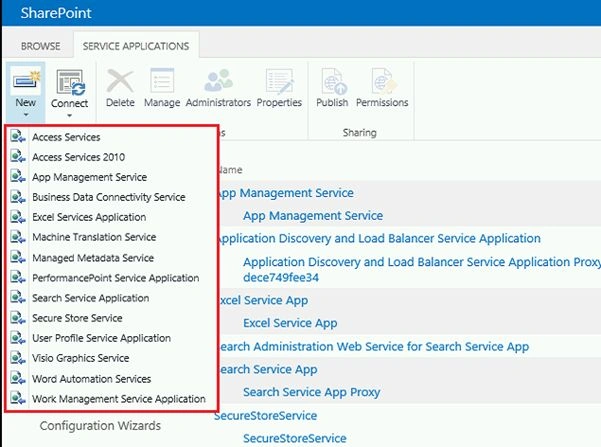
You can only use a PowerShell script to create the service application. In this article you will see how to create a PowerPoint service application and proxy using a PowerShell script in SharePoint 2013.
Create PowerPoint Automation Service Application:
- Open SharePoint 2013 Management Shell as an Administrator.
- Run the following command to create the service application.
New-SPPowerPointConversionServiceApplication -Name "PowerPoint Automation Service Application" -ApplicationPool "SharePoint Web Services Default"
"PowerPoint Automation Service Application" is the service application name. "SharePoint Web Services Default" is the service application assigned to the default SharePoint Web Services application pool.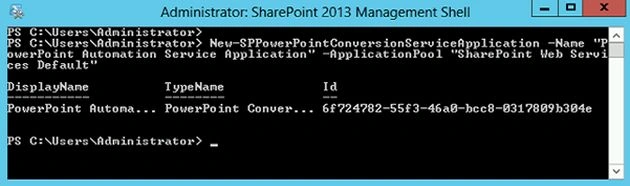
- The PowerPoint Conversion Service Application is created successfully.
Create PowerPoint Conversion Service Application proxy
- Open SharePoint 2013 Management Shell as an Administrator.
- Run the following command to create the service application proxy.
New-SPPowerPointConversionServiceApplicationProxy -Name "PowerPoint Automation Service Application Proxy" -ServiceApplication "PowerPoint Automation Service Application" –AddtoDefaultGroup
"PowerPoint Automation Service Application proxy" is the proxy name. "PowerPoint Automation Service Application" is the service application name. "AddtoDefaultGroup" adds the proxy to the default group.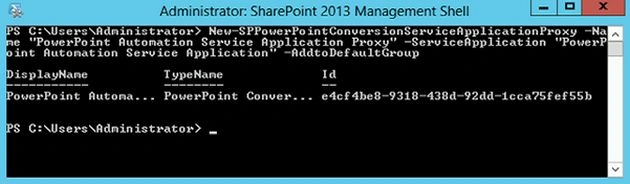
- The PowerPoint Conversion Service Application proxy is created successfully and added to the default proxy.

Summary
Thus in this article you have seen how to configure a PowerPoint Automation Service Application in SharePoint 2013.
Dwarkesh SPosted Oct 24, 2013, 8:28 AM
Hi, Thanx for the nice article i have successfully added PowerPoint Service in my farm but i am having one issue which is while converting the .pptx file into .jpg on following line of code: req.EndConvert(result); saying : Error: "Could not connect to the conversion service" can anyone please help me out on this
Minakshi PatilPosted Oct 23, 2013, 9:23 AM
Hi I am getting error " : InvalidArgument: (Microsoft.Offic...viceApplicat ion:NewSPPowerPoint...viceApplication) [New-SPPowerPoin...viceApplication] , InvalidOperationException FullyQualifiedErrorId : Microsoft.Office.Server.PowerPoint.PowerShell.Ne wSPPowerPointConversionServiceApplication" at the 1st step as per your document.
mekh eddinePosted Sep 26, 2013, 11:01 AM
I had this error: the specified document could not be converted on 3 VM, my powerpoint automation service is correctly configured, any idea,thank's