

Introduction
In this article you will learn how to configure a Request Filtering Setting for your FTP Site.
Step 1
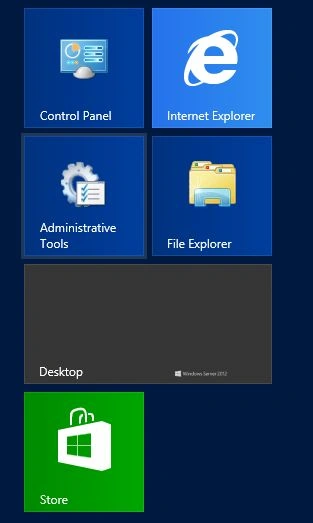
First of all open your Administrative Tools from the Start Menu.
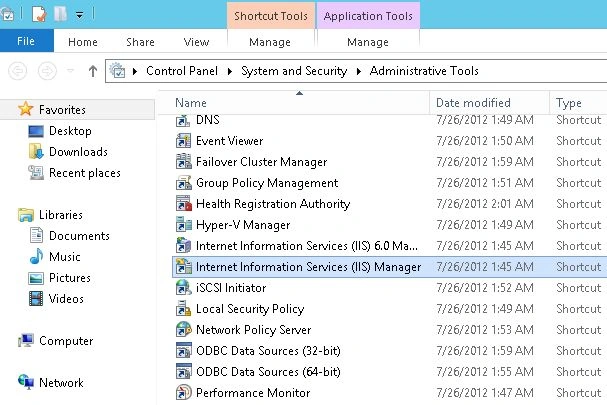
Now your Administrator Tools will be opened, among these tools you will find an option named "IIS Manager", double-click on this option to open it.
Step 2
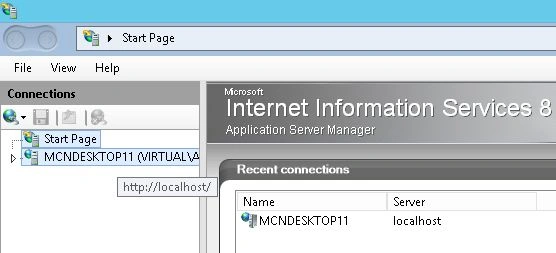
On the left hand side you will see that a pane is provided named "Connections", in this Connections pane your server name will be shown. Single-click on this server name to open it.
Step 3
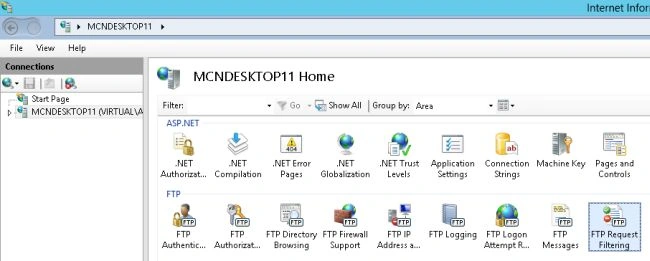
Now in the FTP Features View an option will be available named "FTP Request Filtering", double-click on this feature to open it.
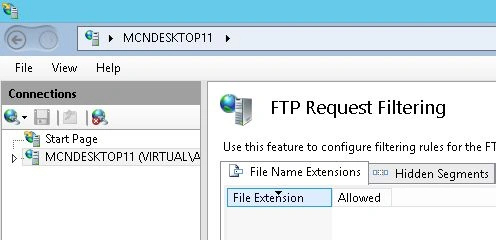
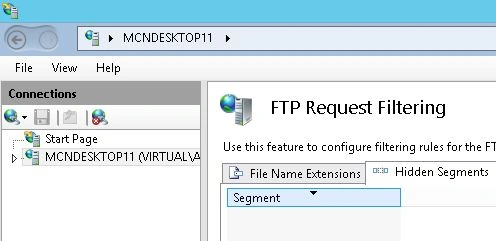
Now the File Request Filtering page will be opened, on this page click on the Tab named File Name Extension, click on this Tab. This Tab will help you to filter the data based File Name Extension.
Step 4
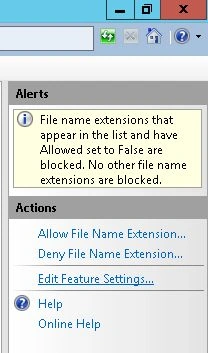
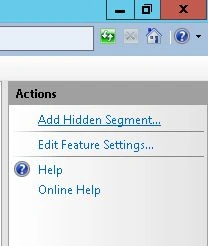
After clicking the tab, go to the Action Pane, in the action pane two options will be available; the first is "Allow File Name Extension" and the second is "Deny File Name Extension", since first you need to add a file extension, click on the first button, in other words "Allow File Name Extension".
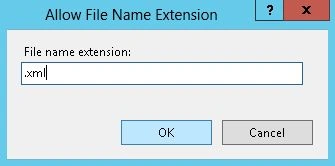
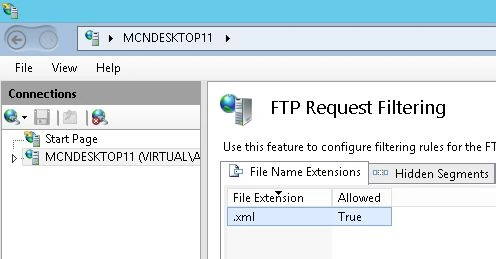
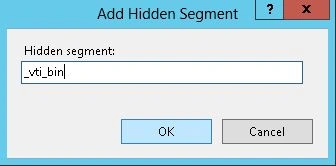
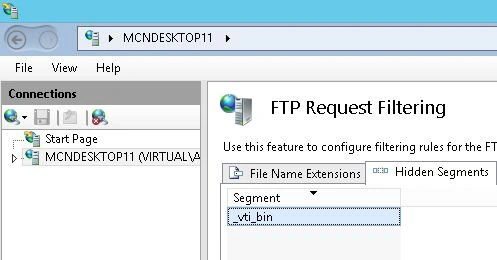
As you click on "Allow File Name Extension..." a box will be opened that will allow you to provide the extension on which you wants to Filter the Data. Provide the Extension of Data and click on O.K button.
Join the conversation! Your thoughts help the community grow.