

Introduction
In this article, we are explaining how to configure WCF Services in Windows 8 for Visual Studio 2012. In previous versions of Windows when we want to configure WCF Services then we simply install IIS and then run the " aspnet_regiis -i " command in the Visual Studio command prompt. But the problem with Windows 8 is that this option is not supported for this version of the operating system.
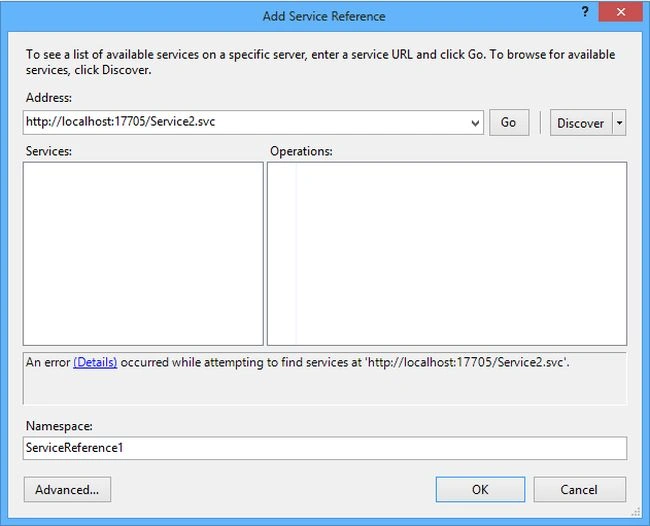
By default on Windows 8 when we try to add a services reference to any application in Visual Studio 2012 then the following error occurs.
How to enable WCF services in Windows 8?
Step 1
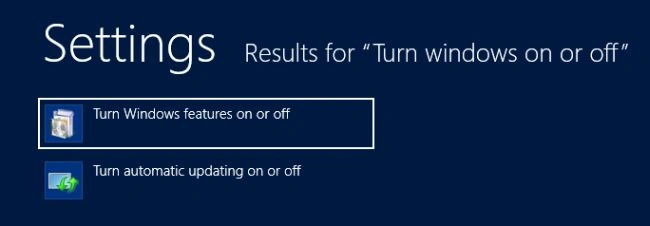
Go to the search box and type "Turn windows on or off" then click on "Settings". Click on the application that appears in the results window.
Step 2
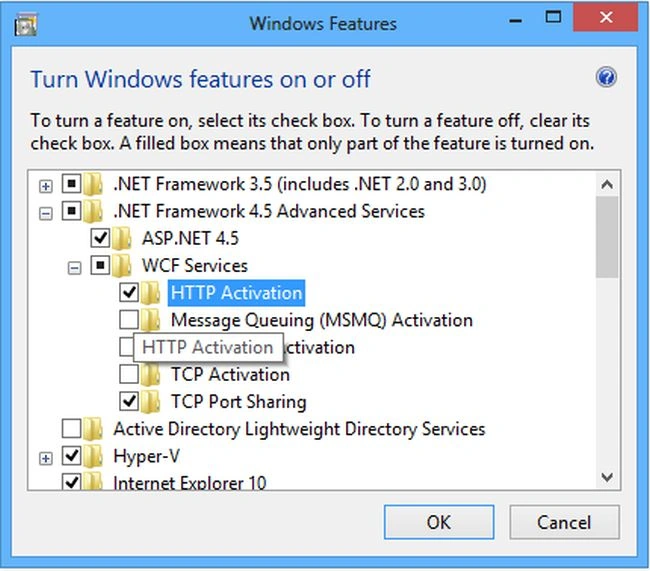
In the "Windows feature" window go to ".NET Framework 4.5 advanced services" > WCF Services" and enable to "HTTP Activation". Click on "OK" to install the services.
Step 3
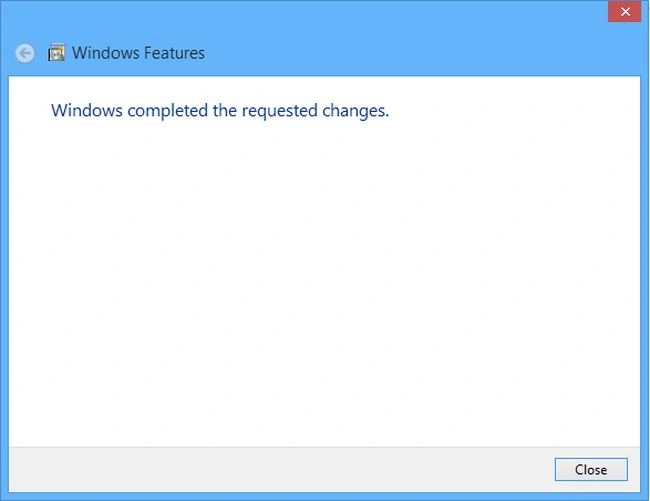
Wait a few minutes to install the feature. A message will appear notifying you that the feature has been installed. Click on "Close".
Step 4
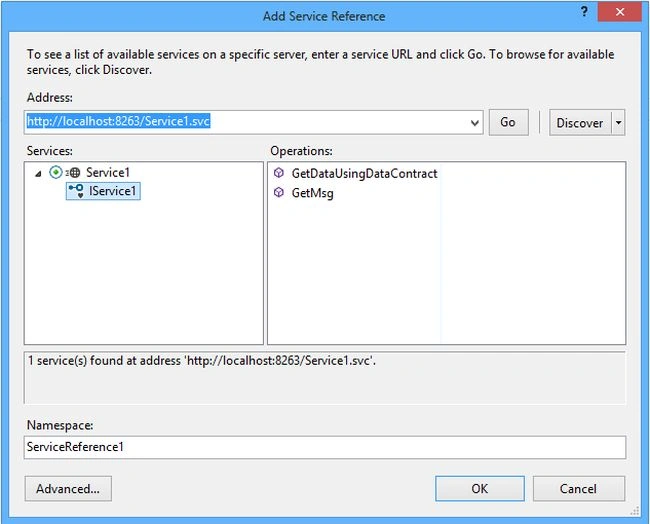
Now go to Visual Studio 2012 and try to add the services reference.
Summary
In this article, we learned about How to Configure WCF Services in Windows 8.
Nasurudeen YasuPosted Jan 27, 2014, 4:52 AM
i got this error A first chance exception of type 'System.ServiceModel.CommunicationException' occurred in System.ServiceModel.ni.dll