

Introduction
This article explains how to connect the SQL database into ASP.net using C# language and how to insert and view the data, using Visual Studio 2015 Update 3.
Requirements
- Visual Studio 2015 Update 3
- ASP.NET 4.5.2
- SQL Server
Step 1
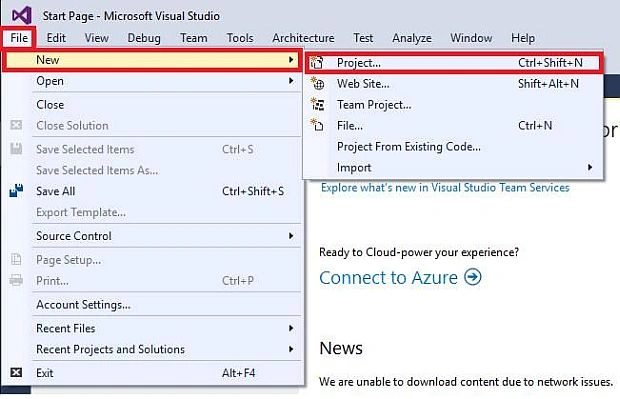
Now, Open Visual Studio 2015 Update 3, go to the File >> New >> Project or use the shortcut key "Ctrl+Shift +N".
Step 2
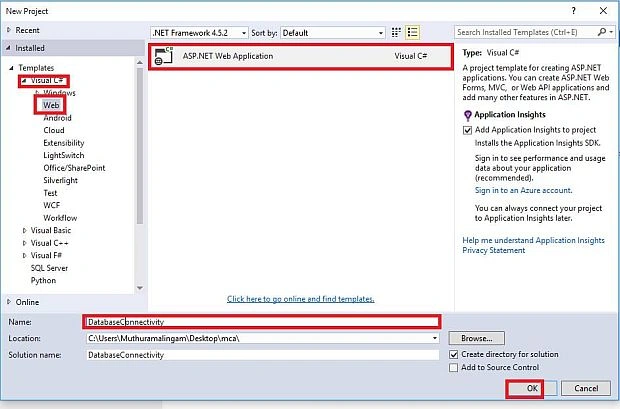
Here, select Visual C# >> Web >> ASP.NET Web Application. Finally, click "OK" button.
Step 3
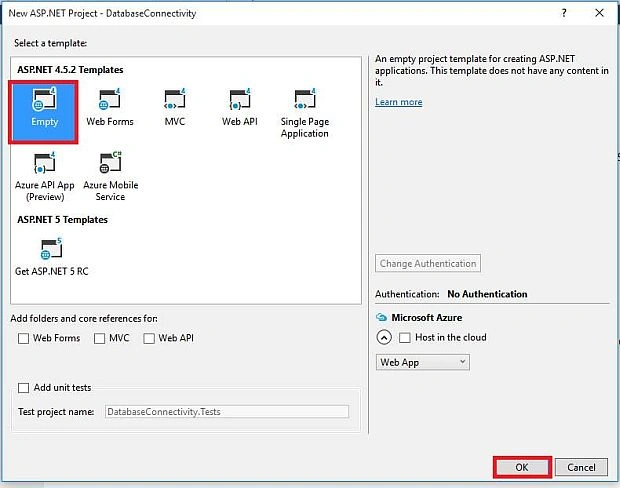
Here, you can select the template for your ASP.NET Application. We are choosing "Empty" here. Now, click OK button.
Step 4
Now, open the project and look for the Solution Explorer.
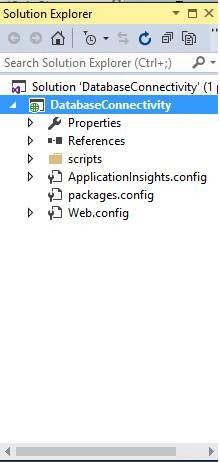
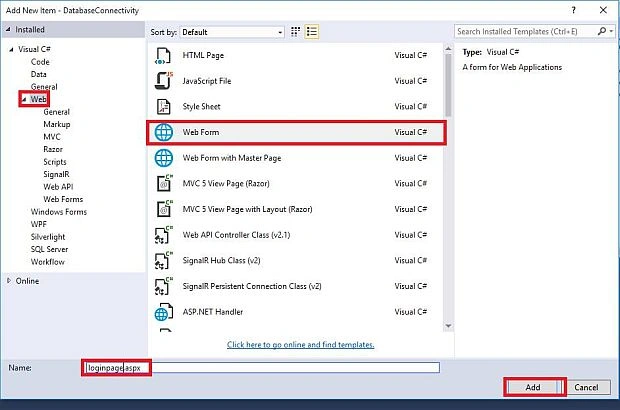
Here, open the default .aspx. If you want a Webform, you can add the page (Web Form). Add+New item (Ctrl+Shift+A).
Now, we can create a login page, using ASP.NET code. You need to follow the drag and drop method. Here, we already created the login page.
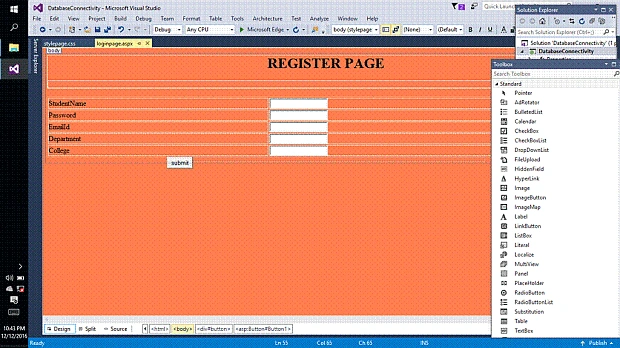
Step 5
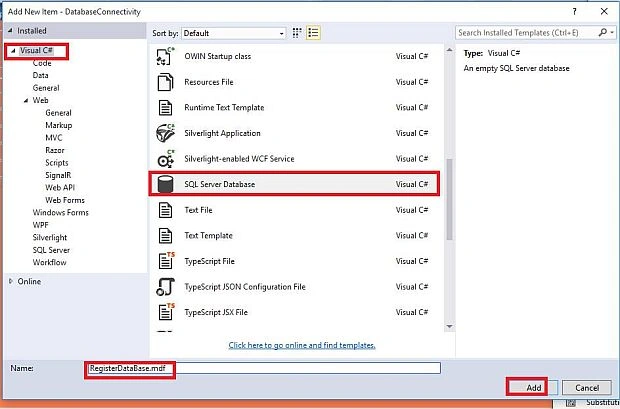
Now, open the project. If you want a SQL Server database, you can add the page (SQL Server database). Add+New item (Ctrl+Shift+A).
Here, you can select Visual C# and choose SQL Server database. Afterwards, click "OK" button.
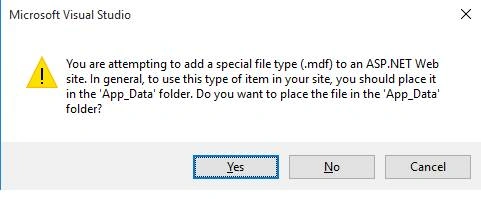
Here, open the new Window and click YES button.
Now, add this to the database in our project.
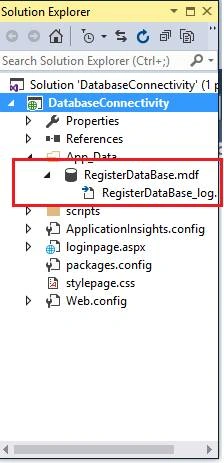
Step 6
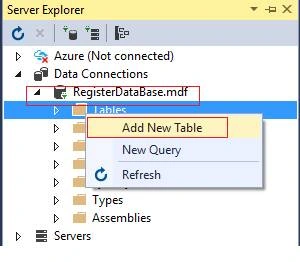
Now, we can go to the Server Explorer and add your database. You can click the Tables and afterwards, click Add New Table.
Now, open the new table and you can fill the data, which is like (studentname, password) and afterwards, you click the Update .
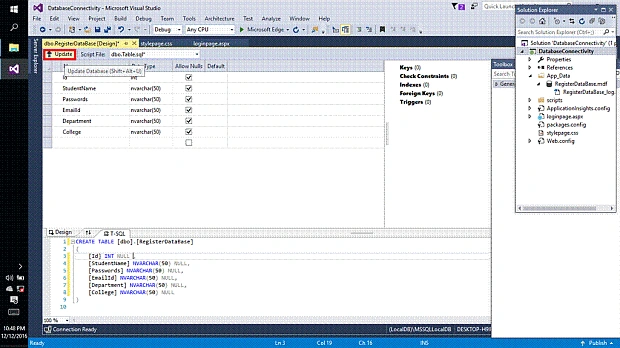
Here, click database in update and subsequently click update the database.
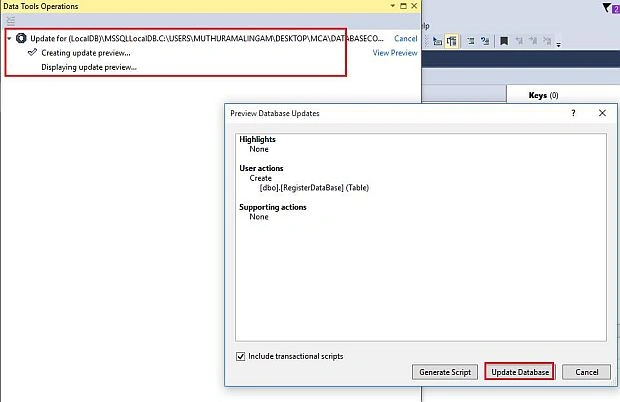
Here, the database is updated.
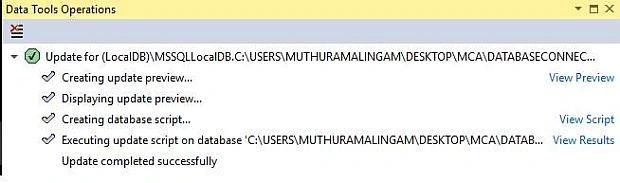
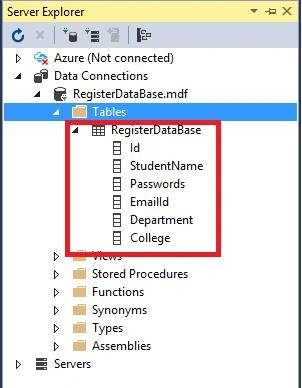
Here, the database and data are added.
Here, the database and data are added.
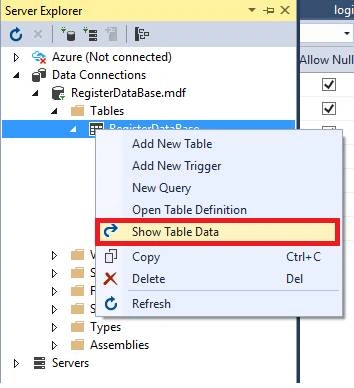
Now, we can click on the right click and click Show Table Data.
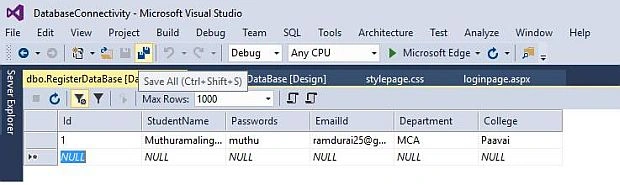
Now, the data is stored.
Step 7
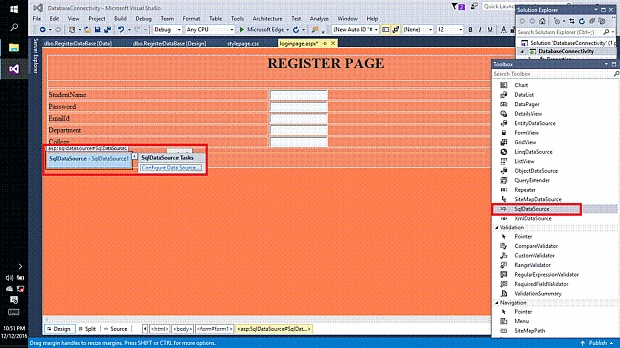
Now, you can add SQL Data Source. Drag and drop method. Here, click Configure Data Source
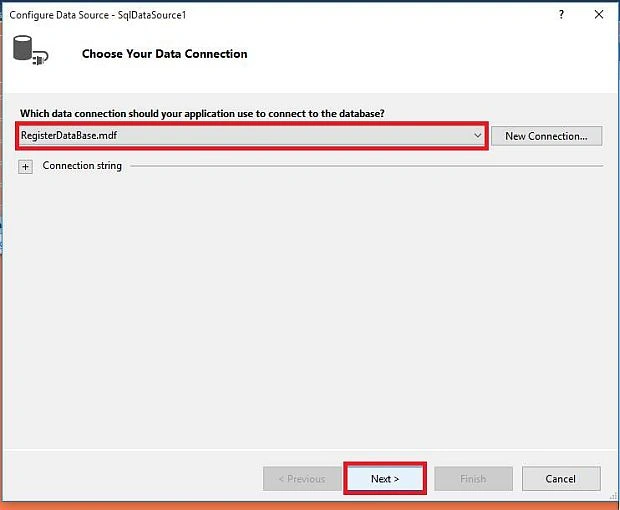
Now, we can choose your database and click NEXT button.
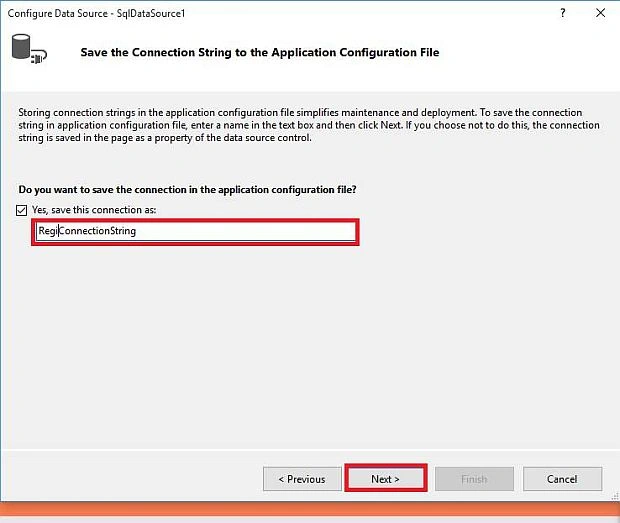
Now, you can select the ConnectionString and Click NEXT button
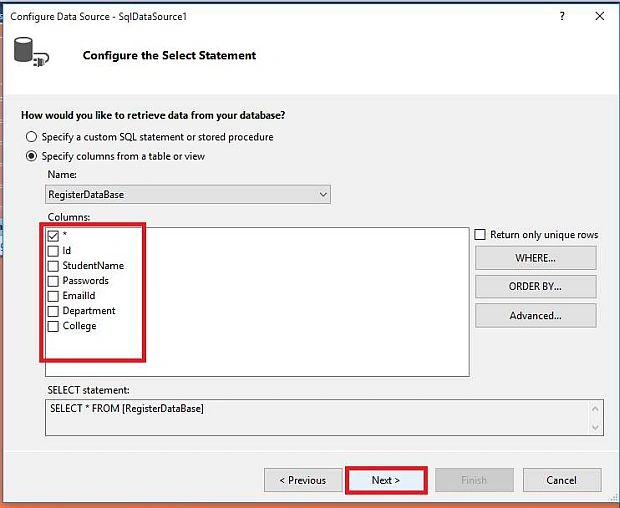
Now, we can choose Specify columns from a table or view and afterwards, click Next button.
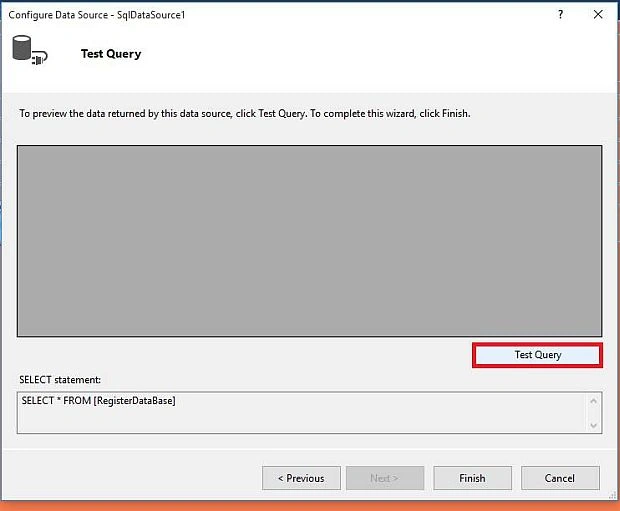
Now, click Test Query.
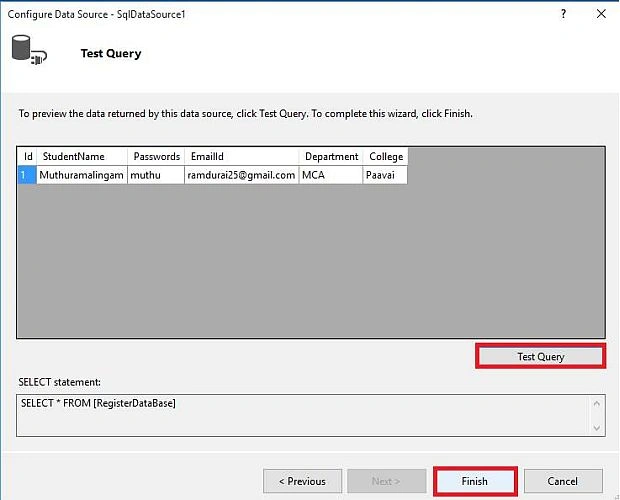
Here, add the data and click Finish button.
Step 8
Now, you can go to CS(C# code) page and you will write the C# code.
- using System;
- using System.Collections.Generic;
- using System.Linq;
- using System.Web;
- using System.Web.UI;
- using System.Web.UI.WebControls;
- using System.Data.SqlClient;
- using System.Configuration;
- namespace DatabaseConnectivity
- {
- public partial class loginpage System.Web.UI.Page
- {
- protected void Page_Load(object sender, EventArgs e)
- {
- if(IsPostBack)
- {
- SqlConnection conn = new SqlConnection(ConfigurationManager.ConnectionStrings["RegiConnectionString"].ConnectionString);
- conn.Open();
- string checkuser = "select count(*) from RegisterDataBase where StudentName='"+TextBox1.Text+"'";
- SqlCommand cmd = new SqlCommand(checkuser, conn);
- int temp = Convert.ToInt32(cmd.ExecuteScalar().ToString());
- if (temp == 1)
- {
- Response.Write("Student Already Exist");
- }
- conn.Close();
- }
- }
- protected void Button1_Click(object sender, EventArgs e)
- {
- try
- {
- SqlConnection conn = new SqlConnection(ConfigurationManager.ConnectionStrings["RegiConnectionString"].ConnectionString);
- conn.Open();
- string insertQuery = "insert into RegisterDataBase(StudentName,Passwords,EmailId,Department,College)values (@studentname,@passwords,@emailid,@department,@college)";
- SqlCommand cmd = new SqlCommand(insertQuery, conn);
- cmd.Parameters.AddWithValue("@studentname", TextBox1.Text);
- cmd.Parameters.AddWithValue("@passwords", TextBox2.Text);
- cmd.Parameters.AddWithValue("@emailid", TextBox3.Text);
- cmd.Parameters.AddWithValue("@department", TextBox4.Text);
- cmd.Parameters.AddWithValue("@college", TextBox5.Text);
- cmd.ExecuteNonQuery();
- Response.Write("Student registeration Successfully!!!thank you");
- conn.Close();
- }
- catch (Exception ex)
- {
- Response.Write("error" + ex.ToString());
- }
- }
- }
- }
- <%@ Page Language="C#" AutoEventWireup="true" CodeBehind="loginpage.aspx.cs" Inherits="DatabaseConnectivity.loginpage" %>
- <!DOCTYPE html>
- <html xmlns="http//www.w3.org/1999/xhtml">
- <head runat="server">
- <title></title>
- <link href="stylepage.css" type="text/css" rel="stylesheet" />
- <style type="text/css">
- .auto-style1 {
- width 100%;
- }
- </style>
- </head>
- <body>
- <form id="form1" runat="server">
- <div id="title">
- <h1>REGISTER PAGE</h1>
- </div>
- <div id ="teble"></div>
- <table class="auto-style1">
- <tr>
- <td>
- <aspLabel ID="Label1" runat="server" Text="StudentName"></aspLabel></td>
- <td>
- <aspTextBox ID="TextBox1" runat="server"></aspTextBox></td>
- </tr>
- <tr>
- <td>
- <aspLabel ID="Label2" runat="server" Text="Password"></aspLabel></td>
- <td>
- <aspTextBox ID="TextBox2" runat="server"></aspTextBox></td>
- </tr>
- <tr>
- <td>
- <aspLabel ID="Label3" runat="server" Text="EmailId"></aspLabel></td>
- <td>
- <aspTextBox ID="TextBox3" runat="server"></aspTextBox></td>
- </tr>
- <tr>
- <td>
- <aspLabel ID="Label4" runat="server" Text="Department"></aspLabel></td>
- <td>
- <aspTextBox ID="TextBox4" runat="server"></aspTextBox></td>
- </tr>
- <tr>
- <td>
- <aspLabel ID="Label5" runat="server" Text="College"></aspLabel></td>
- <td>
- <aspTextBox ID="TextBox5" runat="server"></aspTextBox></td>
- </tr>
- </table>
- <div id="button">
- <aspButton ID="Button1" runat="server" Text="submit" OnClick="Button1_Click" BackColor="Yellow" />
- </div>
- <div id="sim"></div>
- <aspSqlDataSource ID="SqlDataSource1" runat="server" ConnectionString="<%$ ConnectionStringsRegiConnectionString %>" SelectCommand="SELECT * FROM [RegisterDataBase]"></aspSqlDataSource>
- <div id="grid">
- <aspGridView ID="GridView1" runat="server" AllowPaging="True" AllowSorting="True" AutoGenerateColumns="False" CellPadding="4" DataSourceID="SqlDataSource1" ForeColor="#333333" GridLines="None">
- <AlternatingRowStyle BackColor="White" ForeColor="#284775" />
- <Columns>
- <aspBoundField DataField="Id" HeaderText="Id" SortExpression="Id" />
- <aspBoundField DataField="StudentName" HeaderText="StudentName" SortExpression="StudentName" />
- <aspBoundField DataField="Passwords" HeaderText="Passwords" SortExpression="Passwords" />
- <aspBoundField DataField="EmailId" HeaderText="EmailId" SortExpression="EmailId" />
- <aspBoundField DataField="Department" HeaderText="Department" SortExpression="Department" />
- <aspBoundField DataField="College" HeaderText="College" SortExpression="College" />
- </Columns>
- <EditRowStyle BackColor="#999999" />
- <FooterStyle BackColor="#5D7B9D" -Bold="True" ForeColor="White" />
- <HeaderStyle BackColor="#5D7B9D" -Bold="True" ForeColor="White" />
- <PagerStyle BackColor="#284775" ForeColor="White" HorizontalAlign="Center" />
- <RowStyle BackColor="#F7F6F3" ForeColor="#333333" />
- <SelectedRowStyle BackColor="#E2DED6" -Bold="True" ForeColor="#333333" />
- <SortedAscendingCellStyle BackColor="#E9E7E2" />
- <SortedAscendingHeaderStyle BackColor="#506C8C" />
- <SortedDescendingCellStyle BackColor="#FFFDF8" />
- <SortedDescendingHeaderStyle BackColor="#6F8DAE" />
- </aspGridView>
- </div>
- <div id="last">
- <h3>Developed by
- Muthuramalingam Duraipandi</h3>
- </div>
- </form>
- </body>
- </html>
Step 9
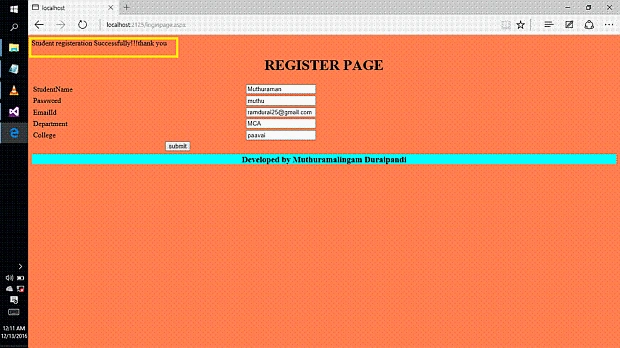
Here, you need to run any Browser and after a few minutes, you will get some output. Now, we can insert the data into your database.
Step 10
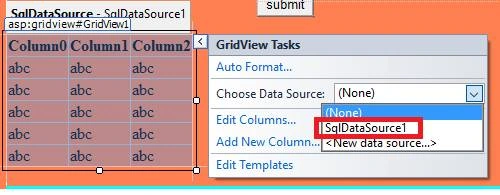
Now, we can added the GridView. Drag and drop method needs to be used.
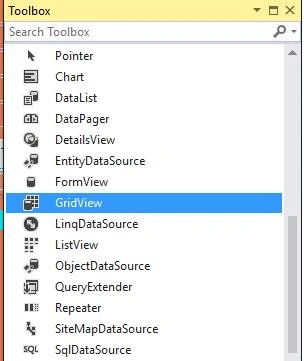
Now, you can choose the data source, it is sqlDataSource.
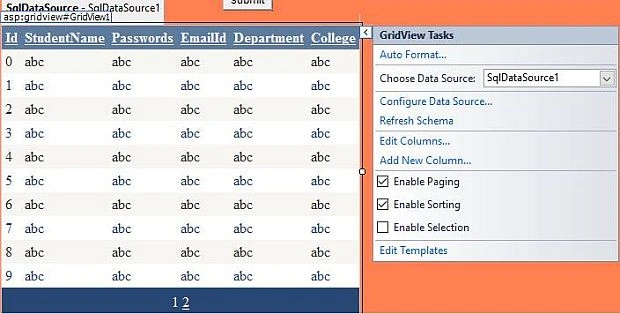
Here, the database data is added to GridView.
Step 11
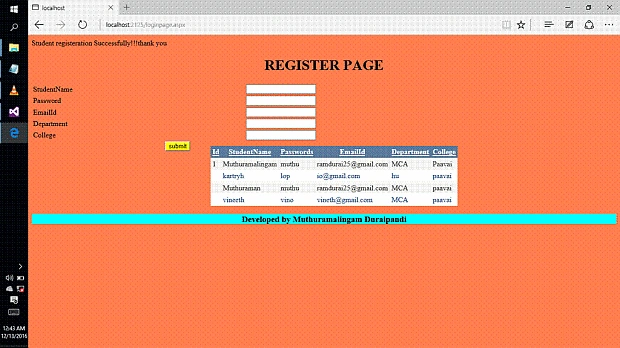
Here, you need to run any Browser and after a few minutes, you will get an output. Now, we can view the data.
Kenneth JohnPosted May 31, 2021, 10:01 AM
Server Error in '/' Application.Invalid object name 'RegisterDataBase'.Description: An unhandled exception occurred during the execution of the current web request. Please review the stack trace for more information about the error and where it originated in the code. Exception Details: System.Data.SqlClient.SqlException: Invalid object name 'RegisterDataBase'. Source Error: Line 21: string checkuser = "select count(*) from RegisterDataBase where StudentName='" + TextBox1.Text + "'"; Line 22: SqlCommand cmd = new SqlCommand(checkuser, conn); Line 23: int temp = Convert.ToInt32(cmd.ExecuteScalar().ToString()); Line 24: Line 25: if (temp == 1)
7353 BALIRAMPosted Feb 27, 2021, 8:27 PM
Thanks brother
Eric HartPosted Dec 6, 2019, 7:41 AM
Can Anyone Help me on how to connect to sql server without using the Entity framework in asp .net core
sushil sainiPosted Dec 5, 2019, 3:56 AM
You can view the detail steps here https://www.youtube.com/watch?v=azfrql2VQ6U
Sakshi KaulPosted Mar 29, 2019, 1:39 AM
If in the above example my 1st text box is EmpId instead of first name then how to handle the same ?Following line is giving an error string EmpId= "select count(*) from RegistrationTable where EmpId ='" + TextBox1.Text + "'"; error----->could not find stored procedure empid
Sakshi KaulPosted Mar 26, 2019, 5:56 AM
In the above example (Now, you can go to CS(C# code) page and you will write the C# code) I am not clear with this ? On which Page I have to do coding?I am having page as abc.aspx
Ibidapo babatundePosted Mar 13, 2019, 4:37 AM
Hi , Thanks for the Tutorial, Please I have the following error when I copy the Loginpage.asp code into my own VS loginpage Asp TextBox Validation (Xhtml5), Element is not supported
Ibidapo babatundePosted Mar 13, 2019, 4:37 AM
Asp TextBox Validation (Xhtml5), Element is not supported
Ibidapo babatundePosted Mar 13, 2019, 4:36 AM
Hi , Thanks for the Tutorial, PleaseI have the following error when I copy the Loginpage.asp code into my own VS loginpage
PARMAR MEGHRAJPosted Feb 6, 2019, 2:33 AM
Database folder in note show table create option
Adewusi OluwatobiPosted Dec 29, 2018, 8:53 AM
Thank you sir. Pls can I get the code that will register any one with coupon code . Pls
Ashwini UPosted Nov 13, 2018, 12:27 AM
I sir can i get your help to connect share point to SQL data using timer job ,please
Alayna RajputPosted Jan 24, 2018, 12:53 PM
Hello sir i need help plz can you help me i want to connect my login form with sql server 2012 plz sir i try since from 4 day's
Delpin Susai RajPosted Dec 15, 2016, 11:32 AM
Wow.. Nice sharing thank you Muthuramalingam
Jyoti KumariPosted Dec 14, 2016, 1:14 PM
Nice article with full example.. Thanks for sharing.