

How to Connect to Data
In LightSwitch, we can easily connect to existing data or to data tables that we create.
To provide data to a LightSwitch application, we can either connect to an existing data source such as a SQL Server database, or we can create tables in the SQL Server Express database that is included in LightSwitch.
We can connect to data by connecting:
- through a SQL Server Database
- to a SharePoint List
- to an Open Data (OData) Service
- to a Windows Communication Foundation (WCF) Rich Internet Application (RIA) Service
We can then use this data to create screens and queries in Visual Studio LightSwitch 2012.
How to Connect to a SQL Server Database
Step 1
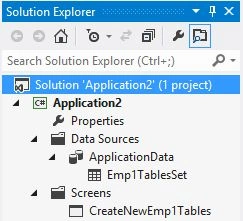
Open the Solution Explorer.
Image 1
Step 2
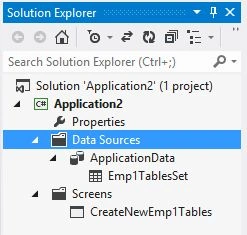
In the Solution Explorer, click on the "Data Sources" option.
Image 2
Step 3
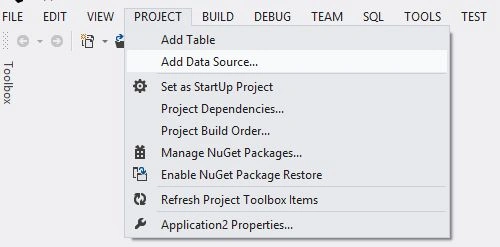
On the Project Menu, click on Add Data Source option.
Image 3
Step 4
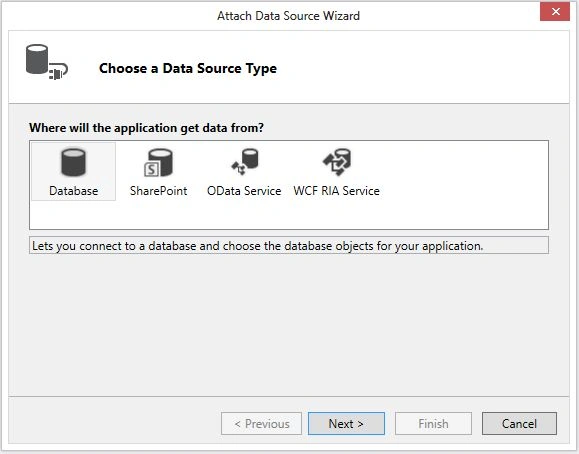
The Attach Data Source Wizard appears.
Image 4
Step 5
Choose a Data Source Type, in other words from where the application gets the data, then click on the "Database" option and then click "Next".
Image 5
Step 6
The "Choose Data Source" dialog box appears.
Image 6
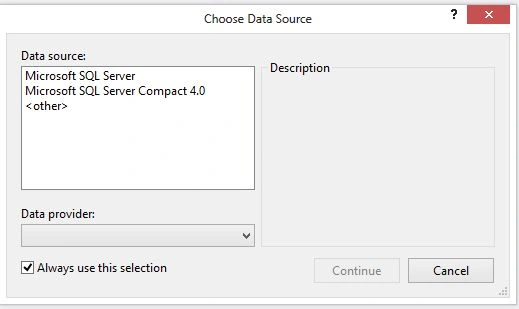
Step 7
Click on "Microsoft SQL Server" and click on the "Continue" button.
Image 7
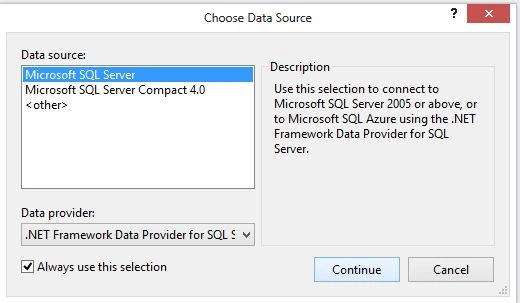
Step 8
The "Connection Properties" dialog box will appear.
Image 8
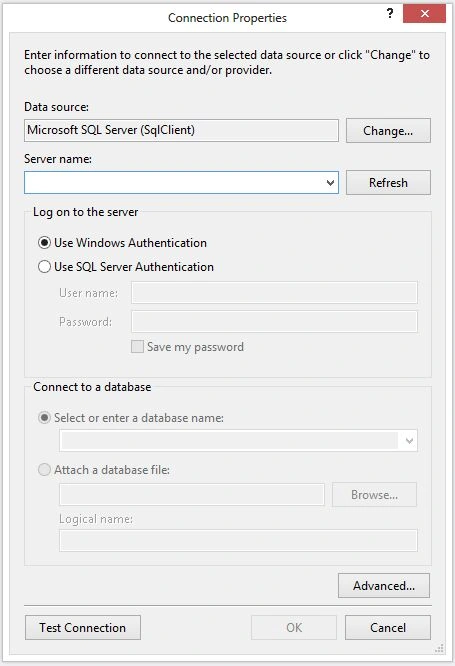
Step 9
In the Server name box of the Connection Properties dialog box, choose the name of the SQL Server.
Image 9
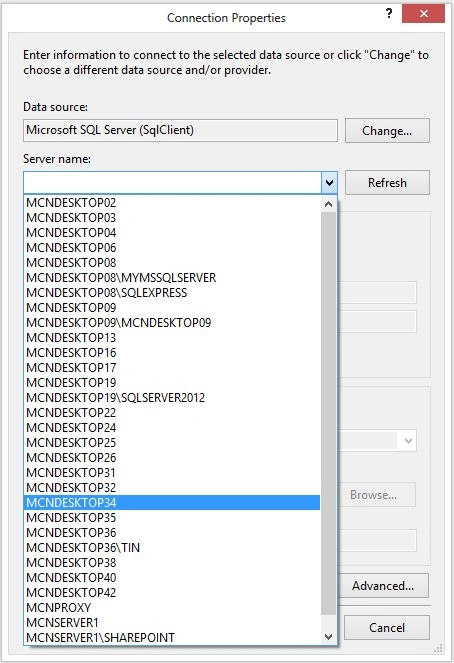
Step 10
In order to logon to the server you can either click on Windows Authentication or click on "Use SQL Server Authentication". If you click on "Use SQL Server Authentication" then provide the user name and word of a user who has access to the database.
Image 10
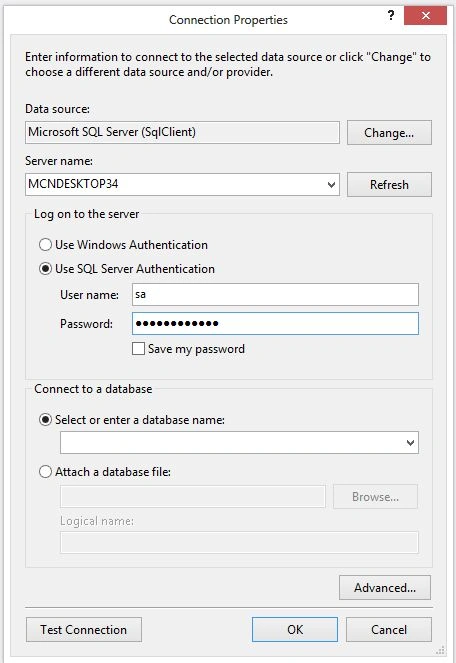
Step 11
In order to connect to the Database click "Select" or enter a Database name. In the drop down list select the name of the database.
Image 11
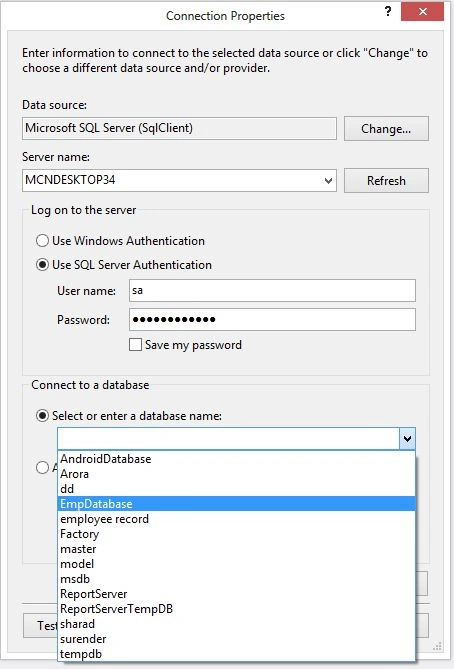
Step 12
Test The Connection; for that click on the "Test Connection" button.
Image 12
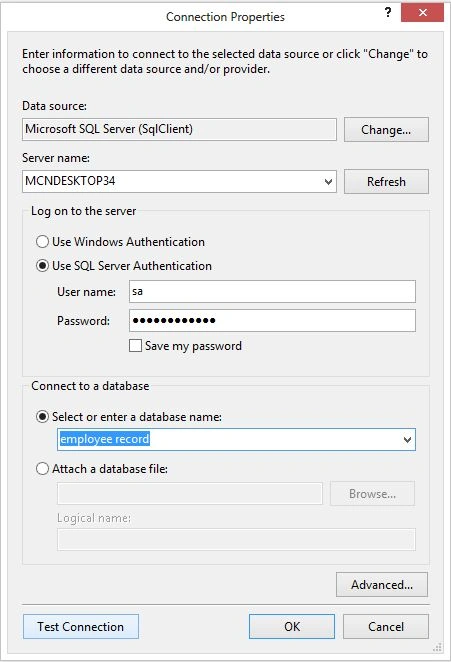
Step 13
A Microsoft Visual Studio dialog box is shown and click "OK".
Image 13
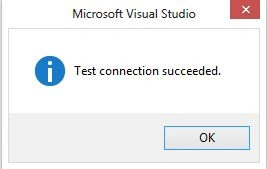
Step 14
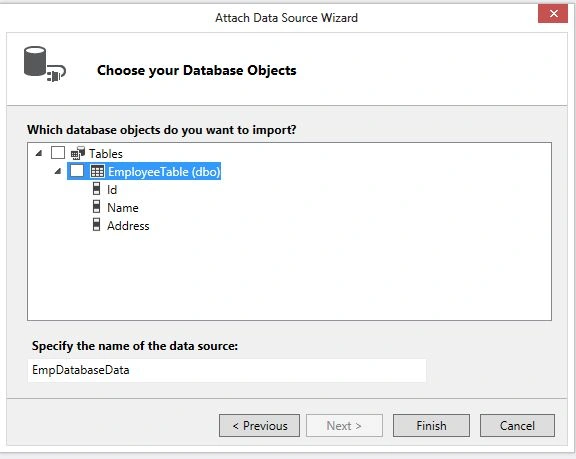
When we click OK in the Connection Properties dialog box, "Choose Your Database Object" is shown.
Image 14
Step 15
In the Choose your Database Objects page, select the tables that we want to use in our LightSwitch application, and then click "Finish".
Image 15
Step 16
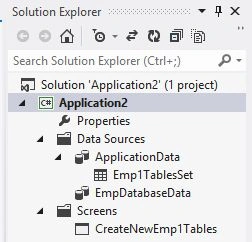
The database and tables that we selected appear in the Solution Explorer.
Image 16
Gowtham RajamanickamPosted Apr 13, 2016, 7:18 AM
nice article