

Introduction
Prerequisites
Before you begin utilizing PowerShell to oversee the Azure PowerShell, ensure that the Azure PowerShell has been installed. If not installed, here is an article How to install the Azure PowerShell module. You need to do this only once for each computer from which you are running Azure PowerShell commands.
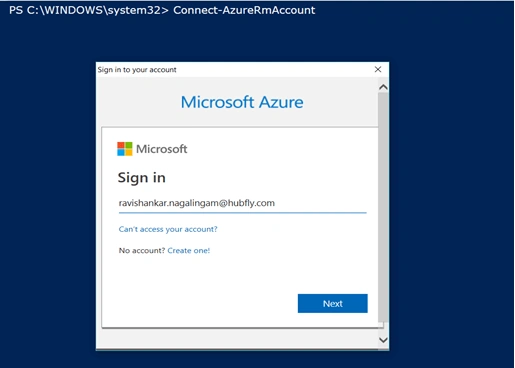
Connect to Azure Portal
- Connect-AzureRmAccount
Creating Azure Resource Group
Create an Azure Resource Group so that you can deploy, update, and test web apps in a group. Azure Resource Group is a new approach to group a collection of resources that share a unified life cycle. The benefit of using resource groups in Azure is that we can group all resources that belong to one application.
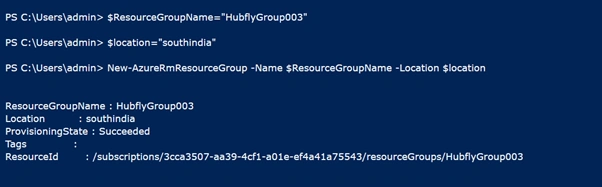
You can create Resource Groups in Azure using New-AzureRmResourceGroup cmdlets. The required parameters are,
- Name - Specify the name of the resource group.
- Location - Specify the Azure data center location of the resource group, such as southindia and westus,
- $ResourceGroupName="HubflyGroup003"
- $location="southindia"
- New-AzureRmResourceGroup -Name $ResourceGroupName -Location $location
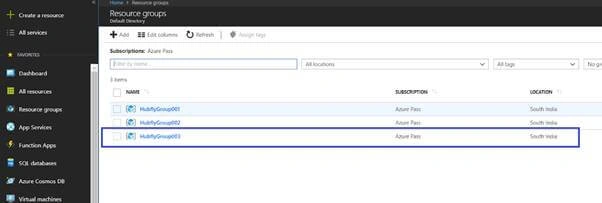
Now, check your Azure portal the resource group will be created
Creating an Azure Storage Account
Create an Azure storage account using New-AzureRmStorageAccount cmdlet. The required parameters are,
- AccountName - Specify the name of the storage account.
- ResourceGroupName - Specify the name of the resource group.
- Location - Specify the Azure data center location of the resource group, such as South India and West US.
- $storageAccoutName = "hubflystorageyyyyyyy"
- $skuName = "Standard_LRS"
- New-AzureRmStorageAccount -ResourceGroupName $ResourceGroupName -AccountName $storageAccoutName -Location $location -SkuName $skuName
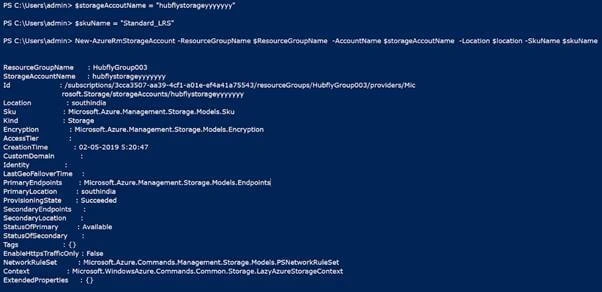
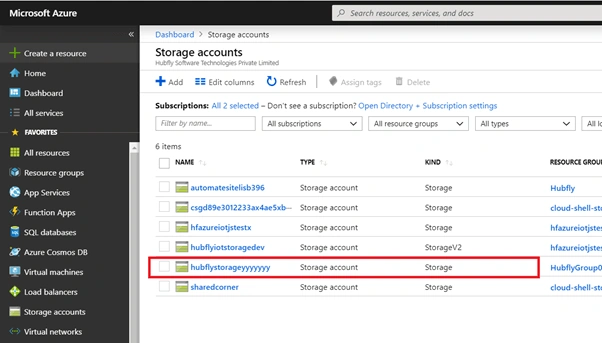
Now, check your Azure portal, hubflystorageyyyyyyy is now created.
Full source code
- $storageAccoutName= Read-Host 'Please Enter the Storage account name'
- $resourceGroup = Read-Host 'Please Enter the Resource group name'
- $location = Read-Host 'Please Enter the Location'
- $skuName = "Standard_LRS"
- $ctx = Connect-AzureRmAccount
- if ($ctx -ne $null)
- {
- Write-Host ""
- Write-Host "Please wait your storage account is creating....." -ForegroundColor Cyan
- $storageAccount = New-AzureRmStorageAccount -ResourceGroupName $resourceGroup -AccountName $storageAccoutName -Location $location -SkuName $skuName
- if ($storageAccount -ne $null)
- {
- Write-Host ""
- Write-Host "Storage Account Created Sucessfully!" -ForegroundColor Green
- }
- else
- {
- Write-Host ""
- Write-Host "Failed to create a storage account" -ForegroundColor Red
- }
- }
- else
- {
- Write-Host ""
- Write-Host "Invalid credentials" -ForegroundColor Red
- }
That's it. I hope you have learned how to create an Azure Storage Account using Azure PowerShell programmatically. Feel free to fill up the comment box below if you need any assistance.
Join the conversation! Your thoughts help the community grow.