

Introduction
Another important thing is that you don't need to know about C# while working with Android studio. So, the best tool is Android Studio with Java because Java is platform-independent and we can run Java applications even on a normal phone.
For the installation process of Android Studio, you can refer to this.
The requirement for Android App Development
- Android Studio (Download Android Studio).
- Java
- Designing
- Coding
Step 1. Open Android Studio.
Go to File >> New >> New Project.
Specify your project name and the location where you want to save your project. Click on Next.
Select the API levels.
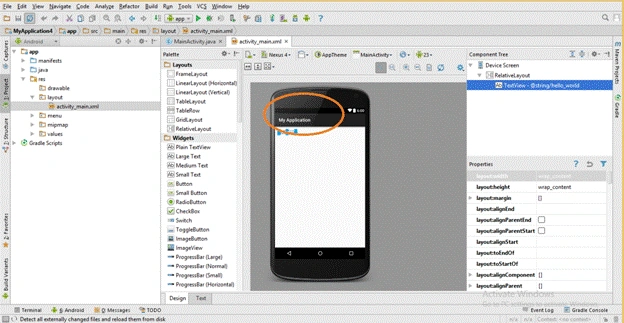 The above picture shows that my app's name is My Application, by default. However, you can change the name to whatever you want.
Step 2
The above picture shows that my app's name is My Application, by default. However, you can change the name to whatever you want.
Step 2
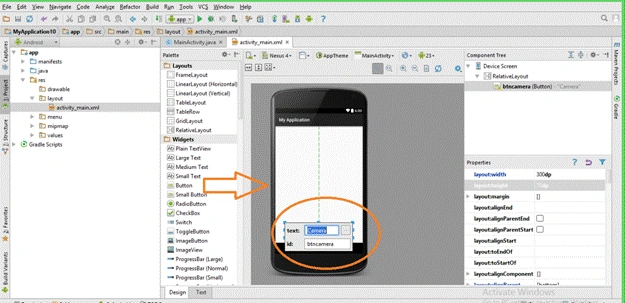
Drag a button from the Toolbar, change the button name to Camera, and change button ID to btncamera.
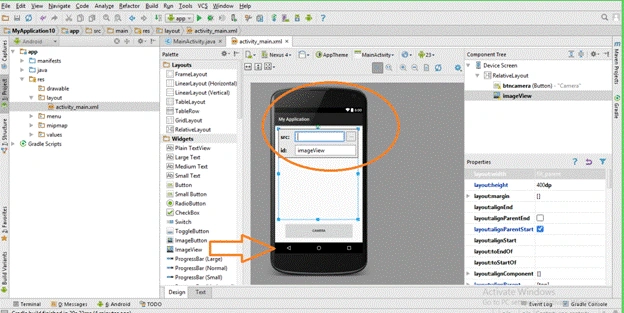
Again, drag the ImageView from Toolbar.
Give the ImageView ID. I have given it as an imageView.
You can put any picture you want to see in the ImageView. For that, copy your image from your PC and paste it to the "Drawables" folder which you can find in the left corner of the screen.
Then, double click on ImageView and give the source of that image i.e src= @drawable/imagename.
 Step 3.
Now, the part remaining is the coding section.
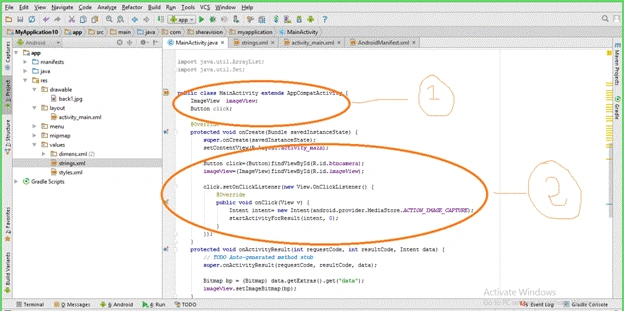
- Initialize the button and ImageView objects.
- Ask for permission for using the camera to hardware using intent (Java code).
Now, we need to execute our camera app. We will do this by using a virtual device called emulator which is already present in the Android Studio.
Just click on  button present in the toolbar of Android Studio.
button present in the toolbar of Android Studio. Select your emulator.
Now, your camera app is ready and displayed by the emulator.
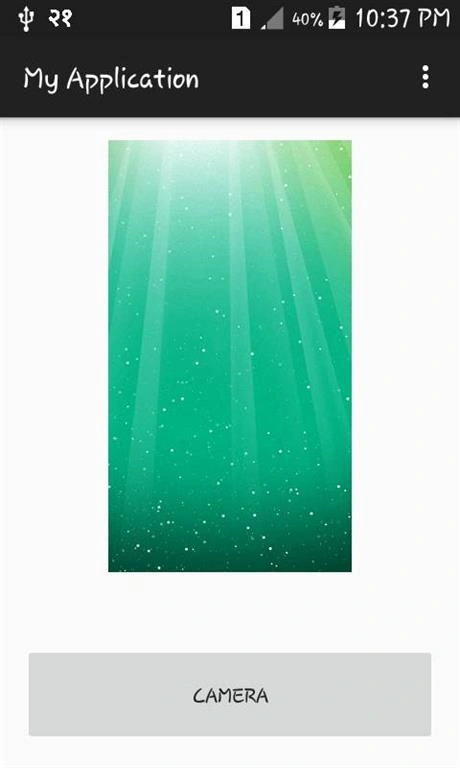 Now, when you click on camera in the app, your camera will start.
Roshan GuragainPosted Oct 27, 2016, 8:46 AM
Thank you sir for your suggestion ..Hope in future also...
Humayun Kabir MamunPosted Oct 13, 2016, 4:46 AM
Nice, you can modify the title right now to reduce confusion...
SubashPosted Oct 11, 2016, 12:32 AM
Very good start each steps very nice explanation
Mahesh ChandPosted Oct 10, 2016, 12:53 AM
Title should be - How to Access Camera in UWP. This title is misleading. If you're post a "Camera App", I expect it to be a full app with most Camera app capabilities. Cheers!
Prasanna MuraliPosted Oct 9, 2016, 10:31 PM
Nice Post..
Sridhar SharmaPosted Oct 9, 2016, 10:19 PM
Nice share..