


Introduction
In the world of SharePoint, creating and customizing pages is a fundamental skill for enhancing collaboration and presenting information. One of the versatile tools available for adding custom content to SharePoint pages is the Content Editor Web Part. This article will guide you through the process of creating a Content Editor Web Part page in SharePoint, discussing its benefits and drawbacks, and providing a step-by-step tutorial to help you get started.
What is a Content Editor Web Part Page?
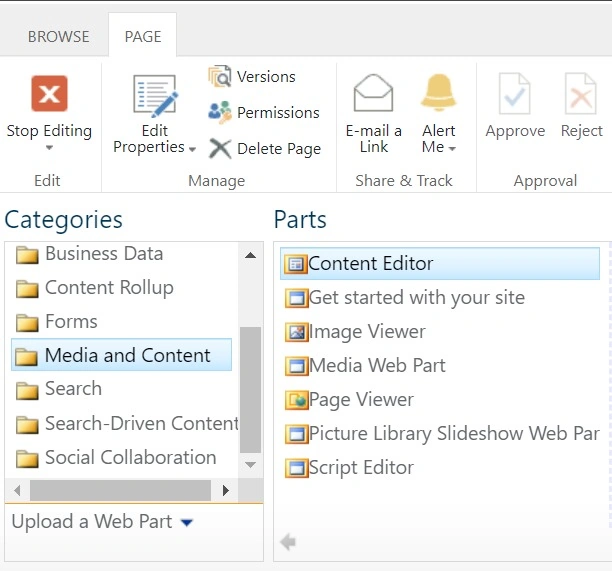
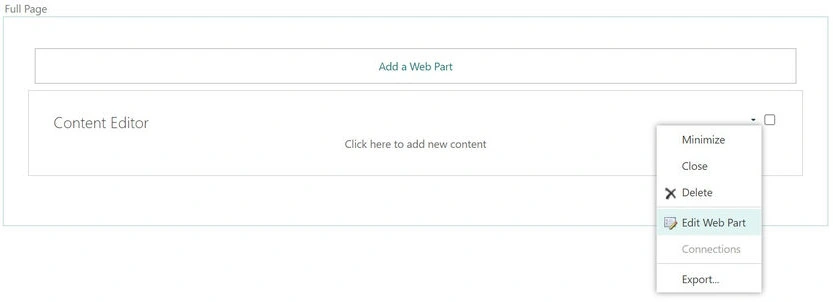
A Content Editor Web Part (CEWP) is a web part used in SharePoint to add custom HTML, JavaScript, and CSS to a SharePoint page. This web part allows users to embed rich content and scripts directly onto SharePoint pages without requiring extensive development knowledge.
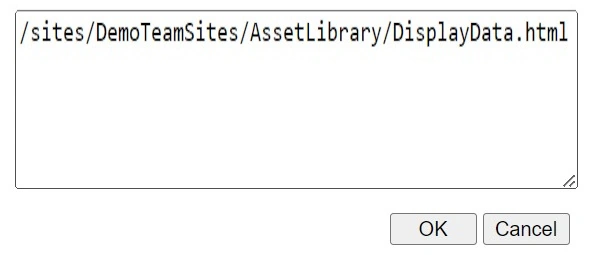
Script Injection: One of the key features of the CEWP is its ability to inject custom scripts into a page. This can be useful for adding interactive elements, custom styles, or other dynamic features. However, script injection should be handled carefully to avoid security risks.
Benefits of the Content Editor Web Part Page
- Customizability: The CEWP allows you to add custom HTML, CSS, and JavaScript to your pages, enabling a high degree of personalization.
- Ease of Use: It is user-friendly and does not require advanced programming skills, making it accessible to a wide range of users.
- Enhanced Functionality: By embedding scripts and styles, you can enhance the functionality and appearance of SharePoint pages beyond what is available out of the box.
- Flexibility: You can integrate various types of content, from simple text to complex interactive elements, directly onto your SharePoint pages.
Disadvantages of the Content Editor Web Part Page
- Limited to Classic Experience: The CEWP is primarily available in the classic SharePoint experience. In modern SharePoint, the web part has been replaced or superseded by other components.
- Performance Concerns: Excessive use of custom scripts and HTML can impact page load times and overall performance.
- Security Risks: Injecting scripts into a page can introduce security vulnerabilities if not handled correctly. Ensure that any scripts used are from trusted sources.
- Maintenance Overhead: Custom scripts and HTML may require ongoing maintenance and updates, especially if SharePoint or browser versions are updated.
Create a Content Editor Web Part Page
1. Access SharePoint
- Open your browser and navigate to your SharePoint site.

- Log in with your credentials.
2. Create a New Page
- In the classic SharePoint experience, go to the site where you want to add the page.
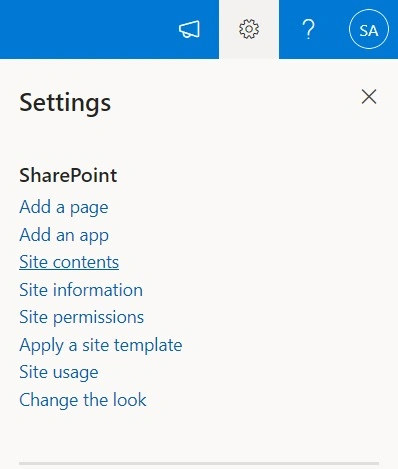
- Click on the gear icon (Settings) and select "Add a Page" or navigate to Site Contents > Site Pages > + New.
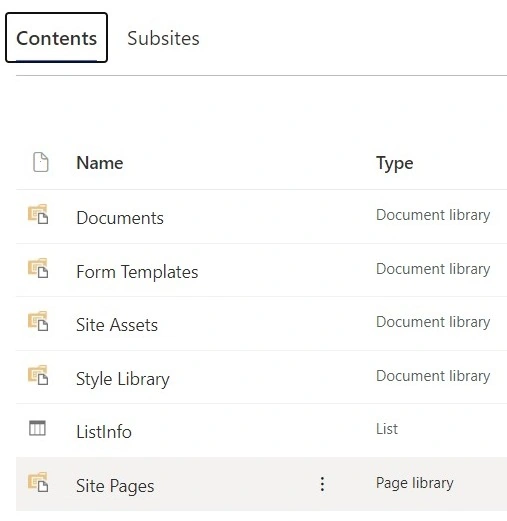

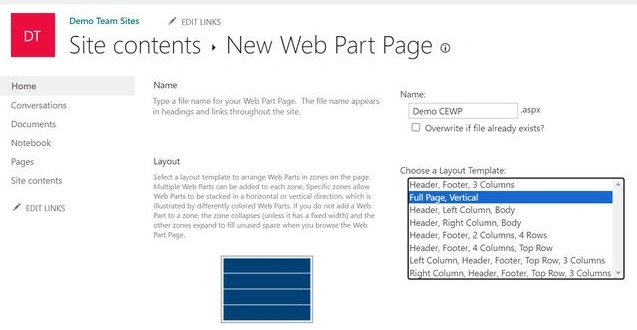
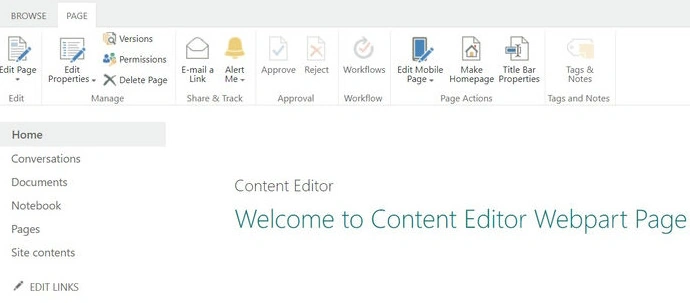
- Choose “Web Part Page” from the options. Modern SharePoint experiences might not display this option, so it is essential to ensure you are in the classic view.




Join the conversation! Your thoughts help the community grow.