

Prerequisites
- Azure account.
Now, let's get started with the following steps.
Create an Azure SQL Database logical server
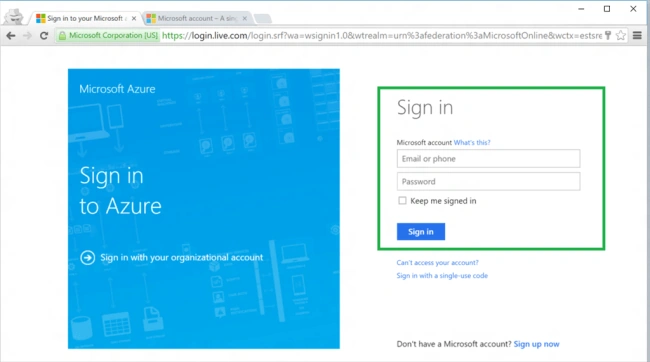
Step 1 - Sign in to the online Microsoft Azure Portal.
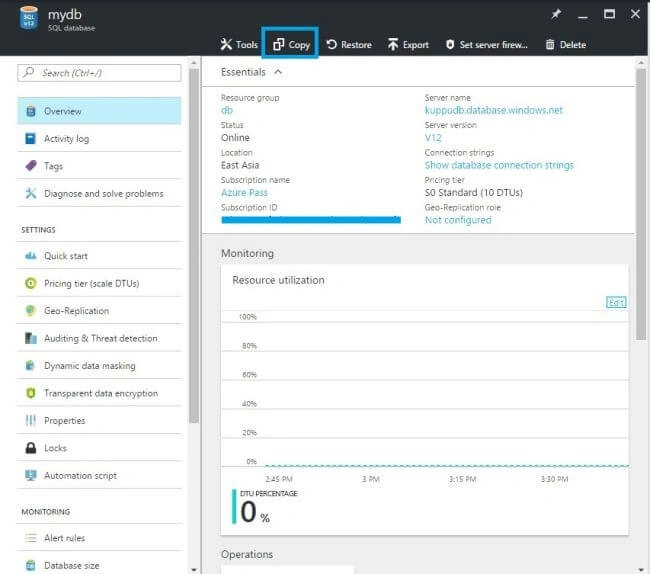
Step 2 - Open your existing database on Azure portal. On the SQL database page, click Copy.
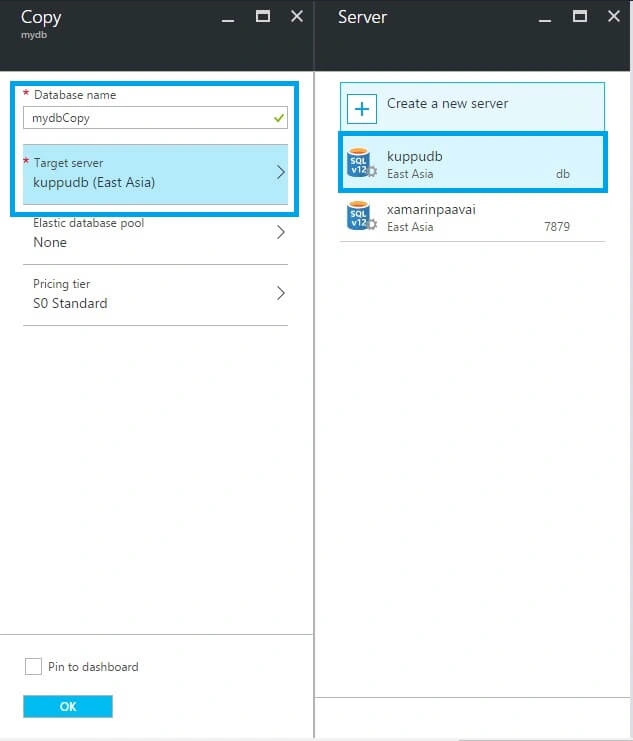
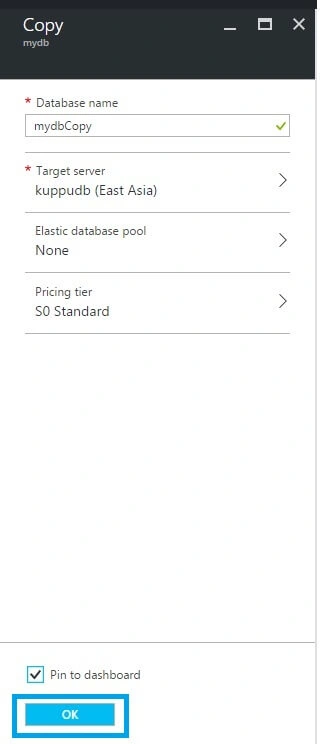
Step 3 - Next, we enter the Database Name and Select the Target Server.
Step 4 - After selecting the Target server, the Elastic database pool and Pricing tier options will be enabled (Both Optional).
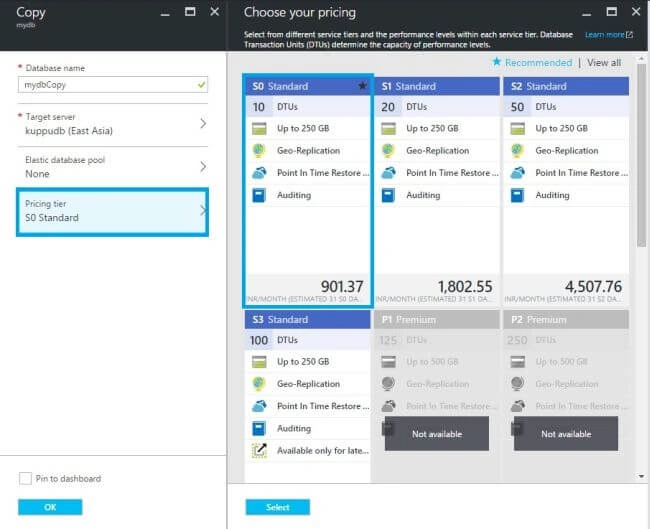
Step 5 - Click OK to start the copy process.
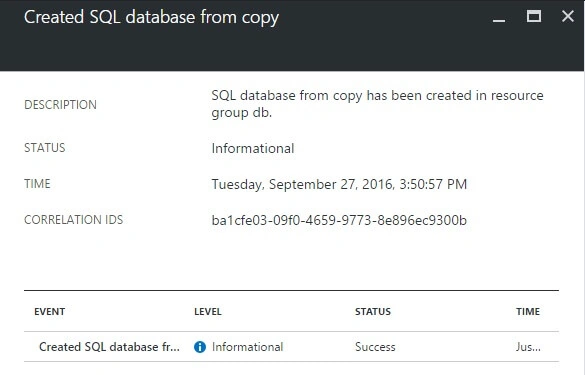
In the notification area, we can see that the deployment has started.

Then, a few minutes later, we get the copy of Azure SQL Database.
Summary - In this article, we discussed how to create a copy of an Azure SQL Database by using Azure Portal.
Vignesh ManiPosted Sep 29, 2016, 12:38 PM
Good One Sir
Anu VPosted Sep 28, 2016, 11:34 PM
Nice...