This article shows how to create a custom control dll which can be used in other Windows Forms projects. In our example we extend the features of an existing TextBox control of the .Net framework library. However you can apply the same technique to extend any control which is available in the Windows Forms control library.
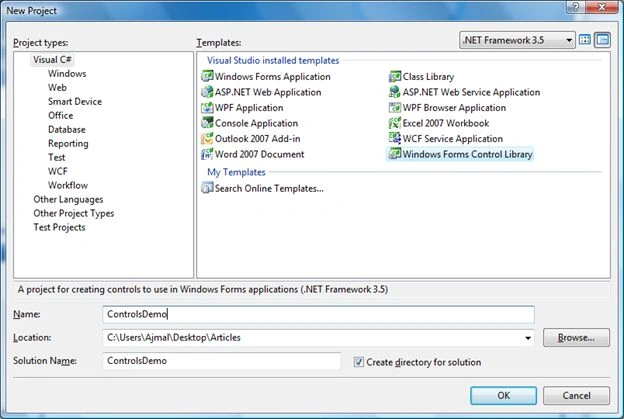
1) Start a new Windows Forms Control Library project; see:
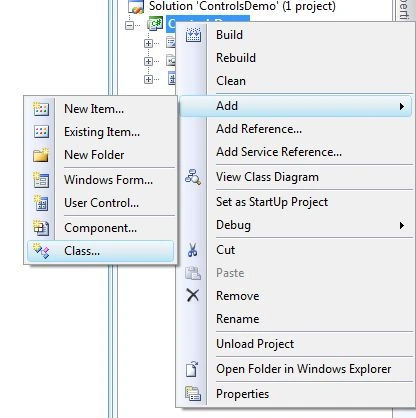
2) Remove UserControl1.cs which has been created by default and add a new class; see:
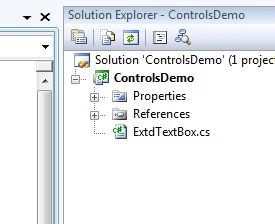
3) Add the following namespaces to the new class (in our case its ExtdTextBox.cs) and inherit the framework's TextBox control class:
using System.Windows.Forms;
using System.ComponentModel;
using System.Drawing;
class ExtdTextBox:TextBox
{
}
4) Let as add a feature for watermark text to our custom TextBox Control and let us give an option to the user to select the WaterMark Text color, WaterMark Text, WaterMark Font at design time which will be available as a Control property window of Visual Studio as shown below:
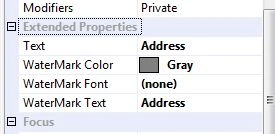
To display properties in Visual Studio Tool bar GUI we need to add the Browsable(true) attribute to the Properties to be displayed at design time as shown below:
using System;
using System.Collections.Generic;
using System.Linq;
using System.Text;
using System.Windows.Forms;
using System.ComponentModel;
using System.Drawing;
namespace ControlsDemo
{
public class ExtdTextBox : TextBox
{
#region Member Variables
Color waterMarkColor = Color.Gray;
Color forecolor;
Font font;
Font waterMarkFont;
string waterMarkText = "Your Text Here";
#endregion
#region Constructor
public ExtdTextBox()
{
base.Text = this.waterMarkText;
this.forecolor = this.ForeColor;
this.ForeColor = this.waterMarkColor;
this.font = this.Font;
//event handlers
this.TextChanged += new EventHandler(ExtdTextBox_TextChanged);
this.KeyPress += new KeyPressEventHandler(ExtdTextBox_KeyPress);
this.LostFocus += new EventHandler(ExtdTextBox_TextChanged);
}
#endregion
#region Event Handler Methods
void ExtdTextBox_TextChanged(object sender, EventArgs e)
{
if (!string.IsNullOrEmpty(this.Text))
{
this.ForeColor = this.forecolor;
this.Font = this.font;
}
else
{
this.TextChanged -= new EventHandler(ExtdTextBox_TextChanged);
base.Text = this.waterMarkText;
this.TextChanged += new EventHandler(ExtdTextBox_TextChanged);
this.ForeColor = this.waterMarkColor;
this.Font = this.waterMarkFont;
}
}|
void ExtdTextBox_KeyPress(object sender, KeyPressEventArgs e)
{
string str = base.Text.Replace(this.waterMarkText, "");
this.TextChanged -= new EventHandler(ExtdTextBox_TextChanged);
this.Text = str;
this.TextChanged += new EventHandler(ExtdTextBox_TextChanged);
}
#endregion
#region User Defined Properties
/// <summary>
/// Property to set/get Watermark color at design/runtime
/// </summary>
[Browsable(true)]
[Category("Extended Properties")]
[Description("sets Watermark color")]
[DisplayName("WaterMark Color")]
public Color WaterMarkColor
{
get
{
return this.waterMarkColor;
}
set
{
this.waterMarkColor = value;
base.OnTextChanged(new EventArgs());
}
}
[Browsable(true)]
[Category("Extended Properties")]
[Description("sets TextBox text")]
[DisplayName("Text")]
/// <summary>
/// Property to get Text at runtime(hides base Text property)
/// </summary>
public new string Text
{
get
{
//required for validation for Text property
return base.Text.Replace(this.waterMarkText, string.Empty);
}
set
{
base.Text = value;
}
}
[Browsable(true)]
[Category("Extended Properties")]
[Description("sets WaterMark font")]
[DisplayName("WaterMark Font")]
/// <summary>
/// Property to get Text at runtime(hides base Text property)
/// </summary>
public Font WaterMarkFont
{
get
{
//required for validation for Text property
return this.waterMarkFont;
}
set
{
this.waterMarkFont = value;
this.OnTextChanged(new EventArgs());
}
}
/// <summary>
/// Property to set/get Watermark text at design/runtime
/// </summary>
[Browsable(true)]
[Category("Extended Properties")]
[Description("sets Watermark Text")]
[DisplayName("WaterMark Text")]
public string WaterMarkText
{
get
{
return this.waterMarkText;
}
set
{
this.waterMarkText = value;
base.OnTextChanged(new EventArgs());
}
}
#endregion
}
}
The other optional attributes declaration names are self-explanatory.
5) Build the project and refer to the dll in another Windows Forms project.
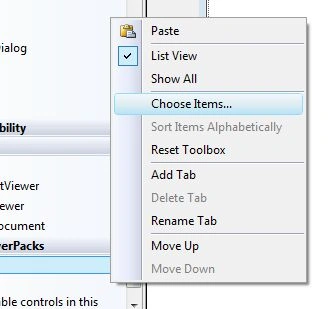
Right-click on the ToolBar Window and click ChooseItems:
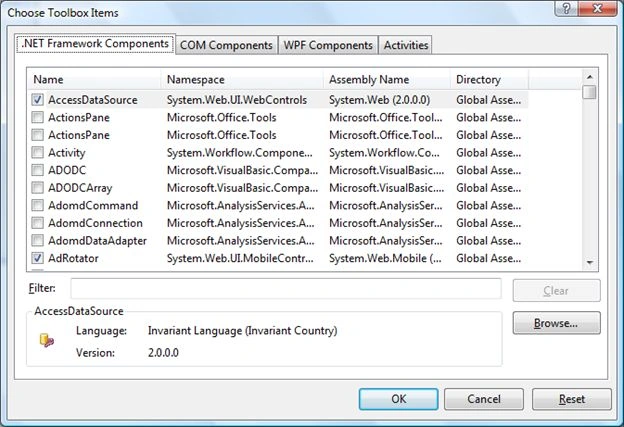
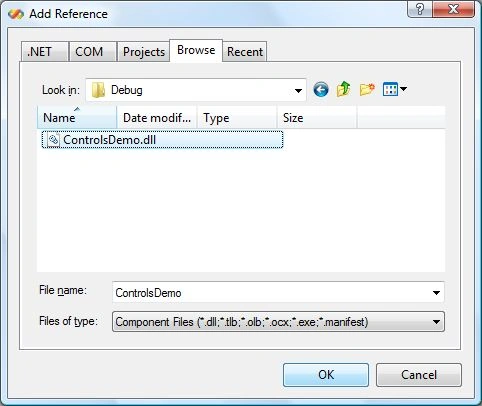
Click on browse and select control dll:
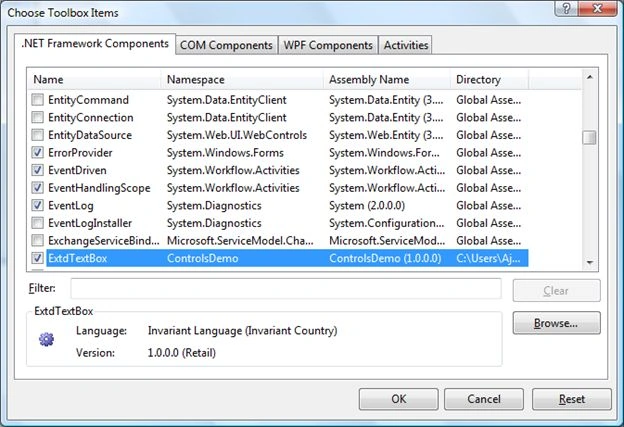
Click ok:

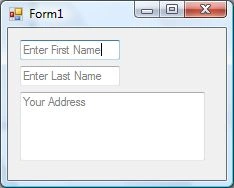
Drag and drop the control onto the form:


basavaraj loniPosted May 31, 2020, 11:08 AM
Created dll as per give info but when tyring to add in toolbox item theb error is getting "there are no componets in "
Kasun CharithaPosted Apr 10, 2020, 11:14 PM
Coming this error "There are no components in (my save project PATH) DLL that can be placed on toolbox
secret EightOhSevenPosted Oct 5, 2019, 11:36 PM
Thanks for this. I got a custom control up and running now. Don't know about [Browsable(true)] though. Seems to work without this.
Mayooran NavamanyPosted Oct 7, 2018, 3:42 AM
Thanks very much.Interested topic.
Majid YaghoubiPosted Apr 18, 2016, 1:03 PM
Thanks very much.Interested topic. I did all thing you explained but When I've been to build my dll an error occurred : "An unhandled exception of type 'System.ArgumentException' occurred in UserControlTestContainer.exe Additional information: Assembly 'J:\Programming\Visual Studio\Project\C#%5CCustom%20Controls%5CBu_Ali%5CTextBox%5CTextBoxes%5CTextBoxes%5Cobj%5CRelease%5CTextBoxes.dll' could not be found. Ensure the path is correct." So my dll file was built . I tried to add it to my toolBox. unfortunately this error occurred : " There are no components in ' j:\Programming\...' that can be placed on the toolbox" Can you help me ?
Santosh KokatnurPosted Feb 20, 2016, 1:10 AM
Needful info...
Ammar ShaukatPosted Feb 17, 2016, 1:40 AM
that's a good share but everyone is talking about " how to create a custom control ? " . will you please explain when and why we need custom control ?
Vaikesh K PPosted Aug 22, 2015, 7:18 AM
Thanks for Share :)
Tom MohanPosted Mar 17, 2015, 3:16 AM
Nice
RakeshPosted Mar 16, 2015, 11:51 PM
Good
Manish Kumar ChoudharyPosted Mar 16, 2015, 1:05 PM
Nice one.
Jayaprakash TatagariPosted May 29, 2013, 1:27 AM
Good Explanation ....
karthik parchaeditedPosted Oct 30, 2012, 8:05 AMEdited Oct 30, 2012, 8:06 AM
Thanks for sharing.
Sudhakar ChaudharyPosted Oct 25, 2012, 1:02 PM
nice explanation..
Leon VictorPosted Oct 23, 2012, 7:41 AM
That was really a nice tutorial, it was quite easy to understands, now I can create my own toolbar. Thanks a lot.
Kunal VaishyaPosted Oct 23, 2012, 4:11 AM
nice code
PriyaPosted Oct 23, 2012, 12:02 AM
Nice explanation...
Shelly GogiaPosted Oct 22, 2012, 11:04 PM
Illustration is very nice, anyone can understand.Thanks for sharing.
Anil SaxenaPosted Oct 22, 2012, 11:01 PM
Nice Explanation to building custom controls..
Varesh TuliPosted Oct 22, 2012, 11:01 PM
Thanks for sharing this article.
Mahesh ChandPosted Oct 22, 2012, 10:02 PM
Good work. Clean code formatting.