

First, create a console application in Visual Studio 2017.
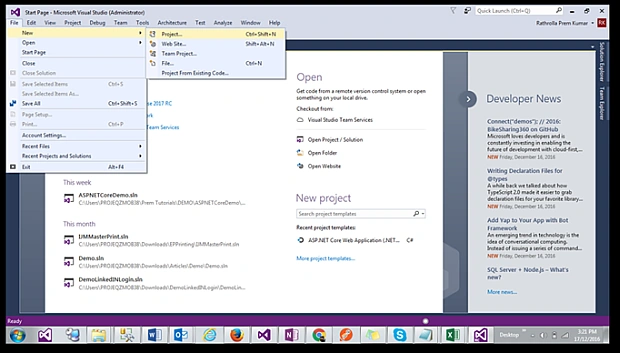
Click on the Project and a window will appear, as shown below.
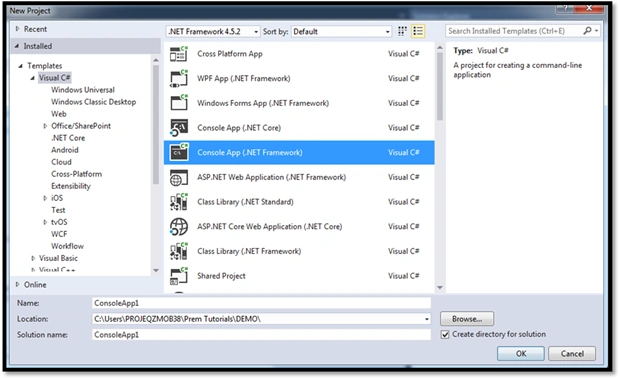
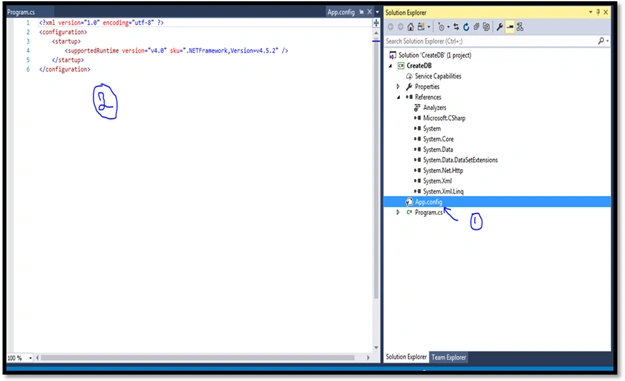
Select Console App (Framework) and give the proper name. You will see the following screen.
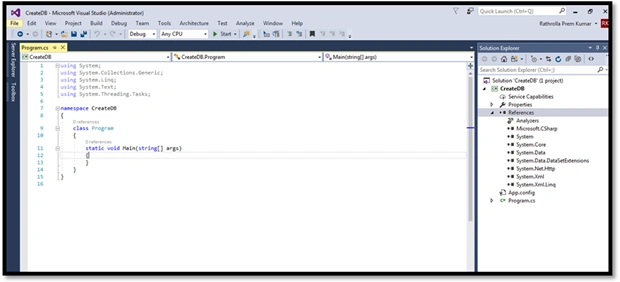
Let's start writing lines of code to achieve our task.
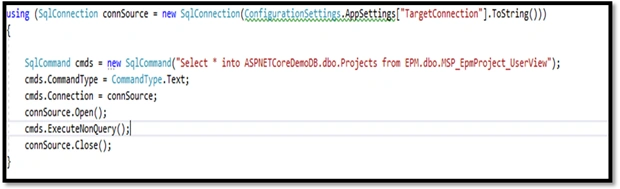
Write a few lines of code to create a SQL connection. The below command is used to to open the SQL connection.

The SQL command should be created inside a using statement. It receives SQL statement as first argument.
The SQL command initializes a new instance of the SqlCommand class.
ConnSource.Open() //Open the Connection
Cmds.ExecuteNonQuery // executes SQL statement against the connection and returns the number of rows affected.
Here, I am creating a new table named Projects in my destination dbASPNETCoreDemoDB.
My Source DB is EPM –dbo.msp.
ConnSource.Open() //Open the Connection
Cmds.ExecuteNonQuery // executes SQL statement against the connection and returns the number of rows affected.
Here, I am creating a new table named Projects in my destination dbASPNETCoreDemoDB.
My Source DB is EPM –dbo.msp.
EpmProject_UserView is my view.
Hey, don’t forget to set up your target connection in your app settings, as shown below.
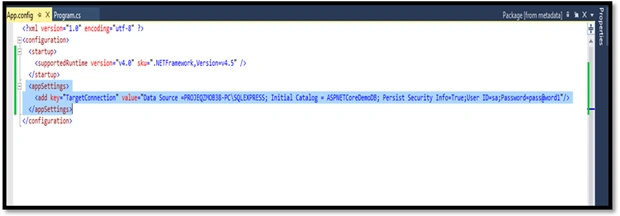
Hey, don’t forget to set up your target connection in your app settings, as shown below.
Rathrola Prem KumarPosted Dec 19, 2016, 6:02 AM
Thank you Bikesh Srivastava :)
Bikesh SrivastavaPosted Dec 19, 2016, 4:05 AM
No actually you have used title as "How To Create A Database In SQL Server Using Console Application In Visual Studio 2017RC" but where is the part of code or logic to create database in sql,console code, so i think article is not matching with title, anyways good effort.
Rathrola Prem KumarPosted Dec 18, 2016, 11:32 PM
Yes i agree with you, but firstly i have to create database to use isn't? Anyway thanks for your valuable comments & support :)
Bikesh SrivastavaPosted Dec 18, 2016, 1:54 PM
content is good ,not realated to title .it should how to use database in console application