

In this article we are explaining how to create a PDF/XPS document in PowerPoint 2013. Microsoft has launched the Office 2013 Preview, the next generation of Microsoft products. PowerPoint 2013 is redesigned with a Windows 8 and Metro Style App Interface. In PowerPoint 2013 there is a new feature that provides the ability to directly create the document as a PDF or XPS.
Steps How to Create PDF/XPS Document in PowerPoint 2013
Step 1
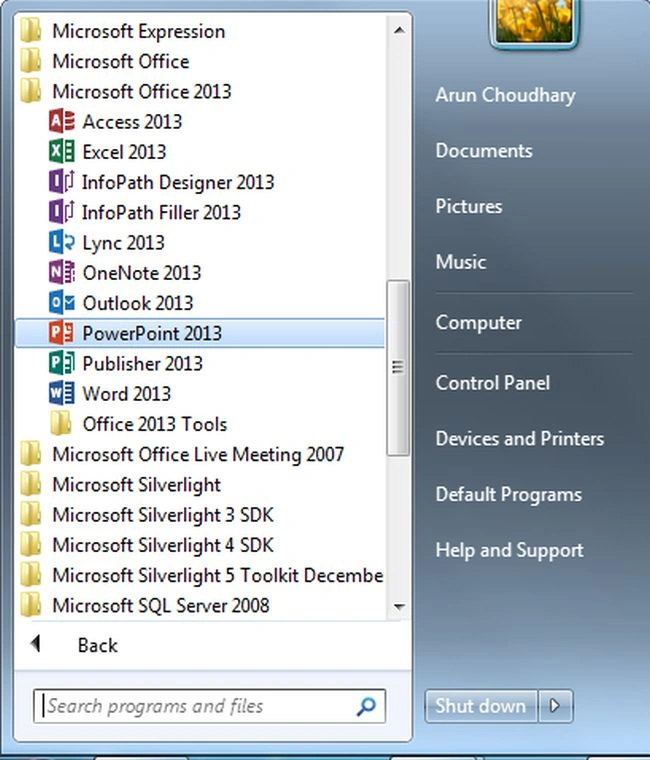
Open Microsoft Office 2013 and click on PowerPoint 2013.
Step 2
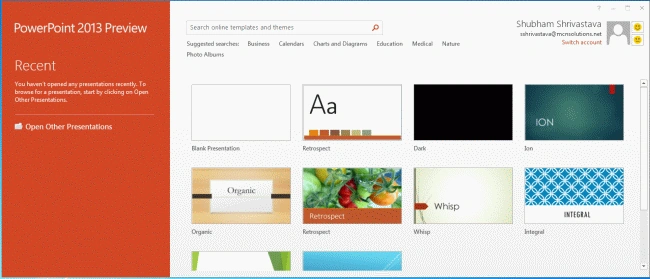
In this step, you can select any Template given below. If you do not want to select any Template then click on blank document:
Step 3
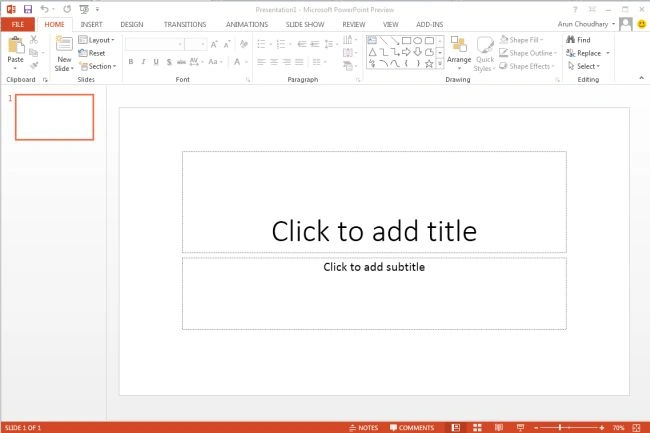
In this step, you click on the File menu:
Step 4
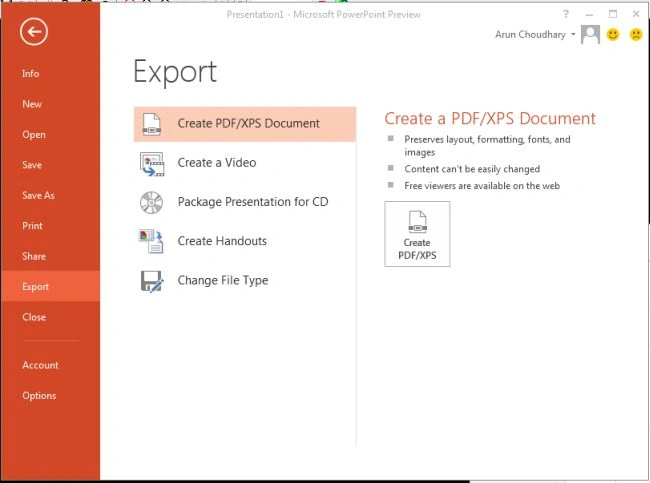
In this step, you click on Export option from the left hand side. If you want to Create a PDF or XPS Document then click on "Create PDF/XPS" Button. The PDF Document will be created.
Step 5
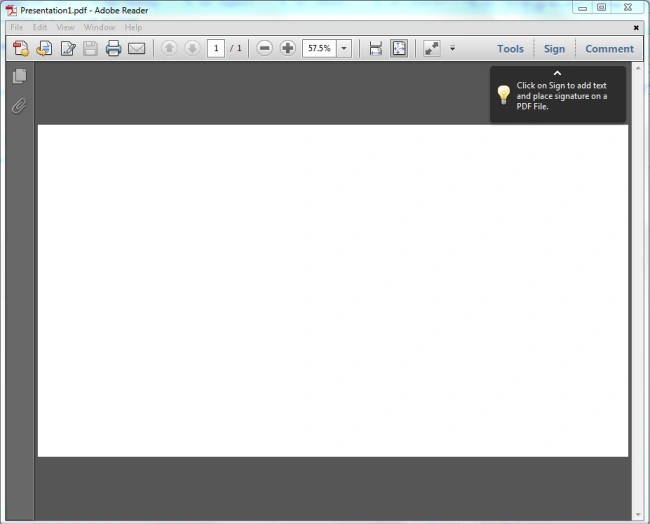
In this step, you will see the PDF File.
jerick goPosted Sep 9, 2015, 11:54 PM
Invaluable discussion . my friend a few weeks ago made use of <a href="http://pdf.ac/1jlnv2" >http://pdf.ac/1jlnv2</a> to modify pdf - It's phenominal effortless to figure out and it's comprehensive , I received notice that they are offering a 30 day promotion now
Akkiraju IvaturiPosted Aug 9, 2012, 11:41 PM
Nice article Arun!!!