

Hello Everyone.
SharePoint 2010 has existed for a long time but there is still no end to the knowledge pertaining to it. So yes we will see how to create a Search Web Part in SharePoint 2010 using Visual Studio.
This is always a requirement in all our projects since users always want a certain search level with a single list rather than the entire site and it should filter respect to their fields. So for these requirements here is a Search Web part that can be easily modified depending on the user's demand.
Let's go for it.
Open your site and go to your list, like for me I have an Employee list with the following details as in the screenshot.
- Now Open Visual Studio.
- Create a new project.
- Select Visual Web Part from the 2010 templates.
- Connect your site with the webpart.
- Once you click Ok you will see your project created as in the image below:
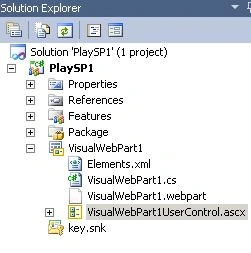
- Click on VisualWebpart1UserControl.ascx.
- Drag and drop the following label and text box as in the following screen:
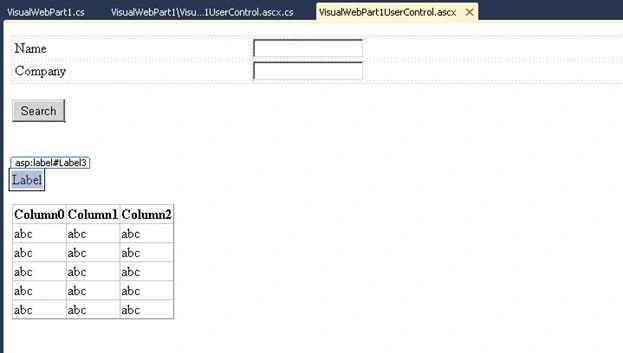
- Build it.
- Now go to VisualWebPart1.cs.
- In your solution add the following reference.
- Microsoft.SharePoint
- Microsoft.SharePoint.Client
- Add the references as in the following to your cs page.
- using System;
- using System.Web.UI;
- using System.Web.UI.WebControls;
- using System.Web.UI.WebControls.WebParts;
- using System.Data;
- using Microsoft.SharePoint;
- using Microsoft.SharePoint.Client;
- Now on the Search Button click paste the following code and I will explain what it is doing.
- protected void searchbtn_Click(object sender, EventArgs e)
- {
- //Initaily here I am clearing the grid view, if you don’t do it, results will keep on coming
- GridView1.Columns.Clear();
- // Calling My Web
- SPWeb myweb = SPContext.Current.Web;
- SPQuery qry = new SPQuery();
- //Creating my Query as How we require for me I have two columns for data.
- qry.Query = "<Where><Or><Eq><FieldRef Name='Name' /><Value Type='Text'>"+TextBox1.Text+"</Value></Eq> <Eq> <FieldRef Name='Company' /><Value Type='Text'>"+ TextBox2.Text+"</Value></Eq></Or></Where>";
- SPList lst = myweb.Lists["Employee"];
- SPListItemCollection lstcol = lst.GetItems(qry);
- //Bind it to the Data Table
- DataTable dt = new DataTable();
- dt.Columns.Add("Name", typeof(string));
- dt.Columns.Add("Company", typeof(string));
- // Check whether it does not have null values
- if (lstcol.Count > 0)
- {
- foreach (SPListItem item in lstcol)
- {
- DataRow dr = dt.NewRow();
- dr["Name"] = item["Name"] != null ? item["Name"].ToString() : ""; ;
- dr["Company"]= item["Company"] != null? item["Company"].ToString(): " ";
- dt.Rows.Add(dr);
- }
- }
- else Label3.Text = "There are no items to display.";
- {
- //Bind it to the Data View
- BoundField bf = new BoundField();
- bf.DataField = "Name";
- bf.HeaderText = "Name";
- GridView1.Columns.Add(bf);
- bf = new BoundField();
- bf.DataField = "Company";
- bf.HeaderText = "Company";
- GridView1.Columns.Add(bf);
- GridView1.AutoGenerateColumns = false;
- GridView1.DataSource = dt;
- GridView1.DataBind();
- }
- }
- Rebuild the solution.
- Deploy.
- Open your site and create a Page where you want this web part.
- Edit the page.
- Click on Add a Web part.
- Go to Custom Category, you will find your web part.
- Add it.
- You will see your web part on the screen.
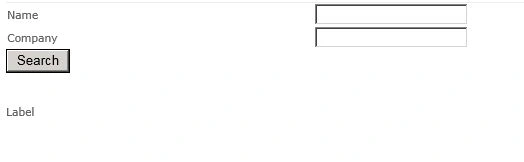
- Type your values and click on Search.
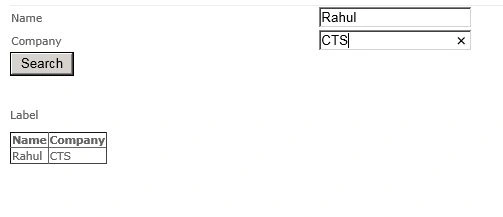
- Here it's your result being displayed on a grid view.
Cheers.
Join the conversation! Your thoughts help the community grow.