

Introduction
Shared mailboxes in Microsoft 365 are widely used by organizations to manage common email addresses such as support@ , info@ , sales@ , or hr@ . A shared mailbox allows multiple users to read and send emails from a single mailbox without requiring a separate license (up to a certain size).
In this article, we will walk through:
What a shared mailbox is
When to use it
Step-by-step instructions to create a shared mailbox
How to add members and assign permissions
Key best practices and common scenarios
What Is a Shared Mailbox?
A shared mailbox is a mailbox that multiple users can access to:
Read incoming emails
Send emails using the shared email address
Collaborate on email conversations
Common Use Cases
Customer support ([email protected])
HR communication ([email protected])
Finance or billing ([email protected])
General inquiries ([email protected])
Prerequisites
Before you begin, ensure:
You have Microsoft 365 Admin or Exchange Admin permissions
User accounts already exist for members you want to add
Microsoft 365 tenant is active
Step 1: Sign in to Microsoft 365 Admin Center
Sign in using an admin account
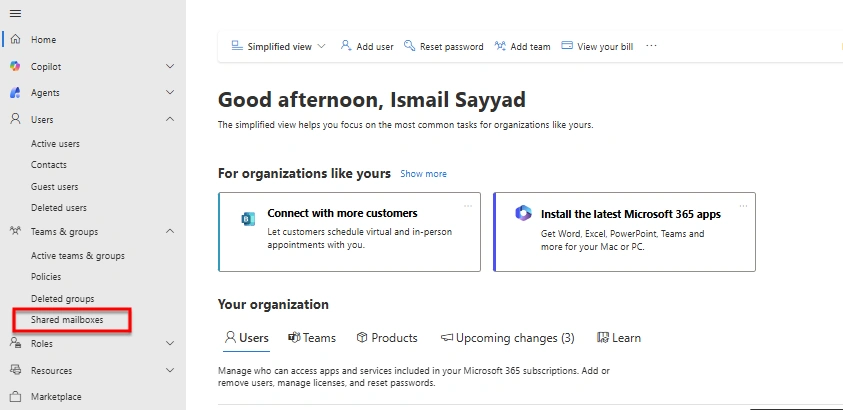
From the left navigation menu, select Teams & groups
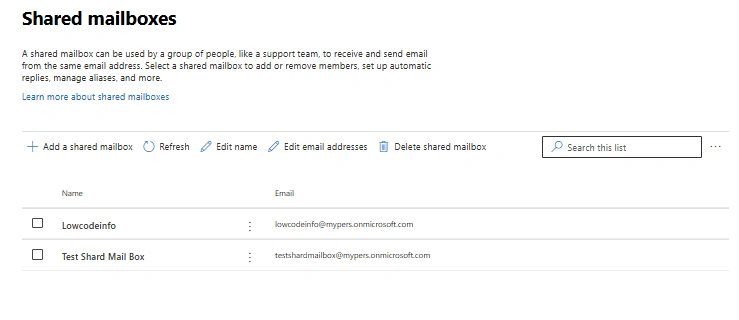
Click Shared mailboxes
Step 2: Create a Shared Mailbox
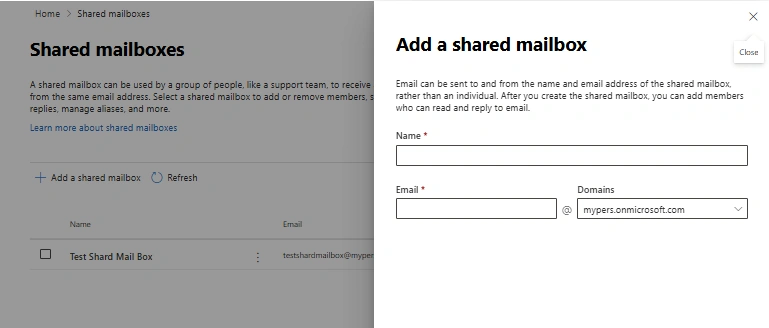
In Shared mailboxes, click Add a shared mailbox
Enter the following details:
Name: Support Team
Email address: [email protected]
Click Save changes
The shared mailbox will be created automatically without a license.
Step 3: Add Members to the Shared Mailbox
After creating the shared mailbox:
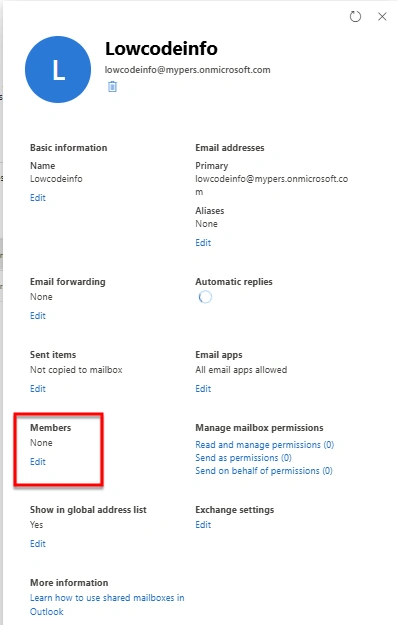
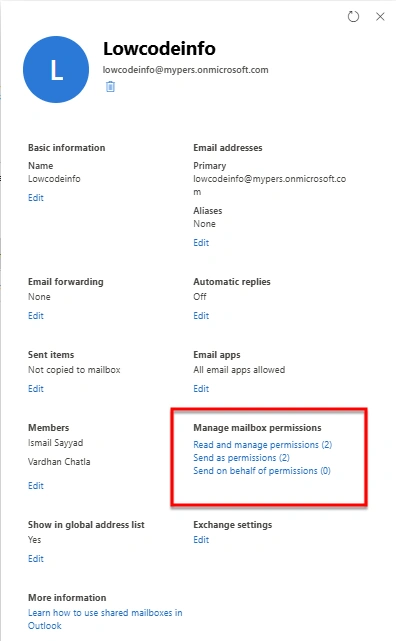
Click on the newly created shared mailbox
Under Members, click Edit
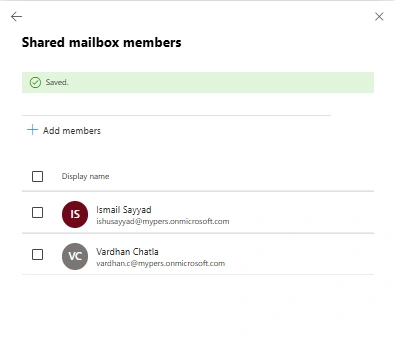
Select users who should have access
Click Save
These users can now:
Read incoming emails
Send emails as the shared mailbox (depending on permissions)
Step 4: Configure Send As and Send on Behalf Permissions
Send As Permission
Allows users to send emails that appear directly from the shared mailbox .
Join the conversation! Your thoughts help the community grow.