

Introduction
Shared mailboxes in Microsoft 365 are widely used by organizations to manage common email addresses such as support@ , info@ , sales@ , or hr@ . A shared mailbox allows multiple users to read and send emails from a single mailbox without requiring a separate license (up to a certain size).
In this article, we will walk through:
What a shared mailbox is
When to use it
Step-by-step instructions to create a shared mailbox
How to add members and assign permissions
Key best practices and common scenarios
What Is a Shared Mailbox?
A shared mailbox is a mailbox that multiple users can access to:
Read incoming emails
Send emails using the shared email address
Collaborate on email conversations
Common Use Cases
Customer support ([email protected])
HR communication ([email protected])
Finance or billing ([email protected])
General inquiries ([email protected])
Prerequisites
Before you begin, ensure:
You have Microsoft 365 Admin or Exchange Admin permissions
User accounts already exist for members you want to add
Microsoft 365 tenant is active
Step 1: Sign in to Microsoft 365 Admin Center
Sign in using an admin account
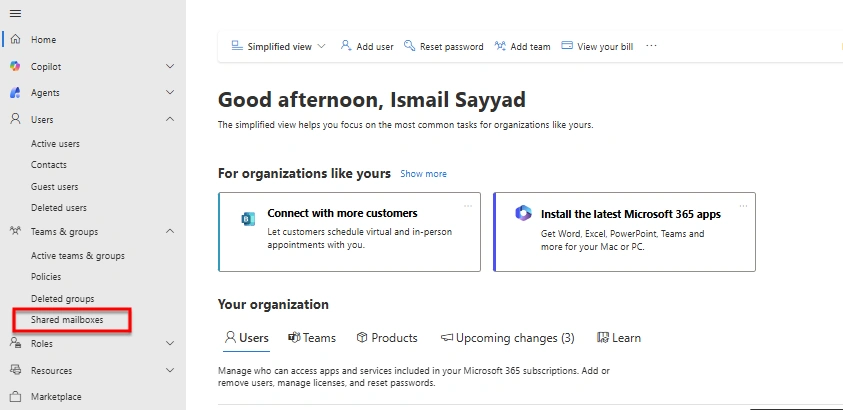
From the left navigation menu, select Teams & groups
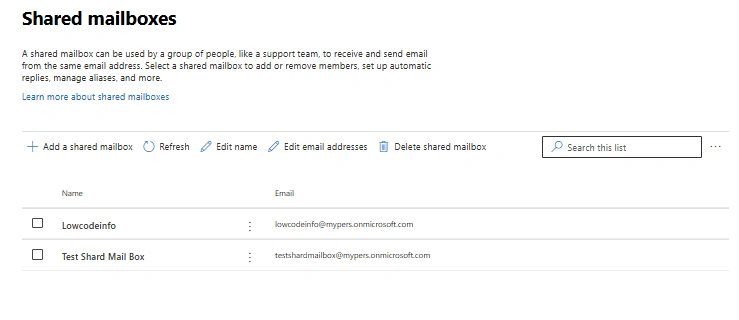
Click Shared mailboxes
Step 2: Create a Shared Mailbox
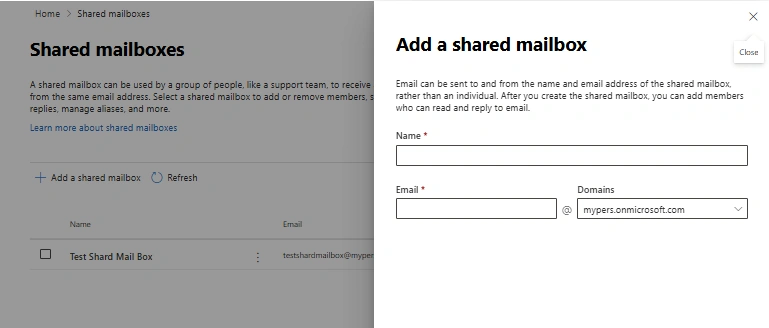
In Shared mailboxes, click Add a shared mailbox
Enter the following details:
Name: Support Team
Email address: [email protected]
Click Save changes
The shared mailbox will be created automatically without a license.
Step 3: Add Members to the Shared Mailbox
After creating the shared mailbox:
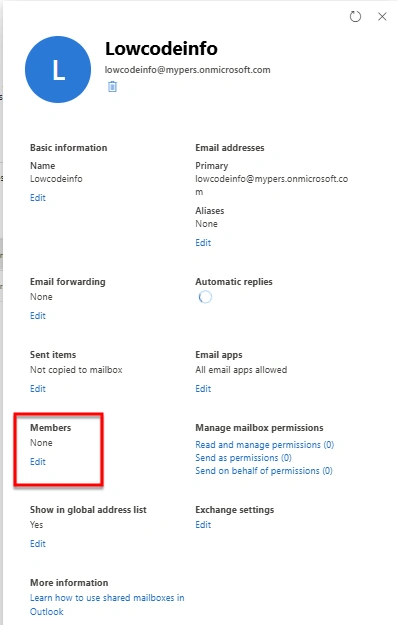
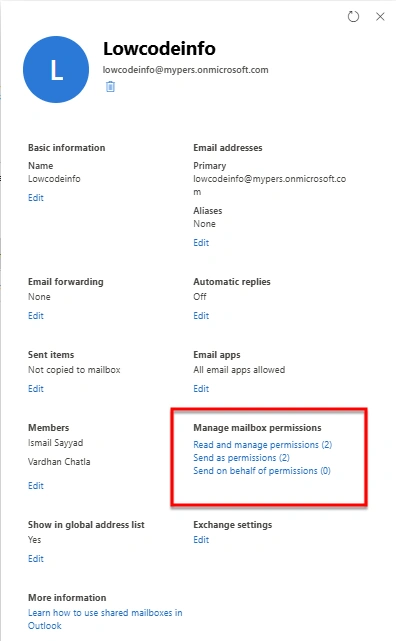
Click on the newly created shared mailbox
Under Members, click Edit
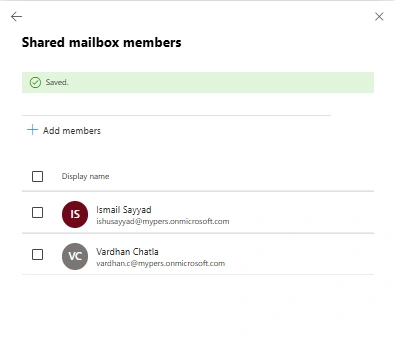
Select users who should have access
Click Save
These users can now:
Read incoming emails
Send emails as the shared mailbox (depending on permissions)
Step 4: Configure Send As and Send on Behalf Permissions
Send As Permission
Allows users to send emails that appear directly from the shared mailbox .
Send on Behalf Permission
Emails will show as:
User Name on behalf of Shared Mailbox
To Configure:
Open the shared mailbox
Navigate to Email delegation
Assign users under:
Send as
Send on behalf
Save changes
Step 5: Access Shared Mailbox in Outlook
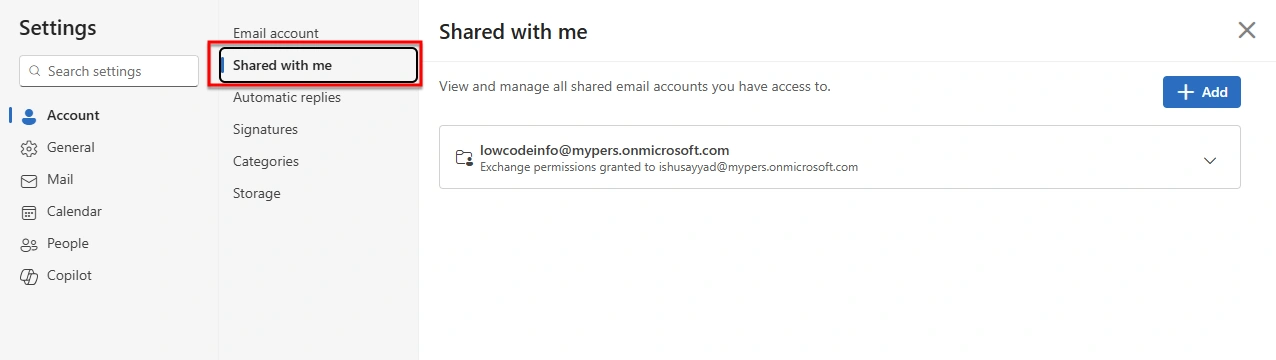
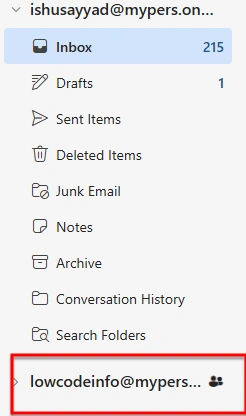
Automatic Mapping (Recommended)
Shared mailbox automatically appears in Outlook for assigned users
No manual configuration needed
Manual Access (If Required)
Open Outlook
Go to Account Settings
Select your account → Change
Click More Settings
Under Advanced , add the shared mailbox
Licensing Information
Shared mailboxes do not require a license up to 50 GB
If mailbox size exceeds 50 GB, a license must be assigned
Shared mailboxes cannot log in directly
Best Practices
Use shared mailboxes instead of individual accounts for team emails
Assign only required permissions to users
Periodically review members and access
Use mailbox auditing for compliance
Avoid assigning licenses unless necessary
Common Issues and Troubleshooting
| Issue | Possible Cause | Solution |
|---|---|---|
| Mailbox not visible in Outlook | Propagation delay | Wait 15–30 minutes |
| Cannot send emails | Missing Send As permission | Update email delegation |
| Access denied | User not added as member | Verify membership |
Conclusion
Shared mailboxes are a powerful and cost-effective feature in Microsoft 365 that help teams collaborate efficiently. With proper configuration of members and permissions, they streamline communication while maintaining security and control.
By following the steps outlined in this article, you can confidently create and manage shared mailboxes in your organization.
Join the conversation! Your thoughts help the community grow.