Managing storage in Microsoft Dataverse is an ongoing responsibility for every Dynamics 365 / Power Platform administrator. Over time, environments accumulate configuration data, test records, logs, and other non‑essential information. If left unmanaged, this data consumes storage, slows down queries, and increases operational costs.
Dataverse provides a powerful native feature called Bulk Delete Jobs that allows administrators to safely and efficiently remove large volumes of records based on a query. In this article, you’ll learn how to create a bulk delete job specifically for configuration data tables, with a detailed step‑by‑step walkthrough.
What is a Bulk Delete Job?
A bulk delete job is an asynchronous Dataverse operation that deletes records based on a defined query. It runs in the background, respects security roles, cascading rules, and can be scheduled to recur.
Key capabilities:
Delete data across multiple tables
Delete records in a specific table
Schedule recurring deletion
Receive email notifications
Review failures in BulkDeleteFailure table
Run asynchronously without blocking other operations
Why Delete Configuration Data?
Configuration tables often store:
Old feature flags
Deprecated settings
Staging or migration configuration
Temporary integration metadata
Sandbox-only configuration
Test or POC configuration values
These records are safe to delete once they are no longer used by your apps or flows.
Follow the below steps to setup the Bulk delete job.
Prerequisites
You must have:
Step 1: Open Power Apps Maker Portal
Click on the below link to open Power Apps Maker Portal.
https://make.powerapps.com
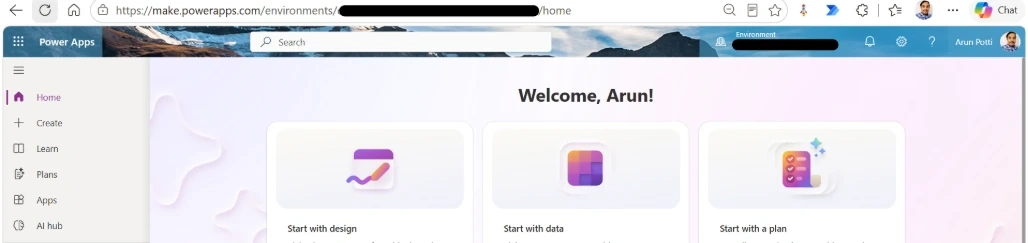
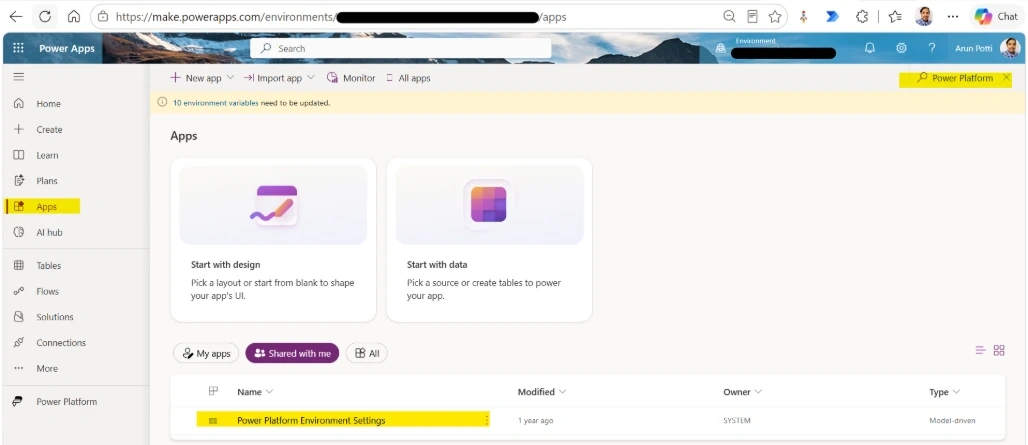
Choose the required Environment in which the data to be deleted and close the environment window.

Click on Apps and search for the Power Platform Environment Settings App.
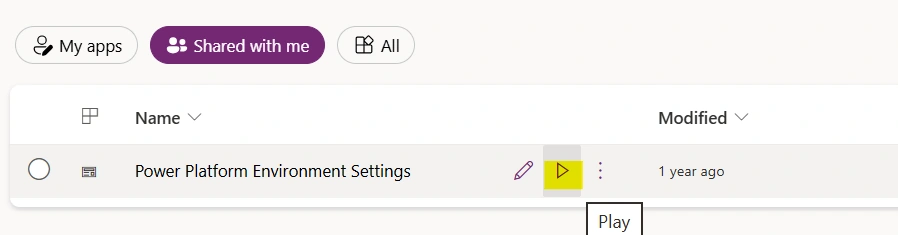
Hover on the App to see the Play Button and click on it to open the App.
Step 2: Navigate to Bulk Deletion
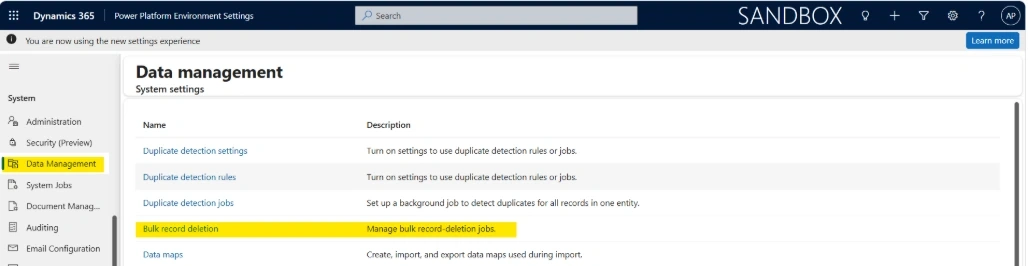
Under System, Click on Data Management.
Click on Bulk record deletion
Step 3: Create a New Bulk Delete Job.
Click New Job.
You will now define the query for the configuration table or the required table.

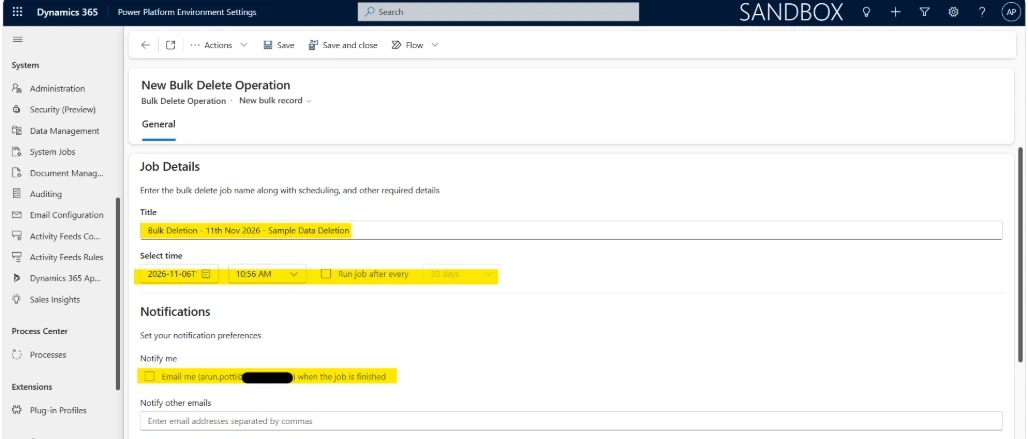
Provide the below details.
Title: Title for the bulk delete Job.
Select time: When to run the Job.
Run job after every: Select this option for the recurrence job.
Notifications:
Notify me - To whom it should be notified after the Job completion.
Notify other emails - Provide the email addresses separated by commas.
Step 4: Define the Query (Choose Records to Delete)
Look for Entity (Choose the required table to be deleted)
Use saved view (Choose the required view)
Add filters as required.
Example query:
Delete all Active Sample Tables configurations
This ensures you only delete safe, unused configuration data.
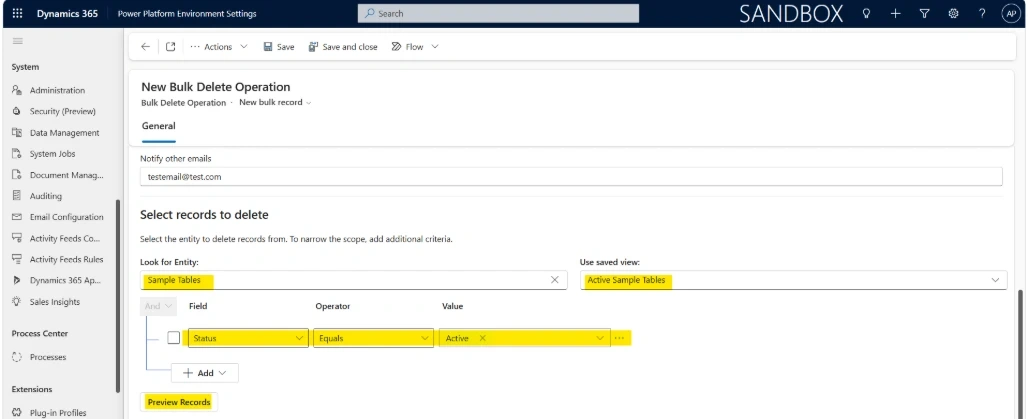
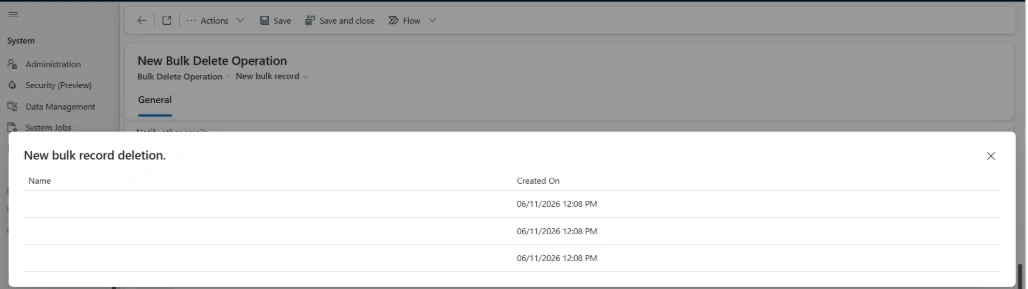
Click on Preview Records to check the records to be deleted.
Step 5: Submit the Bulk Delete Operation
Click Save to create the bulk delete job.
Dataverse creates a record in the BulkDeleteOperation table.
Select the My Bulk Deletion System Jobs view.
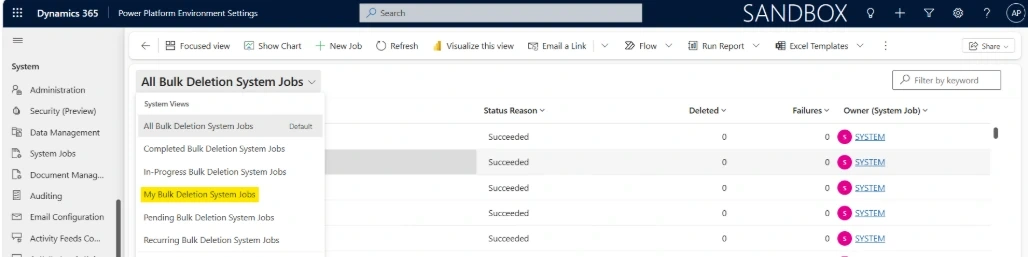
Monitoring the Bulk Delete Job
Open the Bulk Deletion Job and can monitor progress:

Records deleted successfully
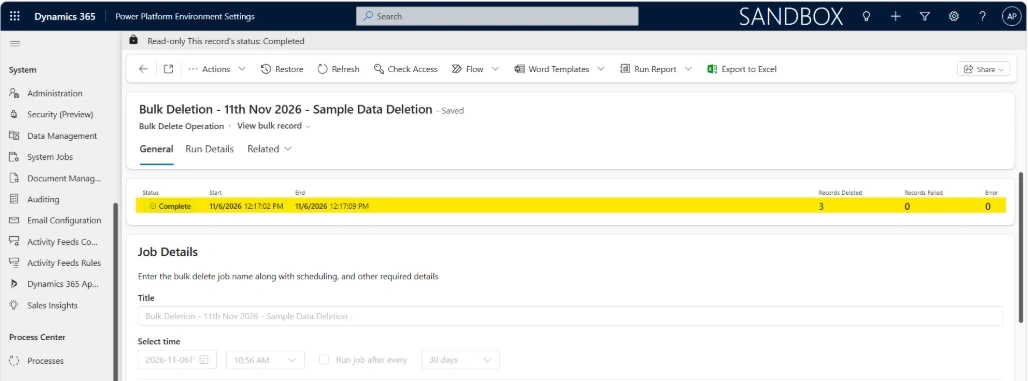
Below are Bulk Deletion Actions that can be seen on the record.
Cancel: Cancel this Job
Postpone: It can be postponed until the required date and time.
Pause: Pause the Job.
Resume: Resume the Job.

Restore: Click on the Restore button and click on Ok to restore the deleted records.
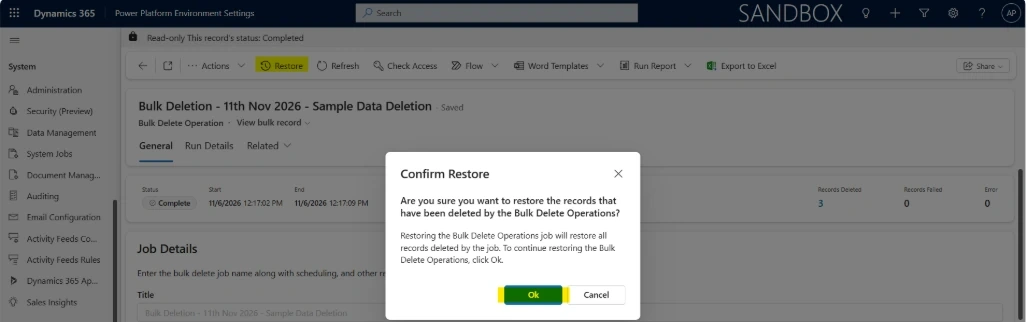
Best Practices for Configuration Data Cleanup
Based on the way Dataverse bulk deletion works, I recommend the following approach.
1. Validate your query first
Before deleting anything, confirm exactly which records match the criteria.
2. Start with smaller batches
For an environment with a significant historical backlog, consider processing the cleanup using logical date ranges rather than starting immediately with the largest possible deletion.
3. Understand cascading deletes
Check table relationships before deleting parent records.
4. Review Delete plug-ins and automation
A simple-looking deletion can trigger substantial additional processing.
5. Monitor failures
Don't assume a completed asynchronous operation means every targeted record was deleted.
6. Use meaningful names
For example:
BulkDelete_IntegrationLogs_12Months
BulkDelete_CompletedJobs_90Days
BulkDelete_StagingRecords_30Days
7. Automate recurring retention policies
If the business rule is something like:
Keep only the last 12 months.
consider implementing it as a recurring cleanup strategy rather than periodically performing emergency storage cleanups.
8. Be extremely careful with Permanent deletion
Only use it when the business has confirmed that the affected data no longer needs to be retained or restored.
Conclusion
Bulk Delete Jobs are one of the most powerful and underused features in Dataverse. They allow administrators to automate cleanup, reduce storage costs, and maintain a healthy environment. By following the step‑by‑step guide above, you can safely delete configuration data tables and keep your Dataverse environment optimized.


Join the conversation! Your thoughts help the community grow.