Introduction
Keeping everyone on the same page can be tough with endless emails and chats. That’s where Microsoft Teams shines as your all-in-one workspace for seamless collaboration. Whether you're working remotely or in the office, Teams helps you stay connected, organized, and productive.
At its core, Teams is built around Teams and Channels, your virtual hubs for sharing ideas, files, and updates in one place. In this article, we’ll cover the basics of creating and managing them to help your team collaborate effortlessly.
Let’s get started!
Understanding Microsoft Teams and Channels
A Team in Microsoft Teams is like a group of people working together toward a common goal. Think of it as a digital workspace where your entire team can collaborate, share ideas, and stay connected in real time.
A Channel is like a dedicated space within a Team designed to keep things organized. You can create channels for specific topics, projects, or tasks, making it easy to focus on what matters most without getting overwhelmed.
Teams and Channels help you cut through the clutter of endless emails and scattered files. They make communication smoother, keep everything in one place, and ensure everyone’s on the same page. Its organization made easy.
Creating a New Team in Microsoft Teams
Ready to get your team together? Here’s a simple guide to help you create a new team in Microsoft Teams.
- Open Microsoft Teams and head to the “Teams” tab on the left-hand menu.

- Click on the '+' icon to create a team.

- Give your team a name and write a short description to explain its purpose.

- Choose your team type and click the "Create" button.
- Private: For a smaller, invite-only group.
- Public: Open to everyone in your organization.
- Org-wide: Automatically includes everyone in your organization.

- Add members: Manually enter their names or email addresses to invite them.

- After this, click on the 'Add' button, and your team will be created.
Setting Privacy for Teams: Private vs. Public
When creating a team in Microsoft Teams, choosing the right privacy setting is key. Here’s a quick breakdown.
Private Teams
- What is it?: A private team is only visible to invited members. No one else in the organization can see its content or join without permission.
- When to use it?: Private teams are perfect for confidential projects, sensitive discussions, or small groups where limited access is essential.
Public Teams
- What is it?: A public team is open to everyone in the organization. Anyone can join, view content, and participate in discussions without needing an invitation.
- When to use it?: Use public teams for general information sharing, cross-department collaboration, or topics that benefit from open participation.

By setting the right privacy level, you ensure your team stays secure and tailored to its purpose.
Creating and Managing Channels within a Team
Channels are the heart of collaboration in Microsoft Teams, helping you stay organized and focused. Here's how to create and manage them.
Creating Channels
- Go to the Team where you want to create a channel.
- Click on the ellipses (three dots) next to the team name.
- Select “Add channel” from the dropdown menu.
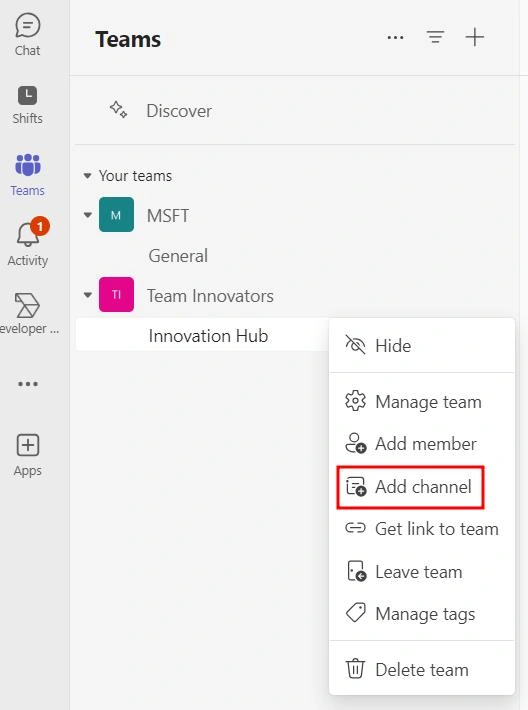
- Name your channel, add a brief description, choose the privacy setting, and click the "Create" button.

- After clicking on the 'Create' button, your channel will be created.
Efficient communication and collaboration in Microsoft Teams rely on using posts and meetings effectively.
Threaded Conversations for Organized Discussions
- Start a Conversation: Use the “New Conversation” button in a channel to begin a thread.
- Reply Instead of Starting New Threads: Keep related discussions under the same thread by using the reply option. This helps maintain context and avoids clutter.
- Tag Members: Use the @mention feature to notify specific people or the entire team about important updates.
- Format Posts: Use bold text, bullet points, or headings to make your posts clear and easy to follow.
Scheduling Meetings or Calls within a Channel
- Schedule a Meeting
- In the channel, click on the "Meet" button or go to the Calendar tab.

- Select “Schedule a Meeting.”
- Add a title, date, and time, and make sure to link the meeting to the channel.

- Post to the Channel: Ensure the meeting invite appears in the channel for visibility. Members can join directly from the post.
- Follow-up: Meeting recordings, chat, and shared files will automatically stay in the channel for easy access.
Conclusion
Microsoft Teams is a powerful tool for organizing and streamlining team collaboration. By creating well-structured teams, managing channels effectively, and using best practices for communication and meetings, you can boost productivity and keep everyone connected.


Join the conversation! Your thoughts help the community grow.