

Hello developers!
In this post, I’ll walk you through how to use Subflows in Power Automate Desktop to make your automation cleaner, more modular, and easier to maintain. Whether you’re automating Excel tasks, working with files, or building a complex RPA flow, subflows are going to be your best friends.
As a fellow developer working in Power Platform for the last couple of years, I’ve realized one thing: if you don’t structure your flows properly, they can become a nightmare real quick. That’s where subflows come in.
What is a Subflow?
Think of a subflow as a function or method in C#. It’s a reusable block of logic that you can call from your main flow (or even from another subflow).
Instead of repeating the same set of actions multiple times, you can simply extract that logic into a subflow and reuse it. That means,
- Better readability
- Fewer chances of bugs
- Easy to maintain
- Looks clean and pro
Step-by-Step: How to Create a Subflow in Power Automate Desktop
Let’s take a simple example. Suppose you’re writing a flow to read data from a CSV file and process each row.
You can break down your logic like this.
- Step 1: Read the CSV
- Step 2: Loop through each row
- Step 3: For each row, perform some action (say, update SharePoint or Excel)
Step 1. Create the Subflow.
- Open Power Automate Desktop.
- Click on the “Subflows” tab (top section of your screen).
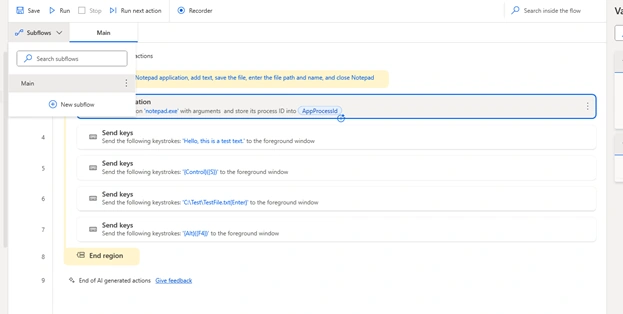
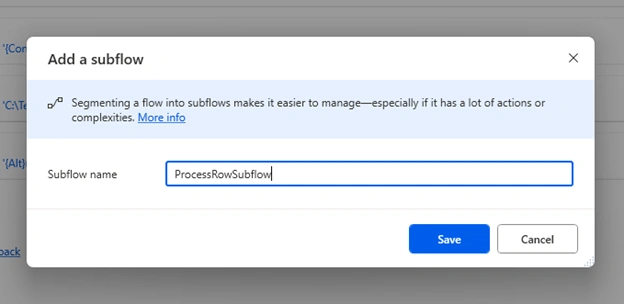
Click “+ New subflow” and give it a name, e.g., ProcessRowSubflow.
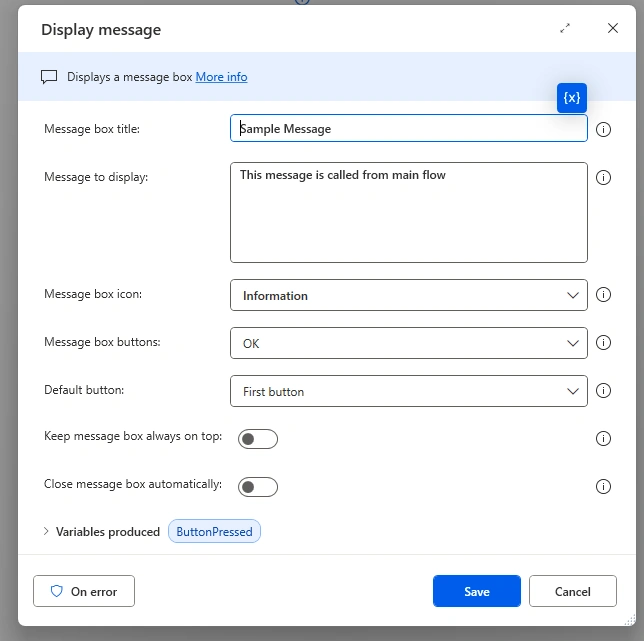
Inside the subflow, add your logic, maybe a condition, some data manipulation, API call, etc.
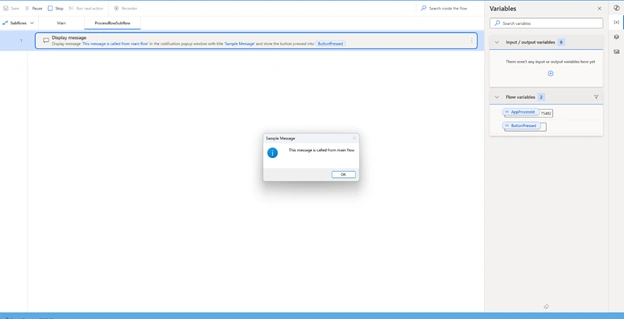
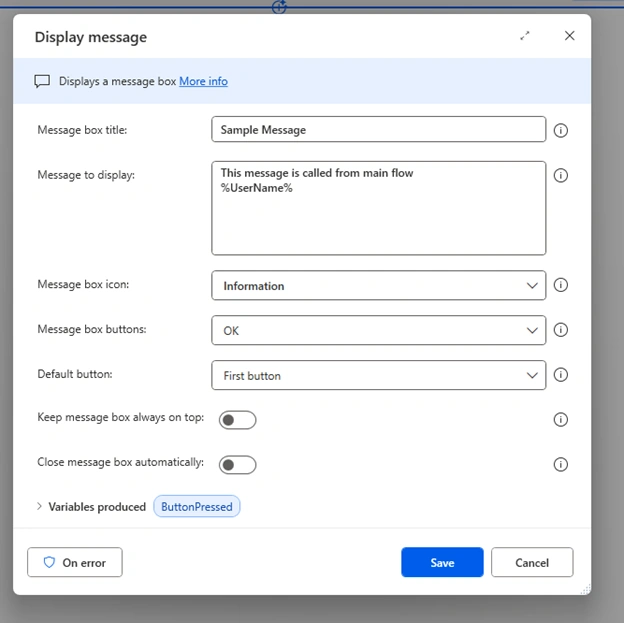
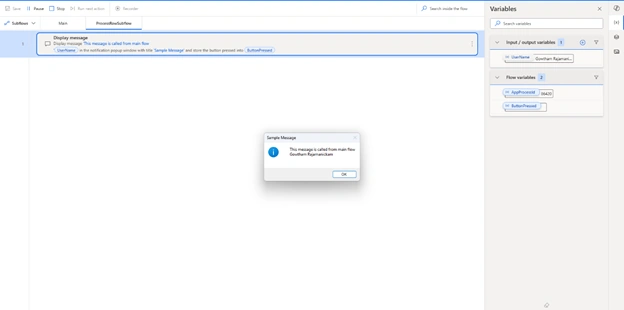
For testing, I am adding a message box.
Pro Tip: Always use meaningful names for your subflows. Avoid naming them like “Subflow1”, “TestFlow”, etc. Future-you will thank you!
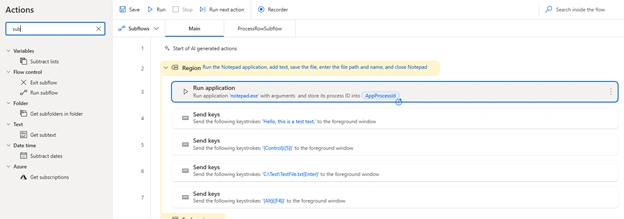
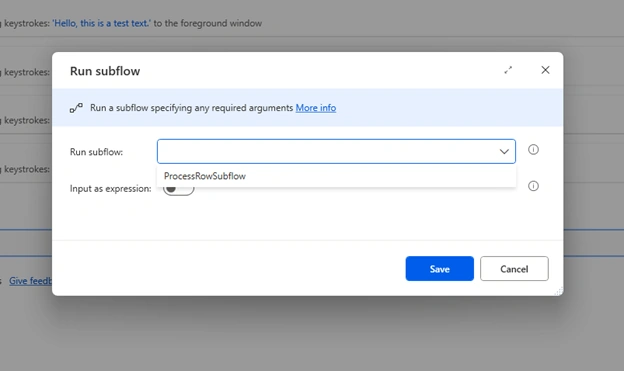
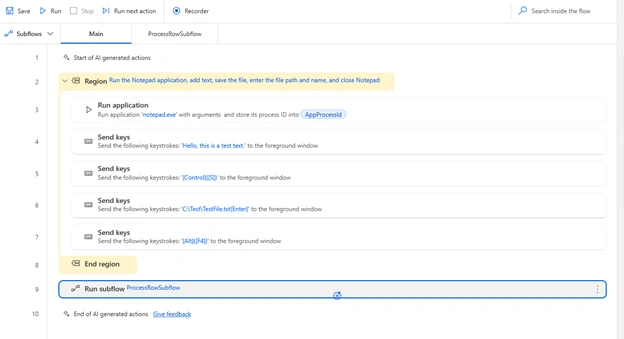
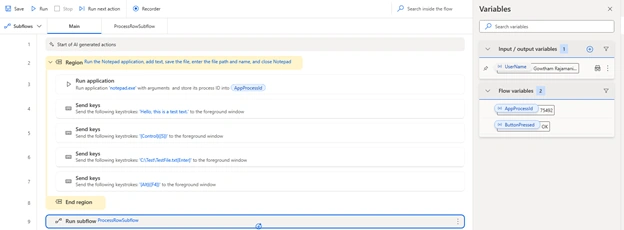
Step 2. Call the Subflow.
Join the conversation! Your thoughts help the community grow.