

Introduction
Azure Bastion service that provides secure and Remote Desktop Protocol (RDP) and Secure Shell Protocol (SSH) access to virtual machines (VMs) without any exposure through public IP addresses.
I will provide step by step with screenshots below.
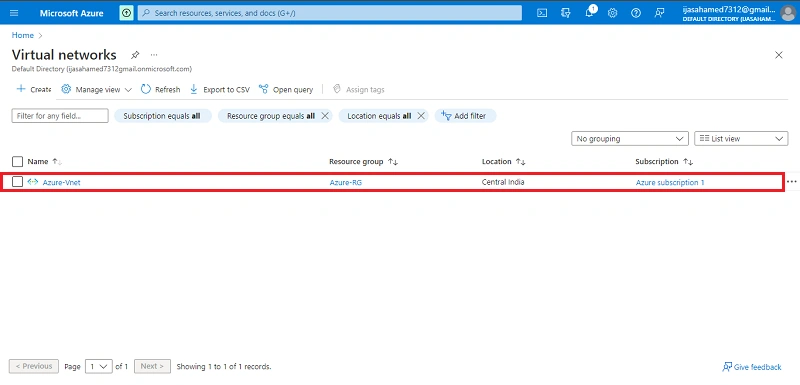
Go to Azure portal Click Create a resource and search virtual Network

Next select the bastion created virtual machine
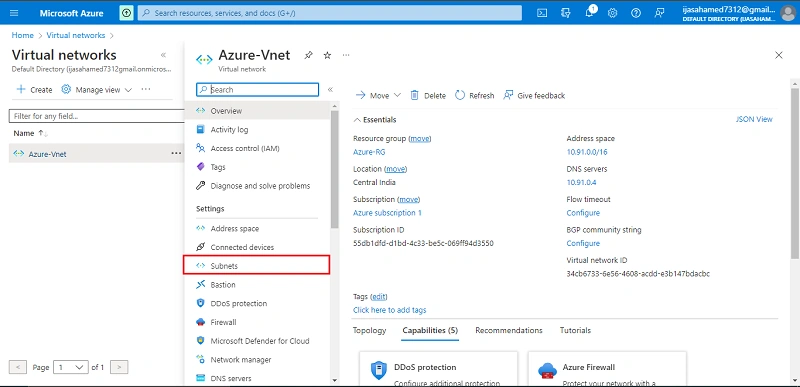
Next Click subnet button
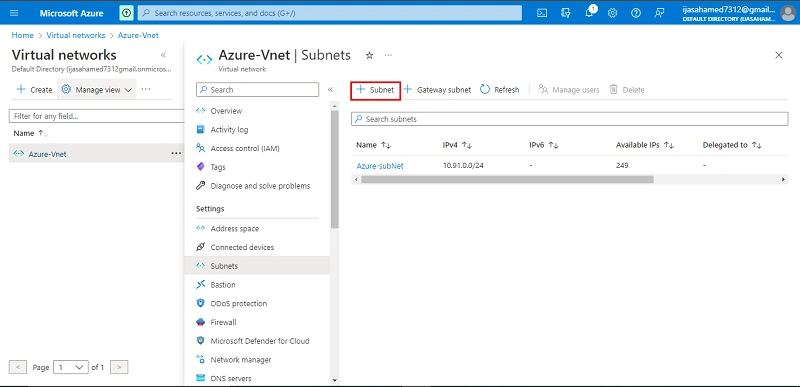
Next create the New Subnet for bastion services
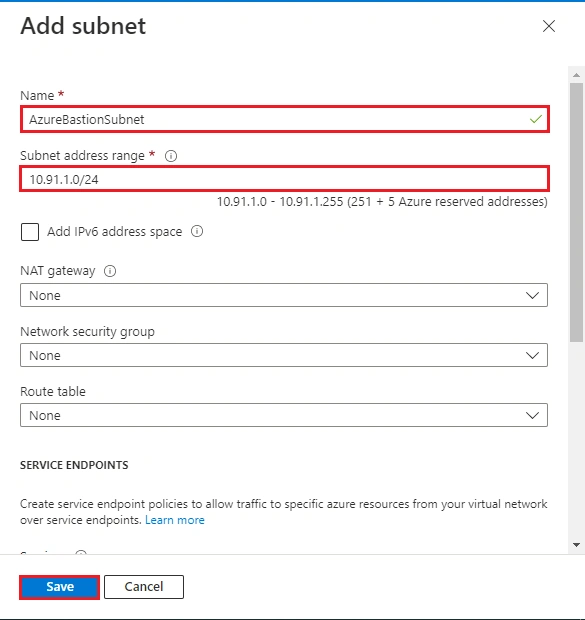
The subnet name must be AzureBastionSubnet
The subnet must be at least /26 or larger (/26, /25, /24 etc.) to accommodate features available with the Standard SKU.
Next click save
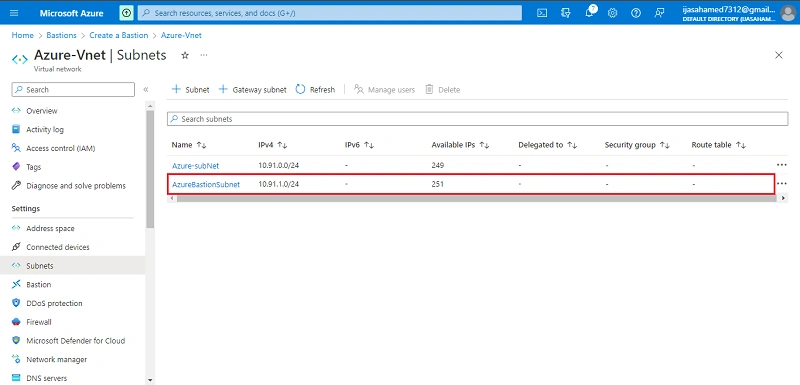
created AzureBastionSubnet
Go to Azure Bastion service click create button

Select subscription and Resources Group Enter the Instance details, Configure virtual networks and Public IP address details
Click the Next Tag Button

Enter the tag details
click Next Advanced button

select the Bastion Features
Next Review + create

Validation Passed after click create

deployment complete

connect the bastion through connect VM click connect button

Next select bastion

Enter the username and Password

Successfully connect VM bastion through

Conclusion
This article taught us how to create a Azure Bastion service in our azure portal. And if you have any questions please contact me.
Thanks.
Join the conversation! Your thoughts help the community grow.