Introduction

In this article, I will explain how to create and implement FullCalendar using Angular. And also, I will discuss some fundamentals of it.
Prerequisites
  • Angular 7
  • HTML/Bootstrap
For this article, I have created an Angular project using Angular 8. For creating an Angular project, we need to follow the following steps:
Step 1
I have created a project using the following command in the Command Prompt.
  1. ng new fullcalendarexample
Step 2
Open a project in Visual Studio Code using the following commands.
  1. cd fullcalendarexample
  2. code .
Step 3
The next step is to install the Full Calendar-related dependencies using the following commands.
  1. npm install --save @fullcalendar/angular @fullcalendar/core @fullcalendar/daygrid
Step 4
The next step is to check the following dependencies in package.json.
  1. "@fullcalendar/angular": "^4.4.5-beta",
  2. "@fullcalendar/core": "^4.4.0",
  3. "@fullcalendar/daygrid": "^4.4.0",
  4. "@fullcalendar/interaction": "^4.0.1",
package.json
  1. {
  2. "name": "@coreui/coreui-free-angular-admin-template",
  3. "version": "2.0.1",
  4. "description": "CoreUI Free Angular 2+ Admin Template",
  5. "author": {
  6. "name": "Łukasz Holeczek",
  7. "url": "http://holeczek.pl",
  8. "github": "https://github.com/mrholek",
  9. "twitter": "https://twitter.com/lukaszholeczek"
  10. },
  11. "contributors": [
  12. {
  13. "name": "Andrzej Kopański",
  14. "url": "https://github.com/xidedix"
  15. }
  16. ],
  17. "homepage": "https://coreui.io/angular",
  18. "copyright": "Copyright 2018 creativeLabs Łukasz Holeczek",
  19. "license": "MIT",
  20. "scripts": {
  21. "ng": "ng",
  22. "start": "ng serve",
  23. "build": "ng build --prod",
  24. "test": "ng test",
  25. "lint": "ng lint",
  26. "e2e": "ng e2e"
  27. },
  28. "private": true,
  29. "dependencies": {
  30. "@angular/animations": "^6.1.10",
  31. "@angular/cdk": "^7.3.2",
  32. "@angular/common": "^6.1.10",
  33. "@angular/compiler": "^6.1.10",
  34. "@angular/core": "^6.1.10",
  35. "@angular/forms": "^6.1.10",
  36. "@angular/http": "^6.1.10",
  37. "@angular/material": "^7.3.2",
  38. "@angular/platform-browser": "^6.1.10",
  39. "@angular/platform-browser-dynamic": "^6.1.10",
  40. "@angular/router": "^6.1.10",
  41. "@coreui/angular": "^2.0.0-rc.1",
  42. "@coreui/coreui": "^2.0.20",
  43. "@coreui/coreui-plugin-chartjs-custom-tooltips": "^1.2.0",
  44. "@coreui/icons": "0.3.0",
  45. "@fullcalendar/angular": "^4.4.5-beta",
  46. "@fullcalendar/core": "^4.4.0",
  47. "@fullcalendar/daygrid": "^4.4.0",
  48. "@fullcalendar/interaction": "^4.0.1",
  49. "@nebular/theme": "3.1.0",
  50. "@syncfusion/ej2-angular-calendars": "^16.4.52",
  51. "bootstrap": "^4.1.3",
  52. "chart.js": "^2.7.3",
  53. "core-js": "^2.5.7",
  54. "flag-icon-css": "^3.2.1",
  55. "font-awesome": "^4.7.0",
  56. "html2canvas": "^1.0.0-alpha.12",
  57. "jspdf": "^1.5.3",
  58. "moment": "^2.22.2",
  59. "mutationobserver-shim": "^0.3.2",
  60. "ng2-charts": "^1.6.0",
  61. "ng2-file-upload": "^1.3.0",
  62. "ng2-search-filter": "^0.4.7",
  63. "ng2-slim-loading-bar": "^4.0.0",
  64. "ngx-bootstrap": "^3.0.1",
  65. "ngx-pagination": "^3.2.1",
  66. "ngx-perfect-scrollbar": "^6.3.1",
  67. "ngx-slick-carousel": "^0.4.4",
  68. "ngx-toastr": "^9.1.1",
  69. "rxjs": "^6.3.3",
  70. "rxjs-compat": "^6.3.3",
  71. "simple-line-icons": "^2.4.1",
  72. "slick-carousel": "^1.8.1",
  73. "ts-helpers": "^1.1.2",
  74. "tsickle": "^0.33.0",
  75. "zone.js": "^0.8.26"
  76. },
  77. "devDependencies": {
  78. "@angular-devkit/build-angular": "^0.7.5",
  79. "@angular/cli": "^7.3.9",
  80. "@angular/compiler-cli": "^6.1.10",
  81. "@angular/language-service": "^6.1.10",
  82. "@types/jasmine": "^2.8.9",
  83. "@types/jasminewd2": "^2.0.5",
  84. "@types/node": "^10.12.0",
  85. "codelyzer": "^4.5.0",
  86. "jasmine-core": "^3.2.1",
  87. "jasmine-spec-reporter": "^4.2.1",
  88. "karma": "^3.0.0",
  89. "karma-chrome-launcher": "^2.2.0",
  90. "karma-coverage-istanbul-reporter": "^2.0.4",
  91. "karma-jasmine": "^1.1.2",
  92. "karma-jasmine-html-reporter": "^1.3.1",
  93. "protractor": "^5.4.1",
  94. "ts-node": "^7.0.1",
  95. "tslint": "^5.11.0",
  96. "typescript": "^2.9.2"
  97. },
  98. "engines": {
  99. "node": ">= 8.9.4",
  100. "npm": ">= 5.6.0"
  101. }
  102. }
Step 5
Now manually include the stylesheets for FullCalendar’s core and plugins in style.css,
  1. @import '~@fullcalendar/core/main.css';
  2. @import '~@fullcalendar/daygrid/main.css';
You must then include the FullCalendarModule into your app’s root module.
  1. import { FullCalendarModule } from '@fullcalendar/angular'; // for FullCalendar!
app.module.ts
  1. import { BrowserModule } from '@angular/platform-browser';
  2. import { NgModule } from '@angular/core';
  3. import { FullCalendarModule } from '@fullcalendar/angular'; // for FullCalendar!
  4. import { AppComponent } from './app.component';
  5. @NgModule({
  6. declarations: [
  7. AppComponent
  8. ],
  9. imports: [
  10. BrowserModule,
  11. FullCalendarModule // for FullCalendar!
  12. ],
  13. providers: [],
  14. bootstrap: [AppComponent]
  15. })
  16. export class AppModule { }
app.component.ts
  1. import { Component, ViewChild } from '@angular/core';
  2. import { FullCalendarComponent } from '@fullcalendar/angular';
  3. import { EventInput } from '@fullcalendar/core';
  4. import dayGridPlugin from '@fullcalendar/daygrid';
  5. @Component({
  6. selector: 'app-root',
  7. templateUrl: './app.component.html',
  8. styleUrls: ['./app.component.css']
  9. })
  10. export class AppComponent {
  11. @ViewChild('calendar',null) calendarComponent: FullCalendarComponent; // the #calendar in the template
  12. options: any;
  13. eventsModel: any[] = [];
  14. calendarVisible = true;
  15. calendarWeekends = true;
  16. calendarEvents: EventInput[] = [
  17. { title: 'Event Now', start: new Date() }
  18. ];
  19. toggleVisible() {
  20. this.calendarVisible = !this.calendarVisible;
  21. }
  22. ngOnInit() {
  23. this.options = {
  24. editable: false,
  25. disableDragging: false,
  26. selectable: true,
  27. theme: 'standart',
  28. header: {
  29. right: 'prev,next, today',
  30. left: '',
  31. },
  32. validRange: {
  33. start: '2017-05-01',
  34. end: '2019-06-01'
  35. },
  36. plugins: [dayGridPlugin]
  37. };
  38. this.calendarEvents = [{
  39. title: 'Updaten Event',
  40. start: '2020-08',
  41. end: '2020-10'
  42. }];
  43. }
  44. toggleWeekends() {
  45. this.calendarWeekends = !this.calendarWeekends;
  46. }
  47. eventClick(model) {
  48. }
  49. dateClick(model) {
  50. }
  51. eventDragStop(model) {
  52. }
  53. gotoPast() {
  54. let calendarApi = this.calendarComponent.getApi();
  55. calendarApi.gotoDate('2000-01-01'); // call a method on the Calendar object
  56. }
  57. handleDateClick(arg) {
  58. if (confirm('Would you like to add an event to ' + arg.dateStr + ' ?')) {
  59. this.calendarEvents = this.calendarEvents.concat({ // add new event data. must create new array
  60. title: 'New Event',
  61. start: arg.date,
  62. allDay: arg.allDay
  63. })
  64. }
  65. }
  66. }
app.component.html
  1. <div class='app'>
  2. <div class='app-top'>
  3. <button (click)='toggleVisible()'>toggle visible</button>
  4. <button (click)='toggleWeekends()'>toggle weekends</button>
  5. <button (click)='gotoPast()'>go to a date in the past</button>
  6. (also, click a date/time to add an event)
  7. </div>
  8. <full-calendar #fullcalendar [editable]="true" [events]="calendarEvents"
  9. [header]="options.header" [customButtons]="options.customButtons"
  10. (dateClick)="dateClick($event)" (eventDragStop)="eventDragStop($event)"
  11. [plugins]="options.plugins" (eventClick)="eventClick($event)"
  12. [columnHeaderHtml]="options.columnHeaderHtml"></full-calendar>
  13. </div>
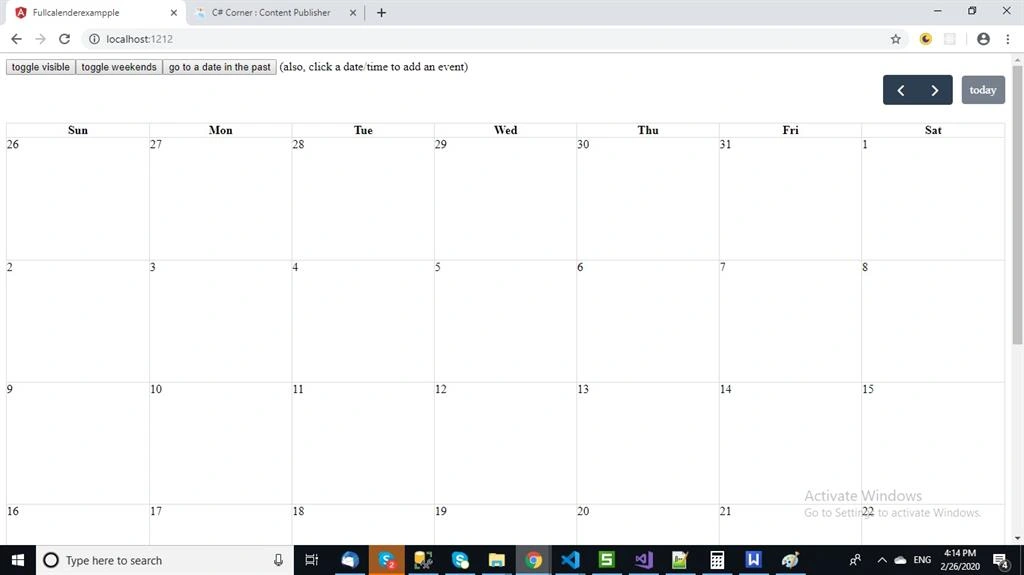
Now, run the project using the following command,
  1. ng serve

Summary

In this article, I have discussed how to create FullCalendar in Angular.
Reference
https://github.com/fullcalendar/fullcalendar-example-projects/tree/master/angular/src