

Introduction
Android is one of the most popular operating systems for mobile. Users can access the internet through the browser. Each Android mobile has a calendar view. The calendar is an important thing to handle events and commitments. So, I will show you how to create a calendar view in Android applications using an android studio. Android is a kernel-based operating system. It allows the user to modify the GUI components and source code.
Requirements
- Android studio
- Little bit XML and JAVA Knowledge.
- Android emulator (or) android mobile
- Download link (android studio)
Steps should be followed
Carefully follow my steps to create a calendar view in android applications using an android studio and I have included the source code below.
Step 1
Open the android studio to start the new project.
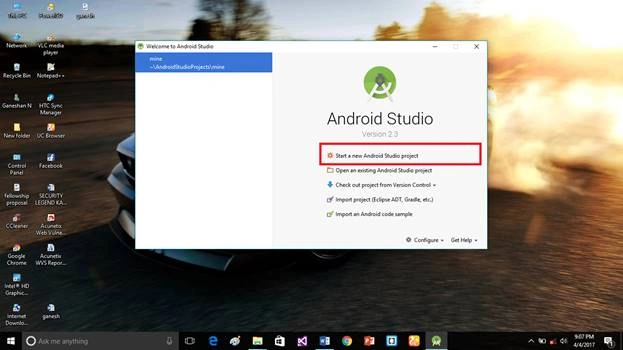 Step 2
Put the application name and company domain. If you wish to use c++ for code the project, mark the Include c++ support then click next.
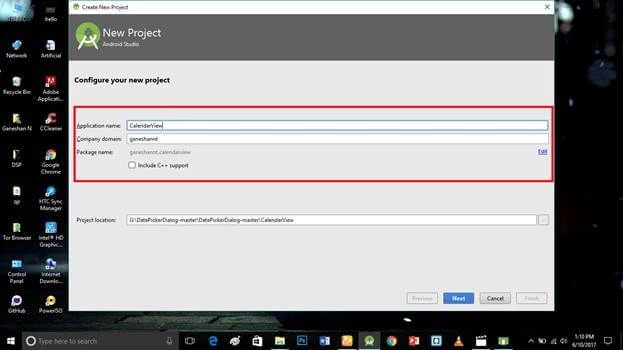 Step 3
Select the android minimum SDK. After you chose the minimum SDK it will show the approximate percentage of people use that SDK then click next.
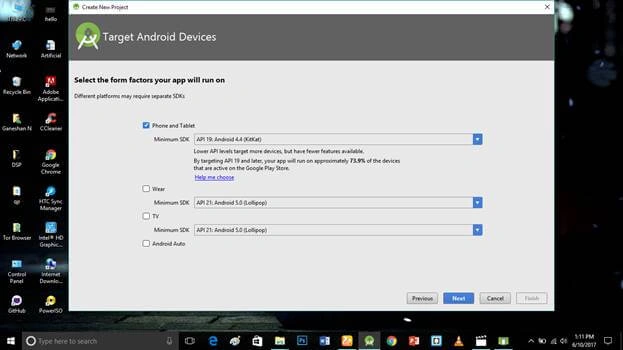 Step 4
Choose the basic activity then click next.
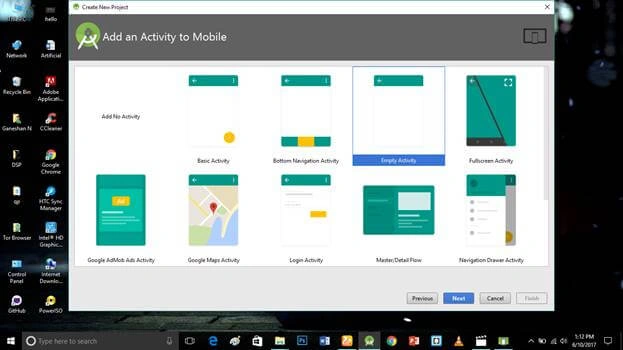 Step 5
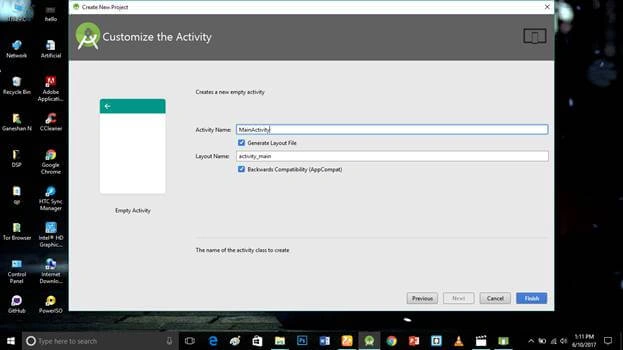
Put the activity name and layout name. Android studio basically takes the java class name is what you provide the activity name and click finish.
 Step 6
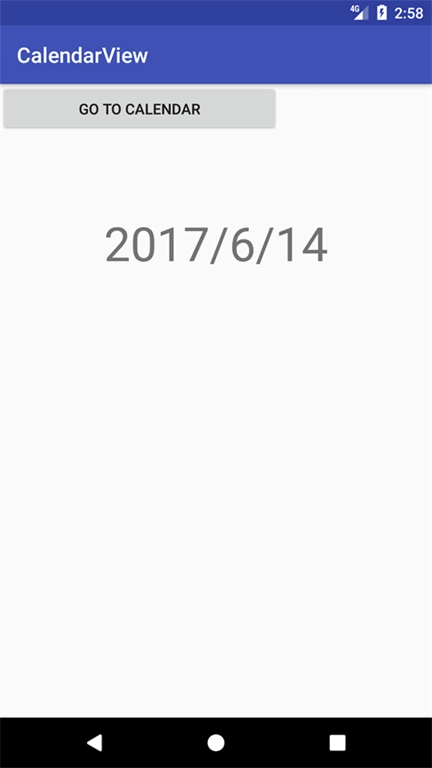
Go to activity_main.xml then click the text bottom. This XML file contains the designing code for the android app. Into the activity_main.xml copy and paste the below code.
Activity_main.xml code
- <?xml version="1.0" encoding="utf-8"?>
- <android.support.constraint.ConstraintLayout xmlns:android="http://schemas.android.com/apk/res/android"
- xmlns:app="http://schemas.android.com/apk/res-auto"
- xmlns:tools="http://schemas.android.com/tools"
- android:layout_width="match_parent"
- android:layout_height="match_parent"
- tools:context="ganeshannt.calendarview.MainActivity">
- <TextView
- android:id="@+id/date"
- android:layout_width="0dp"
- android:layout_height="51dp"
- android:text="Date"
- android:textAlignment="center"
- android:textSize="45dp"
- android:visibility="visible"
- app:layout_constraintBottom_toBottomOf="parent"
- app:layout_constraintHorizontal_bias="0.0"
- app:layout_constraintLeft_toLeftOf="parent"
- app:layout_constraintRight_toRightOf="parent"
- app:layout_constraintTop_toTopOf="parent"
- app:layout_constraintVertical_bias="0.219" />
- <Button
- android:id="@+id/btngocalendar"
- android:layout_width="266dp"
- android:layout_height="47dp"
- android:text="Go to calendar"
- tools:layout_editor_absoluteX="47dp"
- tools:layout_editor_absoluteY="8dp" />
- </android.support.constraint.ConstraintLayout>
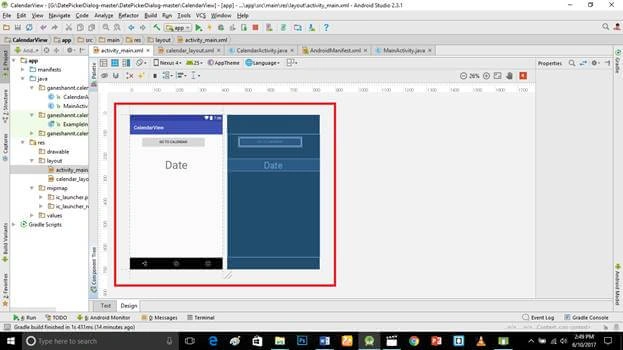
Create a new calendar_layout.xml file (File ⇒ New ⇒Activity⇒Empty_activity).
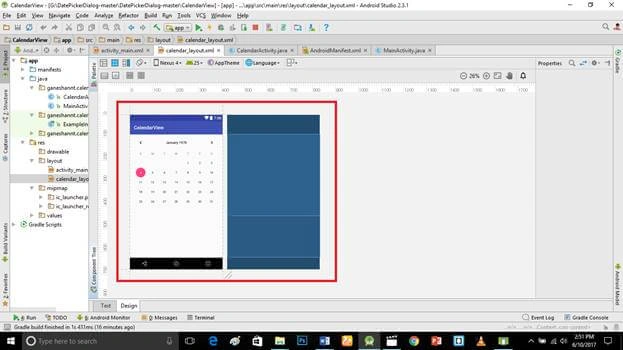
Go to calendar_layout.xml then click the text bottom. This XML file contains the designing code for android app. Into the calendar_layout.xml copy and paste the below code.
calendar_layout.xml code
- <?xml version="1.0" encoding="utf-8"?>
- <LinearLayout xmlns:android="http://schemas.android.com/apk/res/android"
- android:orientation="vertical" android:layout_width="match_parent"
- android:layout_height="match_parent">
- <CalendarView
- android:id="@+id/calendarView"
- android:layout_width="match_parent"
- android:layout_height="wrap_content" />
- </LinearLayout>
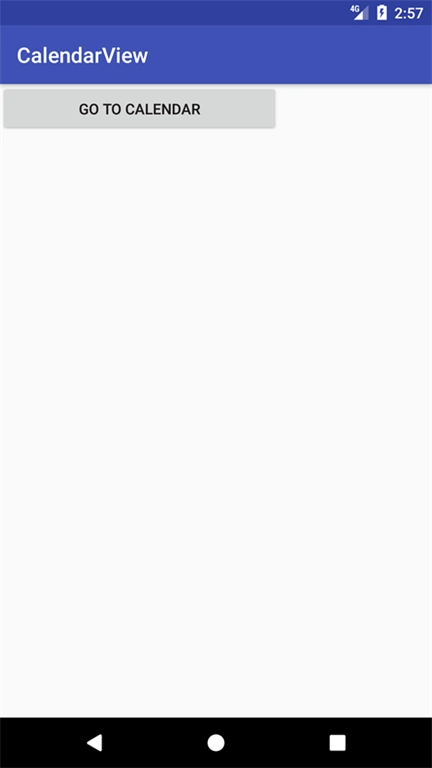
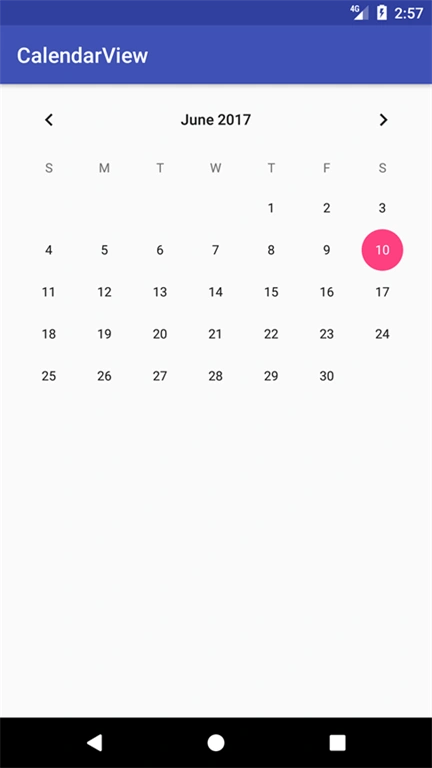
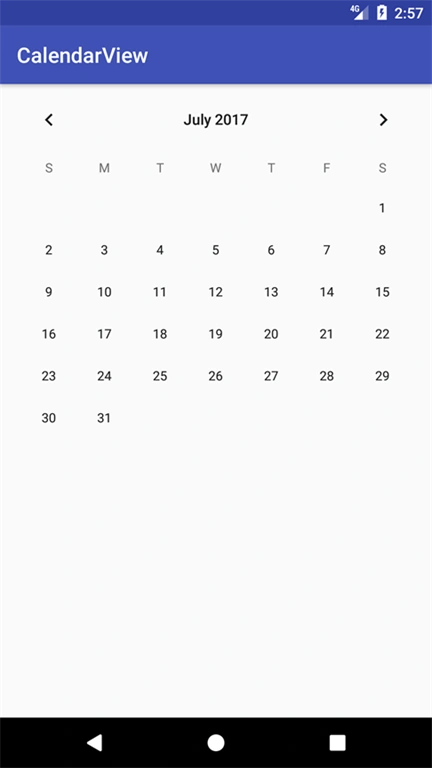
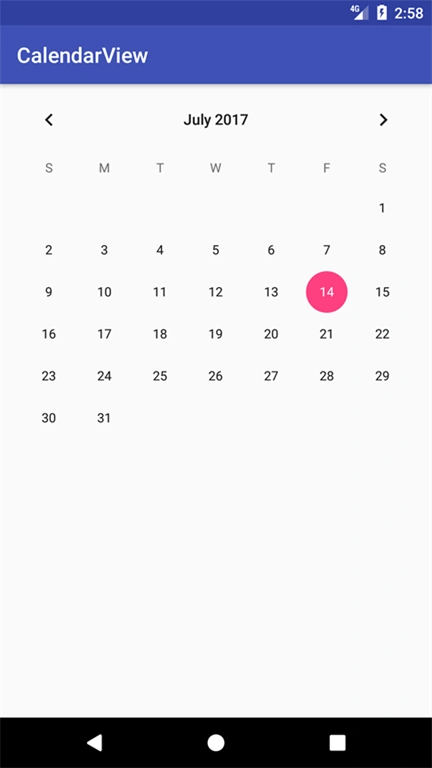
Vaibhav JainPosted Oct 24, 2018, 11:59 PM
This layout shows calendar view in vertical direction not like you show above in pictures so please tell what should to change in this layout?
Bruno RodriguesPosted Sep 25, 2018, 4:44 AM
Hello, is it possible to import google calendar into an android application? how do I do? thank you
Ganeshan NPosted Jun 12, 2017, 10:40 PM
Source code available here :https://github.com/GaneshanNT/CalendarView