

Introduction
In this article, we discuss how to create a checkbox in Java.
What is checkbox?
Simply called a selection box, a checkbox is a type of square box where the user can click to select their choice. Using a checkbox he can select multiple values at a time.
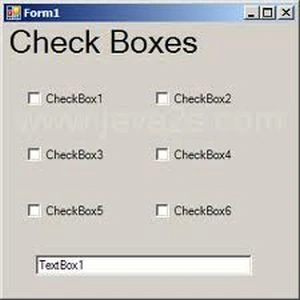
The following figure shows some sample checkboxes:
Example
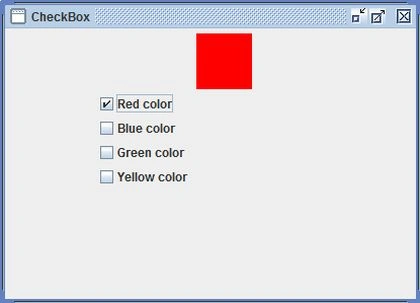
In this example; we create four checkboxes to select the colors of our choice. Now for creating checkboxes we use AWT (Abstract Window Toolkit) and Swing components.
Procedure to follow
Step 1: We create four checkboxes to provide the user with a choice of selecting multiple choices.
- JPanel overallGUI = new JPanel();
- JPanel chkBxPanl = new JPanel();
- chkBxPanl.setLayout(new BoxLayout(chkBxPanl, BoxLayout.PAGE_AXIS));
- chkBxPanl.add(Box.createRigidArea(new Dimension(15,5)));
- redbtn = new JCheckBox("Red color");
- redbtn.setSelected(true);
- chkBxPanl.add(redbtn);
- chkBxPanl.add(Box.createHorizontalGlue());
- bluebtn = new JCheckBox("Blue color");
- chkBxPanl.add(bluebtn);
- chkBxPanl.add(Box.createHorizontalGlue());
- greenbtn = new JCheckBox("Green color");
- chkBxPanl.add(greenbtn);
- chkBxPanl.add(Box.createHorizontalGlue());
- yellowbtn = new JCheckBox("Yellow color");
- chkBxPanl.add(yellowbtn);
- chkBxPanl.add(Box.createRigidArea(new Dimension(15, 5)));
- JPanel bxPanl = new JPanel(new GridLayout(3, 3, 23, 23));
- JPanel redBx = squrPanl(Color.red, 55);
- JPanel blBx = squrPanl(Color.blue, 55);
- JPanel grnBx = squrPanl(Color.green, 55);
- JPanel yelwBx = squrPanl(Color.yellow, 55);
- grnBx.setVisible(false);
- blBx.setVisible(false);
- yelwBx.setVisible(false);
- bxPanl.add(redBx);
- bxPanl.add(blBx);
- bxPanl.add(grnBx);
- bxPanl.add(yelwBx);
- overallGUI.add(chkBxPanl);
- overallGUI.add(bxPanl);
- overallGUI.setOpaque(true);
- return overallGUI;
- private JPanel squrPanl(Color color, int size)
- {
- JPanel temporaryPanl = new JPanel();
- temporaryPanl.setBackground(color);
- temporaryPanl.setMinimumSize(new Dimension(size, size));
- temporaryPanl.setMaximumSize(new Dimension(size, size));
- temporaryPanl.setPreferredSize(new Dimension(size, size));
- return temporaryPanl;
- }
- private static void showGUI()
- {
- JFrame.setDefaultLookAndFeelDecorated(true);
- JFrame frm = new JFrame("CheckBox");
- SwingCheckBxEx showdemo = new SwingCheckBxEx();
- frm.setContentPane(showdemo.shwCreatPnl());
- frm.setDefaultCloseOperation(JFrame.EXIT_ON_CLOSE);
- frm.pack();
- frm.setVisible(true);
- }
- public static void main(String[] args)
- {
- SwingUtilities.invokeLater(new Runnable()
- {
- public void run()
- {
- showGUI();
- }
- });
- }
SwingCheckBxEx.java
- import java.awt.*;
- import javax.swing.*;
- import java.awt.Color;
- public class SwingCheckBxEx
- {
- JCheckBox redbtn, bluebtn, greenbtn, yellowbtn;
- public JPanel shwCreatPnl()
- {
- JPanel overallGUI = new JPanel();
- JPanel chkBxPanl = new JPanel();
- chkBxPanl.setLayout(new BoxLayout(chkBxPanl, BoxLayout.PAGE_AXIS));
- chkBxPanl.add(Box.createRigidArea(new Dimension(15, 5)));
- redbtn = new JCheckBox("Red color");
- redbtn.setSelected(true);
- chkBxPanl.add(redbtn);
- chkBxPanl.add(Box.createHorizontalGlue());
- bluebtn = new JCheckBox("Blue color");
- chkBxPanl.add(bluebtn);
- chkBxPanl.add(Box.createHorizontalGlue());
- greenbtn = new JCheckBox("Green color");
- chkBxPanl.add(greenbtn);
- chkBxPanl.add(Box.createHorizontalGlue());
- yellowbtn = new JCheckBox("Yellow color");
- chkBxPanl.add(yellowbtn);
- chkBxPanl.add(Box.createRigidArea(new Dimension(15, 5)));
- JPanel bxPanl = new JPanel(new GridLayout(3, 3, 23, 23));
- JPanel redBx = squrPanl(Color.red, 55);
- JPanel blBx = squrPanl(Color.blue, 55);
- JPanel grnBx = squrPanl(Color.green, 55);
- JPanel yelwBx = squrPanl(Color.yellow, 55);
- grnBx.setVisible(false);
- blBx.setVisible(false);
- yelwBx.setVisible(false);
- bxPanl.add(redBx);
- bxPanl.add(blBx);
- bxPanl.add(grnBx);
- bxPanl.add(yelwBx);
- overallGUI.add(chkBxPanl);
- overallGUI.add(bxPanl);
- overallGUI.setOpaque(true);
- return overallGUI;
- }
- private JPanel squrPanl(Color color, int size)
- {
- JPanel temporaryPanl = new JPanel();
- temporaryPanl.setBackground(color);
- temporaryPanl.setMinimumSize(new Dimension(size, size));
- temporaryPanl.setMaximumSize(new Dimension(size, size));
- temporaryPanl.setPreferredSize(new Dimension(size, size));
- return temporaryPanl;
- }
- private static void showGUI()
- {
- JFrame.setDefaultLookAndFeelDecorated(true);
- JFrame frm = new JFrame("CheckBox");
- SwingCheckBxEx showdemo = new SwingCheckBxEx();
- frm.setContentPane(showdemo.shwCreatPnl());
- frm.setDefaultCloseOperation(JFrame.EXIT_ON_CLOSE);
- frm.pack();
- frm.setVisible(true);
- }
- public static void main(String[] args)
- {
- SwingUtilities.invokeLater(new Runnable()
- {
- public void run()
- {
- showGUI();
- }
- });
- }
- }
Sandeep SharmaPosted May 25, 2015, 2:03 AM
Thanks
Gowtham RajamanickamPosted May 19, 2015, 12:52 AM
good one