

Office 365 is a Web-based solution that includes Azure AD, Skype, Office, SharePoint, MS Flows, Power BI, Yammer etc. Office 365 delivers services to users using cloud exchange services. In an organization you can purchase a subscription as per your need. You can create users, delete users and manage them. By giving admin rights you can give access to the users and allow them to manage the configurations of their account.
How to Create Users in Office 365Login Office 365 URL https://login.microsoftonline.com
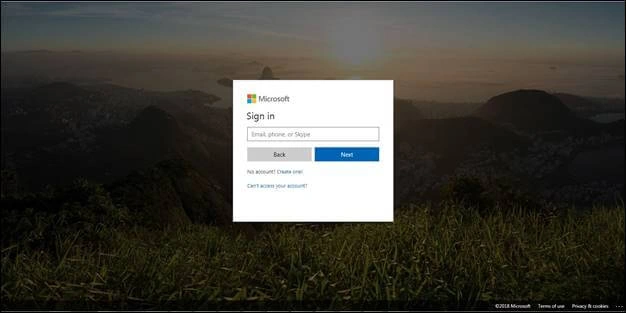
You need to enter the global admin account credential for managing Azure AD at the Office 365 login page
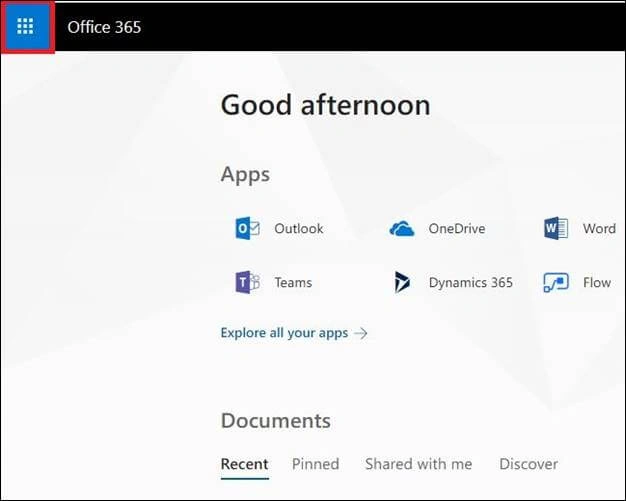
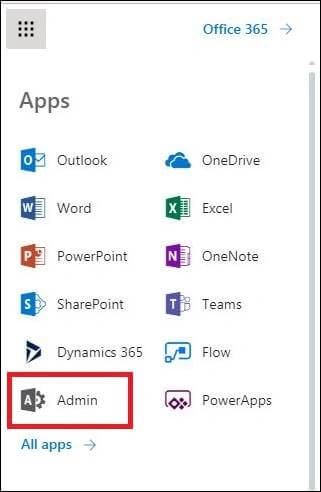
Click on the above-mentioned button, after that a popup menu appears in which you have to select the Admin option.
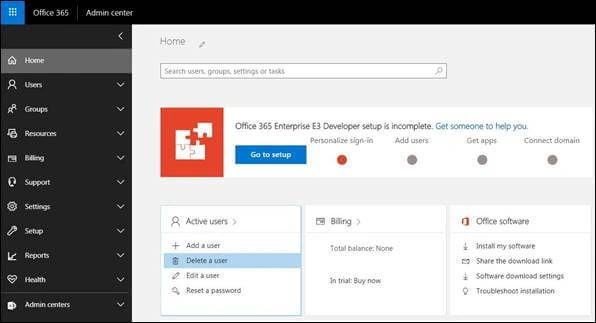
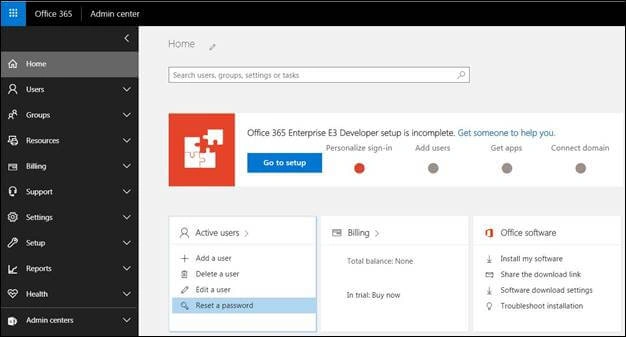
After clicking the Admin button, you will be redirected to the Admin center homepage. Here we can create a user.
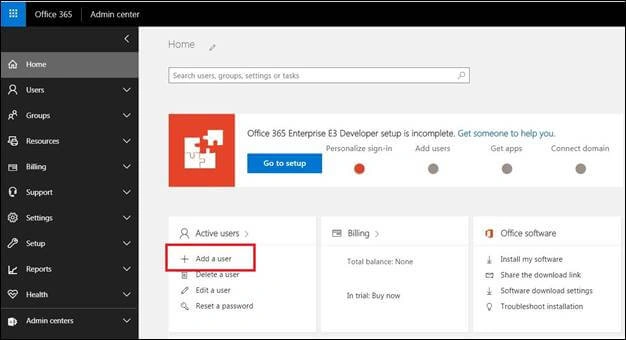
Click on Add a User for creating a new user.
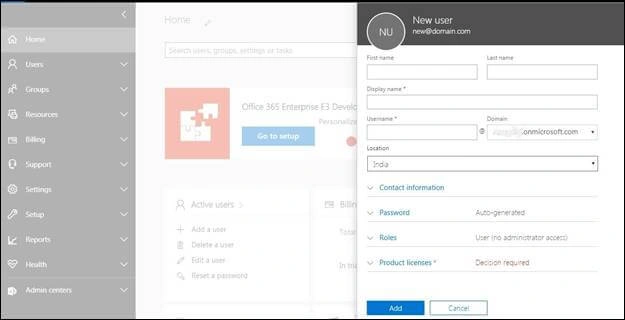
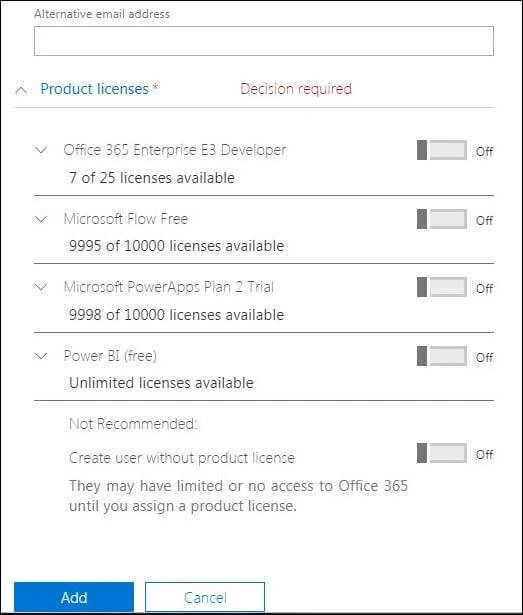
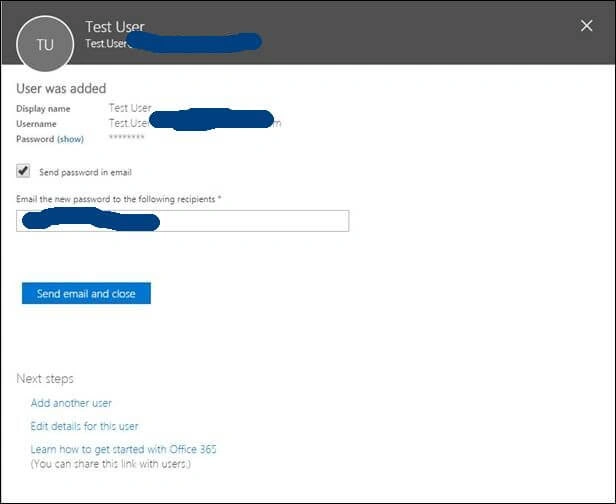
After that a new windows appears, fill in all the details of the user such as User Name, Email id Location etc.
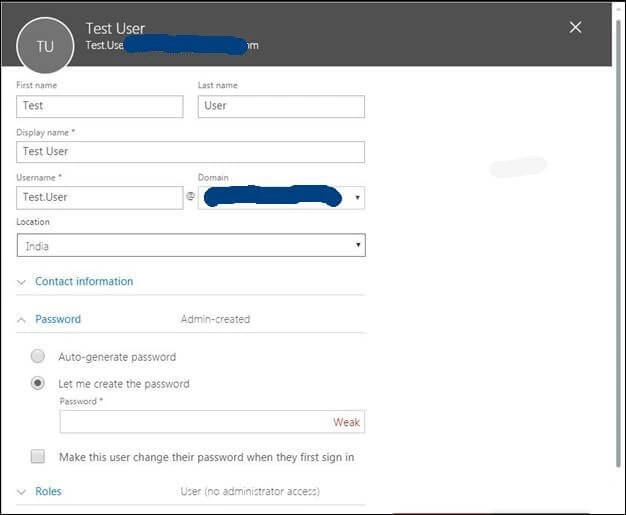
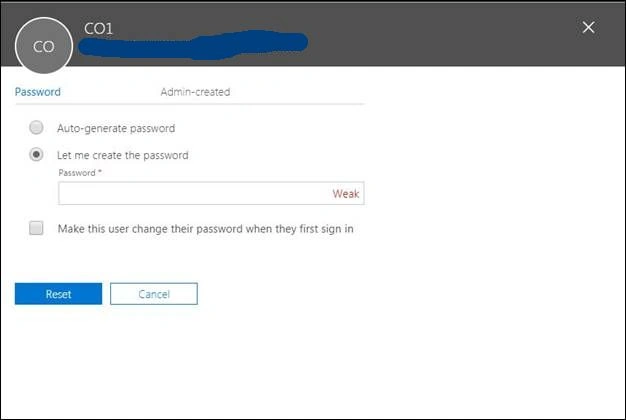
Here you can choose Auto-generate password in which you do not need to enter s password; it will be an auto-generated password which is system generated. By clicking the "Let me create the password" option you can add passwords manually. The third option will be "Make this user change their Password when they first sign in". This option prompts the user to choose a password and with this option users can enter a password at the login window. I will recommend you select the "Let me choose the password option", as you can ensure it's the password of your choice.
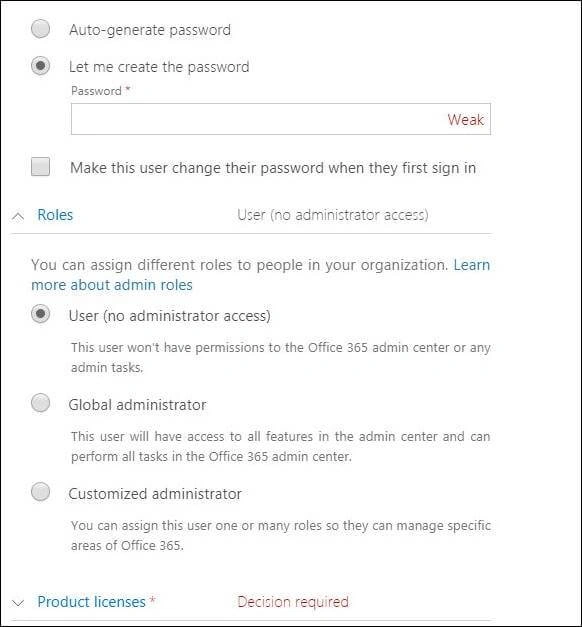
- You can also set the roles, if you are selecting Global Administrator option it means you are providing full access to that account.
- If you are selecting User (no administrator access) that means user do not have any rights.
- You can make your own customization of the rights in which you can manually assign the rights in Customized Administrator
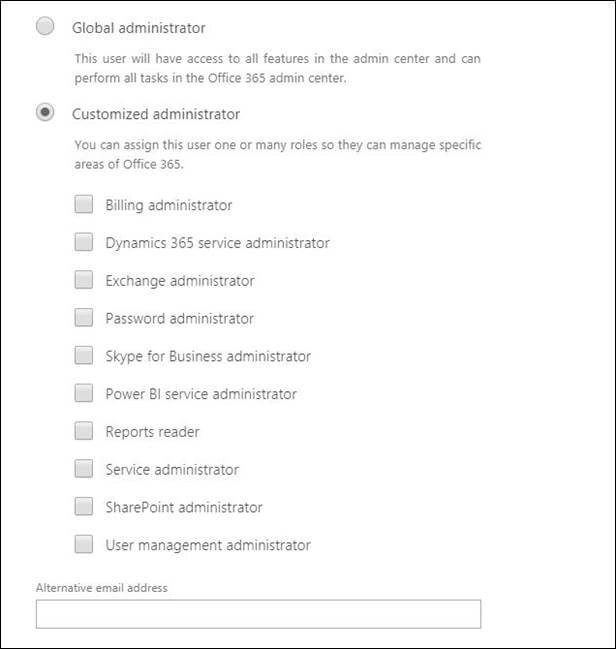
These are the customized rights where you can set rights manually as per your requirement.
Join the conversation! Your thoughts help the community grow.