

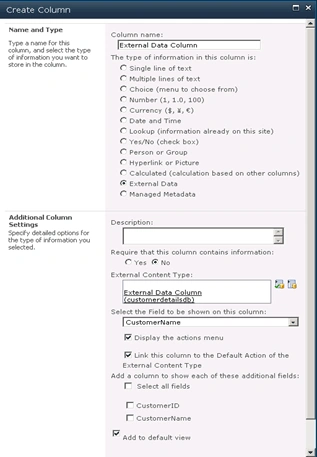
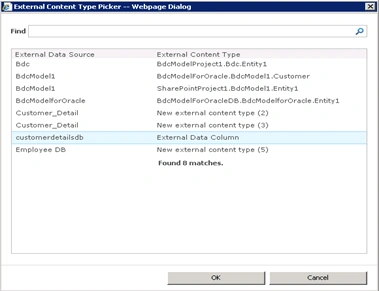
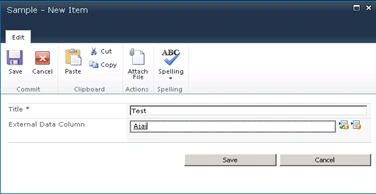
In this article we will be seeing how to create external data column in SharePoint 2010. MOSS 2007 provided the Business Data List Column type, in SharePoint 2010 Business Data List Column is renamed as External Data Column which enables users to add data from the external content types to standard SharePoint lists.
Creating an External Content Type:
Before we integrate external data to the SharePoint, we need to create an external content type. You can use the SharePoint designer to create an external content type. In this example, we will be using SharePoint Designer 2010. Following are the steps involved to create an External Content Type in SharePoint Designer 2010.
Steps Involved:
- Open the SharePoint Designer 2010.
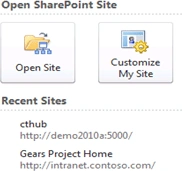
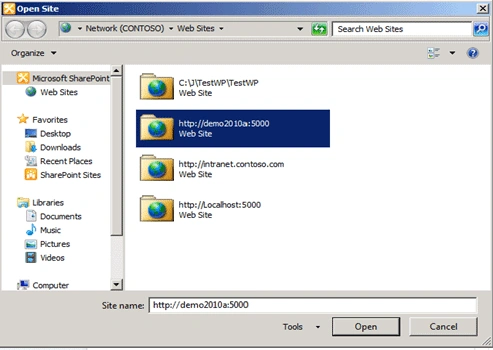
- Click Open Site; enter the Site Name in the Open Site dialog box.
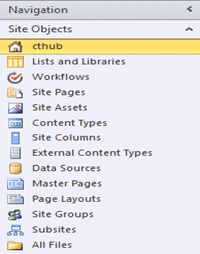
- Select External Content Types in the left Navigation.
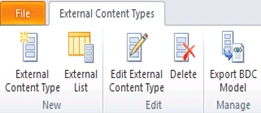
- Click to create a new External Content Type as shown below.
- The External Content Type dialog will be displayed.
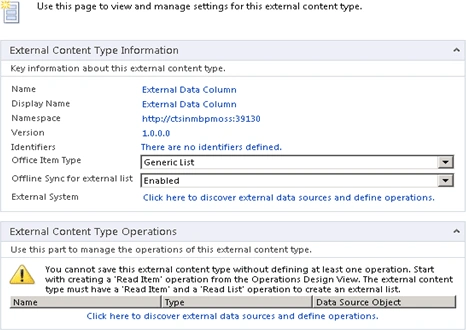
- Enter the Name and Display Name for the external content type as shown in the above figure.
- Select the Office Item Type as Generic List from the dropdown list.
- Next click the link, Click here to discover external data sources and define operations to integrate the existing customer database.
- The Operation Designer dialog will then be displayed. Click Add a Connection to connect to the database.
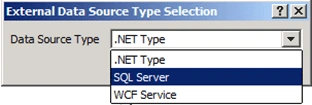
- Select "SQL Server" as your Data Source Type.
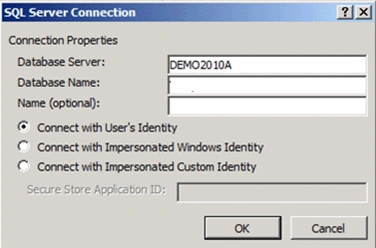
- Enter the details about your connection to your SQL Server, Database Name customerdetailsdb.
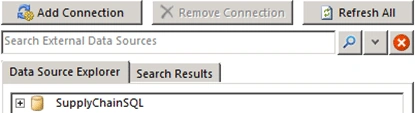
- When the connection is made, your Data Source Explorer will be filled with the database you have specified.
- Now choose the table customers which we are going to connect to the SharePoint.
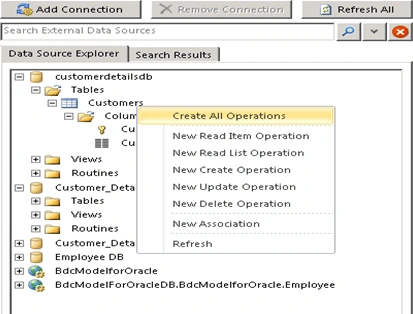
- Right click the table and select the option, Create All Operations so that you will be able to read, select, update and delete rows from the database table.
- Now the Operation Properties window will pop up which shows the details of the operations that can be performed in the database table.
- Click Next to get to the Parameters page, Select the field that you want to act as an Identifier. In my case I have selected CustomerID as an identifier.
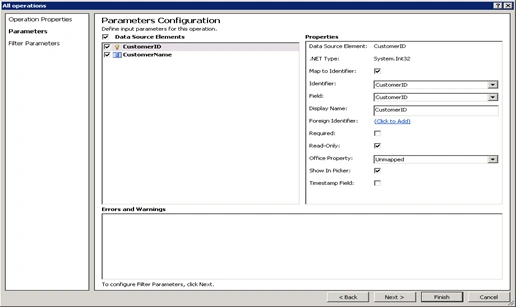
- Click Finish.
- You'll be presented with a list of operations that your External Content Type can do, as shown in the below figure.
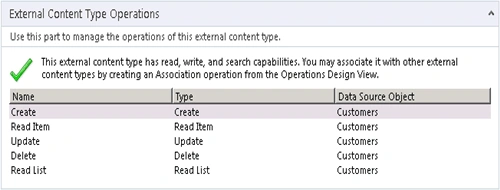
- After completing all these steps save the External Content Type.
noora noPosted Feb 22, 2012, 2:13 AM
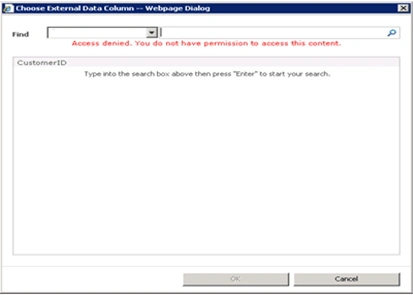
thank you for the lesson but the link to solve the problem is not working http://www.c-sharpcorner.com/UploadFile/anavijai/4310/
sulabh guptaPosted Feb 13, 2012, 2:24 AM
Nice article. Can this be done without designer? We don't use designer and are looking for a packaged solution for external column, any ideas? Thanks