Modern SharePoint pages are structured, familiar and easy to govern, but sometimes you want a layout, a visual style or an interactive element that the standard web part canvas cannot give you. Until now, that meant SPFx development, embed tricks or a separate hosting platform. SharePoint now offers a simpler option: HTML pages, a page type that lives in the Site Pages library right next to your existing ASPX pages.
In this article, we look at what HTML pages are, how to create them, when to use them and a complete working example you can paste into your own site.
In Simple Words
A normal SharePoint page is like a ready-made room: the furniture is fixed, and you only move it around. An HTML page is like an empty room: you decide the colors, layout and style yourself.
The quick answers:
- What is it? A web page written in HTML and saved in your SharePoint site.
- Who can see it? Only people who can already see that site's Site Pages library.
- Do I need to code? No. You can ask Copilot to build it, or upload a file you already have.
- When should I use it? When the standard page layout is too limited for your design.
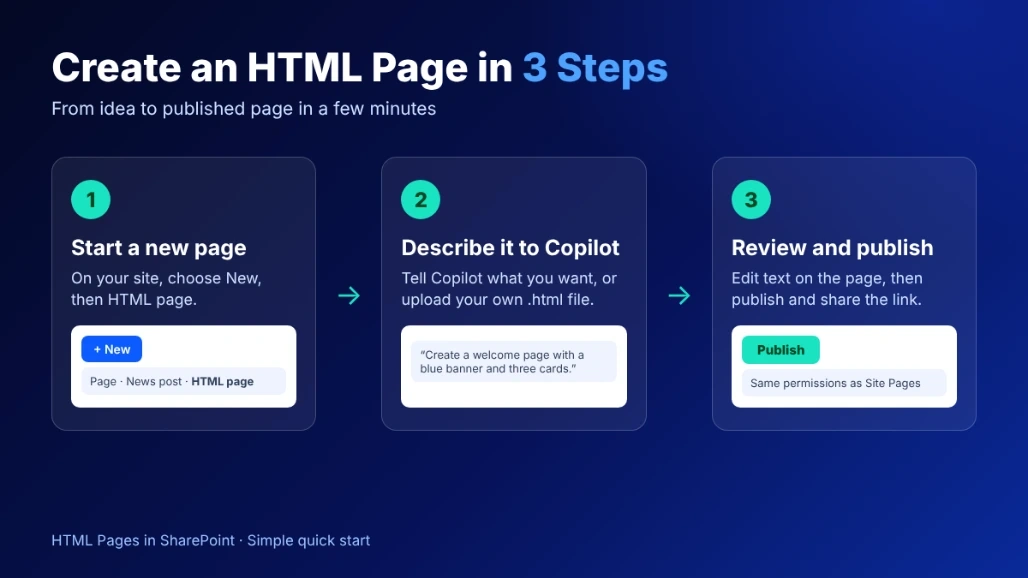
Create one in 3 steps
- On your site, select + New > HTML page.
- Describe the page to Copilot, for example: "Create a welcome page with a blue banner and three buttons."
- Check the result and select Publish.
The smallest possible example
This is a complete HTML page. Save it as a .html file, upload it to Site Pages and it appears as a page:
<!DOCTYPE html>
<html lang="en">
<head>
  <meta charset="UTF-8">
  <title>Welcome</title>
</head>
<body style="font-family: Segoe UI, Arial, sans-serif; text-align: center; padding: 40px;">
  <h1 style="color: #0b5cff;">Welcome to Our Intranet</h1>
  <p>This page is built with HTML.</p>
</body>
</html>
The full example later in this article uses the same idea, with more styling, cards and a news list.
Why Use HTML Pages?
- Your own design. Choose the colors, layout and fonts that match your brand.
- Fast. Describe the page to Copilot, or reuse HTML you already have.
- Good for special pages. Campaign pages, policy pages, timelines and visual guides.
- Easy to test ideas. Build a quick prototype of a new intranet layout and show it to your team.
- Safe. The page is stored in Site Pages and follows the same permissions as the library.
How to Create an HTML Page
There are two easy ways.
Option A: Let Copilot build it
- Open your SharePoint site and select + New > HTML page.
- Type what you want, for example: "Create an intranet home page with a banner and three cards: Our People, Resources and News."
- Read the draft. To change it, type a new instruction in the Copilot chat pane, or click the text and edit it directly.
- Select Publish.
Option B: Upload your own file
- Save your HTML code as a file, for example
home.html. - Open the Site Pages library and select + Create or upload > Upload HTML page.
- Open the page, check it, and select Publish.
If your library does not accept HTML files, open the library settings and turn on the HTML file type.
How the Example Works
- CSS variables in
:root hold your brand colors. Change --brand, --brand-dark and --accent once and the whole page updates. - The hero section uses a gradient background; swap it for your logo or banner image (embedded as a data URI or stored in a SharePoint library) for a more branded look.
- The card grid uses
auto-fit and minmax, so cards wrap automatically on small screens without extra media queries. - The news filter is plain JavaScript that shows or hides list items by category, which is a good test of whether scripts run in your tenant.
- Accessibility basics are included: semantic elements,
aria-label, keyboard focus on cards and sufficient color contrast.
Simple Tips
- Keep it in one file. Put your CSS and JavaScript inside the same HTML file.
- Test your scripts. Some JavaScript is limited in SharePoint, so check that everything works before you share the page.
- Never put passwords or keys in the code. Anyone who can open the page can read its source.
- Check on mobile. Look at the page on a phone and a tablet, not only on a computer.
- Agree on rules. HTML gives authors a lot of freedom, so decide who can create pages and who reviews them.
- Pick the right page type. Use a normal page for news and simple updates. Use an HTML page for custom design.
HTML Page vs. Modern SharePoint Page
Area | Modern ASPX page | HTML page |
|---|
Authoring | Web part canvas | HTML code, Copilot or upload |
Design control | Limited to the web part layout | Full control with HTML and CSS |
Reuse of existing HTML | Not directly | Upload and publish |
Governance | Familiar and structured | Needs a review process |
Best for | News, team sites, standard communication | Branded landing pages, prototypes, visual content |
Latest Updates and Availability
- Microsoft announced HTML pages in Message Center item MC1479517 (Microsoft 365 Roadmap ID 569208).
- Public preview began in early October 2026.
- General availability for Worldwide tenants is rolling out from mid-November to late December 2026, so availability may vary by tenant right now.
- No admin action is required before rollout, but it is worth informing your SharePoint authors and reviewing your governance approach.
- Creating pages with Copilot requires access to Copilot in SharePoint.
Conclusion
HTML pages give SharePoint authors a practical middle ground between standard modern pages and full custom development. You can generate a page with Copilot, upload HTML you already own, refine it on the canvas and publish it with the same permissions you already trust. Start with a small page such as a campaign landing page or an internal prototype, test how your scripts behave in your tenant, and agree on simple governance rules before scaling up.
As rollout continues, keep an eye on Microsoft's Message Center and the SharePoint blog for changes in supported features.


Join the conversation! Your thoughts help the community grow.