

Introduction
In this article, you will see how to create a list from an Excel sheet in SharePoint Online modern site. I have created an Excel sheet named Project Details with the following details and uploaded to SharePoint document library.

Create list from Excel
- Navigate to SharePoint Online Modern Site.
- Click the "Settings" icon and then click "Site Contents".
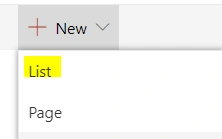
- Click New >> List.
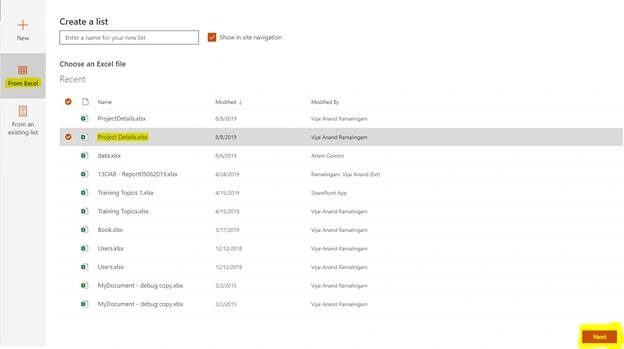
- Select the "From Excel" option, select Project Details >> Next.
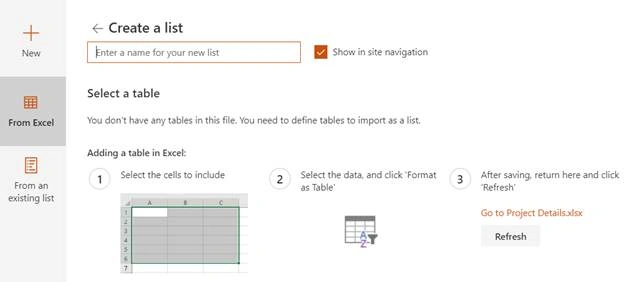
- Follow the instructions provided in the screenshot and then click Refresh. Note - When I created the Excel sheet, I just entered the information in the sheet but I have not formatted as table.
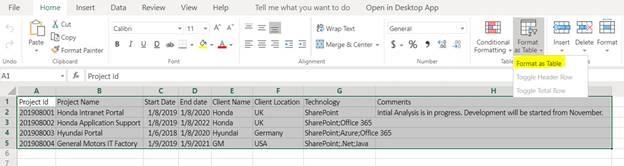
- Click "Go to Project Details.xlsx" link which opens the Excel sheet in a new tab. Select the cells that have to be included and then click "Format as table" as shown in below screenshot. Save the file by pressing Ctrl+S.
- Click "Refresh".

- You can see the table selected from Excel and all the required details as shown in the below screenshot.
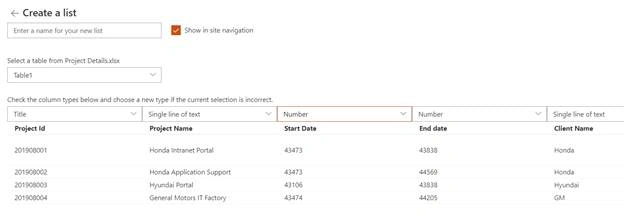
- Check the column types for the columns and change it based on your need and in case if you don’t need any column, select "Do not import" from the drop-down.
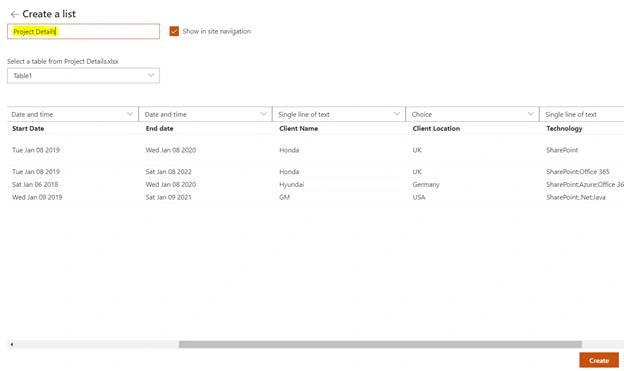
- I have changed Start Date and End Date to the date and time. Also, I have changed client location to choice.
- Enter a name for your list and click "Create".
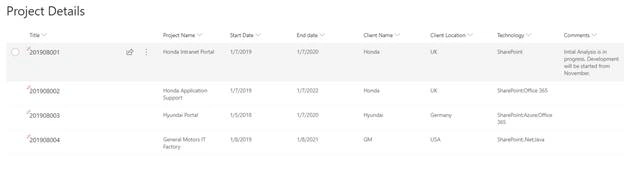
- A new list has been created, as shown in below screenshot.
Summary
Thus, in this article, you saw how to create a list from Excel sheet in a SharePoint Online modern site.
shivam singhPosted Oct 27, 2021, 12:13 PM
Hi Vijay, I see that date and time field in SP list shows one day difference than the one in excel, could you please help
Rushi MehtaPosted Aug 10, 2019, 2:17 AM
Nicely explained the topics