

In this article, you will learn how to automate the creation of private channels in Microsoft Teams using Power Automate. and we are going to add members in private channels. as private channels in Teams are useful for organizing conversations and files within specific groups, providing a secure space for team members to collaborate.
Stepwise Implementation of Flow Creation
1 - Open Power Automate
Go to make.powerautomate.com
Select flow type based on your need as i select instant flow.
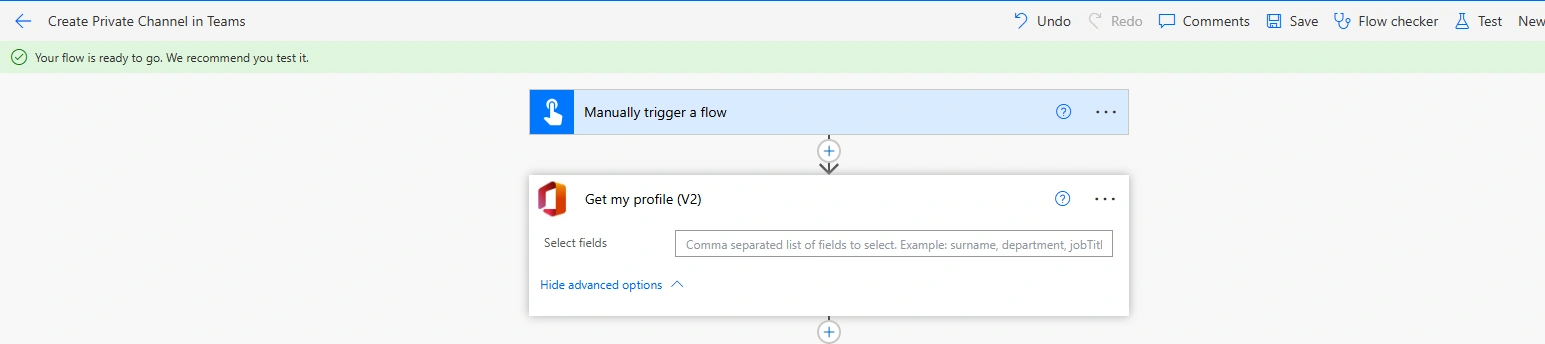
2 - Get your Id from Get my profile (V2) action of Office 365 users
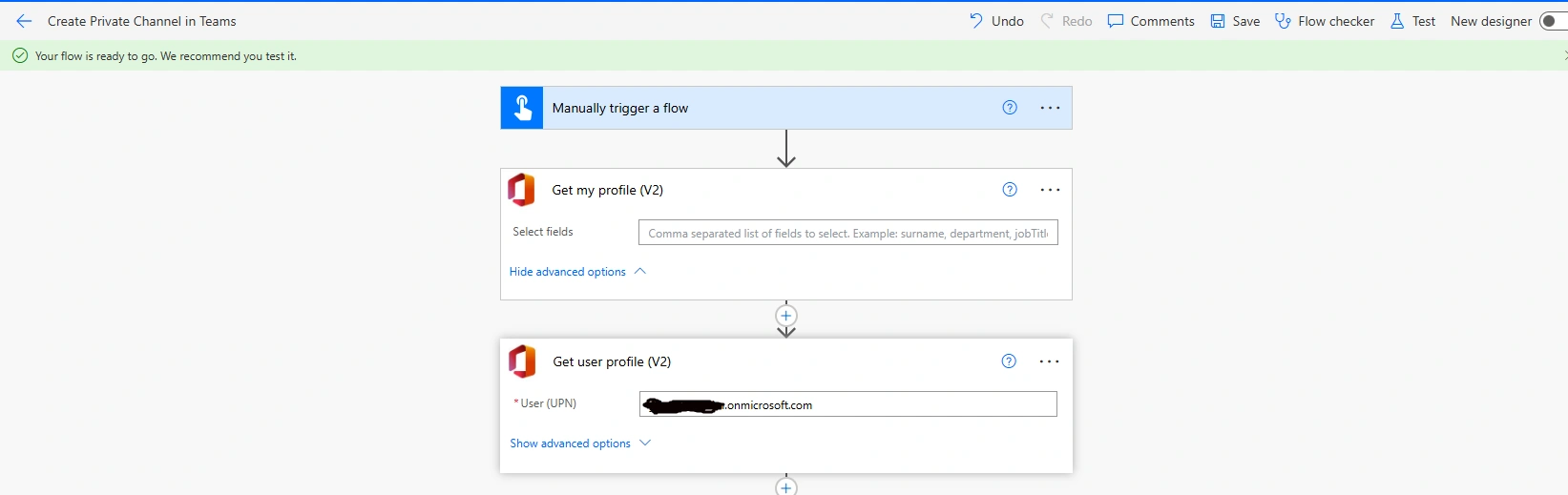
3 - For Members : add action : Get user profile (V2) action of Office 365 users
Add User Principal Name in it.
4 - Get Team id from Microsoft Teams
Go to Teams App/Web
Click on three dots of General channel
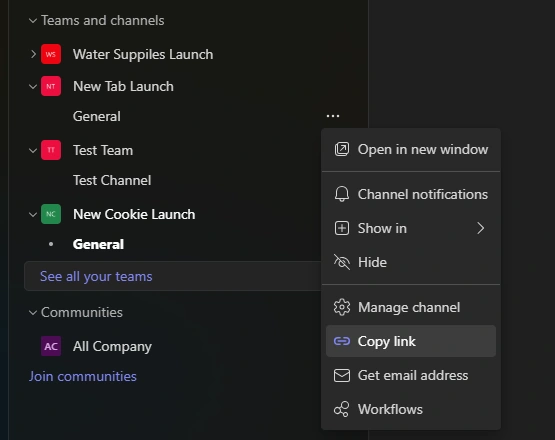
Click on Copy Link
https://teams.microsoft.com/l/channel/abc.../General?groupId=c7c91946-4469-42b3-bd8f-b57c4230142f&tenantId=xyz...Just copy groupId from that link.
5 - Add Send HTTP action of Microsoft Teams
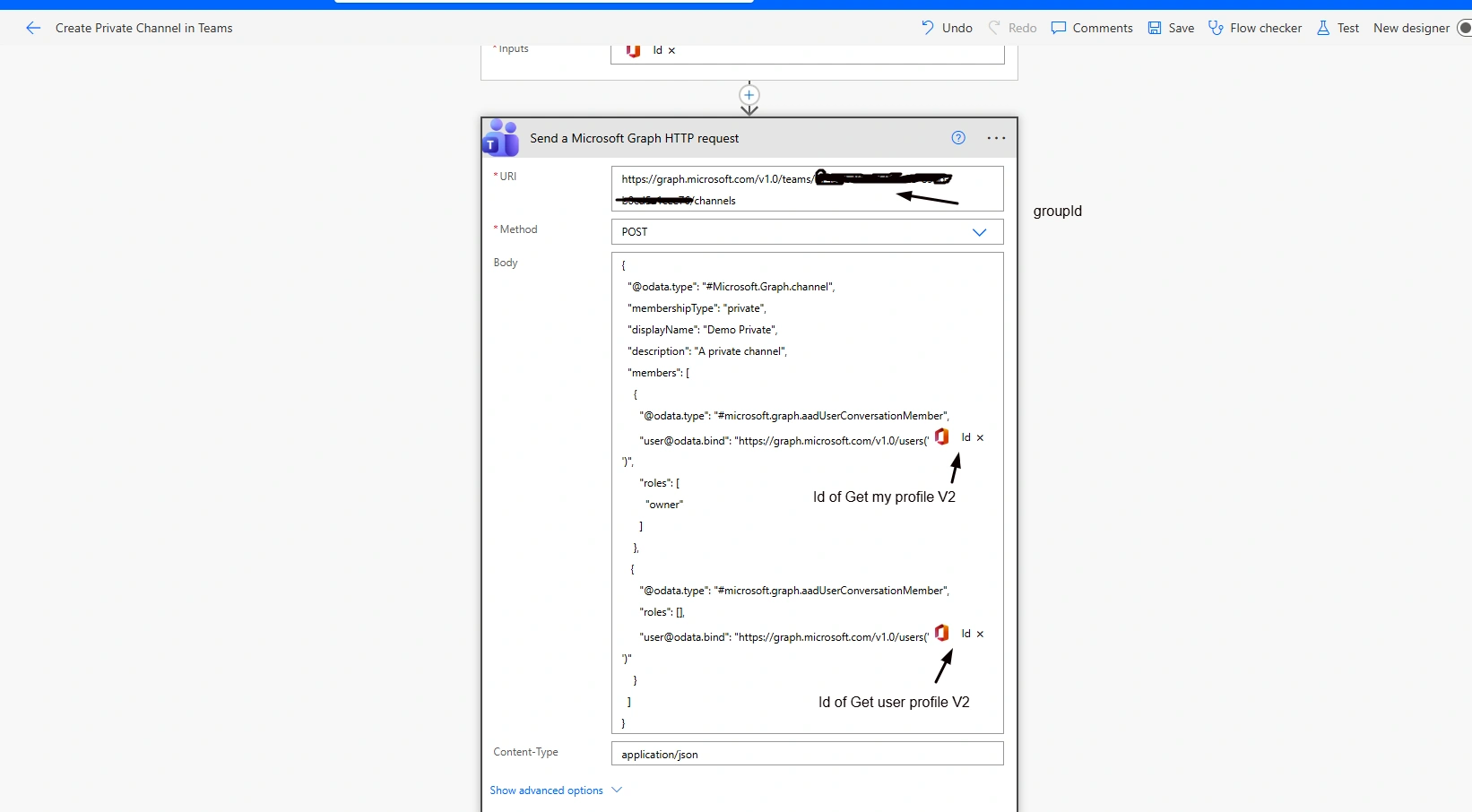
Url
https://graph.microsoft.com/v1.0/teams/{team-id}/channelsBody
{
  "@odata.type": "#Microsoft.Graph.channel",
  "membershipType": "private",
  "displayName": "My Display Name",
  "description": "A private channel",
  "members": [
    {
      "@odata.type": "#microsoft.graph.aadUserConversationMember",
      "[email protected]": "https://graph.microsoft.com/v1.0/users('<GUID OF OWNER>')",
      "roles": [
        "owner"
      ]
    },
    {
      "@odata.type": "#microsoft.graph.aadUserConversationMember",
      "roles": [],
      "[email protected]": "https://graph.microsoft.com/v1.0/users('<GUID OF MEMBER>')"
    }
  ]
}
Save and run flow

Conclusion
Here, we have explored how can we create private and add members with owner role and as member using Power Automate.
Join the conversation! Your thoughts help the community grow.