

In the previous article, we discussed Azure functions and their features, and we also created an Azure function using Azure Portal. This is the second article in the Azure Functions series. In this article, we are going to discuss how we can simply create an Azure function using Visual Studio 19, and then we will deploy the same function to the Azure function app from Visual Studio.
Azure Functions in C# for Beginners series,
It is recommended to create an Azure function from Visual Studio or VS code so that we can write code in a proper way. We can create a C# #-based Azure function from Visual Studio. In this article, let's create a simple HTTP-based Azure Function.
Create Azure Function Using Visual Studio
Prerequisites
- Visual Studio 19 with Azure Development workload
- Azure account (If you don't have an Azure subscription, create a free trial account)
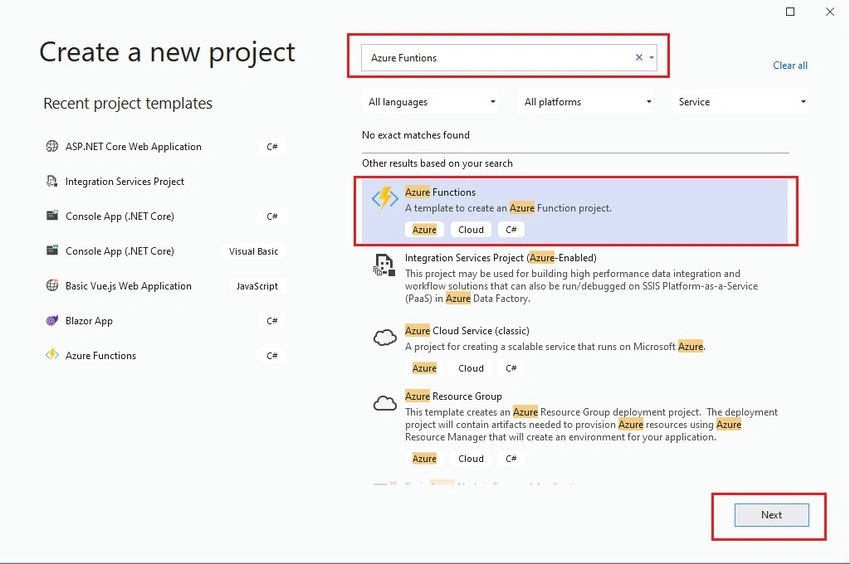
So open Visual Studio and Go to File -> New -> Project. Search "Azure Functions" in the search box select the Azure function template and click on Next.
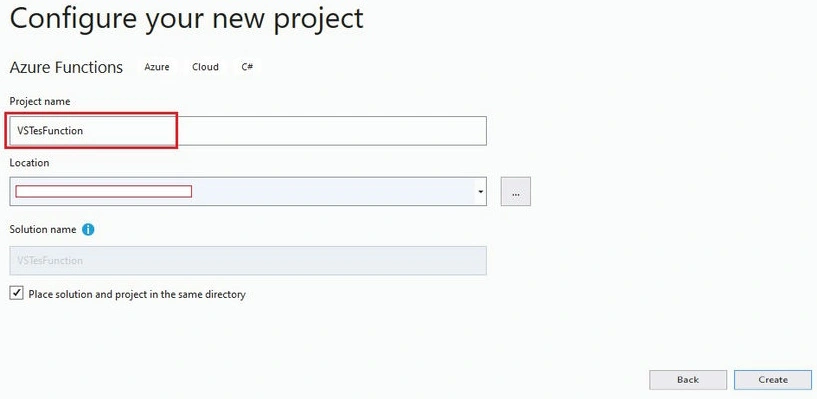
Give a name to the function project and click on Create.
Select the HTTP trigger template set the Authorization level as Anonymous and click on Create.
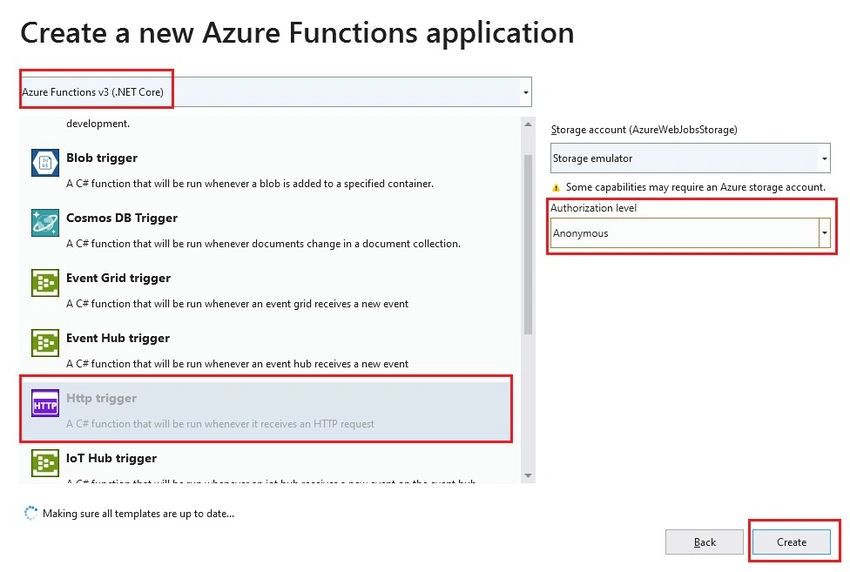
To restrict the use of your function we can set the Authorization level. There are three types of levels available: 1] When we set levels as Function, then we have to provide a function key to call our function. 2] When we set it as Admin, then you need to provide the master key. Both the function key and admin keys are found in the 'keys' management panel on the portal when your function is selected. 3] When we don't want any authorization then we can simply set the level as Anonymous.
That's it. We have created our first Azure function. Open the Function1.cs file to see the generated function.
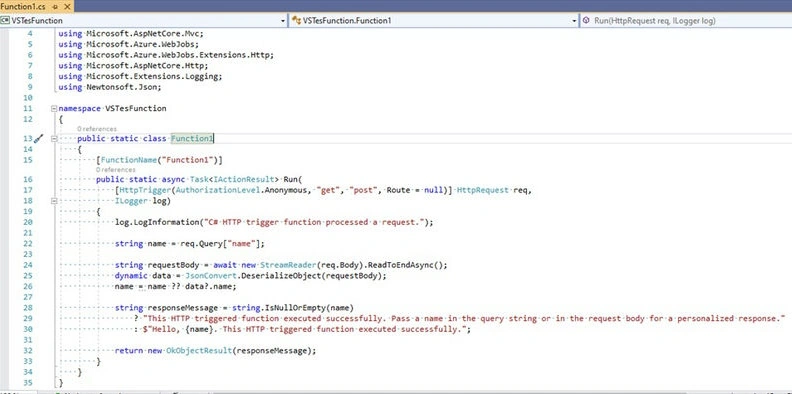
Now to run the function just run the project. It will then start Azure function cli to run the function.
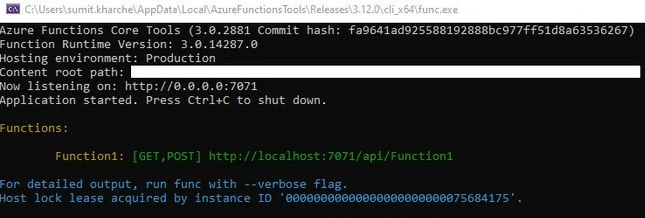
The function is running on 'http://localhost:7071/api/Function1' after looking at the default function code written which accepts the name from the query string or from the request body appends the name to the Hello string and returns the output.

Deploy Azure Function using Visual Studio
To deploy our function to Azure we need Azure Function App. Right-click on our solution and click on the Publish button.
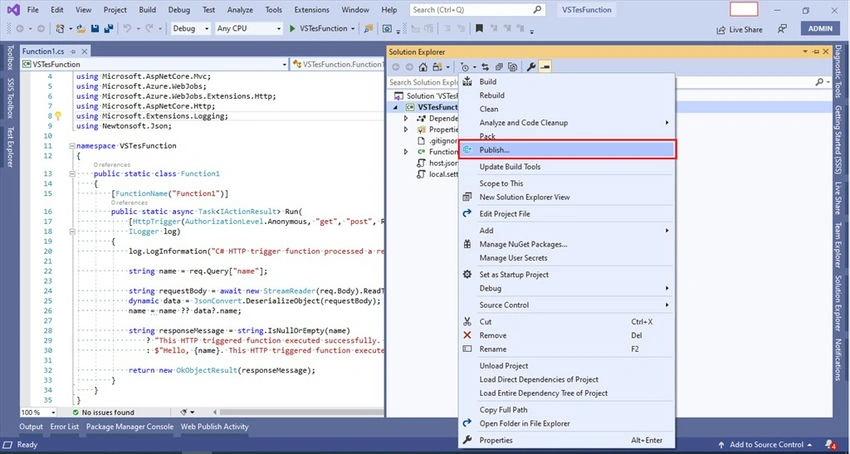
As we are publishing into Azure then Select Azure and click on Next.
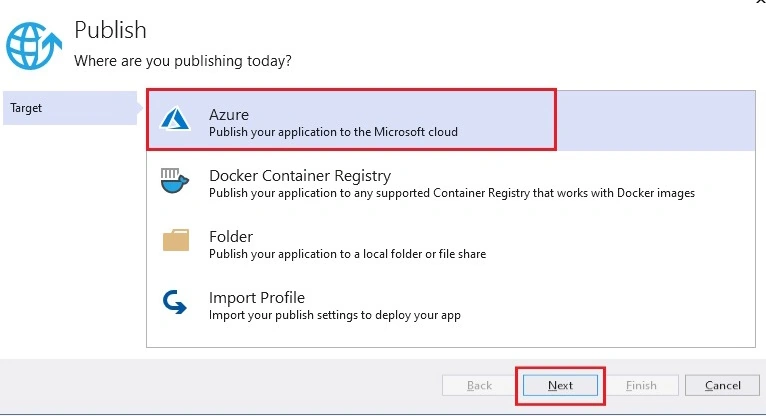
Select the target as "Azure Function App(Windows)" and click on Next. We can either select an already created function app or we can create a new Function app.
To create a new function app click on the "Create a new Azure Function" button.
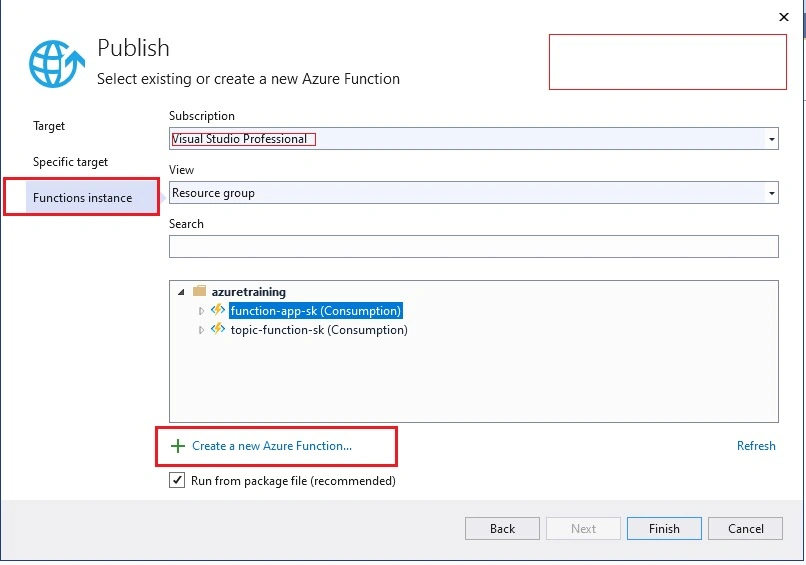
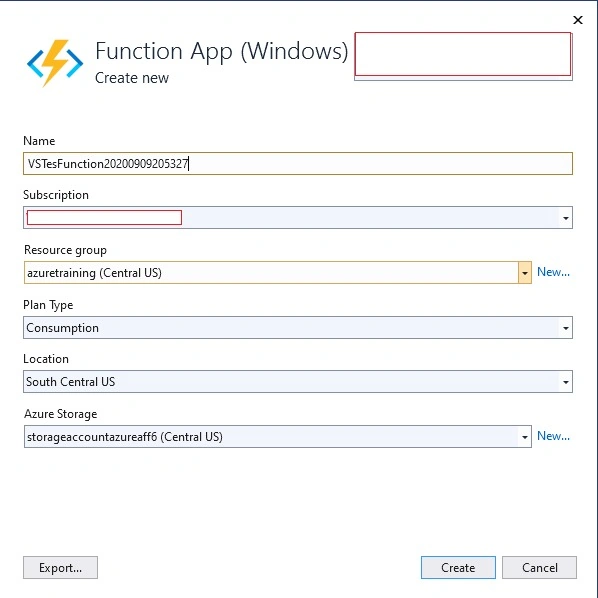
- Name: Give a name for your function app
- Subscription: Select your Azure subscription
- Resource group: If you have already created RG then select that or click on the 'new' button to create a new RG
- Plan Type: Select Consumption
- Location: Which is near to you
- Azure Storage: If you have already created a Storage Account(SA) then select that or click on the 'new' button to create a new SA.
And then finally click on the Create button. In this way, we can create a new Function App,
For this article, I am using an existing function that we have created in the previous article, and clicking on the 'Finish' button.
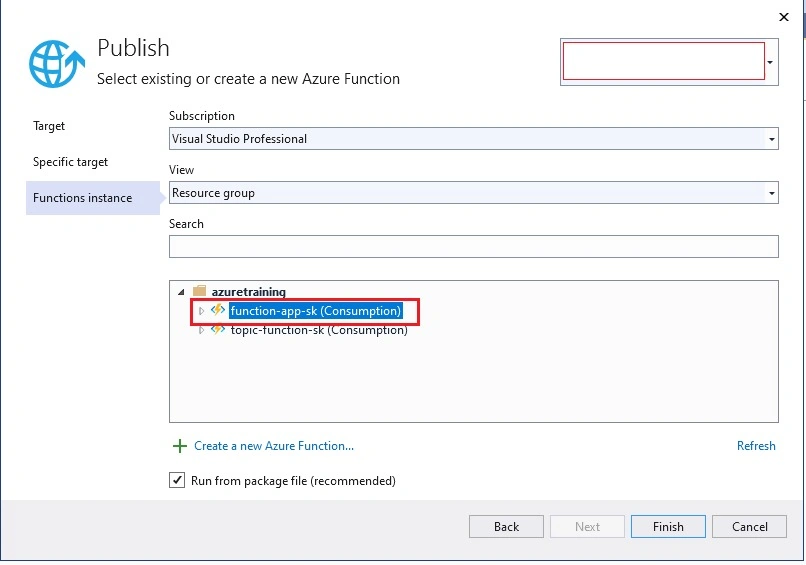
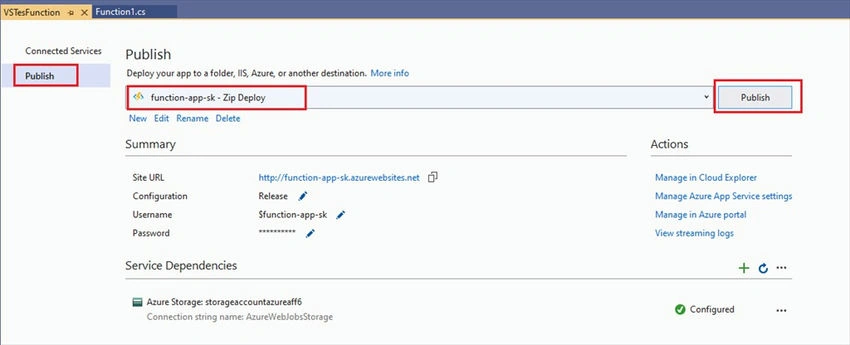
Once our app is successfully published on Azure, go to the Azure portal and search for our function app. Select Functions from the left sidebar to see our deployed function.

To run the deployed function, click on the Function (in our case 'Function1') and then click on the 'Get Function Url' button & finally copy the function URL.
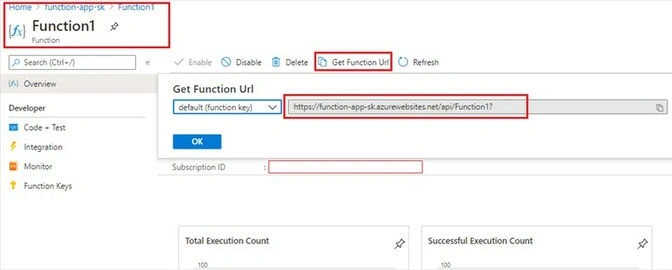
Now to test the above function you can either use Postman or you can simply open the browser and paste the above URL. Pass the name from the query string to see the correct output.

That's it. We have created the Azure function from Visual Studio.
Conclusion
In this article, we have created a new Azure function from Visual Studio. Also, I demonstrated how to test and deploy the function from VS. I really hope that you enjoyed this article, share it with friends, and please do not hesitate to send me your thoughts or comments. Stay tuned for more Azure Functions articles.
You can follow me on Twitter @sumitkharche01
Happy Coding!!
Dave SauerPosted Jan 13, 2023, 2:58 PM
Ok, now consider that I have a second different function named function2 and I want to also publish that under the function-app-sk function app so that the Azure Portal shows me 2 functions with names function1 and function2. What are the steps to publish function2 so that it does not overwrite function1? Thank you.
Yogesh VedpathakPosted May 2, 2021, 5:31 PM
very nice ...