

In this article, you will learn how to create both Team and Communication sites in SharePoint using Power Automate. We will walk you through the steps of setting up automated workflows to create these sites, allowing you to streamline site creation and improve efficiency.
Step wise Implementation of Flow creation
1 - Open Power Automate
Go to make.powerautomate.com
As i have select instant flow, you can take it based on your requirement.
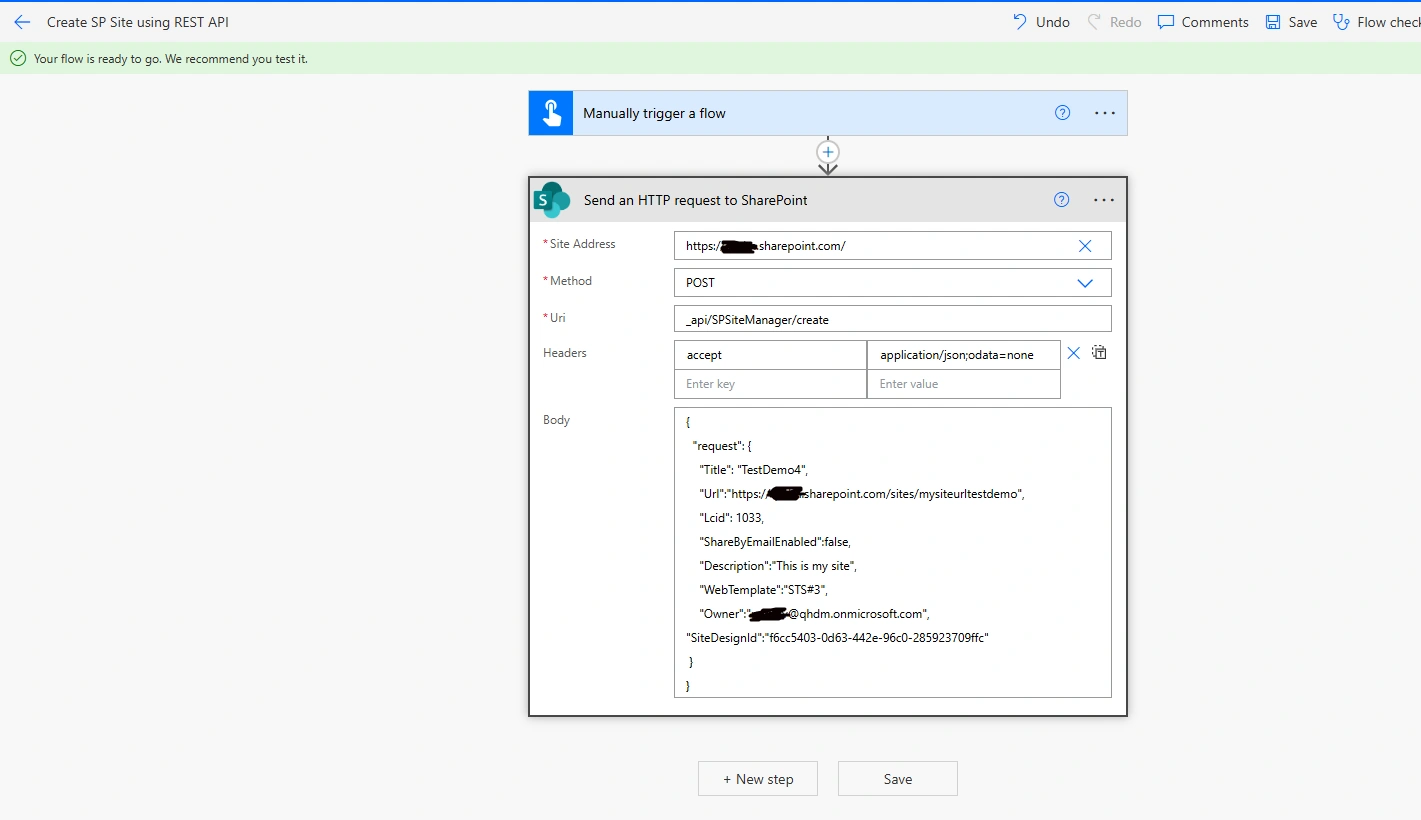
2 - Add Send an HTTP request to SharePoint action of SharePoint
Enter Site Address: https://tenant.sharepoint.com/
Method: POST
Uri: _api/SPSiteManager/create
Headers: accept: application/json; odata:none
Body:
{
  "request": {
    "Title": "Demo",
    "Url":"https://yourtenant.sharepoint.com/sites/mysiteurltest",
    "Lcid": 1033,
    "ShareByEmailEnabled":false,
    "Description":"This is my site",
    "WebTemplate":"SITEPAGEPUBLISHING#0",
    "Owner":"[email protected]",
"SiteDesignId":"f6cc5403-0d63-442e-96c0-285923709ffc"
 }
}
Where for WebTemplate you can put based on your needs
- Communication Site: SITEPAGEPUBLISHING#0
- Team Site (not connected to a group): STS#3
3 - Save and Run flow
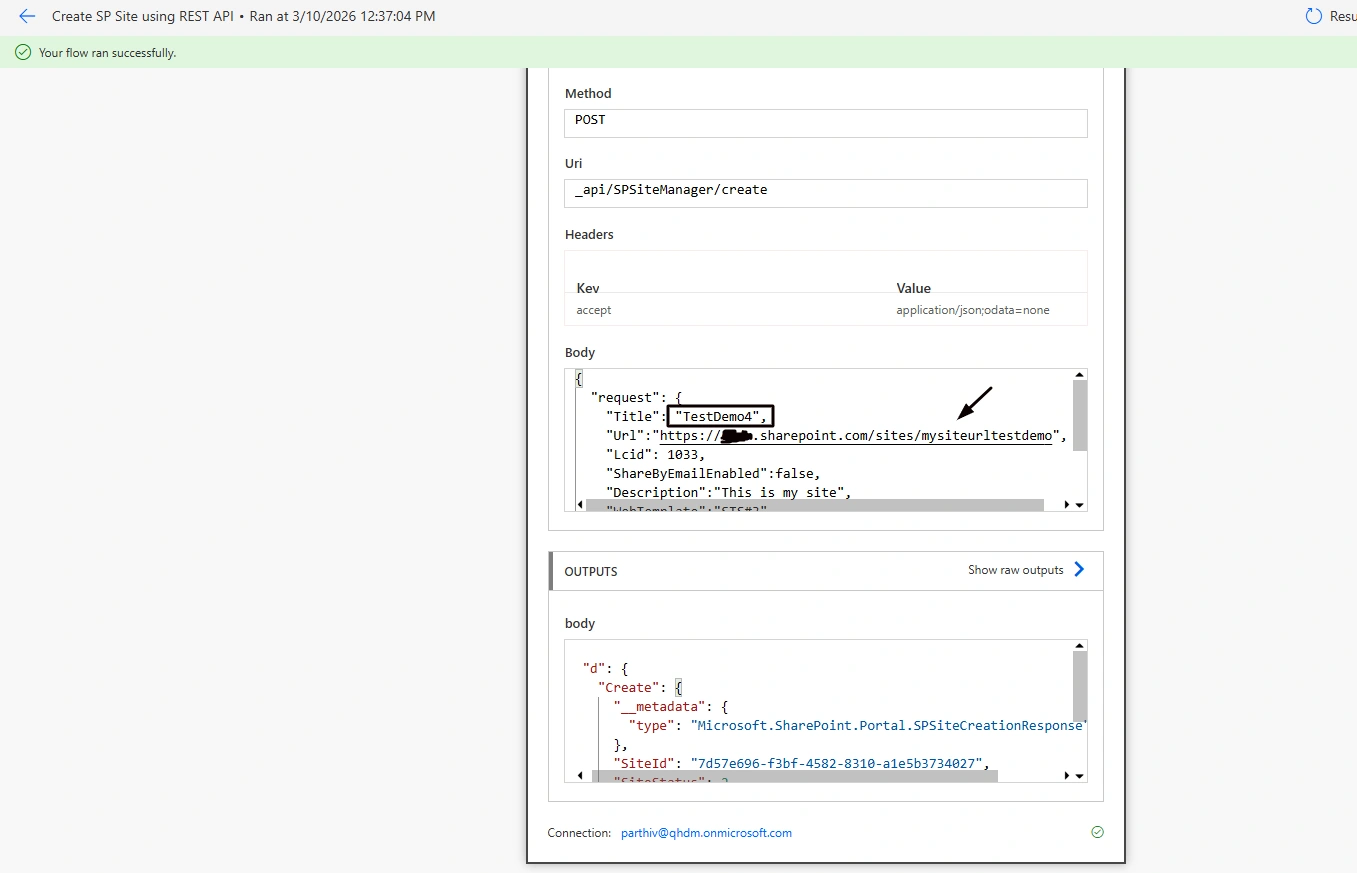
As you will get url of site from response and also can see on my sites section of SharePoint
Conclusion
Here, we explored how to automate the creation of Team and Communication sites in SharePoint using Power Automate. By leveraging Power Automate's powerful workflow capabilities, you can easily create and configure SharePoint sites without the need for manual work.
Join the conversation! Your thoughts help the community grow.