
This article shows how to create a Word document using C# and Office 2013.
Create Word Document Using C#
Step 1. Create a simple Windows application and place a button control in it.
Step 2. Double-click the button control and go to the code widow.
Step 3. Add a reference for "Microsoft.Office.Interop.Word" as shown in the following image.

Step 4. Copy and paste the following code to generate the Word document.
The code is self-explanatory and the required comments are added wherever they are required.
private void button1_Click(object sender, EventArgs e)
{
    CreateDocument();
}

//Create document method
private void CreateDocument()
{
    try
    {
        //Create an instance for word app
        Microsoft.Office.Interop.Word.Application winword = new Microsoft.Office.Interop.Word.Application();

        //Set animation status for word application
        winword.ShowAnimation = false;

        //Set status for word application is to be visible or not.
        winword.Visible = false;

        //Create a missing variable for missing value
        object missing = System.Reflection.Missing.Value;

        //Create a new document
        Microsoft.Office.Interop.Word.Document document = winword.Documents.Add(ref missing, ref missing, ref missing, ref missing);

        //Add header into the document
        foreach (Microsoft.Office.Interop.Word.Section section in document.Sections)
        {
            //Get the header range and add the header details.
            Microsoft.Office.Interop.Word.Range headerRange = section.Headers[Microsoft.Office.Interop.Word.WdHeaderFooterIndex.wdHeaderFooterPrimary].Range;
            headerRange.Fields.Add(headerRange, Microsoft.Office.Interop.Word.WdFieldType.wdFieldPage);
            headerRange.ParagraphFormat.Alignment = Microsoft.Office.Interop.Word.WdParagraphAlignment.wdAlignParagraphCenter;
            headerRange.Font.ColorIndex = Microsoft.Office.Interop.Word.WdColorIndex.wdBlue;
            headerRange.Font.Size = 10;
            headerRange.Text = "Header text goes here";
        }

        //Add the footers into the document
        foreach (Microsoft.Office.Interop.Word.Section wordSection in document.Sections)
        {
            //Get the footer range and add the footer details.
            Microsoft.Office.Interop.Word.Range footerRange = wordSection.Footers[Microsoft.Office.Interop.Word.WdHeaderFooterIndex.wdHeaderFooterPrimary].Range;
            footerRange.Font.ColorIndex = Microsoft.Office.Interop.Word.WdColorIndex.wdDarkRed;
            footerRange.Font.Size =10;
            footerRange.ParagraphFormat.Alignment = Microsoft.Office.Interop.Word.WdParagraphAlignment.wdAlignParagraphCenter;
            footerRange.Text = "Footer text goes here";
          }

        //adding text to document
        document.Content.SetRange(0, 0);
        document.Content.Text = "This is test document "+ Environment.NewLine;

        //Add paragraph with Heading 1 style
        Microsoft.Office.Interop.Word.Paragraph para1 = document.Content.Paragraphs.Add(ref missing);
        object styleHeading1 = "Heading 1";
        para1.Range.set_Style(ref styleHeading1);
        para1.Range.Text = "Para 1 text";
        para1.Range.InsertParagraphAfter();

        //Add paragraph with Heading 2 style
        Microsoft.Office.Interop.Word.Paragraph para2 = document.Content.Paragraphs.Add(ref missing);
        object styleHeading2 = "Heading 2";
        para2.Range.set_Style(ref styleHeading2);
        para2.Range.Text = "Para 2 text";
        para2.Range.InsertParagraphAfter();

        //Create a 5X5 table and insert some dummy record
        Table firstTable = document.Tables.Add(para1.Range, 5, 5, ref missing, ref missing);

        firstTable.Borders.Enable = 1;
        foreach (Row row in firstTable.Rows)
        {
            foreach (Cell cell in row.Cells)
            {
                //Header row
                if (cell.RowIndex == 1)
                {
                    cell.Range.Text = "Column " + cell.ColumnIndex.ToString();
                    cell.Range.Font.Bold = 1;
                    //other format properties goes here
                    cell.Range.Font.Name = "verdana";
                    cell.Range.Font.Size = 10;
                    //cell.Range.Font.ColorIndex = WdColorIndex.wdGray25;
                    cell.Shading.BackgroundPatternColor = WdColor.wdColorGray25;
                    //Center alignment for the Header cells
                    cell.VerticalAlignment = WdCellVerticalAlignment.wdCellAlignVerticalCenter;
                    cell.Range.ParagraphFormat.Alignment = WdParagraphAlignment.wdAlignParagraphCenter;

                }
                //Data row
                else
                {
                    cell.Range.Text = (cell.RowIndex - 2 + cell.ColumnIndex).ToString();
                }
            }
        }

        //Save the document
        object filename = @"c:\temp1.docx";
        document.SaveAs2(ref filename);
        document.Close(ref missing, ref missing, ref missing);
        document = null;
        winword.Quit(ref missing, ref missing, ref missing);
        winword = null;
        MessageBox.Show("Document created successfully !");
    }
    catch (Exception ex)
    {
        MessageBox.Show(ex.Message);
    }
}
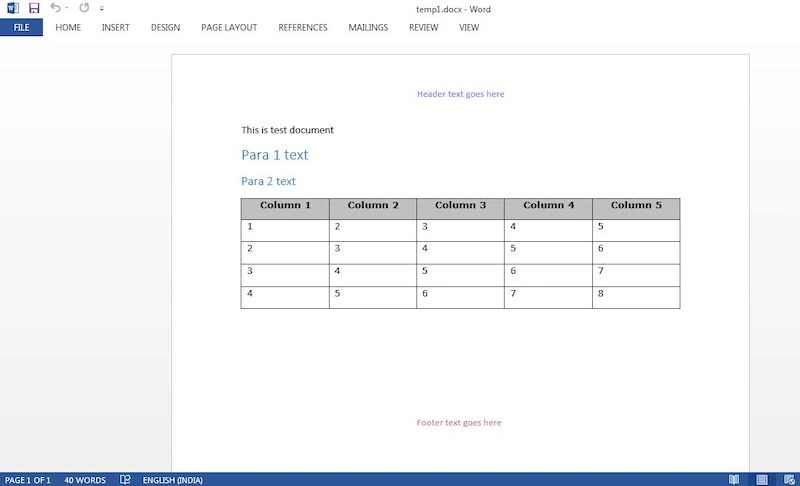
Step 5. Once the code is executed successfully, the document output will be:
The source code is attached, please post your feedback in the comments section.
Hope this helps someone.
Bostjan NaralocnikPosted Feb 15, 2024, 8:13 AM
Dear Muralidharan,
Harini RPosted Dec 13, 2021, 8:33 AM
If we don't have MS Office package installed on the Windows Server 2012, can we execute the .exe (Console Application output file) on the server? .EXE referred the interop DLLs like Word, Excel, Outlook
VV SSPosted Feb 12, 2020, 12:16 AM
Its showing the following error.Please help!MainWindow.xaml.cs(56,27): error CS0234: The type or namespace name 'Office' does not exist in the namespace 'Microsoft' (are you missing an assembly reference?) [C:\Users\D097\Desktop\test\test_h0t1t0nq_wpftmp.csproj]MainWindow.xaml.cs(56,83): error CS0234: The type or namespace name 'Office' does not exist in the namespace 'Microsoft' (are you missing an assembly reference?) [C:\Users\D097\Desktop\test\test_h0t1t0nq_wpftmp.csproj]
VV SSPosted Feb 12, 2020, 12:16 AM
MainWindow.xaml.cs(56,27): error CS0234: The type or namespace name 'Office' does not exist in the namespace 'Microsoft' (are you missing an assembly reference?) [C:\Users\D097\Desktop\test\test_h0t1t0nq_wpftmp.csproj]MainWindow.xaml.cs(56,83): error CS0234: The type or namespace name 'Office' does not exist in the namespace 'Microsoft' (are you missing an assembly reference?) [C:\Users\D097\Desktop\test\test_h0t1t0nq_wpftmp.csproj]
Yigal BZPosted Mar 28, 2019, 8:14 AM
Also, can you see how to marge cells in columns?
Yigal BZPosted Mar 22, 2019, 4:19 AM
Thank you! Can you show how to handle text aligned to the left or to the right, and also with right-to-left languages?
Jimmy CrabPosted Mar 3, 2019, 11:24 PM
Good, these codes works, but the operation of setting table styles caused some errors, I fix them by delete the codes about styles.
Fred VolterPosted Dec 7, 2018, 6:32 AM
I am using zetwod.com- this an advance word document processing API for .NET application.
KRISHNA JAMILIPosted Sep 21, 2018, 7:07 AM
I'm getting the following error.. "Retrieving the COM class factory for component with CLSID {000209FF-0000-0000-C000-000000000046} failed due to the following error: 80070005 Access is denied. (Exception from HRESULT: 0x80070005 (E_ACCESSDENIED))"
Murli JadhavPosted Jun 30, 2017, 5:10 AM
Sir this article is really helpfull. but I want to insert a datagridView table to existing word document on some specific location
Riya MahantyPosted Apr 24, 2017, 9:04 AM
Thank you for the code it work .But in my case the table data come from database . In the data table i have some image field where image name save and image come from server . How can i do please help me
Roni SrourPosted Sep 29, 2016, 2:33 AM
Thank you :)
Ramzn EsmeliPosted Jul 22, 2016, 3:08 AM
Even i register to this web site why can not i dowload this document
Humayun Kabir MamunPosted Apr 23, 2016, 2:38 PM
Nice...
Jimmy HoffPosted Apr 22, 2016, 10:48 AM
Using COM interop (invoking Word itself) on the client/desktop is fine. However, on a server this is absolutely a no-go and even discouraged by Microsoft itself. There are several commercial products that help you do this. I recently used Docati which turned out to be simple to use, but also very powerfull, as it supports many advanced scenario's I needed. It supports both docx and PDF. You don't have to programmatically set up the whole document, but it works with a predefined template (created in Word itself) and simply inserts texts and images, but also supports tables/lists, conditional content, etc. And it's not as expensive as many other commercial products. If you prefer coding the whole document yourself, you could also use the DocX library (nuget) or use Aspose or Gembox.
Sujeet SumanPosted Jan 25, 2016, 10:24 AM
Nice one......
Dean AminePosted Oct 18, 2015, 6:56 PM
mY hero <3
Muralidharan DheenadhayalanPosted Sep 26, 2015, 10:37 AM
Are you tried with Office 2013 or higher version?
Artour KlevinPosted Mar 18, 2015, 5:45 PM
The code gave me some problems object styleHeading2 = "Heading 2"; para2.Range.set_Style(ref styleHeading2); para2.Range.Text = "Para 2 text"; order should be Text first then set_Style! Then it worked allot better :)
Muralidharan DheenadhayalanPosted Sep 17, 2014, 12:27 AM
Thanks your comment. Let me try and will come back to you.
Brent HoskissonPosted Sep 16, 2014, 3:24 PM
Notice that your page number is missing from your result. I get the same thing. You can either print the page number OR "Header text goes here" but NOT both. Why?
Jasna KozeljPosted Mar 10, 2014, 1:53 PM
Nice article but this solution still uses Office COM (aka Office Application Automation) which makes it useless in an ASP.NET application/project. For those looking for a robust document generation .NET library I suggest to take a look at: http://www.docentric.com
Former memberPosted Nov 7, 2013, 1:16 AM
You can also create word document by using C# Library for Java from Aspose: http://www.aspose.com/.net/word-component.aspx
elham deljooeiPosted Aug 30, 2013, 11:43 PM
Hi, your code is very nice