

Introduction
Windows 8 offers a new fresh user experience with the most advanced user interface including the Start Screen. Windows 8 is designed to work with touch devices efficiently. In this article, I am going to show the customization of the Windows 8 cursor.
You can customize the cursor in Windows 8 such as make it thicker and change the cursor blinking rate.
You can change the default thickness of the cursor in Windows 8. You must follow this procedure.
Step 1
Open the Charms Bar of your Windows 8. Click on the settings tab.
 Step 2
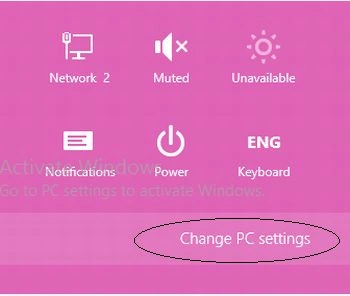
Select Change PC Settings from it.
Step 2
Select Change PC Settings from it.
 Step 3
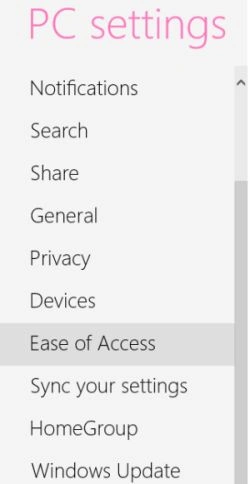
After then select Ease of Access.
Step 3
After then select Ease of Access.
 Step 4
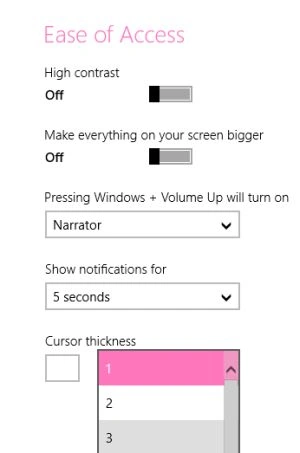
Now you must adjust the cursor thickness from the dropdown list.
Step 4
Now you must adjust the cursor thickness from the dropdown list.
 Step 5
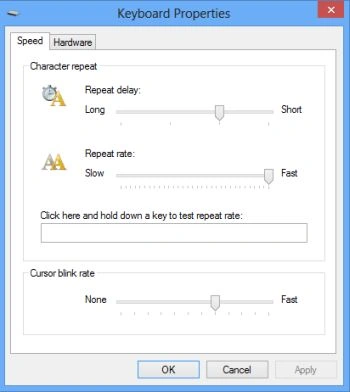
Now, go to the Control Panel to adjust the Blinking Rates of the cursor in Windows 8. Select "Keyboard".
Step 5
Now, go to the Control Panel to adjust the Blinking Rates of the cursor in Windows 8. Select "Keyboard".
Customized cursor in Windows 8
Step 6
Now, to change the blinking rate apply these simple settings in the "Keyboard Properties" window.
Summary
In this article, we learned about How to Customize Cursor in Windows 8.
Join the conversation! Your thoughts help the community grow.