

Today, I am talking about “How to customize your SharePoint online (team Site)." We have a subscription from the Office 365 for SharePoint Application and by default we will get Team Site. Team site is for working together as a team. We can use the single platform to get synced and updates from each other using Team Site of SharePoint.
With office 365, we can use the site to store documents and collaborate with employee any time and with any device. To make our team site viewable we need to customize the site for our business needs and make it look like your own company web site.
Let us take a look of Office 365 team site, to get that click on Site under the App Launcher from Office 365. See below screen shot for the same,
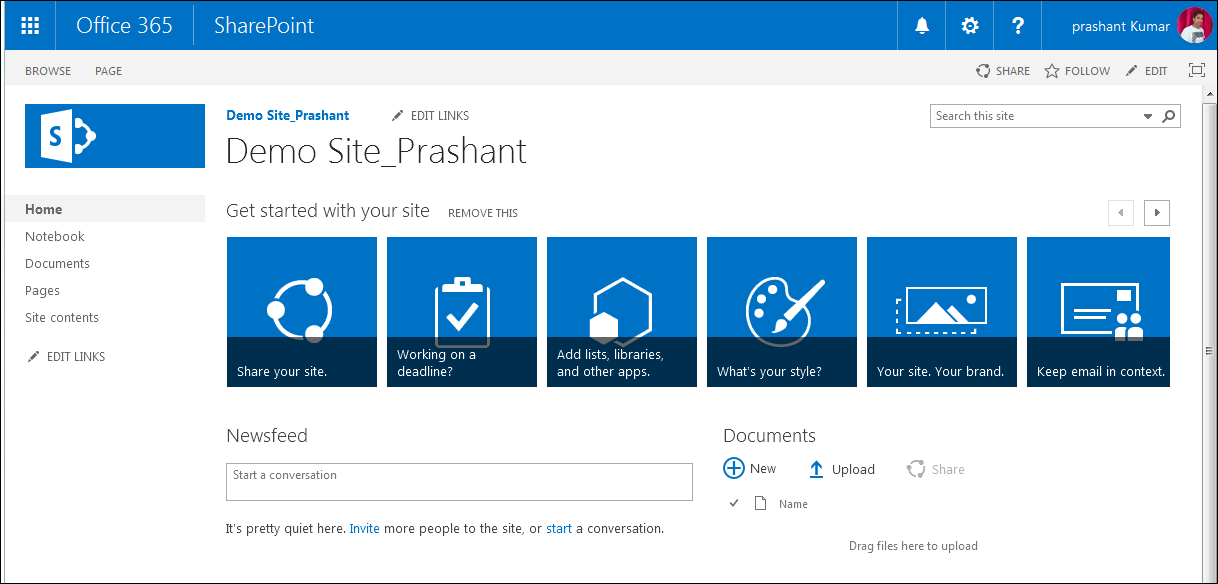
By default on team site, we can add the below listed information,
-
Logo
-
Description
-
Quick Launch includes with document, Notebooks, site contents, recent page
-
News feed
-
Documents
-
Get started with your site
Customize the Team site in your style
Frst choose your own logo and change description,
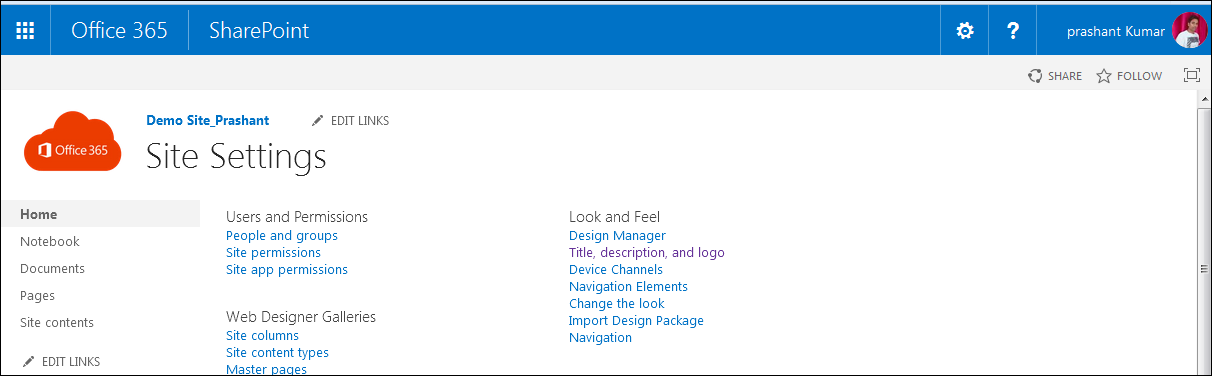
Below showing you how to change the Site Title, Logo, and description, we can modify this as per our customer requirement.
To change the Logo description and Site Title, follow these steps.
-
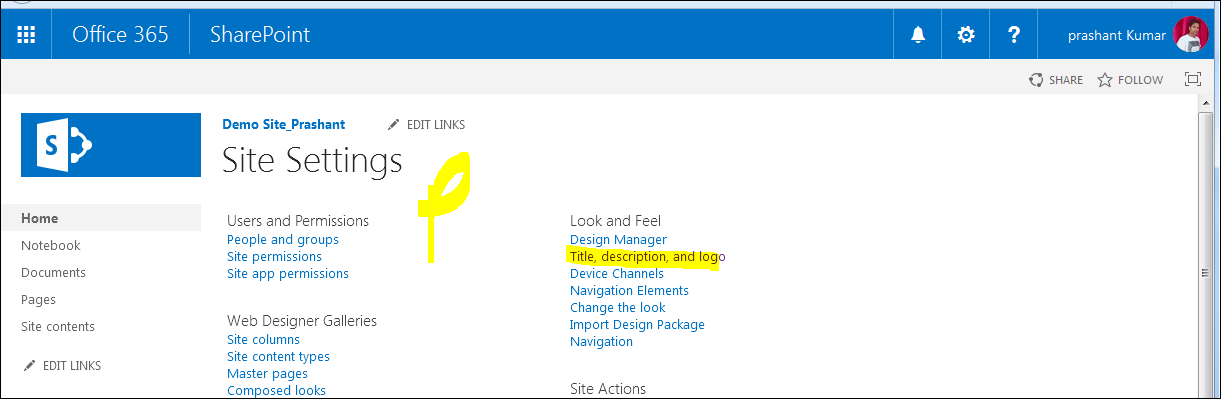
Log in to the site and click on "Gear Box" on the right side of the site.
-
Select Title, Description, and Logo under the "Look and Feel".
-
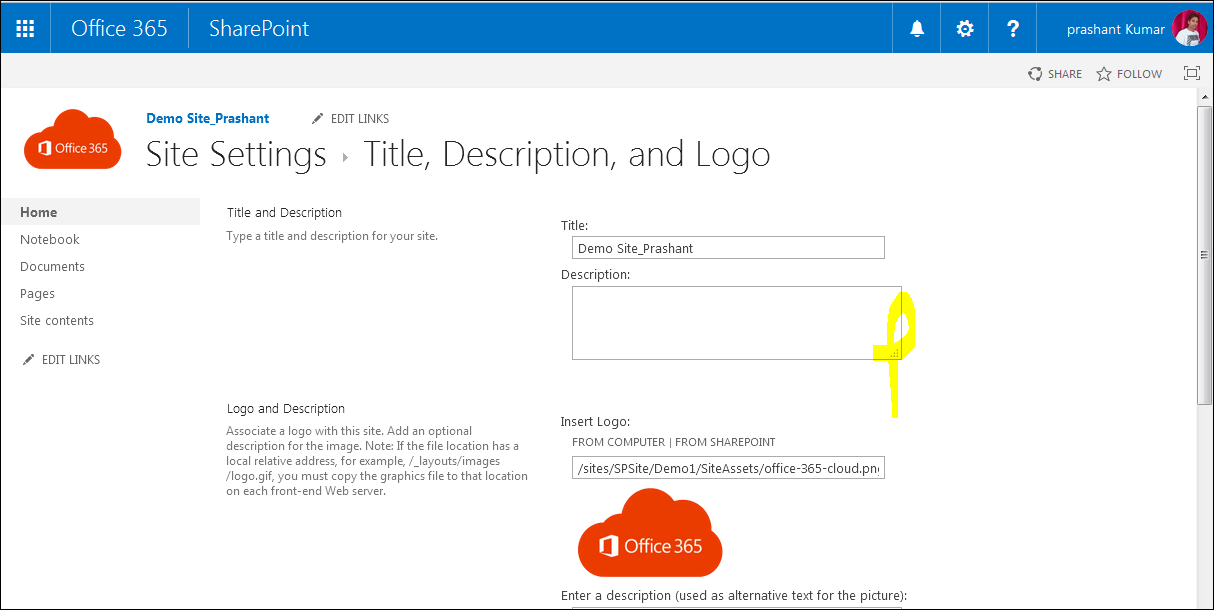
On the title description and logo wizard, we need to select and enter the details below,
Title - Enter the Title for the site.
Description - Enter the description of the site.
-
On the Logo and Description
-
Insert Logo from Computer or from SharePoint and enter Logo Description. Add a document dialog, type or browse for the filename, and then click OK.


Join the conversation! Your thoughts help the community grow.