To know about Cognitive Services Face API, you must read these articles first.
Getting Started .NET Core
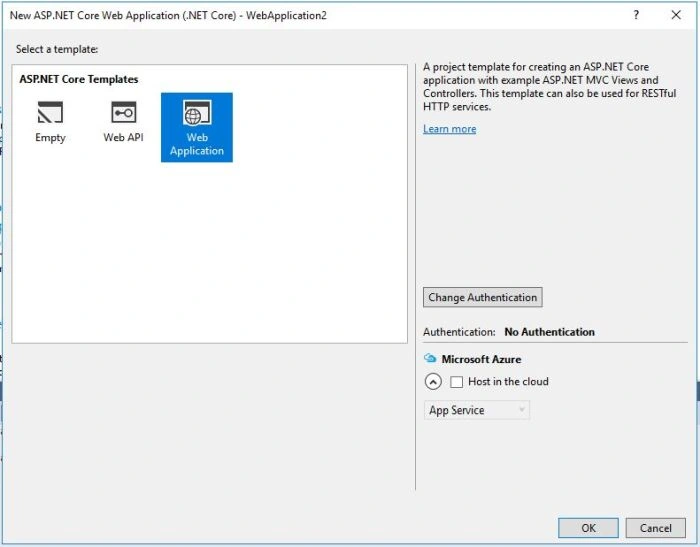
- Start Visual Studio 2015
- From the file menu, select New, then Project
- Select Web template
- Select .NET Framework 4.6.1
- Select ASP.NET Core Web Application (.NET Core)
- Enter Name
- Browse save location
- Click OK

Select Web Application and do select Microsoft Azure if you want to host on azure server and click OK.
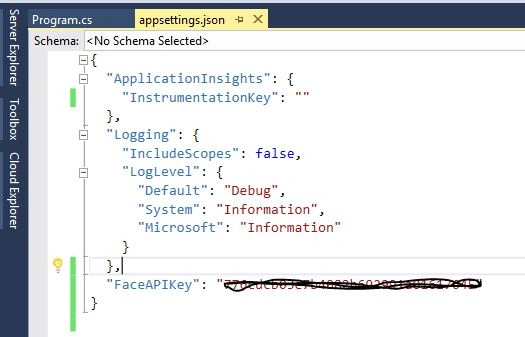
Copy the Face Preview API key.

Now add a new key in appsettings.json and paste key.
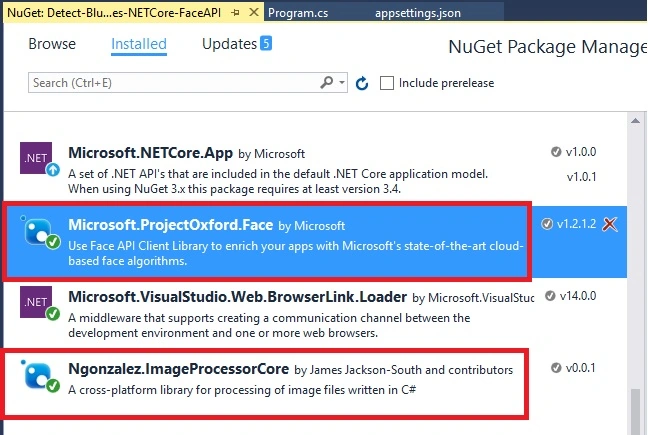
Now right click on project and click on Manage Nuget package manager and add these two packages.
1. Microsoft.projectOxford.face
2. ImageProcessorCore
Now let’s write some code on Program.cs
- using System;
- using System.Collections.Generic;
- using System.IO;
- using System.Linq;
- using System.Threading.Tasks;
- using Microsoft.AspNetCore.Hosting;
- using ImageProcessorCore;
- using Microsoft.Extensions.Configuration;
- using Microsoft.ProjectOxford.Face;
- using Microsoft.ProjectOxford.Face.Contract;
- namespace Detect_Blur_Faces_NETCore_FaceAPI
- {
- public class Program
- {
- public static void Main(string[] args)
- {
- const string realImage = "myImage.jpg";
- const string bluredImage = "blurFacesImage.jpg";
- var configuration = BuildConfiguration();
- var faceAPIKey = configuration["FaceAPIKey"];
- TrackFaces(realImage, configuration["FaceAPIKey"])
- .ContinueWith((task) =>
- {
- var faceRects = task.Result;
- Console.WriteLine($"Detected {faceRects.Length} faces");
- TrackBlurFaces(faceRects, realImage, bluredImage);
- Console.WriteLine($"Done!!!");
- });
- Console.ReadLine();
- }
- private static IConfigurationRoot BuildConfiguration()
- {
- var builder = new ConfigurationBuilder();
- builder.SetBasePath(Directory.GetCurrentDirectory());
- builder.AddJsonFile("appsettings.json", optional: false, reloadOnChange: true);
- #if DEBUG
- builder.AddUserSecrets("Detect-Blur-Faces-NETCore-FaceAPI");
- #endif
- return builder.Build();
- }
- private static void TrackBlurFaces(FaceRectangle[] faceRects, string sourceImage, string destinationImage)
- {
- if (File.Exists(destinationImage))
- {
- File.Delete(destinationImage);
- }
- if (faceRects.Length > 0)
- {
- using (FileStream stream = File.OpenRead("myImage.jpg"))
- using (FileStream output = File.OpenWrite(destinationImage))
- {
- var image = new Image<Color, uint>(stream);
- foreach (var faceRect in faceRects)
- {
- var rectangle = new Rectangle(
- faceRect.Left,
- faceRect.Top,
- faceRect.Width,
- faceRect.Height);
- image = image.BoxBlur(20, rectangle);
- }
- image.SaveAsJpeg(output);
- }
- }
- }
- private static async Task<FaceRectangle[]> TrackFaces(string imageFilePath, string apiKey)
- {
- var faceServiceClient = new FaceServiceClient(apiKey);
- try
- {
- using (Stream imageFileStream = File.OpenRead(imageFilePath))
- {
- var faces = await faceServiceClient.DetectAsync(imageFileStream);
- var faceRects = faces.Select(face => face.FaceRectangle);
- return faceRects.ToArray();
- }
- }
- catch (Exception)
- {
- return new FaceRectangle[0];
- }
- }
- }
- }
This is my real image which we have to track faces and make them blur.

Now let’s run the project and see the output.

As you can see the window says 10 faces detected. Now let’s check new image is saved in your project on the name of blurFacesImage.jpg.

Conclusion
In this article, we have learned how to detect total faces in image and make them blur using Cognitive Face API in .NET Core. If you have any question or comments, please download attached sample or send me message in C# Corner comments section.


Thomas LAVIGNEPosted Dec 11, 2017, 7:47 AM
You'r code return 'System.AggregateException'...
Saroj MalakarPosted Apr 16, 2017, 2:37 AM
This code gives error , why is that?
Saroj MalakarPosted Apr 16, 2017, 2:37 AM
Var image = new Image<Color, uint>(stream); foreach (var faceRect in faceRects)